
How to Vectorize
a Logo
Transform your raster logo into a crisp, scalable vector that looks perfect everywhere—from business cards to billboards.
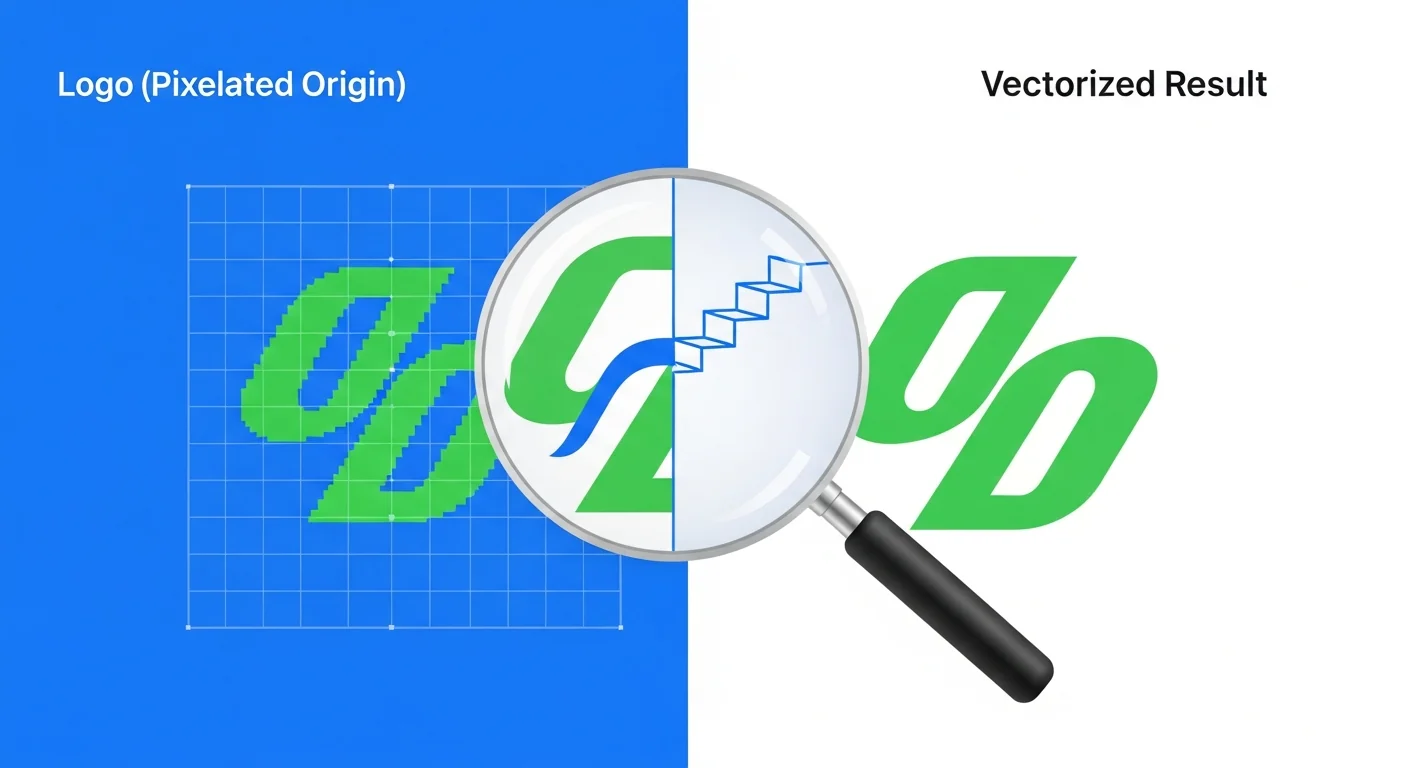
Why Vectorize Your Logo?
A vectorized logo is essential for any professional brand. Unlike pixel-based formats (PNG, JPG), vector logos scale infinitely without quality loss—critical for modern multi-platform branding.
Infinite Scaling
From 16px favicon to 10-foot banner—perfect quality everywhere
Easy Editing
Change colors, resize elements, create variations instantly
Tiny File Size
90% smaller than PNG—faster websites and better SEO
When Do You Need Logo Vectorization?
✅ You only have a PNG, JPG, or low-resolution file
Your designer gave you a raster file, or you lost the original vector source files.
✅ Your logo looks blurry when enlarged
Pixelation appears when scaling up for print materials, signage, or high-res displays.
✅ You need to print at large sizes
Trade show banners, vehicle wraps, billboards, or any large-format printing requires vectors.
✅ You want to create logo variations
Different colors, sizes, or layouts for various use cases (dark mode, single color, etc.)
Professional Vectorization Process
Prepare Your Logo File
Start with the highest quality version you have. The better your input, the better your output.
Checklist:
- Use the highest resolution version available (300 DPI minimum)
- Remove any background if possible (PNG with transparency works best)
- Clean up noise, artifacts, or compression issues in an image editor
- Ensure good contrast between logo elements
Choose Your Vectorization Method
Professional designers use one of three approaches depending on complexity and budget.
AI-Powered (Recommended for Most Logos)
Tools like VectoSolve use AI to automatically trace your logo in seconds with professional results.
Manual Tracing in Design Software
Use Illustrator, Inkscape, or Figma to manually trace your logo with the pen tool.
Hire a Professional Designer
Fiverr, Upwork, or 99designs designers can vectorize your logo manually.
Vectorize with VectoSolve (AI Method)
The fastest way to get professional vector results. Here's the exact workflow:
- Upload your logo
Drag and drop or select your PNG/JPG file
- AI processes in 5-10 seconds
Advanced algorithm detects shapes, colors, and edges
- Review and edit (optional)
Use built-in editor to adjust colors or simplify paths
- Download your SVG
Optimized, clean SVG file ready for any use
Quality Control Check
Before finalizing, verify your vectorized logo meets professional standards.
Professional QC Checklist:
- Zoom to 400%—edges should be perfectly smooth, not jagged
- Scale down to 48px—logo should still be recognizable
- Scale up to 5000px—no pixelation or quality loss
- Check color accuracy—compare to original
- Verify transparency (if applicable)
- Test on both light and dark backgrounds
- Confirm file size is reasonable (under 50KB for most logos)
Create Logo Variations
Professional brands need multiple logo versions for different contexts.
Essential Variations:
- • Full color version
- • Single color (black)
- • Single color (white)
- • Horizontal layout
- • Vertical/stacked layout
- • Icon-only version
Pro Tip:
Once vectorized, creating variations is easy. Change colors with a color picker, rearrange elements, or export in different formats—all without quality loss.
Common Vectorization Mistakes to Avoid
Starting with a low-quality source file
A 100px blurry JPG won't magically become crisp. Always use the highest resolution file available.
Using "fake" vectorization tools
Some tools just embed your PNG inside an SVG wrapper. This isn't true vectorization—it won't scale properly.
Over-complicating simple logos
Too many anchor points create large files and editing headaches. Simplify paths when possible.
Not testing at multiple sizes
A vector that looks good at 500px might be unreadable at 32px. Always test small and large.
Which Vector Format Should You Use?
| Format | Best For | Compatibility |
|---|---|---|
| SVG | Websites, web apps, online use | All modern browsers |
| AI | Adobe Illustrator, professional design | Adobe ecosystem |
| EPS | Print shops, legacy systems | Most design software |
| Print, sharing, universal viewing | Universal |
Recommendation: Start with SVG for maximum flexibility. You can always export to other formats later.
Starting from scratch instead of rescuing an old file? See our comparison of 8 AI logo generators and which ones export true vector output.
Ready to Vectorize Your Logo?
Get professional vector results in seconds with VectoSolve's AI-powered logo vectorization. Start with a free preview!
Vectorize Your Logo Now