Image to SVG for CNC Router & Woodworking
Convert any image or design into clean SVG vector files with closed paths ready for CNC toolpath generation. Built for signs, carvings, inlays, and engravings.
New: Precision Cut
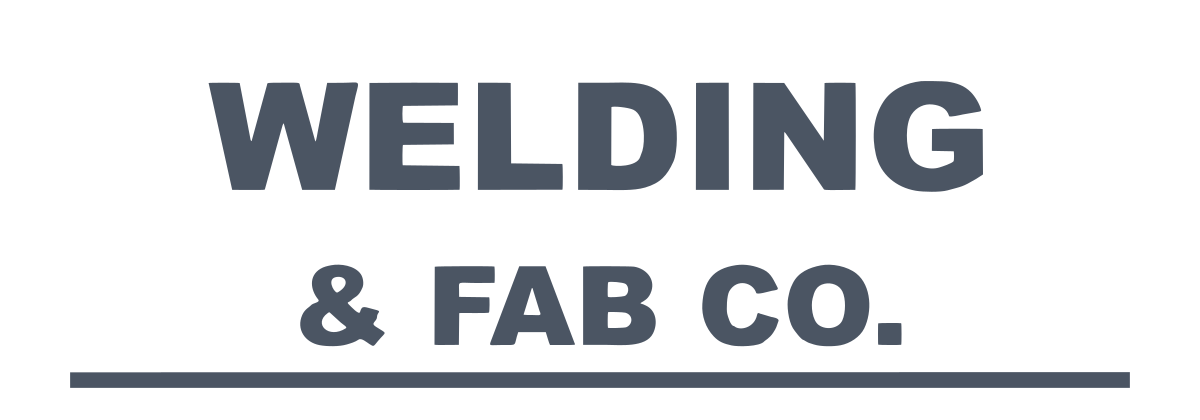
A cut path that follows your design to the pixel
Made for CNC routers: profile cuts that match your artwork, with a clean DXF.
- Holes stay holes: the inside of O, A, R and B is cut out, even if your software ignores fill rules.
- Small lettering keeps its shape: straight edges stay straight, corners stay sharp.
- Clean DXF: no tiny segments that slow the torch or the laser head.
Best on one-color logos and text. Same price as a standard conversion.
Try Precision CutWhy CNC Routers Need Clean SVG Files
CNC routers follow vector paths to generate toolpaths that control the cutting bit. The quality of those vector paths directly determines the quality of your finished piece. Jagged edges, open paths, and overlapping vectors create unpredictable toolpath behavior that can ruin expensive material and waste hours of machine time.
VectoSolve produces clean, closed vector paths with smooth curves and no stray nodes. Whether you are V-carving a sign, cutting an inlay, pocketing a design, or profiling a shape, the SVG output imports cleanly into VCarve Pro, Carbide Create, Easel, and Fusion 360 with minimal or no cleanup required.
From Image to CNC Cut in 4 Steps
Upload any image and get toolpath-ready SVG vectors for your CNC router
Upload Image
Upload your design, logo, clipart, or hand-drawn sketch. PNG, JPG, and WebP all accepted.
Vectorize
The tracer produces clean, closed vector paths optimized for CNC toolpath generation. No stray nodes.
Import to CNC Software
Open SVG in VCarve Pro, Carbide Create, Easel, or Fusion 360. Scale to your workpiece dimensions.
Generate & Cut
Assign V-carve, profile, or pocket toolpaths. Generate G-code and run the job on your CNC router.
CNC Projects You Can Make from SVG
From hobby shop to production facility
Woodworkers
Cut and carve signs, plaques, decorative panels, and custom furniture accents from your own designs.
Sign Makers
Convert logos and text to clean vectors for V-carved, profiled, or layered wooden and acrylic signs.
CNC Hobbyists
Turn internet images, hand sketches, and personal designs into CNC-ready files for your Shapeoko, X-Carve, or Onefinity.
Furniture Makers
Create decorative inlays, relief carvings, and custom hardware cutouts from vector artwork.
Engravers
Precision engrave designs onto wood, acrylic, aluminum, and brass using clean vector paths.
Compatible CNC Software
CNC SVG FAQ
What SVG settings work best for CNC routing?
Which CNC software accepts SVG files?
What types of images convert best for CNC?
What is the difference between DXF and SVG for CNC?
Can VectoSolve produce single-line SVGs for V-carving?
How do I size my SVG for the CNC workpiece?
From Image to CNC Cut in Minutes
Stop manually tracing images in your CNC software. Upload any design and get clean, toolpath-ready SVG vectors that import perfectly into VCarve, Carbide Create, Easel, and more.
No signup required for the free preview.
Related tools:
If CNC and routing is your business, you are probably paying per file.
An outside art service charges 6 to 26 dollars a logo and comes back the next day. Redrawing it yourself costs half an hour you could bill. A year here is $49 for 25 conversions every month, every machine format included, which works out cheaper than two outsourced logos.
Everything on this page stays free. This is only worth it if you do volume.