How to convert PNG to SVG: four methods, tested on the same pictures
Free with Inkscape, paid with Illustrator, online in a browser, or by hand. Which one fits your picture, the exact menus, and how to make sure you end up with a real SVG and not a PNG in disguise.
By the VectoSolve design team, technical review by Robin Monteiro, founder and developer. First published December 2025, rewritten 12 November 2026.
- One dark shape on a plain background (silhouette, black logo): Inkscape, free. It did as well as anything in our test.
- A few flat colours (logo, sticker art): an online converter or Illustrator's colour presets. Inkscape needs more tuning here.
- An object on a busy background (phone photo): remove the background first, or use a converter that does it for you.
- A logo you will print for years: trace it by hand, or have it redrawn. Auto-tracing gets close, a pen tool gets it exact.
What converting a PNG to SVG really does
A PNG is a grid of coloured pixels. An SVG is a list of shapes: outlines described by points and curves, each with a fill colour. Converting one into the other means tracing: software looks for the edges between colour areas and redraws them as curves. That is why the result can be scaled to any size, cut by a Cricut or followed by a laser.
It is also why some "conversions" are not conversions at all. Renaming logo.png to logo.svg changes nothing inside the file. Several apps offer "save as SVG" and simply place the PNG inside an SVG wrapper. The file opens, looks fine, and contains no paths. A cutter has nothing to cut.
Check any SVG in ten seconds: open it in a text editor. If you see <image followed by data:image/png;base64, it is a wrapped bitmap. Real vectors show <path d="M.... Our free SVG cut-ready checker does the same test in your browser.
How we tested the four methods
We took five real pictures (a weathervane silhouette, a 1914 whale scan, a flat three-colour design, a horseshoe on a peeling door and a trail marker on bark) and ran them through the tracing engine Inkscape uses and through our online converter, with default settings and no cleanup. We did not time anything, since speed depends on your computer; we measured the files. The full results, with all nine pictures and the files to download, are in PNG to SVG before and after: 9 real conversions, measured.
Method 1: an online converter (fastest)
Best for: logos, flat art, stickers, and objects on a busy background.
- Open the PNG to SVG converter (no account needed to try).
- Drop your PNG or JPG. The converter removes the background, reduces the colours and traces the shapes.
- Check the full preview: zoom on the edges and on any text.
- Download the SVG. The preview is free; the clean file is paid, by the file or with a plan.
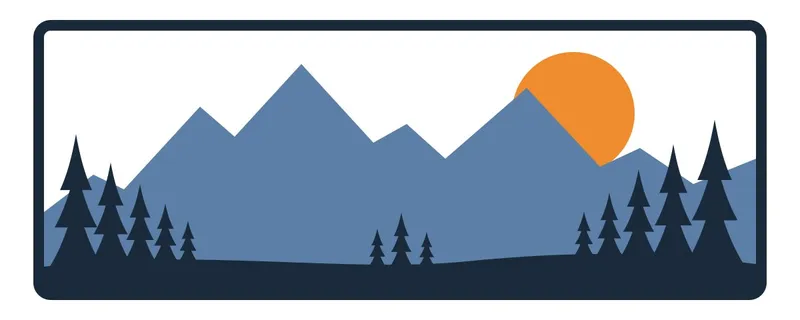
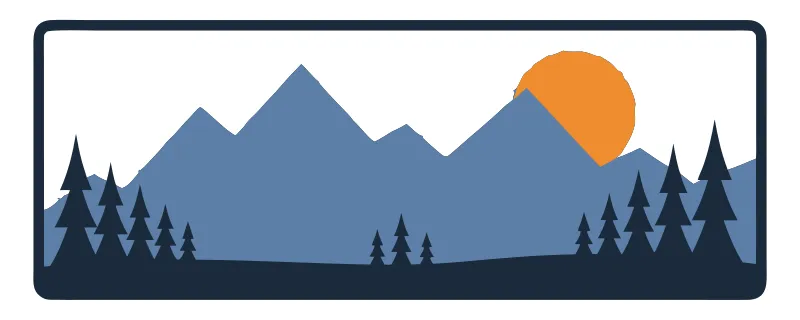
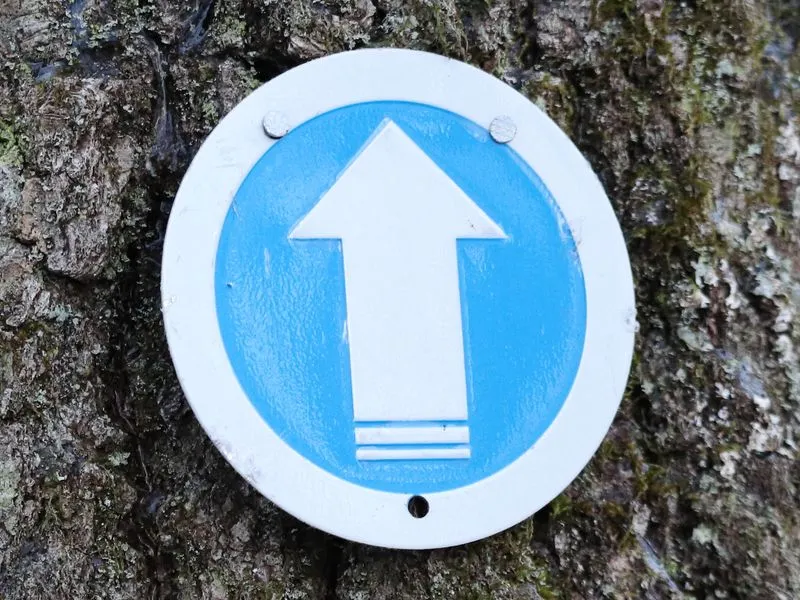
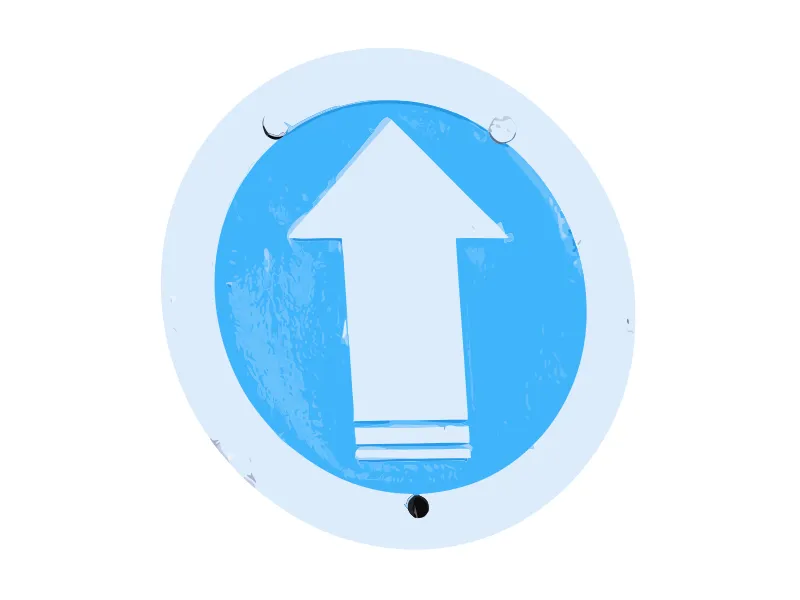
On our flat design the converter returned 4 paths in the 3 original colours, 12.7 KB. On the trail marker photographed on a mossy tree it removed the bark and kept the blue disc, the white arrow and the nail holes. The honest limit: on photos it keeps a lot of detail (302 paths for the marker), which you then simplify for a cut.
Method 2: Inkscape Trace Bitmap (free)
Best for: one-colour silhouettes and black logos on a plain background. Inkscape is free on Windows, macOS and Linux.
- File > Import (Ctrl+I), choose the PNG, keep Embed.
- Select the picture, then Path > Trace Bitmap (Shift+Alt+B).
- For one colour, stay on Single scan, mode Brightness cutoff. Move the threshold until the preview shows your shape and not the background.
- For several colours, switch to Multiple scans, mode Colors, set Scans to the number of colours, and tick Stack scans and Remove background.
- Keep Smooth corners (single scan) or Smooth (multiple scans) on, and set Speckles to a few pixels to drop tiny spots.
- Click Apply. The trace lands on top of the picture: drag it aside and delete the original bitmap.
- File > Save As, choose Plain SVG. Too many nodes? Path > Simplify (Ctrl+L) before saving.
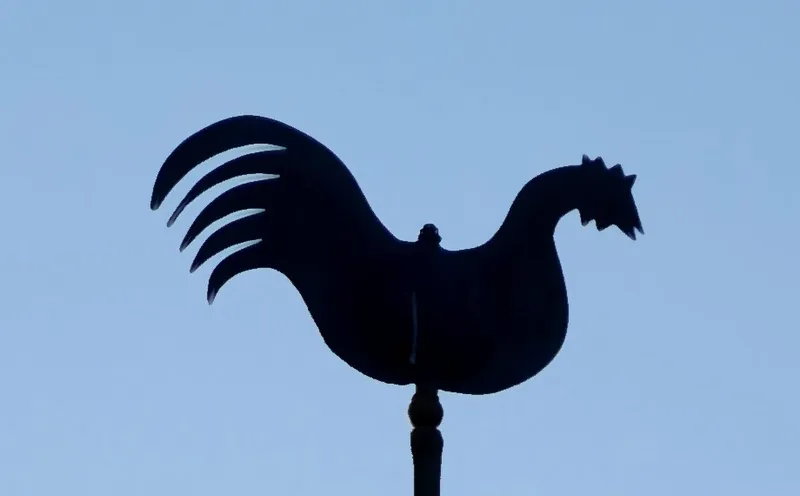
In single-scan mode Inkscape uses Potrace, so we ran Potrace directly on the same pictures. On the rooster and the whale it produced one clean path each (7.5 KB and 7.0 KB), as good as our converter for a one-colour decal.
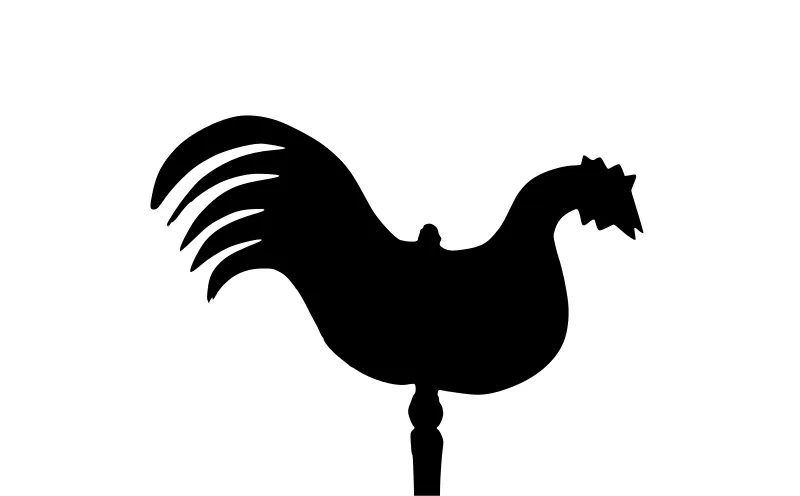
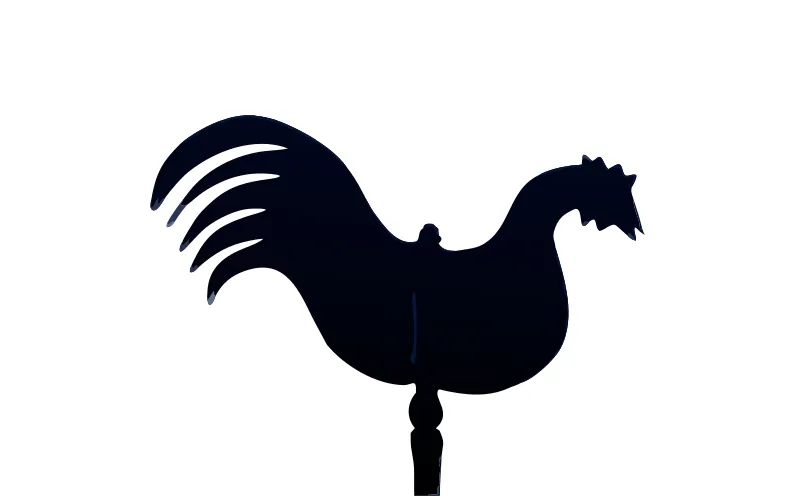
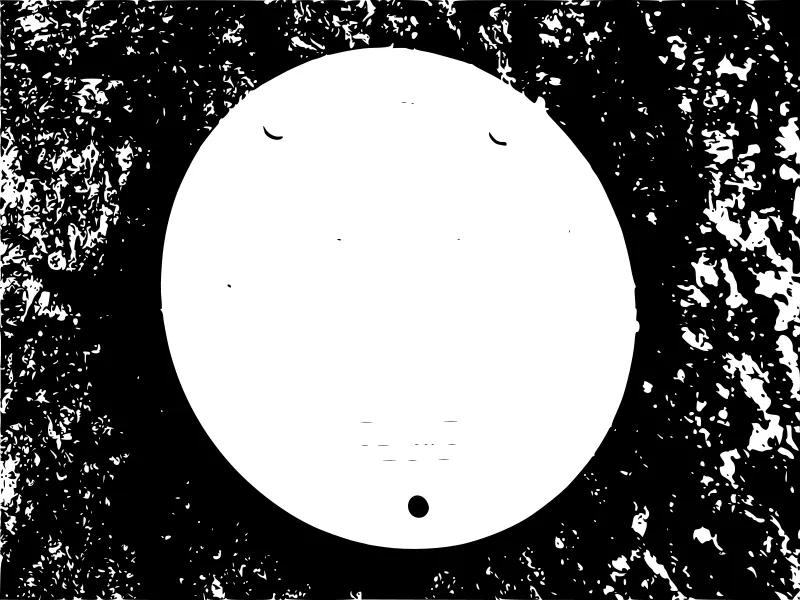
Where it struggles is the background. On the horseshoe photographed on a peeling door, the paint texture was traced along with the shoe: a 187 KB file full of specks. On the trail marker, the bark turned into a black mass and the arrow disappeared. Remove the background before tracing (in Inkscape, or in any photo editor) and the free method works again.
Method 3: Adobe Illustrator Image Trace (paid)
Best for: designers who already pay for Illustrator and want to edit the result in the same place.
- File > Place the PNG, then select it.
- Open Window > Image Trace.
- Pick a preset: Black and White Logo for one colour, 3 Colors, 6 Colors or 16 Colors for flat art, High Fidelity Photo only if you really want a photo look.
- Open Advanced: raise Noise to drop small specks, raise Paths for tighter outlines, tick Ignore White so the white background does not become a shape.
- Click Trace, then Object > Image Trace > Expand to turn the trace into editable paths.
- Save with File > Save As > SVG, or File > Export > Export As > SVG.
Image Trace and Inkscape follow the same principle; Illustrator gives more presets and a live preview. The same rule applies: a plain background and few colours give a clean result. We did not include Illustrator output files here because the result depends on the preset you pick; the presets above are where we start for each kind of picture.
Method 4: trace it by hand
Best for: a logo with lettering that must be exact, or a picture too small or too blurry for any tracer.
- Place the PNG on a locked layer and lower its opacity.
- Redraw each shape with the pen tool (Inkscape Bezier tool, key B; Illustrator Pen, key P), with as few points as possible.
- Retype the text in the closest font and convert it to outlines.
- Delete the bitmap and save as SVG.
Redrawing a simple logo by hand typically takes 25 to 40 minutes. It is the only method that fixes what the PNG got wrong: crooked letters, blurry corners, a missing piece. If you need that for a customer file, our team can redraw it for you.
Results side by side
| Picture | Inkscape engine (Potrace) | Online converter |
|---|---|---|
| Rooster on plain sky | 1 path, 7.5 KB | 17 paths, 12.5 KB |
| Whale, 1914 scan | 1 path, 7.0 KB | 12 paths, 7.6 KB |
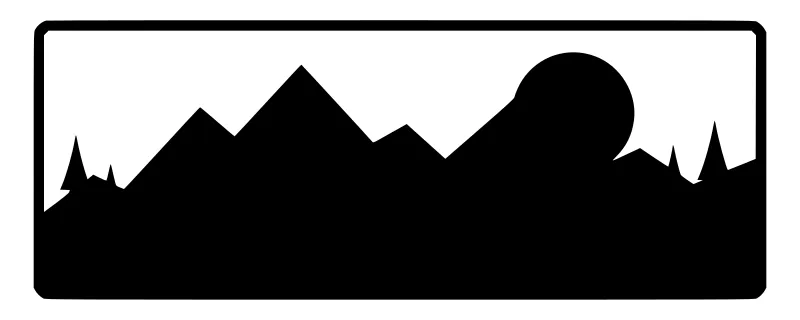
| Plaque, 3 flat colours | shapes kept, colours lost | 4 paths, 3 colours |
| Horseshoe on peeling door | door texture traced, 187 KB | door removed, 147 paths |
| Trail marker on bark | bark as noise, arrow lost | marker kept, 302 paths |
Inkscape single scan, automatic threshold; online converter with the default settings of the page used. Illustrator not measured (output depends on the preset).
Special cases
PNG with a transparent background
The best possible start: there is no background to remove. Make sure the transparent area really is transparent and not white, or the white will be traced as a shape.
PNG to SVG with colours
Decide how many colours the final object needs before converting. Three colours means three layers of vinyl or three screens, and every extra shade becomes extra shapes. Our flat plaque came back in exactly its three colours; the photos came back with 10 to 76 distinct fills.
For a Cricut, a laser or an embroidery machine
A machine needs fewer shapes than a screen does. For a Cricut, one layer per colour of vinyl: see SVG for Cricut. For a laser, separate what is cut from what is engraved: see SVG for laser cutting or PNG to DXF. For embroidery, an SVG is not enough: the machine reads stitches, so you need a DST, PES or JEF file.
When the SVG comes out wrong
Questions
Can I just rename a .png file to .svg?
No. The file stays a bitmap with the wrong extension, and most programs will refuse it. Some apps also "save as SVG" by wrapping the PNG inside an SVG file: it opens, but it contains no paths, so a cutter or a laser has nothing to follow.
What is the best free way to convert PNG to SVG?
Inkscape, with Path > Trace Bitmap. For a dark shape on a light, plain background it is as good as any paid tool: in our test its tracing engine gave one clean path for a rooster silhouette and a whale scan. It is weaker on colour pictures and busy backgrounds.
How do I convert a PNG to SVG with colours?
In Inkscape use Multiple scans with the Colors mode and set the number of scans to the number of colours you want. In Illustrator pick the 3, 6 or 16 Colors preset. An online converter that reduces colours for you, like ours, kept the three exact colours of our flat test design in four paths.
Does converting PNG to SVG improve a blurry picture?
It redraws edges as smooth curves, so jagged pixels disappear, but it cannot invent detail that is not in the picture. Thin text in a small, blurry PNG comes back approximate with every tool. Start from the biggest, sharpest version you have.
Is an SVG smaller than the PNG?
For logos and flat art, yes: two to four times smaller in our tests. For photos, no: a photo traced into thousands of shapes can be several times larger than the original JPG.
Pictures: Helge Klaus Rieder (rooster, CC0), Peter Cooper Jr. (trail marker, CC0), via Wikimedia Commons; plaque drawn by our team. Full credits and files in the before and after test.
Convert your PNG now
Drop your picture, see the full SVG before you pay, and download it for Cricut, laser, print or the web.
PNG to SVG converter