
Best Image to DXF Converters
for CNC Routing in 2026
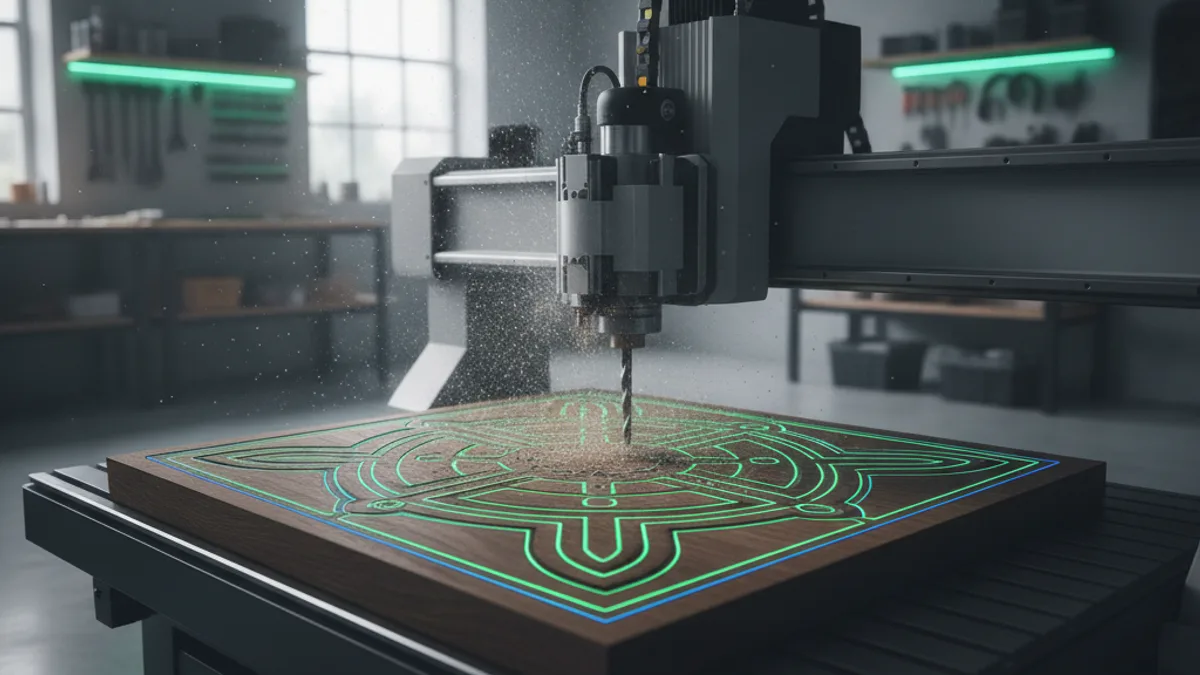
We compared 5 image-to-DXF converters for typical CNC router jobs — customer logos, sign faces, and cabinet inlays: which tools produce clean, closed DXF paths that drop straight into VCarve, Aspire, and Fusion 360.
Quick Verdict
VectoSolve is our own tool. We list it first because it is the tool this site sells and the one whose output we know best; we do not score it. For CNC routing, it does the one thing that actually matters for this workflow: it turns a customer JPG or PNG into clean, closed vector paths and exports true DXF and SVG that drop straight into VCarve, Aspire, or Fusion 360 without endless node repair. It is fast, multi-format, and the preview is free so you can check the traced paths on your own image before spending anything. Dedicated tools like Scan2CAD trace beautifully too, but their subscriptions only pay off at high volume, whereas VectoSolve's Starter plan is $7.99 a month for 25 conversions.
Try VectoSolve FreeFull Comparison Table
| Tool | Rating | Quality | Speed | Price |
|---|---|---|---|---|
VectoSolveOur tool | Our tool, not rated | Excellent | Fast (2-5s) | Free preview, then from $7.99/mo |
Scan2CAD | 4.3 | High | Fast (single files) | Subscription (Pro tier) |
Vector Magic (Desktop) | 4 | Excellent | Very fast | One-time licence (Desktop) |
Inkscape (Trace Bitmap) | 3.7 | Good | Manual cleanup | Free |
Vectric VCarve Pro | 4.4 | Decent (built-in) | Fast (in-app) | Perpetual licence |
Convertio (JPG/PNG to DXF) | 2.6 | Weak | Very fast | Free + paid plans |
What Makes a Good DXF for CNC Routing?
A router cuts mechanically with a spinning endmill following G-code — it cannot read a JPG, an SVG, or even a DXF directly. The real pipeline is raster image -> clean vector -> CAM software -> toolpaths -> G-code -> machine. A converter's only job is to produce a vector clean enough that CAM can generate correct toolpaths from it. Here's what separates a CAM-ready DXF from one that fights you:
Every outline must be a fully closed loop. An open path or a gap where two nodes should meet makes the V-carve toolpath break or refuse to calculate.
Overlapping duplicate contours confuse the toolpath engine and force manual repair before CAM will cooperate.
A trace that dumps thousands of tiny straight segments makes bloated, chattery toolpaths. Smooth arcs and a sensible node count yield tidy, fast cuts and a better edge.
The DXF R12 flavor built from LWPOLYLINE entities is the most universally readable across CAM and controllers. Raw SPLINE entities can choke older CAM.
DXF stores geometry in units. Guess wrong and a 300 mm sign machines at 3 mm or 30 inches. Always spot-check a known dimension after import.
CAM cannot toolpath pixels. The trace must be real path geometry — a DXF that merely embeds the image cannot be machined.
Detailed Reviews
1. VectoSolveOur tool
CNC verdict: Turns a customer JPG or PNG straight into a closed-path DXF that drops into VCarve, Aspire, or Fusion 360 — no round-trip re-vectorizing before toolpaths.
Pros
- AI produces clean closed non-overlapping paths
- Exports DXF + SVG + EPS + PNG + G-code
- Machine-verified export catches open paths before CAM
- Batch processing for production sign & cabinet runs
Cons
- DXF and G-code downloads need a paid plan
2. Scan2CAD
CNC verdict: The strongest dedicated raster-to-DXF option for a router shop that vectorizes daily and needs version-controlled, CAM-clean DXF — but the monthly cost only pays off at volume.
Pros
- Dedicated raster-to-vector engine that fits real lines and arcs (what CAM wants)
- Exports true DXF/DWG and lets you pick the DXF version, so you can target R12 for legacy CAM
- Handles scanned line-art, photos, and PDF-to-CAD in one tool
- Vectorization cleanup (despeckle, smoothing, threshold) reduces manual node editing
Cons
- Subscription pricing (listed at $89/mo in July 2026) is steep for a shop that only vectorizes occasionally
- Batch conversion and API are locked behind the higher Business tier
- Learning curve — it is a CAD conversion tool, not a one-click app
3. Vector Magic (Desktop)
CNC verdict: Great tracer for logos-to-vector, but only the PC Desktop edition (€274 one-time in July 2026) writes DXF — verify you are on that edition, not the cheaper Online plan, before buying for CNC work.
Pros
- One of the best automatic tracers for turning a customer logo into crisp, smooth outlines
- One-time desktop purchase (no subscription) — good long-term value
- Strong edge/curve fidelity means fewer jagged nodes to clean up before CAM
- Batch processing and transparency support on the Desktop edition
Cons
- DXF export is Desktop-Edition and PC-only; the cheaper Online plan (€8.99/mo in July 2026) cannot output DXF at all
- Optimized for SVG/EPS/AI print output, so DXF may need scale/unit checking before machining
- No CAM/toolpath features — it is purely a tracer; you still need VCarve or Fusion afterward
4. Inkscape (Trace Bitmap)
CNC verdict: Best free route for a shop willing to hand-clean paths; budget real time for closing paths and fixing scale so the V-carve and profile toolpaths do not break.
Pros
- Completely free — the default zero-cost entry point for hobbyist and small-shop CNC vectorizing
- Full vector editor: hand-fix nodes, close open paths, and weld letters before export
- Huge community with CNC-specific tutorials (plasma, laser, router) and add-ons
- Exports DXF and gives direct control over the geometry you send to CAM
Cons
- DXF export historically writes older/limited flavors and can emit open paths, splines, or duplicate nodes
- No unit/scale guarantee — the DXF often lands at the wrong real-world size unless you set units carefully
- Trace Bitmap on photos produces messy multi-color paths that need heavy manual cleanup
5. Vectric VCarve Pro
CNC verdict: If your router already runs VCarve, its built-in Trace Bitmap is the most frictionless path (trace-to-toolpath in one app) — but the tracer itself trails dedicated converters on hard artwork.
Pros
- Trace Bitmap lives inside the CAM software, so a traced logo goes straight to toolpaths with no file round-trip
- Perpetual license — pay once, own it, and it is the de-facto standard on hobby/pro CNC routers
- Excellent V-carving and true-shape nesting, exactly what sign and cabinet routers live on
- Vector-editing and node tools to close and clean traced paths before machining
Cons
- Its tracer is basic compared to a dedicated engine like Scan2CAD or Vector Magic — complex logos trace poorly
- A perpetual licence ($699 in July 2026) is a large outlay if you only need occasional image-to-vector conversion
- CAM first, converter second — overkill if you just need a clean DXF to hand to another machine
6. Convertio (JPG/PNG to DXF)
CNC verdict: Fine for a throwaway peek, but not a production tool for CNC routing — the DXF it produces usually needs to be re-vectorized before it can be machined.
Pros
- Zero install, works in the browser on any OS — convenient for a quick one-off
- Free tier covers casual, occasional use
- Handles a huge range of file formats beyond images
- Fast round-trip for a quick look at a file
Cons
- JPG/PNG-to-DXF results are frequently noisy or effectively a wrapped raster, not clean closed vectors
- No control over DXF version, units, or path cleanup — you cannot target CAM-safe R12 polylines
- Free tier is throttled (file size and daily minutes), and uploading customer artwork raises privacy questions
DXF vs SVG: Which Format for Your CAM?
| Feature | DXF | SVG |
|---|---|---|
| Best for | VCarve, Aspire, Fusion 360, legacy CAM & controllers | Artwork from design tools, quick web preview |
| Dimension accuracy | Exact real-world units (mm/inches) | Viewport-dependent (verify scale on import) |
| Legacy CAM compatibility | R12 polylines read everywhere | Newer standard — some older CAM cannot import |
| Curve handling | Arc-fit polylines (safest) or SPLINE | Bézier curves (CAM re-fits on import) |
| V-carve / profile toolpaths | Native, if paths are closed | Native, if paths are closed |
| Opens without CAD | Needs CAD/CAM software | Opens in any browser |
Our recommendation: Use DXF for VCarve, Aspire, Fusion 360, and any older CAM or controller — favor an R12 polyline export for maximum compatibility. Use SVG when the artwork comes from a design tool and your CAM imports it cleanly. VectoSolve exports both formats (plus EPS, PNG, and G-code) from a single upload.
How to Test a Converter Yourself
To compare converters on your own work, run each tool through the same CNC-routing scenarios a sign or cabinet shop faces: a customer logo supplied as a low-res JPG, a high-contrast PNG line drawing, and a busier multi-color graphic. Vectorize each to DXF (and SVG where offered), then import the result into your CAM (for example Vectric VCarve Pro or Fusion 360) and check the geometry:
- Closed-path integrity — did a V-carve and a profile toolpath calculate without errors or gaps?
- DXF-version / CAM compatibility — did the file import cleanly into both VCarve and Fusion 360?
- Unit accuracy — did the geometry land at the correct real-world scale in millimeters and inches?
- Machined proof — a test cut in scrap MDF or hardwood to confirm edge quality, and that letters and inner islands survive the toolpath.
Judge each tool on trace cleanliness, closed-path integrity, DXF-version compatibility, unit accuracy, and how much manual node cleanup stands between the export and a cuttable file. Every price and format claim in this article was checked against each vendor's official pricing page in July 2026.
Frequently Asked Questions
Can a CNC router cut directly from a JPG or PNG?
No. A router follows G-code, and G-code is generated by CAM software (like Vectric VCarve, Aspire or Fusion 360) from vector geometry, not from pixels. You first vectorize the JPG/PNG into a clean DXF or SVG, import that into CAM, generate toolpaths, then post to G-code. Skipping the vectorize step is the number-one reason people get stuck. Tools like VectoSolve output DXF and SVG specifically so the file drops straight into CAM.
What file format should I use to bring artwork into VCarve or Fusion 360?
DXF and SVG are the two safe choices for 2D router work; both import cleanly into VCarve, Aspire and Fusion 360. For maximum compatibility with older CAM and controllers, favor a DXF R12 (polyline) export. SVG is convenient for artwork coming from design tools. VectoSolve exports both DXF and SVG, so you can pick whichever your CAM prefers.
Why does my V-carve toolpath fail or leave gaps?
Almost always because the vector paths are not fully closed. V-carving needs every outline to be a closed loop; open contours, tiny gaps between nodes, or self-intersecting/duplicate lines break the toolpath calculation. Use a vectorizer that produces closed paths, and in your editor close any open ends and remove duplicate lines before generating the toolpath. Cleaner closed contours out of the converter mean far less repair in CAM.
My machined part came out the wrong size — what went wrong?
This is a units/scale problem in the vector file. DXF and SVG store geometry in units, and if the converter or CAM assumed the wrong ones, the part scales up or down. After importing, always measure a known dimension (say a 100 mm reference) and rescale if it is off. Set your CAM job units to match the file and confirm before cutting expensive material.
Is a free online converter like Convertio good enough for production CNC work?
For a throwaway look, sure; for production, usually not. Free browser converters often produce noisy paths or effectively a wrapped raster, with no control over DXF version, units or path cleanup — so the output typically needs re-vectorizing before it can be toolpathed. For repeatable, machinable results, use a tool built for clean closed paths and real DXF output (a dedicated converter such as Scan2CAD or VectoSolve, or your CAM own tracer). VectoSolve shows a free preview of the traced paths, so you can judge them on your own image before paying for the DXF.
Conclusion
For CNC routing in 2026, the converter you choose decides how much time you burn fixing nodes instead of cutting parts. VectoSolve is our top pick because its AI engine turns a customer JPG or PNG into clean, closed-path vectors and exports true DXF and SVG that drop straight into VCarve, Aspire, and Fusion 360 — with a machine-verified export step that catches open paths before they break your V-carve. The preview is free, so you can check the traced paths on your own image before you pay for the DXF.
If you vectorize daily and need version-controlled, CAM-clean DXF, Scan2CAD is the strongest dedicated engine — just weigh its subscription ($89/mo in July 2026) against your volume. Vector Magic Desktop is an excellent one-time-purchase tracer (only the PC edition, €274 in July 2026, writes DXF — not the cheap Online plan). Inkscape is the best free route if you don't mind closing paths and fixing scale by hand, and VCarve Pro built-in Trace Bitmap is the most frictionless option if your router already runs it. Skip free browser converters like Convertio for production — their DXF usually needs re-vectorizing before it can be machined.
More Machine-Specific Guides
Ready to Convert Images for Your CNC Router?
Preview your image free, then get clean, closed-path DXF, SVG, and G-code that drop straight into VCarve, Aspire, and Fusion 360.