
Best Vector Converters
for Vinyl Cutting & Sign Making in 2026
We compared 6 tools on the real bottleneck of a sign shop: turning a customer's messy JPG or PNG logo into a clean, weed-friendly cut file. Here's what actually saves time at the cutter.
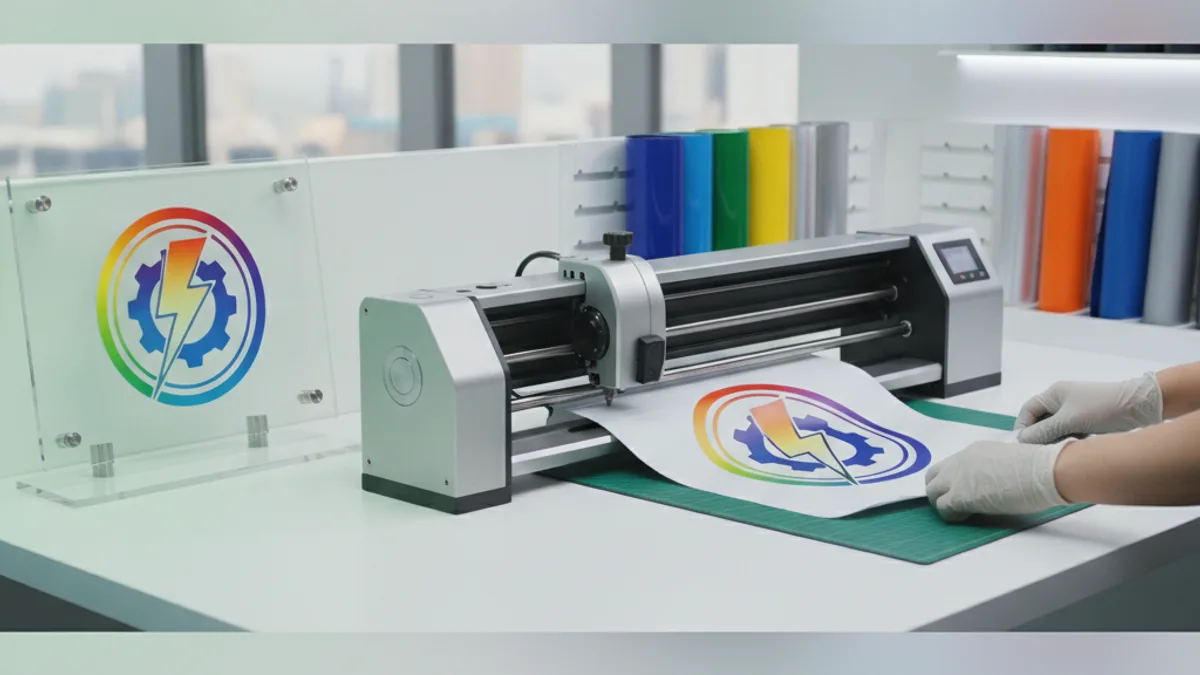
Quick Verdict
VectoSolve is our own tool. We list it first because it is the tool this site sells and the one whose output we know best; we do not score it. For turning a customer's JPG or PNG into a cut-ready file, its AI produces clean, closed-path vectors with a low node count that weed easily, and it exports SVG, DXF, PNG and G-code from a single upload, so it feeds both Cricut / Designer-Edition machines and the free Silhouette Studio (which only reads DXF). It does the image-to-vector step in seconds instead of a 30 min to 2 h hand re-draw, and the preview is free with no signup. It is not a full production hub like Flexi or CorelDRAW, so you will still drive the cutter and print-and-cut from your shop software, but as the raster-to-vector front end it removes the real bottleneck.
Try VectoSolve FreeFull Comparison Table
| Tool | Rating | Quality | Speed | Price |
|---|---|---|---|---|
VectoSolveOur tool | Our tool, not rated | Excellent | Fast (2-5s) | Free preview, then from $7.99/mo |
SAi Flexi (FlexiSIGN / Flexi DESIGN) | 4.5 | Industry-standard, cut-optimized output | Fast to cut; JPG re-draw still 30 min-2 h | Subscription (DESIGN tier) |
CorelDRAW Graphics Suite | 4.4 | Professional vector output, strong node control | Fast to draw; PowerTRACE needs cleanup | Subscription or one-time licence |
Adobe Illustrator | 4.3 | Gold-standard vector precision and path control | Slow: JPG re-draw is 30 min-2 h | Subscription (single app) |
Inkscape | 4 | Good vector output; Potrace trace is decent, not clean | Free but slow: Trace Bitmap + node cleanup | Free (open-source, GPL) |
VinylMaster CUT | 3.8 | Purpose-built cut output; tracing is basic | Fast to cut; manual work on images | One-time licence (V5) |
What Makes a Good File for Vinyl Cutting & Sign Making?
A vinyl job lives or dies at two moments: how cleanly the colors separate into layers, and how easily the finished cut weeds. A customer JPG fails both by default. Here's what turns a raw image into a production-ready cut file:
Vinyl is cut from solid colored sheets, so every color becomes a separate physical piece. The art must split into clean color layers (ideally mapped to real swatches like Oracal 651), not one flattened image.
The blade follows closed paths. Open paths and strokes let the cutter lift, tear, or double-cut both edges of a line. Outline every letter and expand strokes to filled shapes.
Weeding is peeling away the excess vinyl by hand. Every extra anchor point is a tiny tick in the cut; smooth, low-node curves turn an hour-long weed into a few minutes.
Sub-pixel shapes and speckles from a noisy trace become near-impossible to pick off by hand. A despeckle pass removes them before they ever reach the cutter.
For printed decals and stickers, the cutter reads registration marks to align the blade to the print. A clean closed contour around the artwork is what the reg-mark workflow follows.
The free Basic edition of Silhouette Studio can't import SVG — only DXF. A tool that exports both feeds Designer-Edition and free-tier machines from the same art.
Detailed Reviews
1. VectoSolveOur tool
Vinyl verdict: Feeds both Cricut / Silhouette Designer Edition (SVG) and free Silhouette Studio (DXF) without a second conversion, and turns a customer JPG into cut-ready art in seconds instead of a 30 min-2 h hand re-draw.
Pros
- AI produces clean, closed, non-overlapping paths that weed easily
- Exports SVG, DXF, EPS, PNG and G-code from one upload
- Machine-verified export flags open paths before you cut
- Batch processing for whole batches of customer logos
Cons
- Not a full production hub — you still drive the cutter from your shop software
2. SAi Flexi (FlexiSIGN / Flexi DESIGN)
Vinyl verdict: The default production hub of the trade: unbeatable for driving the cutter and print-and-cut, but you still hand-trace customer JPGs before it can cut them.
Pros
- The de-facto sign-shop standard: roughly 75% of sign shops run Flexi, so files, workflows and staff training all speak its language
- One suite covers design, RIP print and cut with direct drivers for nearly every vinyl cutter and plotter on the market
- Native contour-cut and print-and-cut with automatic registration marks for wide-format print jobs
- Includes free phone and email support plus automatic updates on subscription
Cons
- No true one-time license anymore; it is a recurring subscription that never stops billing
- Its auto-trace is functional but a messy customer JPG still gets manually re-drawn by hand, so it does not solve the raster-to-vector bottleneck
- Steep learning curve and Windows-centric; overkill (and pricey) for a shop that only needs occasional image-to-vector work
3. CorelDRAW Graphics Suite
Vinyl verdict: A shop favorite for designing and prepping cut files, and the only mainstream option you can buy outright; still needs hand-cleanup after auto-tracing a customer image.
Pros
- The other genuine shop standard; countless sign makers design and prep cut files in CorelDRAW and it plays well with cutter plug-ins
- Rare in this space: it offers a true one-time perpetual license ($549 in July 2026), so you can own it instead of renting forever
- PowerTRACE gives fast auto-vectorization with detailed node and color controls, and Corel handles spot colors and layers cleanly for multi-color vinyl
- Excellent typography and node-editing tools for building clean, weld-ready cut contours
Cons
- PowerTRACE output from a low-res or noisy JPG is often noisy and needs manual node cleanup before it will cut and weed well
- Mac support is newer and historically weaker than the mature Windows version
- A full graphics suite is a lot of tool (and cost) if your only real need is turning images into cut-ready vectors
4. Adobe Illustrator
Vinyl verdict: Where a customer JPG becomes a clean logo when it truly matters, but it is a manual 30 min-2 h re-draw and it does not drive the cutter itself.
Pros
- The precision benchmark for hand-drawing vectors; when a logo has to be perfect, sign makers re-draw it in Illustrator anchor-point by anchor-point
- Image Trace plus manual node tools give complete control over closed paths, outlines and clean contours
- Exports every format a sign shop needs (AI, EPS, SVG, PDF) and is universally accepted as source art
- Cross-platform (Mac and Windows) and the format most designers and clients already send files in
Cons
- Subscription-only; you never own it and month-to-month pricing is steep
- No built-in cutter drivers or RIP, so cut files must be exported and sent to Flexi, Silhouette Studio or the cutter's own software
- Turning a raw customer JPG into cut-ready vinyl art is largely manual and time-consuming, not automated
5. Inkscape
Vinyl verdict: The best free option and the standard free path to a DXF for basic Silhouette Studio, but its auto-trace needs real node cleanup before vinyl will weed well.
Pros
- Completely free with no subscription, which is why it is the go-to for hobbyists and startup sign shops
- Native SVG editor with Trace Bitmap (Potrace) for single and multi-color raster-to-vector, plus a centerline mode
- Exports both SVG and DXF, so it is the classic free bridge to get art into basic Silhouette Studio, which only imports DXF
- Strong node-editing and Path menu tools (Union, Simplify) for cleaning contours and cutting node count for easier weeding
Cons
- Potrace output from a photo or low-res logo is typically noisy with far too many nodes, requiring significant manual cleanup before it cuts and weeds cleanly
- No cutter drivers or print-and-cut registration workflow; it is a design tool only
- Interface and performance lag behind paid suites and it can be slow or unstable on large, complex files
6. VinylMaster CUT
Vinyl verdict: An affordable, cutter-focused workhorse for a vinyl-only shop, but its weak auto-trace means messy customer images still get re-drawn elsewhere.
Pros
- Dedicated vinyl-cutting software at a low one-time price, purpose-built for lettering, pinstriping and general signage
- Drives a wide range of vinyl cutters and plotters directly, with contour-cut support in the higher editions
- Much cheaper entry point than Flexi or CorelDRAW for a shop that mainly cuts vinyl
- Includes vectorization and weeding-oriented tools aimed specifically at the cutting workflow
Cons
- The base CUT edition is limited; print-and-cut, advanced design and better tracing require the pricier LTR/PRO/DSR/XPT upgrades
- Its image-tracing is basic compared with Illustrator or CorelDRAW, so complex customer logos still need manual redraw
- Windows-only and a smaller ecosystem, so fewer tutorials and less third-party support than the big suites
SVG vs DXF: Which Format for Your Cutter?
| Feature | SVG | DXF |
|---|---|---|
| Best for | Cricut Design Space, Silhouette Designer Edition, modern cutters | Free Silhouette Studio Basic (SVG-locked), older plotters, CAD/CAM |
| Color layers | Yes (fill/stroke color per shape) | Yes (layer-based) |
| Silhouette Studio Basic (free) | Locked behind Designer Edition | Imports natively |
| Dimension accuracy | Viewport-dependent (can vary) | Exact real-world units (mm / inches) |
| Print-and-cut / reg marks | Contour path travels cleanly | Cut-only; reg marks added by cutter software |
| Web preview | Opens in any browser | Needs CAD / cutter software |
Our recommendation: Use SVG for Cricut Design Space and Silhouette Designer Edition. Use DXF for the free Silhouette Studio Basic edition, older plotters, and CAD/CAM workflows. VectoSolve exports both formats from a single upload, so the same art feeds every machine in the shop.
How to Test a Converter Yourself
To compare tools against the real bottleneck of a sign shop — converting messy customer artwork into cut-ready vector — run each one on a few typical incoming files:
- Low-res JPG business logo — the everyday "can you cut this?" file
- PNG with a transparent background — decal-style artwork
- Two-color decal design — to judge clean color-layer separation for multi-color vinyl
- Text-heavy sign layout — lettering, weld-ready contours, weeding
- Scanned hand-drawn mark — noisy source that punishes weak auto-trace
Then judge each output on the things that matter at the cutter: closed contours versus open strokes, node count and how smoothly it weeds, how cleanly colors separate into layers, and whether the tool exports both SVG and DXF for machines like the free Silhouette Studio. Every price and feature claim in this article was checked against the vendor's official site or pricing page in July 2026.
Frequently Asked Questions
Why can't I just cut a customer's JPG or PNG logo directly on my vinyl cutter?
Because a JPG or PNG is a raster image made of pixels, and the cutter follows vector paths, not pixels. It has no cut contours and no separated colors, so it has to be converted to vector first. Traditionally a shop re-draws it by hand in Illustrator or CorelDRAW (30 min to 2 h per logo). An AI converter like VectoSolve turns the same image into a clean, closed-path SVG or DXF in a few seconds, which you then check and cut.
SVG or DXF: which format should I export for my cutter?
It depends on the machine. Most modern cutters and the paid Silhouette Studio Designer Edition, plus Cricut Design Space, read SVG. But the free Basic edition of Silhouette Studio only imports DXF, not SVG, so for those machines you need a DXF. A tool that exports both (Inkscape, or VectoSolve, which bundles SVG, DXF, PNG and G-code in one download) saves you a second conversion step.
How do I get a clean file that actually weeds easily?
Aim for smooth paths with as few nodes as possible and no tiny stray specks, because every extra node is a tick in the vinyl and every speck is a piece you have to pick off by hand. Use closed, filled shapes rather than strokes, run a simplify/despeckle pass, and separate the art into clean color layers. Clean, low-node vector paths are the single biggest factor in whether a weed takes minutes or an hour.
Do I need expensive software like Flexi or CorelDRAW just to vectorize images?
Not just for the image-to-vector step. Flexi DESIGN (listed in July 2026 from about $33.99/mo on annual, $46.99/mo month-to-month) and CorelDRAW ($269/yr or $549 once, July 2026) are worth it as full production hubs that also drive the cutter and handle print-and-cut. But if your bottleneck is only turning customer images into cut-ready vectors, a focused tool like Inkscape (free) or VectoSolve (free preview, then plans from $7.99 a month) handles that step without a full suite subscription.
How do print-and-cut and registration marks work for printed decals?
For a printed-then-contour-cut job, your software prints registration marks alongside the artwork, and the cutter's optical sensor reads those marks to align the blade precisely to the print. FlexiSIGN and most cutter software generate the marks automatically. The key is a clean, closed contour path around the artwork; without one, the alignment has nothing accurate to follow and the cut drifts off the print.
Conclusion
For vinyl cutting and sign making in 2026, the software choice depends on which problem you are actually solving. If you need a full production hub that designs, drives the cutter, and handles print-and-cut, Flexi and CorelDRAW are the two real shop standards, and CorelDRAW is the rare option you can still buy outright. But every one of those suites still leaves you hand-tracing customer JPGs, which is where the hours go.
That raster-to-vector step is exactly where VectoSolve is our top pick: its AI turns a messy customer image into clean, closed, low-node paths that weed easily, and it exports SVG, DXF, EPS, PNG and G-code from one upload — feeding both Cricut / Designer-Edition machines and the free Silhouette Studio in seconds instead of a 30 min to 2 h re-draw. If you want a capable free option and don't mind node cleanup, Inkscape is the best no-cost path to a DXF; for a vinyl-only shop on a budget, VinylMaster CUT is an affordable cutter-focused workhorse.
More Machine-Specific Guides
Ready to Turn Customer JPGs into Cut-Ready Files?
The preview is free and needs no signup. Get clean, weed-friendly SVG, DXF, EPS, PNG and G-code files in seconds.