
Canva vs VectoSolve for SVG Conversion: Which Is Better in 2026?
Canva can export SVG on Pro plans. But is it the same as true image-to-SVG vectorization? Here's the honest comparison.
UX Designer & Content Strategist
Sarah brings 6 years of design experience from agencies like IDEO and Frog Design. She specializes in visual design systems and brand optimization.
Canva is the world's most popular design tool with over 200 million monthly users. It lets you create designs from templates and export them as SVG files. VectoSolve is a dedicated image-to-SVG converter that transforms existing raster images (photos, logos, illustrations) into clean vector files. They are often compared because both involve "SVG" — but they serve fundamentally different needs. Understanding this distinction will save you time, money, and frustration.Canva and VectoSolve Solve Different Problems
What Canva Does (and Doesn't Do)
Canva Creates Designs → Exports as SVG
- You build a design using Canva's templates, text tools, shapes, and stock elements
- On Canva Pro ($13/month), you can export your design as an SVG file
- The SVG contains the design elements you added in Canva — text, shapes, icons
What Canva Cannot Do
- Cannot vectorize an existing image — if you upload a PNG logo, Canva treats it as a raster element. Even if you export as SVG, that uploaded image remains a pixel-based embed inside the SVG file
- Cannot convert photos to vectors — Canva has no image tracing or vectorization feature
- Cannot produce cut-ready SVGs — Canva SVG exports are designed for visual display, not for Cricut cutting paths
- Requires Pro plan for SVG export — free Canva users cannot export SVG at all
What VectoSolve Does
VectoSolve Converts Images → Real Vectors
- Upload any raster image (PNG, JPG, WebP, BMP) and get a true SVG vector conversion
- AI traces the image content into mathematical paths and curves
- Output is a genuine vector that scales infinitely, can be edited path-by-path, and works with cutting machines
- Additional tools: background removal, upscaling, AI logo generation, batch processing
Comparison Table
| Feature | Canva | VectoSolve |
|---|---|---|
| Image-to-SVG Vectorization | No | Yes — AI-powered |
| SVG Export | Pro only ($13/mo) | All plans |
| True Vector Output | Only for Canva-created elements | Yes — full image conversion |
| Background Removal | Pro only | Yes — AI-powered |
| Image Upscaling | No | Yes — 2x and 4x |
| Cricut-Ready SVG | No (not cut-path compatible) | Yes — optimized cut paths |
| Batch Processing | No | Yes |
| API Access | Limited | Yes — REST API |
| Design Templates | Thousands of templates | No (conversion tool, not design tool) |
| Best For | Creating new designs from scratch | Converting existing images to vector |
The Common Mistake
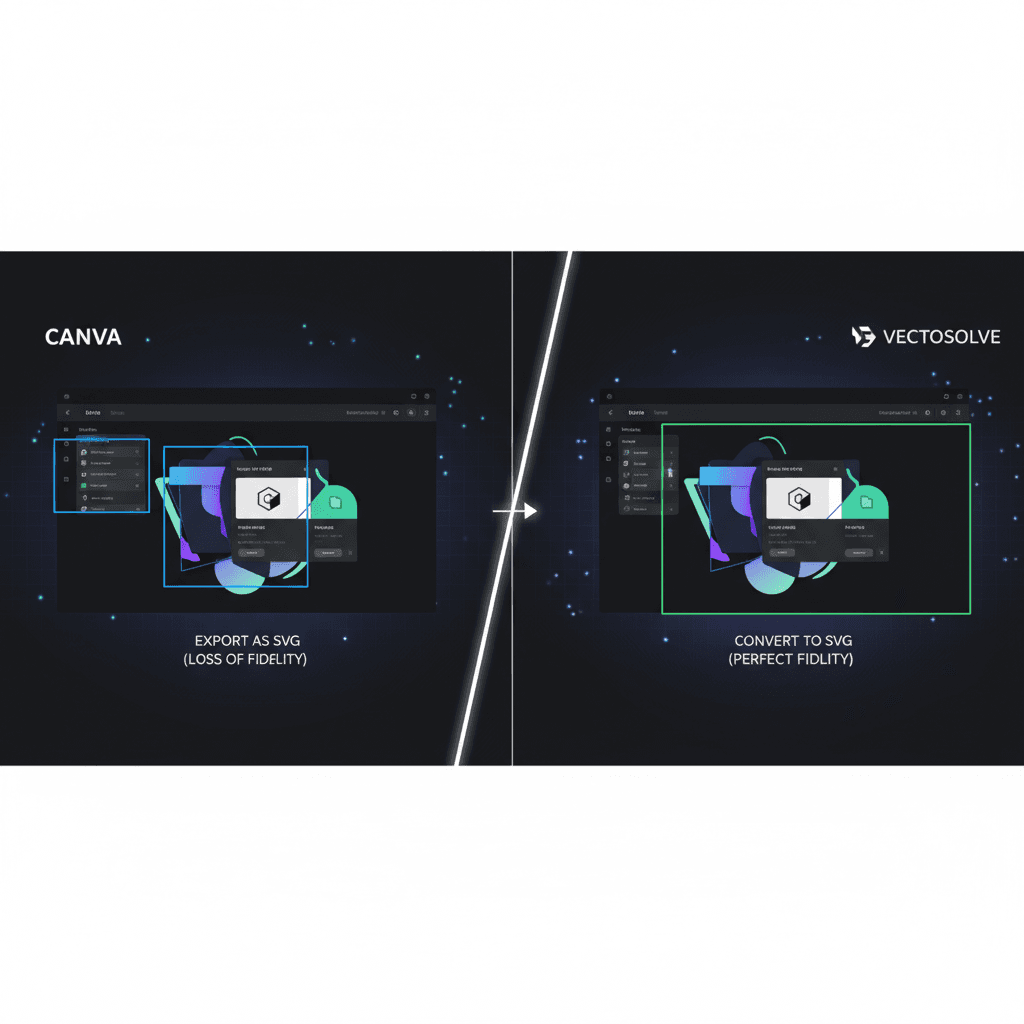
The most common misunderstanding: people upload a logo PNG to Canva, place it in a design, export as SVG, and think they have a vectorized logo. They do not. The SVG file contains the original raster PNG as an embedded image. It will still pixelate when scaled up.
To actually vectorize that logo, you need a tool that performs image tracing — converting pixels into mathematical paths. That is exactly what VectoSolve does.
When to Use Each Tool
Use Canva When:
- You are creating a new design from scratch (social media post, presentation, flyer)
- You need templates and stock elements
- You want to export a design you built entirely in Canva as SVG
Use VectoSolve When:
- You have an existing image (logo, photo, illustration) that needs to become a vector
- You need SVGs for Cricut or Silhouette cutting machines
- You want to remove backgrounds and vectorize in one workflow
- You need to batch convert multiple images
- You want to upscale low-resolution images
Use Both Together:
The smartest workflow combines both tools. Vectorize your images with VectoSolve, then import the SVGs into Canva for layout and design work. You get the best of both worlds.
Frequently Asked Questions
Does Canva convert PNG to SVG?
No. Canva can export designs as SVG, but it does not vectorize uploaded raster images. A PNG uploaded to Canva remains a raster image even inside an SVG export. For true PNG-to-SVG conversion, use VectoSolve.
Can I use Canva SVG files with Cricut?
Canva SVG exports can be imported into Cricut Design Space, but they are not optimized for cutting. Elements may not have proper cut paths, and text may not be properly converted to outlines. VectoSolve produces cut-ready SVGs designed for cutting machines.
Is Canva Pro worth it just for SVG export?
If you only need SVG export for vectorized images, no. Canva Pro costs $13/month and does not actually vectorize images. VectoSolve credits start at $0.65 and perform true image-to-SVG conversion.
Can I vectorize a Canva design?
If you export your Canva design as a high-res PNG, you can upload it to VectoSolve for vectorization. This is useful when your Canva design includes raster elements that you want fully vectorized.
The Verdict
Canva is a design tool. VectoSolve is a conversion tool. They solve different problems and work best together. If you need to turn an existing image into a true vector file, VectoSolve is the answer.