
How to Convert AI-Generated Images to SVG (ChatGPT, DALL-E, Midjourney)
AI-generated images are everywhere in 2026. Here's how to convert them to scalable SVG vectors for printing, Cricut, and web design.
UX Designer & Content Strategist
Sarah brings 6 years of design experience from agencies like IDEO and Frog Design. She specializes in visual design systems and brand optimization.
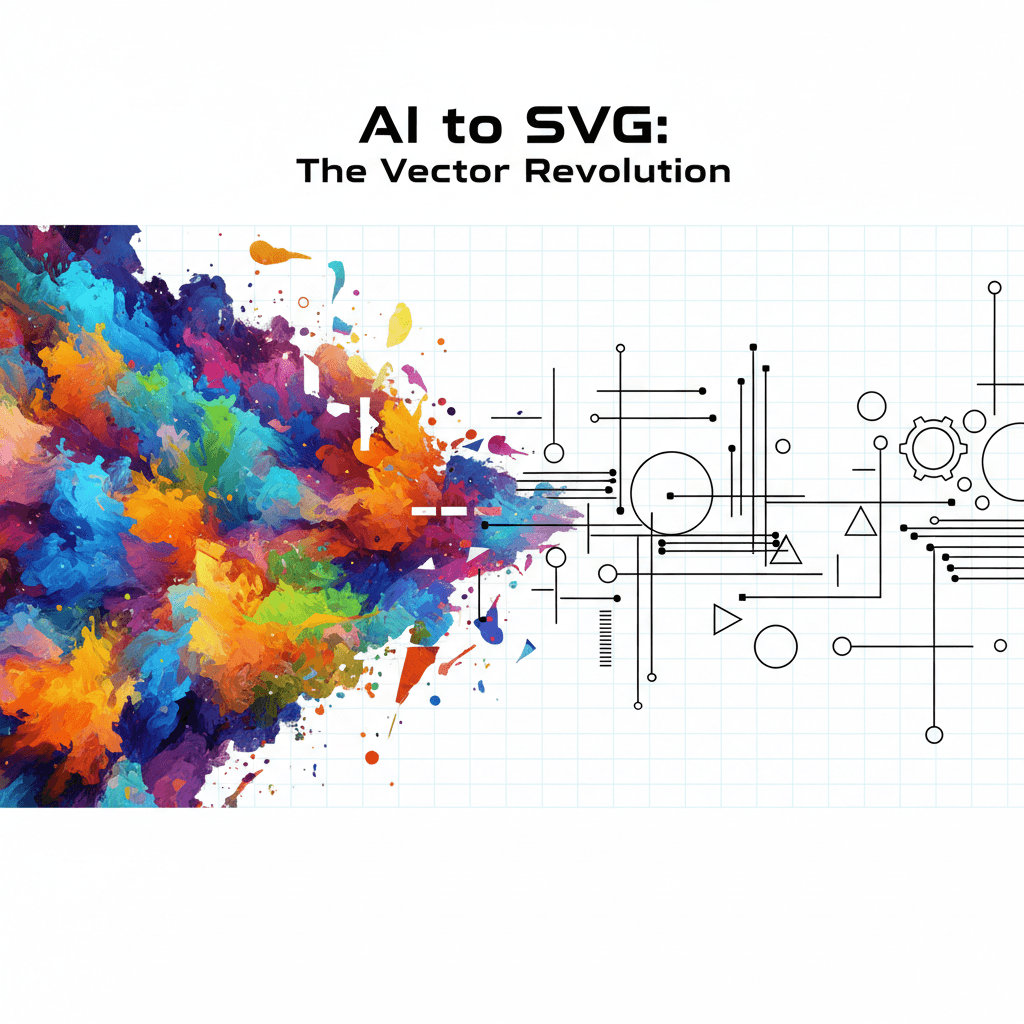
In 2026, AI image generation has gone mainstream. ChatGPT's DALL-E creates images from text prompts. Midjourney produces stunning artwork. Stable Diffusion powers countless creative tools. The Studio Ghibli trend alone generated millions of AI portraits overnight. But there is a problem: every AI image generator outputs raster images — pixel-based PNGs and JPGs. If you want to use these images for printing, vinyl cutting, web design, or merchandise, you need them as scalable vector graphics (SVG). This guide shows you exactly how to convert AI-generated images to SVG using VectoSolve, plus tips for getting the best results from each AI tool.AI Images Are Everywhere — But They Are Stuck as Pixels
Why Convert AI Images to SVG?
- Infinite scalability — SVGs look sharp at any size, from business cards to billboards
- Smaller file sizes — vector files are often 10x smaller than high-res PNGs
- Editable — change colors, modify shapes, animate elements
- Print-ready — professional printers prefer vector formats
- Cut-ready — Cricut and Silhouette machines need SVG for vinyl cutting
- Web-optimized — SVGs load faster and look perfect on retina displays
Step-by-Step: Convert Any AI Image to SVG
- Generate your image — Use ChatGPT, Midjourney, or any AI tool. Save the output as PNG (highest quality available).
- Go to VectoSolve.com — Open the converter in your browser.
- Upload your AI image — Drag and drop or click to upload. VectoSolve accepts PNG, JPG, WebP, and more.
- Preview the vector result — VectoSolve shows you the vectorized version instantly. Free preview, no account needed.
- Download your SVG — Click download to get your scalable vector file, ready for any use.
The entire process takes about 30 seconds.
Best Practices by AI Tool
ChatGPT / DALL-E Images
DALL-E outputs images at 1024×1024 pixels. For best vectorization results:
- Use prompts that ask for clean lines, flat colors, and simple shapes — these vectorize beautifully
- Add "vector style," "flat design," or "minimalist" to your prompt for SVG-friendly output
- Avoid photorealistic prompts if you plan to vectorize — busy textures and gradients are harder to convert cleanly
- Download the image directly from ChatGPT (right-click → Save Image)
Midjourney Images
Midjourney produces highly detailed artwork. Tips for vectorization:
- Use --style raw for cleaner, less processed output that vectorizes better
- Upscale to the maximum resolution in Midjourney first, then vectorize with VectoSolve
- Illustration and logo styles work best — use prompts like "logo design," "icon," "line art"
- For complex Midjourney art, consider using VectoSolve's background removal first to isolate the subject
Stable Diffusion Images
Stable Diffusion is flexible and outputs at various resolutions:
- Generate at the highest resolution your GPU allows (1024×1024 or higher)
- Use ControlNet with a line art model for cleaner vectorization input
- Flat illustration and anime styles convert to SVG particularly well
Which AI Art Styles Vectorize Best?
| Style | Vectorization Quality | Best For |
|---|---|---|
| Flat/Vector illustrations | Excellent | Logos, icons, web graphics |
| Line art / sketches | Excellent | Coloring pages, tattoos, prints |
| Minimalist designs | Excellent | Brand assets, merchandise |
| Cartoon / anime | Very good | Stickers, t-shirts, Cricut |
| Pixel art | Very good | Game assets, retro designs |
| Watercolor / painterly | Good | Art prints (with some detail loss) |
| Photorealistic | Fair | Better to upscale instead of vectorize |
Common Issues and Fixes
Too Much Detail in the Vector
If your AI image has lots of texture and gradients, the SVG may have many paths. Solution: use a simpler AI prompt, or use VectoSolve's background removal to isolate the main subject before vectorizing.
Colors Look Different After Vectorization
Vectorization simplifies colors. For AI art with subtle color gradations, the vector version groups similar colors together. This is usually an improvement for logos and web graphics, but for art prints you may prefer the upscaled original instead.
Small Text is Not Readable
AI-generated text is often imperfect. If your image includes text, consider removing it from the AI image and adding clean text separately in your design tool after vectorization.
Vectorize vs. Upscale: Which Should You Choose?
VectoSolve offers both vectorization and AI upscaling (2x/4x). Here is when to use each:
- Vectorize — for logos, icons, illustrations, line art, Cricut projects, and web graphics
- Upscale — for photorealistic images, complex paintings, and detailed art prints where you need higher resolution but want to keep the pixel format
- Both — upscale first for better input quality, then vectorize for the cleanest SVG output
Use Cases for AI-Generated SVGs
- Print-on-demand — create AI art, vectorize it, upload to Printify/Redbubble for t-shirts, mugs, and posters
- Etsy digital products — sell AI-generated SVG designs for Cricut and crafting
- Brand assets — generate logo concepts with AI, vectorize the best ones for professional use
- Web design — use AI illustrations as scalable, fast-loading SVG elements on websites
- Social media — create unique, scalable graphics for posts and stories
Frequently Asked Questions
Can I sell AI-generated SVGs?
Yes, in most cases. Images generated by ChatGPT, Midjourney, and Stable Diffusion can be used commercially per their terms of service (check each platform's current policy). Converting to SVG does not change the licensing — it just changes the format.
Do I need to remove the background first?
Not always, but it helps. If your AI image has a busy or gradient background, removing it with VectoSolve's background removal tool before vectorizing will give you a much cleaner SVG with the subject isolated.
What resolution should my AI image be?
Higher is better. Most AI tools output 1024×1024 which works well. If your tool allows higher resolutions, use them. You can also use VectoSolve's AI upscaler to enhance the image to 2048×2048 or 4096×4096 before vectorizing.
Can I vectorize AI photos of real people?
Technically yes, but photorealistic images produce complex vectors. For portraits, you usually get better results by upscaling rather than vectorizing, unless you want an artistic vector illustration effect.
Is there a limit to how many images I can convert?
VectoSolve offers free previews to test the quality. For full downloads, you use credits starting at just $0.65 per pack. Try a free preview now to see how your AI art looks as a vector.
Start Converting Your AI Art Today
AI image generators have unlocked incredible creative possibilities. VectoSolve bridges the gap between AI-generated pixels and production-ready vectors. Whether you are building a brand, selling on Etsy, or crafting with a Cricut, converting your AI images to SVG opens up a world of possibilities.