
Converting Screenshots to Vector: UI Mockups and App Redesigns
Transform app screenshots into editable vector mockups. Perfect for redesign proposals, presentations, and UI/UX portfolios.
Graphics & Design Experts
Our team of experienced designers and developers specializes in vector graphics, image conversion, and digital design optimization. With over 10 years of combined experience in graphic design and web development.
Key Takeaways
- Retina/HiDPI screenshots produce dramatically better vectorization than standard-DPI captures
- The workflow is screenshot → crop → upscale → vectorize → import to Figma
- Vectorized UI screenshots are invaluable for pitch decks, competitive analysis, redesign proposals, and style guides
- Always distinguish between tracing a UI for reference and rebuilding functional components
- Copyright applies to UI designs — use vectorized screenshots responsibly
Why UI/UX Designers Vectorize Screenshots
Every designer has a folder of screenshots — apps they admire, UI patterns worth studying. The problem: screenshots are frozen pixels. You can't pick apart spacing, swap palettes, or drop elements into your own compositions.
When you vectorize a screenshot, you transform a flat raster capture into editable, scalable geometry. That card layout from a competitor's app becomes something you can measure and deconstruct inside Figma.
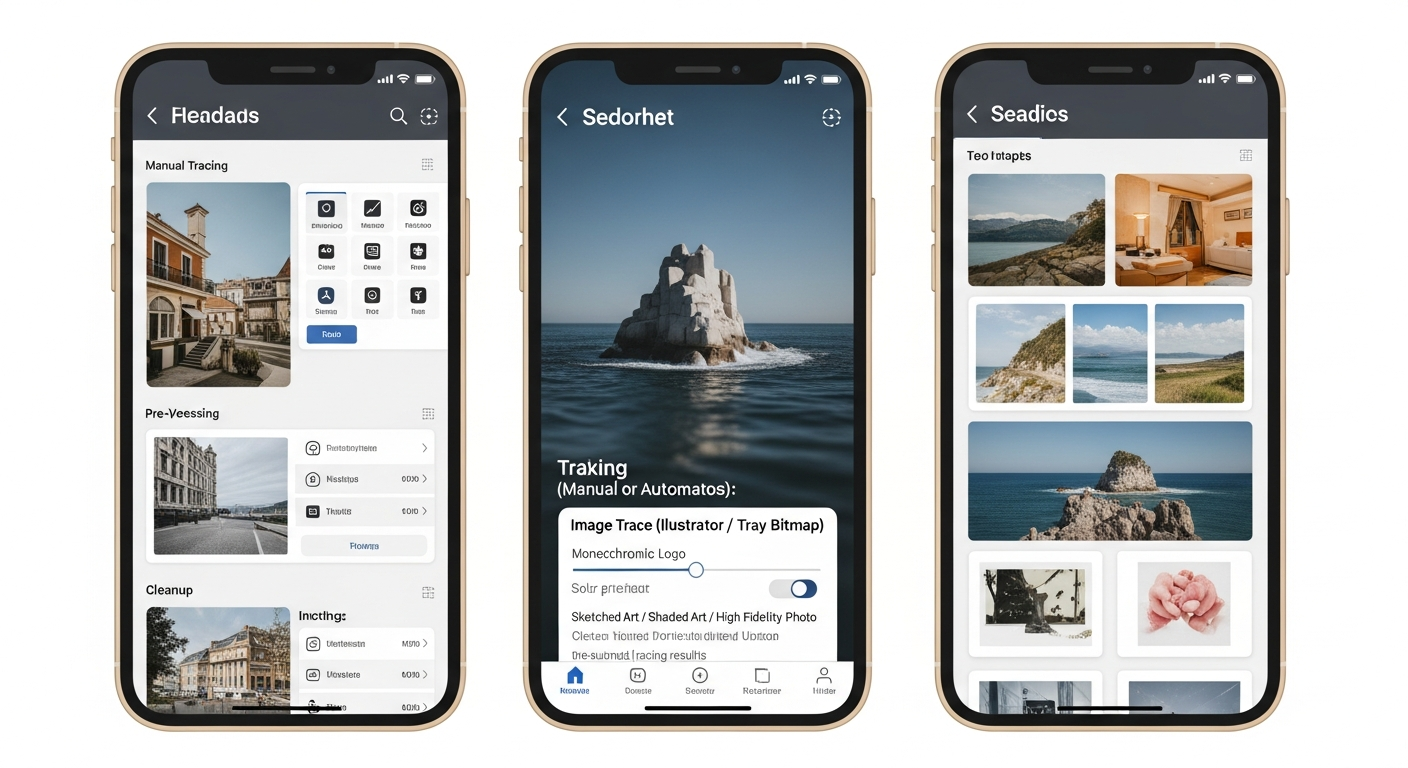
Inspiration boards that work. Vectorized captures let you extract individual components — a nav pattern here, a button style there — and remix them into new concepts.
Competitive analysis with teeth. Vectorized UI side-by-side with your proposed designs looks infinitely more polished than pasting blurry screenshots into a deck.
Redesign proposals without source files. You rarely get a client's Figma files before winning the project. Vectorizing their current UI gives you a working starting point.
---
Step-by-Step Workflow: Screenshot to Editable Vector
Step 1: Capture at the Highest Resolution
On macOS, use Cmd+Shift+4 on a Retina display for a 2x capture. On Windows, set display scaling to 100% and use ShareX configured for uncompressed PNG.
Step 2: Crop to the Relevant Area
Don't vectorize the entire screen for one component. Cropping focuses the AI on elements that matter and produces cleaner SVG output.
Step 3: Upscale if Needed
Screenshots below 1440px wide or at standard DPI benefit from an AI upscaler pass first. This reconstructs detail for cleaner edge tracing.
Step 4: Vectorize
Upload to VectoSolve. The AI recognizes buttons, containers, text blocks, and nav elements. Download the SVG.
Step 5: Import to Figma and Refine
Drag the SVG into Figma, ungroup paths, organize into frames matching the UI hierarchy, and replace traced text with actual text layers.
---
Source Type Comparison
| Source Type | Best Approach | Expected Quality | Post-Processing | |---|---|---|---| | Flat/Material UI | Direct vectorize | Excellent — clean shapes | Minimal: regroup, fix text | | iOS/macOS native | Upscale first | Very good | Moderate: rebuild shadows | | Glassmorphism | Vectorize + manual work | Fair — effects lost | Heavy: recreate blur/transparency | | Dashboard/data-heavy | Crop sections individually | Good for layout | Moderate: rebuild charts | | Photography-heavy | Vectorize layout, mask photos | Layout only | Heavy: replace photo areas | | Icon-heavy interfaces | Direct vectorize | Excellent | Light: organize and name layers |
---
Quality at Different Resolutions
1x (standard DPI, ~72-96 PPI): Edges appear stairstepped, so the vectorizer guesses where curves fall. Large shapes are acceptable; small icons and thin borders are rough.
2x (Retina/HiDPI, ~144-192 PPI): The sweet spot. Edge detection is accurate, curves are smooth, even 16px icons produce usable paths.
3x+ (ultra-high or upscaled): Diminishing returns but beneficial for detailed interfaces. More anchor points mean larger files, but fidelity is outstanding.
> "The fastest way to prototype a redesign isn't starting from a blank canvas — it's vectorizing what exists and reshaping it. You inherit the proportions and rhythm of the original layout, then make it yours." — Practical rapid-prototyping wisdom
---
Figma Import Workflow
Once you have your SVG from VectoSolve:
Figma layer structure:
├── Frame: App Screen (375×812)
│   ├── Header
│   │   ├── Status Bar
│   │   └── Nav Bar
│   ├── Hero Section
│   ├── Card Grid
│   │   ├── Card 1 (Component)
│   │   ├── Card 2 (Instance)
│   │   └── Card 3 (Instance)
│   └── Tab Bar
---
Use Cases
Pitch Decks and Client Proposals
Showing a client's current UI as clean vector art next to your proposed improvements demonstrates you've done homework — not just abstract ideas.Case Studies and Portfolio
Vectorized "before" states look dramatically more professional than raster screenshots. They scale perfectly for Behance, print portfolios, and conference slides.Redesign Proposals
Vectorize the current state, duplicate the artboard, modify. Because you started from actual proportions, your redesign maintains a believable relationship to reality.Style Guide Documentation
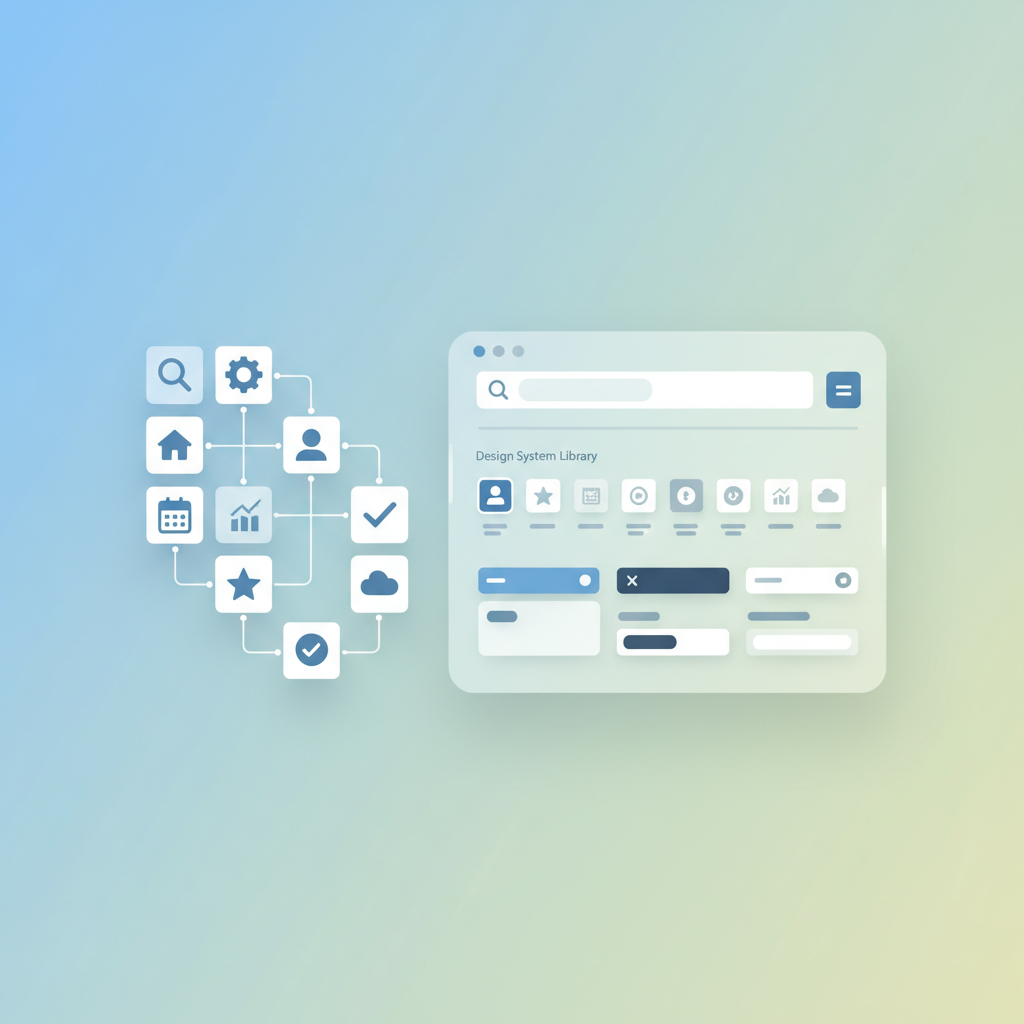
Vectorizing several screens and comparing extracted components is one of the fastest ways to audit what's actually shipping versus what's in the design system.
---
---
---
Build Your Reference Library
The real power isn't vectorizing one screen — it's building a reference library. Every vectorized UI pattern adds to a personal component archive that speeds up future work. Start with apps you reference most, organize extracted elements by pattern type, and keep them in a shared Figma library.
Start vectorizing your UI screenshots and turn your reference collection into an editable design resource.