
How to Convert Hand-Drawn Sketches to Digital Vector Art in 2026
Transform your pencil drawings, pen illustrations, and hand-drawn artwork into clean, scalable vector files. Complete guide covering scanning tips, conversion tools, and professional workflows.

Graphics & Design Experts
Our team of experienced designers and developers specializes in vector graphics, image conversion, and digital design optimization. With over 10 years of combined experience in graphic design and web development.
Key Takeaways
- Hand-drawn artwork carries authentic charm but needs vector conversion for scalability, professional printing, and digital use
- Scan quality is critical: use 300-600 DPI, bright white paper, high-contrast black ink, and save as PNG (never JPG)
- AI-powered auto-trace tools like VectoSolve preserve the organic hand-drawn feel while converting sketches to clean SVG paths in seconds
- The hybrid approach (AI auto-trace + manual refinement) gives the best results: 90% speed with 100% precision
- Clean your scan before vectorizing -- adjust contrast, remove background noise, and fix broken lines for optimal results
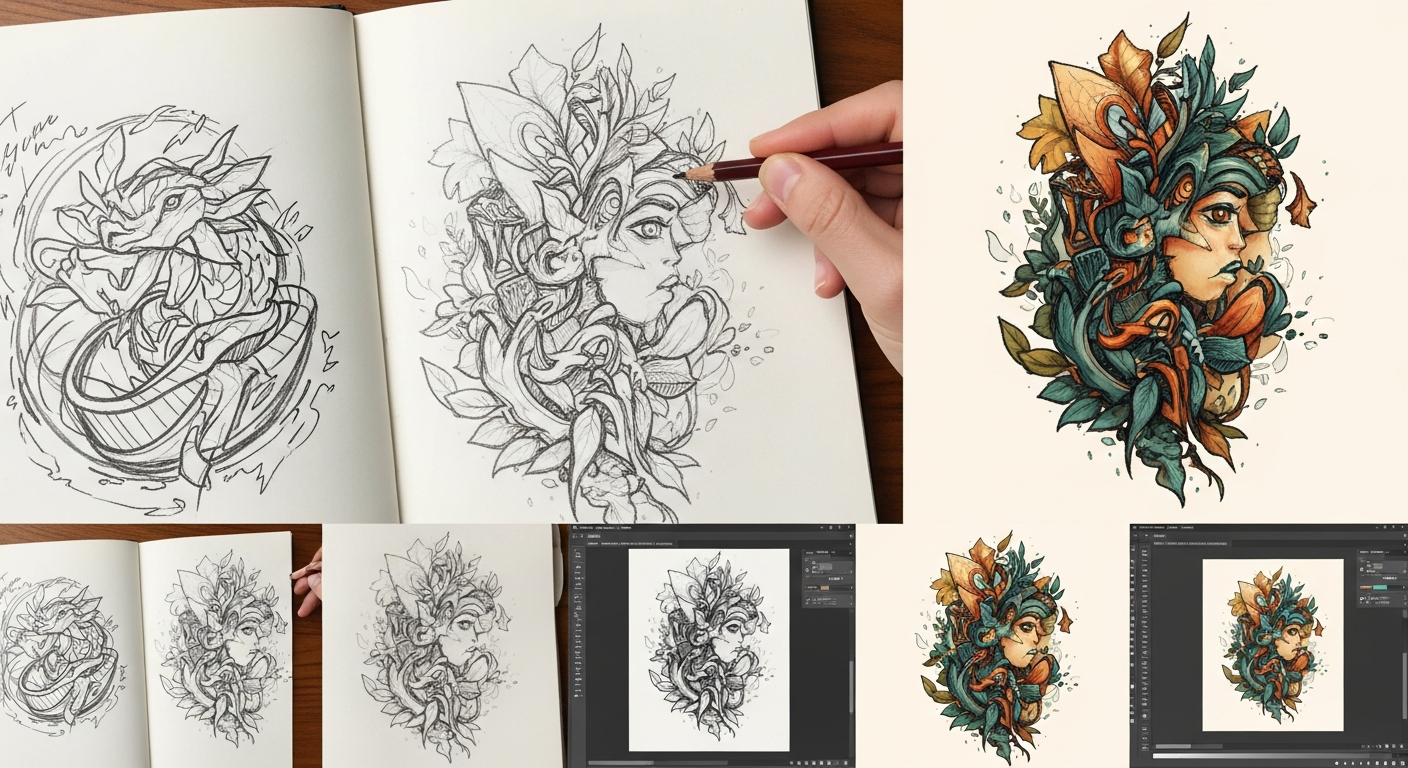
Hand-drawn art has a charm that digital tools struggle to replicate. The organic lines, subtle imperfections, and personal touch of pen-on-paper artwork carry an authenticity that resonates with audiences. But sharing, printing at scale, or using hand-drawn work in digital projects requires converting those sketches into vector format.
In 2026, the technology for converting hand-drawn artwork to vectors has reached a level where even complex illustrations can be digitized with remarkable fidelity. This guide walks you through every step of the process.
---
Vector files offer several critical advantages over keeping your artwork as raster scans:
"I sketched my logo on a napkin, scanned it with my phone, and had a production-ready SVG in under a minute. VectoSolve preserved every imperfection that made my hand-drawn logo feel authentic.
---
Step 1: Preparing Your Sketch for Scanning
The quality of your final vector depends heavily on the quality of your scan. Follow these preparation tips:
Paper and Ink Recommendations
Scanning Settings
Phone Camera Alternative
No scanner? Your smartphone can work well with these tips:
---
Step 2: Cleaning Up Your Scan
Before converting to vector, clean your scanned image for optimal results:
Quick Cleanup Process
Tools like Photoshop, GIMP (free), or even the built-in photo editor on your phone can handle these adjustments.
---
Ready to convert your images?
Try VectoSolve FreeStep 3: Converting to Vector
There are three main approaches to vectorizing hand-drawn sketches:
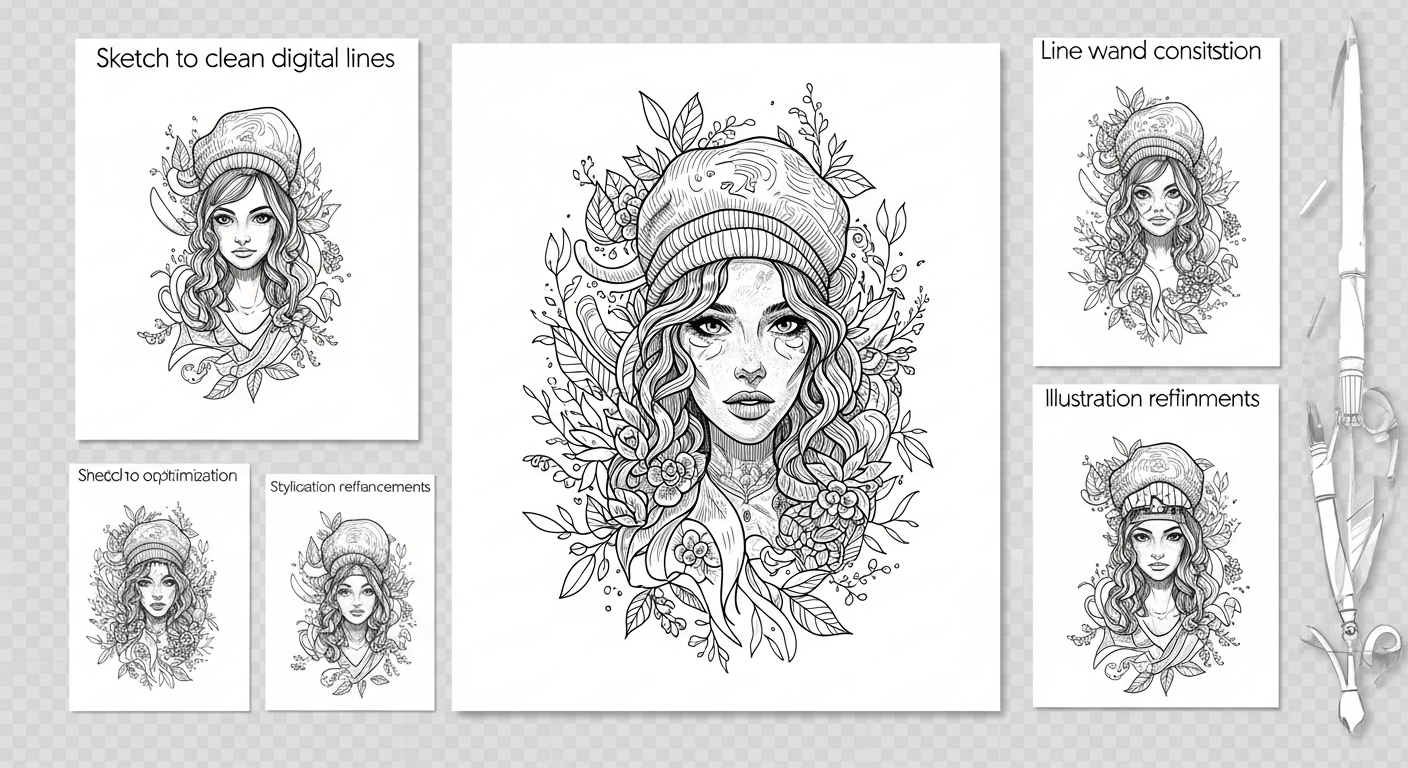
Method 1: AI-Powered Auto-Trace (Recommended)
Modern AI vectorization tools like VectoSolve analyze your artwork intelligently, understanding the artistic intent behind your strokes rather than just blindly tracing pixels.
How it works:
Best for: Most hand-drawn artwork, especially logos, illustrations, and lettering. Processing takes seconds rather than hours of manual tracing.
Method 2: Manual Tracing in Illustrator/Inkscape
For maximum control, you can manually trace your sketch using the Pen tool in vector editors.
Pros: Complete control over every curve and anchor point
Cons: Extremely time-consuming (hours per illustration), requires vector editing skills
Method 3: Hybrid Approach
Start with an AI auto-trace to get 90% of the way there, then refine specific details manually in a vector editor. This combines speed with precision.
---
Preserving the Hand-Drawn Feel
The biggest concern when vectorizing sketches is losing that organic, hand-drawn quality. Here are tips to maintain it:
---
Common Artwork Types and Tips
Logo Sketches
Logo sketches typically have clean, defined shapes. Vectorize at high quality, then simplify paths for a polished result. This is the most common use case for sketch-to-vector conversion.
Illustration and Comics
Complex illustrations with many overlapping elements work best when separated into layers before vectorizing. Convert individual elements separately, then composite in your vector editor.
Hand Lettering and Typography
Lettering requires extra attention to consistent stroke weight and smooth curves. AI tools handle this well because they understand letterform structure.
Botanical and Nature Drawings
Detailed nature drawings with fine linework benefit from higher scan resolution (600 DPI) and AI vectorization that preserves delicate details.
---
Ready to convert your images?
Try VectoSolve FreeFile Format Guide for Hand-Drawn Vectors
---
Conclusion
Converting hand-drawn sketches to vector art has never been more accessible. With proper scanning technique and AI-powered conversion tools, you can digitize your artwork in minutes while preserving the authentic hand-drawn character that makes it special. Whether you're a professional illustrator, a logo designer, or a hobbyist, the sketch-to-vector workflow is an essential skill in 2026.
---
| Scan Setting | Recommended Value | Impact on Vectorization |
|---|---|---|
| DPI (resolution) | 300–600 DPI | Higher DPI captures finer pencil strokes and thin lines |
| Color mode | Grayscale or B&W | Reduces noise; produces cleaner vector paths |
| File format | PNG (lossless) | No compression artifacts; sharper edge detection |
| Paper type | Smooth white Bristol | Maximum contrast between ink and background |
| Ink type | Black felt-tip or Micron | Dense, consistent lines trace most accurately |