
Converting Line Art to Vector: From Sketch to Digital Illustration
Transform your hand-drawn line art into clean, scalable vector illustrations. Perfect workflow for artists, illustrators, and designers.
Founder of VectoSolve
Self-taught developer, founder and sole developer of VectoSolve since 2024. He builds the conversion engine and the cutting, embroidery and 3D printing exports.
How this article was made: drafted with AI assistance, then edited and fact-checked before publication. About the author
Try it on your own file
Free preview, no signup. Drop an image and see the vector before deciding anything.

Line Art Is Design Distilled to Its Essence
There's a reason tattoo apprentices start with line art before they ever touch a machine. Line art strips away everything that doesn't matter — no crutches of color, no hiding behind gradients — and leaves only the strength of your stroke. When you vectorize that work, you're taking something raw and personal and giving it the precision it needs to live on skin, on merch, on a book cover at any size.
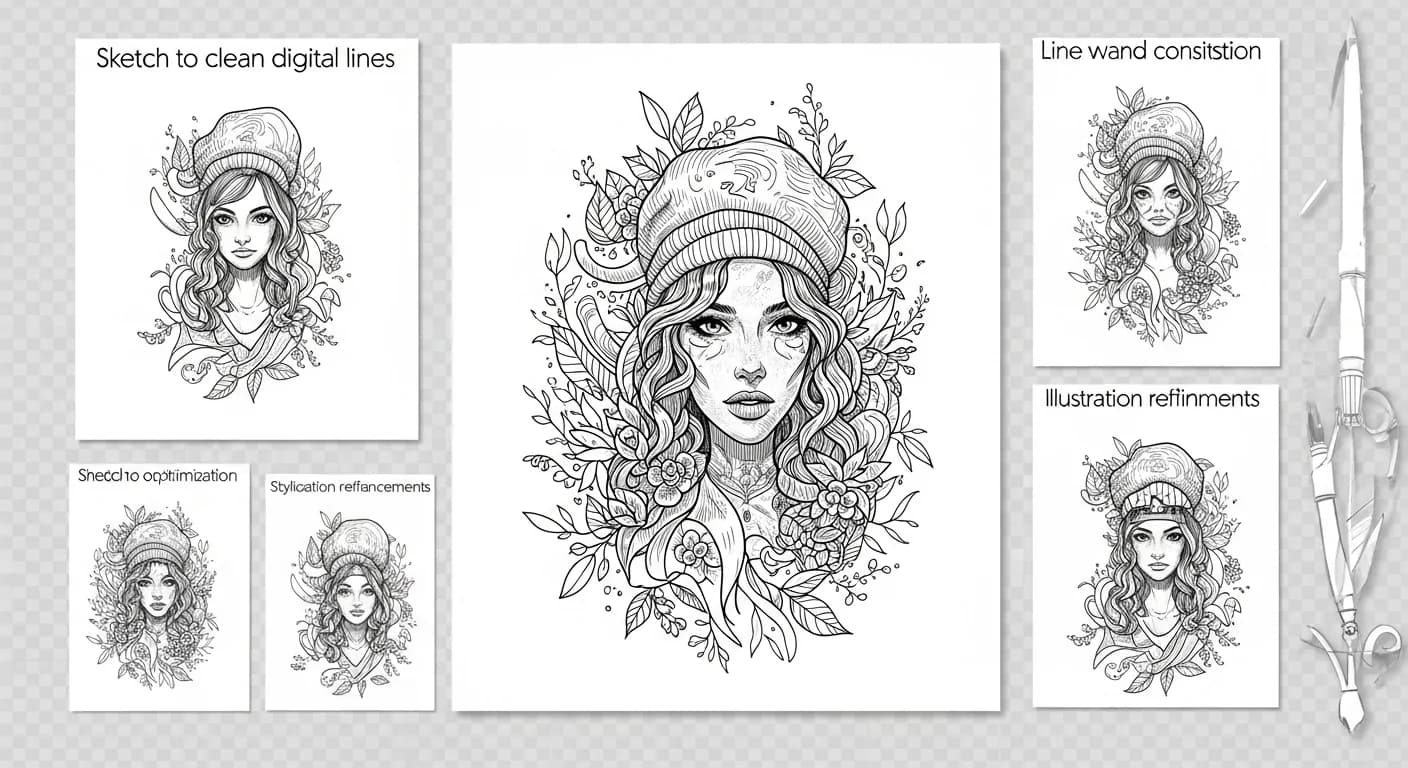
This guide walks through a practical workflow for moving line art from sketchbook to screen, whether you're preparing tattoo stencils or packaging illustrations for print.
"Line art is design distilled to its essence — every stroke has to earn its place on the page."
Key Takeaways
- Bold ink on smooth paper (0.5mm pens or thicker) produces the cleanest vector traces
- Different line art styles (continuous line, crosshatch, stipple) each need specific vectorization settings
- Scanning at 600 DPI in grayscale preserves stroke variation without introducing noise
- VectoSolve uses AI-powered tracing that respects hand-drawn character
- Vectorized line art unlocks tattoo stencils, merchandise, book illustration, and scalable prints
Five Styles of Line Art and How Each Vectorizes
Not all line art is created equal. The style you draw in directly affects how the vectorizer interprets your work:
| Style | Characteristics | Vectorization Approach | Watch Out For |
|---|---|---|---|
| Continuous line | Single unbroken stroke, no lifting | Centerline trace, moderate smoothing | Overlapping intersections can merge |
| Crosshatch | Layered parallel lines for shading | High detail, low smoothing | Dense areas may fill in as solid black |
| Stipple | Dots of varying density | Color quantization to 2 levels, then trace | Small dots may vanish below 600 DPI |
| Contour | Lines following the subject's form | Standard outline trace, medium smoothing | Varying weights need path-based tracing |
| Gesture | Loose, expressive, overlapping marks | Aggressive threshold, selective cleanup | Stray marks will be traced — clean first |
Understanding your style before you scan saves hours of cleanup later.
Scanning and Photographing Line Art
Scanning (The Gold Standard)
- 600 DPI minimum — 1200 DPI for fine stippling or delicate hatching
- Grayscale mode, not black-and-white (B&W applies a harsh threshold that kills subtlety)
- Clean the glass every session — one hair becomes a stray vector path
- Lay paper perfectly flat with a heavy book on the lid if it's curling
- Scan larger than you need — you can crop but can't recover lost edges
Photographing (Field Alternative)
- Shoot in bright, even daylight with no shadows crossing the work
- Camera directly overhead, parallel to the paper
- Use your phone's document scan mode for perspective correction and contrast boost
- Run a quick levels adjustment — push whites to 255 and blacks to 0

Pro Tip: Use thick pens (0.5mm or larger) for cleaner traces. Micron 05s, Faber-Castell Pitt Artist pens in Medium, or firm brush pens all produce strokes that vectorizers read confidently. Thinner lines (0.1mm-0.3mm) break up at standard scanning resolutions, leaving fragmented paths that need tedious manual repair.
Warning: Pencil sketches are almost always too faint for reliable vectorization. Graphite reflects light unevenly on the scanner, producing inconsistent gray values that confuse threshold algorithms. If your workflow starts with pencil, ink over your lines before scanning — even a quick pass with a felt-tip pen makes a dramatic difference in trace quality.
A Full Year of Conversions for $49
Starter Annual: 25 conversions every month, $49 for the whole year. That is about $4.08 a month · Cancel anytime
Get the Annual DealVectorization Settings for Different Line Weights
A single preset does not work for every piece. Here's how to adjust based on line character:
Thin, Uniform Lines (Tech Pens, Fineliners)
- Threshold: High (push faint edges into black)
- Smoothing: Medium-high (these lines shouldn't wobble)
- Path mode: Centerline stroke (adjustable weight later)
- Detail level: Medium (too high captures paper texture)
Thick, Variable Lines (Brush Pens, Markers)
- Threshold: Medium (preserve natural fade at stroke edges)
- Smoothing: Low-medium (keep that brush character)
- Path mode: Filled outlines (preserves thickness variation)
- Detail level: High (captures taper and swell of each stroke)
Mixed Weight Illustration
- Threshold: Medium-high
- Smoothing: Medium
- Path mode: Filled outlines
- Post-processing: Separate thick outlines onto their own layer
Upload your scan to VectoSolve and the AI tracer handles the heavy lifting. For fine-tuning, open the SVG in the VectoSolve SVG Editor to adjust anchor points, smooth curves, or separate overlapping paths.
Coloring Your Vectorized Line Art
Clean vectors make coloring dramatically easier than raster art:
Flat Color Fills
- Ensure all paths are closed — gaps mean color bleeds outside the shape
- Create a color layer beneath the line art layer
- Build a limited palette (5-7 colors keeps the work cohesive)
Shading and Depth
- Add a multiply layer above flat colors for shadows
- Use gradient fills sparingly — they can fight the graphic quality of line art
- For a traditional feel, add shading as additional linework (crosshatch or stipple) rather than gradients
Keep your line layer on top and locked. Don't let color compete with linework. Consider leaving some areas uncolored — negative space is powerful.
Real-World Applications
Tattoo Design and Stencils
Vectorized line art produces razor-sharp stencils at any body placement size. A back piece and a wrist version come from the same file — just scale and print. Flash sheets become infinitely reproducible, and clients can preview exact line weights on screen before committing to skin.
Merchandise and Product Design
T-shirts, enamel pins, stickers, tote bags — all need vector art for production. Line art vectorized through VectoSolve gives you production-ready files that manufacturers actually want to receive.
Book and Editorial Illustration
Publishers need art that works at chapter-header size and full-page spread from the same source file. Coloring book publishers especially benefit — every page needs to be clean, scalable, and press-ready.
Animation and Motion Graphics
Vector line art is ideal for frame-by-frame animation or rigged character work. Each path is individually selectable, layers separate naturally, and files stay lightweight at broadcast resolution.
Free SVG Tools for Crafters
Design Checker · Color Separator · Mat Preview · Offset Generator · Text to SVG
Check Your SVG FreeYour Line-to-Vector Workflow
- Draw in batches — ink 5-10 pieces while your hand is warmed up
- Scan the batch at 600 DPI grayscale
- Levels adjustment on each scan (whites to 255, blacks to 0)
- Crop and clean — remove dust, stray marks, scanner artifacts
- Upload to VectoSolve for AI-powered vectorization
- Refine in the SVG Editor — close paths, smooth curves
- Color if needed on a layer beneath the linework
- Export final SVGs and archive both originals and vectors
Your sketchbook is full of work that deserves to live beyond the page. Whether you're building a flash sheet, illustrating a zine, or preparing merch, vectorizing your line art bridges the raw energy of your hand and the technical demands of production. Start converting your line art with VectoSolve and see how much hand-drawn character survives the jump to vector.
| Line Art Source | Recommended DPI | Best Vectorization Setting | Cleanup Time |
|---|---|---|---|
| Pencil sketch on paper | 300–600 DPI | High contrast, threshold mode | 10–30 min |
| Ink drawing on paper | 300 DPI | Line art / monochrome mode | 5–15 min |
| Digital tablet sketch | N/A (native digital) | Path simplification medium | 5–10 min |
| Photo of whiteboard | N/A (photo) | High threshold + cleanup | 15–45 min |