
How to Convert a Logo to Vector: Step-by-Step (5 Methods Compared)
Step-by-step guide to convert any logo from PNG/JPG to scalable SVG vector. Includes a free tool that does it in 5 seconds — no Illustrator needed.
Founder of VectoSolve
Self-taught developer, founder and sole developer of VectoSolve since 2024. He builds the conversion engine and the cutting, embroidery and 3D printing exports.
How this article was made: drafted with AI assistance, then edited and fact-checked before publication. About the author
Try it on your own file
Free preview, no signup. Drop an image and see the vector before deciding anything.
Key Takeaways
- A vector logo is non-negotiable for any business that prints, embroiders, or scales its brand.
- Five conversion methods exist — AI tools like VectoSolve deliver the best speed-to-quality ratio.
- Prepare your source image first: high contrast, clean edges, minimal artifacts.
- Logos with gradients or photorealistic elements need special handling — skip the one-click approach.
- Deliver SVG, AI/EPS, and PDF versions plus a Pantone color reference.
Starting from scratch instead? See which AI logo generators actually output real vectors in our 2026 comparison.
Why Every Business Needs a Vector Logo
Here is something worth knowing early: if your logo only exists as a PNG, you don't really have a logo — you have a screenshot of one.
A classic mistake is handing a 400px JPG to a print shop for a trade show banner, then wondering why the booth looks like it was designed in 2004. That pixelated mess usually means a second print run and an awkward conversation. Don't be that designer. Don't let your client be that business owner.

A vector logo is required the moment your brand appears in any of these contexts:
- Print — Business cards, brochures, packaging. Print shops expect vector files, and they'll charge extra to fix raster.
- Signage & banners — A 6-foot banner from a 500px PNG is a guaranteed disaster.
- Embroidery & merch — Embroidery machines literally read vector paths. No vector, no stitch file.
- Web & responsive — SVG logos load faster, stay sharp on retina screens, and can be styled with CSS.
- Vehicle wraps — Your logo at 300% on the side of a van will expose every single pixel.
What Makes Vectors Different
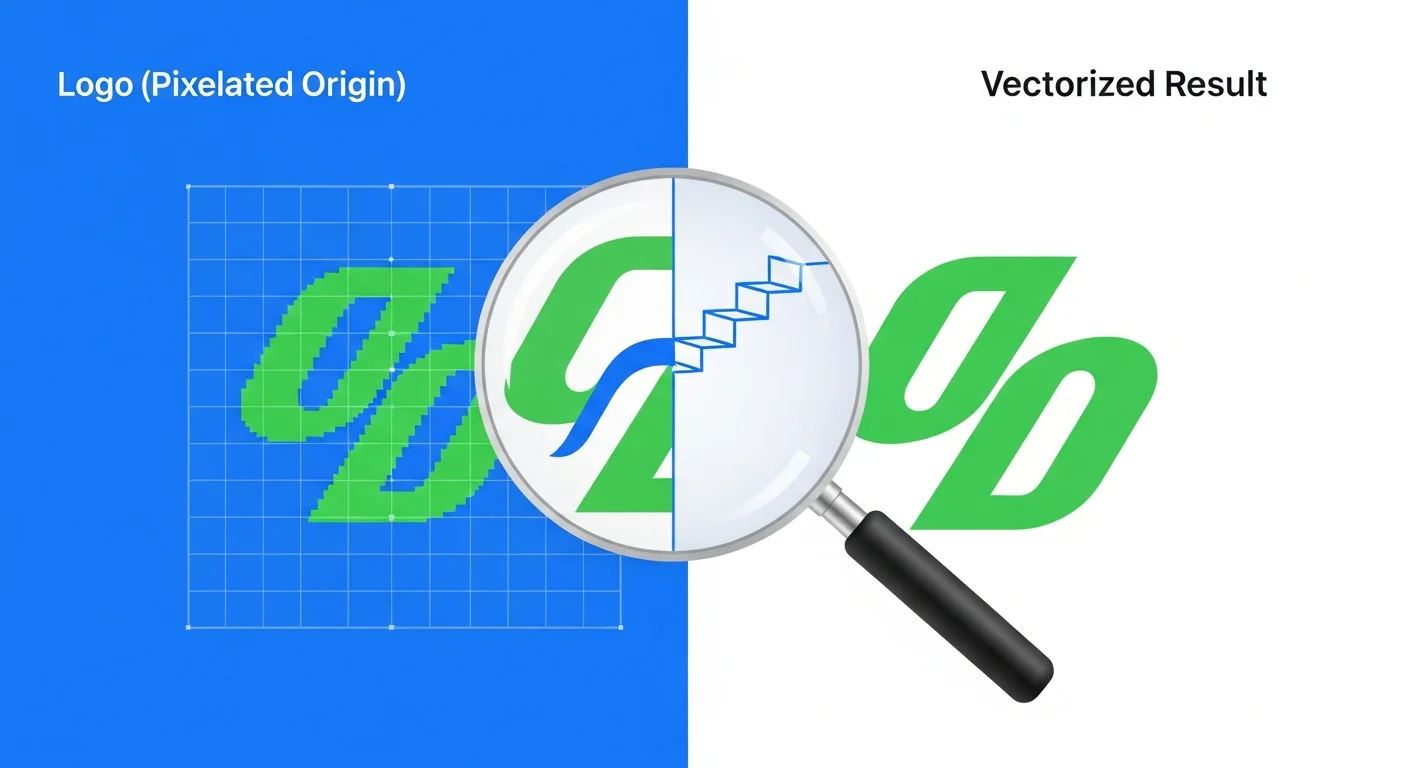
Raster (PNG): "Pixel at x:10, y:20 is color #1cb721"
Vector (SVG): "Draw circle at center (10,20), radius 5, fill #1cb721"
Raster = a grid of colored dots. Zoom in and you see the grid. Vector = math instructions that recalculate at any zoom level. Infinite resolution, tiny file size, endlessly editable.
5 Conversion Methods — Compared Honestly
Disclosure: VectoSolve is our own tool. We list it first because it is the tool we build and know best, not because it won an independent test, and we do not give it a score.
1. AI-Powered Conversion (VectoSolve)
VectoSolve uses machine learning to trace logos into clean vector paths. Upload, adjust settings, download. For most standard logos — wordmarks, icons, simple illustrations — this is the fastest path to a production-ready file, handy when a client sends a raster logo and you need a working vector in five minutes.
2. Adobe Illustrator Image Trace
Granular control over threshold, paths, corners, and noise. But it requires an Adobe subscription, has a real learning curve, and the default outputs still need manual cleanup.
3. Manual Pen Tool Redraw
The gold standard for quality. You redraw every path by hand over a template layer. Perfect results, but 1-4 hours per logo and serious Bezier skills required. It is best kept for complex logos or premium client work.
4. Inkscape Auto-Trace
Free and open source. Functional but limited — struggles with multi-color logos, produces excessive nodes, and the UI is clunky. Fine for hobby projects; risky for professional deliverables.
5. Hiring a Designer
Expect $50-200 on freelance platforms. The risk is quality variance — some freelancers just run Image Trace and charge $100 for five minutes of work. Ask for a manual redraw if precision matters.
The Honest Comparison
| Method | Speed | Quality | Cost | Skill Required | Best For |
|---|---|---|---|---|---|
| VectoSolve (AI) | ~2 min | High | Free preview; $6.99/file or plans from $7.99/mo | None | Quick professional results, batch jobs |
| Illustrator Image Trace | 10-30 min | Medium-High | Subscription | Intermediate | Adobe ecosystem users |
| Manual Pen Tool | 1-4 hrs | Highest | Time cost | Advanced | Complex logos, premium work |
| Inkscape Auto-Trace | 5-15 min | Medium | Free | Beginner+ | Budget projects, simple logos |
| Hire a Designer | 1-3 days | Varies | $50-200 | None | Business owners, hands-off |
Step-by-Step: Converting Your Logo with VectoSolve
Pro Tip: Prepare your logo image before uploading. Garbage in, garbage out. Scan at 600 DPI if working from print. Boost contrast so edges are crisp. Remove background noise or compression artifacts. A clean PNG with transparency at 1000px+ gives the AI the best signal to work with. Five minutes of prep saves thirty minutes of cleanup.
Step 1: Upload Your Source Image
Go to vectosolve.com and drag your logo onto the upload area. PNG with transparency is ideal. JPG works but you may need background removal first.
Step 2: Configure Settings
This is where beginners rush and pros pause to think:
- Max Colors: Count actual colors in your logo. Two-color wordmark? Set 2-3. Full illustrated logo? Maybe 8-12. Fewer colors = cleaner paths.
- Detail Level: Medium for most logos. High for fine linework or small text. Low for bold geometric marks.
- Smoothing: Enable for curves (most logos). Disable only for deliberately angular designs.
- Corner Threshold: Higher values keep sharp corners. For tech logos with crisp angles, push this up.
Step 3: Preview at Multiple Zoom Levels
Don't just glance at the preview. Zoom to 400% and 1000%. Check letter shapes (especially a, e, g, s), curve smoothness, and path count (under 500 for a typical logo).
Step 4: Download and Verify
Download your SVG. Open in a browser to verify rendering. For multiple logos, VectoSolve Batch processes them in one session.
Warning: Logos with gradients, drop shadows, or photorealistic elements are poor candidates for auto-tracing. The AI approximates gradients with bands of flat color, which rarely looks professional. Instead: (1) flatten to solid colors before converting, (2) convert solid elements and recreate gradients manually in Illustrator, or (3) use the pen tool from the start. Photorealistic elements should remain as linked raster images within your vector file.
A Full Year of Conversions for $49
Starter Annual: 25 conversions every month, $49 for the whole year. That is about $4.08 a month · Cancel anytime
Get the Annual DealColor Management: RGB to CMYK to Pantone
This is where even mid-level designers stumble. Get this wrong and your brand blue prints as purple.
- Start with hex/RGB — your digital source of truth.
- Convert to CMYK for print — CMYK gamut is smaller than RGB, so vivid colors shift. Adjust until the proof matches your intent.
- Map to Pantone spot colors — guarantees your blue is the same blue across every vendor. Use Illustrator's Pantone Color Bridge to find the closest match.
- Document everything in your brand guidelines.
Brand Blue:
  HEX:     #1A5CFF
  RGB:     26, 92, 255
  CMYK:    85, 64, 0, 0
  Pantone: 2728 C
Get this right once and you never argue with a printer about color matching again.
File Format Export Guide
| Format | Best For | Notes |
|---|---|---|
| SVG | Web, apps, screen display | Smallest size, CSS-stylable, universal browser support |
| AI | Designers, agencies, editing | Native Illustrator format, preserves layers and effects |
| EPS | Print shops, older workflows | Broadly compatible, still industry standard |
| Client delivery, proofing, print | Universally viewable, preserves fonts |
Rule of thumb: SVG for anything digital, PDF for anything the client views, AI for anyone who edits, EPS only if the printer specifically asks.
Need a logo from scratch? VectoSolve's Logo Generator creates AI-generated designs you can then vectorize.
Common Mistakes to Avoid
- Sending a PNG renamed to .svg. Open the file in a text editor — a real SVG contains XML markup, not binary.
- Leaving white backgrounds in "transparent" logos. Verify by placing the logo on a dark background.
- Over-tracing details. If your vector has 5,000 anchor points for a simple wordmark, simplify paths aggressively.
- Skipping CMYK conversion before print. Your RGB green will print as muddy olive.
- Not testing at small sizes. A logo that looks great at 500px can become illegible at 32px.
Vector Logo Deliverables Checklist for Clients
- Primary logo in SVG, AI, EPS, and PDF
- White (reversed) version for dark backgrounds
- Black (single-color) version for fax, engraving, stamps
- Icon-only version for favicons and app icons
- Horizontal and stacked layout variations
- Color spec sheet (HEX, RGB, CMYK, Pantone)
- Minimum size guidelines
- Clear space rules
- Usage "don'ts" page (no stretching, no color changes, no drop shadows)
Organize files like a professional:
/brand-assets
  /vector
    logo-primary-color.svg
    logo-primary-color.ai
    logo-primary-color.eps
    logo-primary-color.pdf
    logo-reversed-white.svg
    logo-icon-only.svg
  /raster
    logo-1200px.png
    logo-favicon-32px.png
  /guidelines
    brand-color-specs.pdf
Free SVG Tools for Crafters
Design Checker · Color Separator · Mat Preview · Offset Generator · Text to SVG
Check Your SVG FreeWrapping Up
Converting your logo to vector is the difference between a brand that looks professional everywhere and one that falls apart the moment it leaves a screen. Whether you use VectoSolve to do it in two minutes or spend an afternoon with the pen tool, get it done. Your future self — and every printer, sign maker, and embroiderer you work with — will thank you.
The best time to vectorize your logo was when it was first designed. The second best time is right now.
| Conversion Method | Speed | True Vector Output | Cost |
|---|---|---|---|
| AI auto-trace (VectoSolve) | Under 30 seconds | Yes | Free preview; plans from $7.99/mo |
| Adobe Illustrator Image Trace | 2–5 minutes | Yes | Subscription |
| Inkscape auto-trace | 3–10 minutes | Yes | Free (open source) |
| Manual pen tool redraw | 1–4 hours | Yes (highest quality) | $50–$300 per logo |
| Online free converters | Instant | Often no (embedded raster) | Free |