
How to Convert a Logo to Vector: 5 Methods Compared (2026)
Compare the best methods to convert your logo to vector format. From AI tools to manual tracing, find the right approach for your needs.
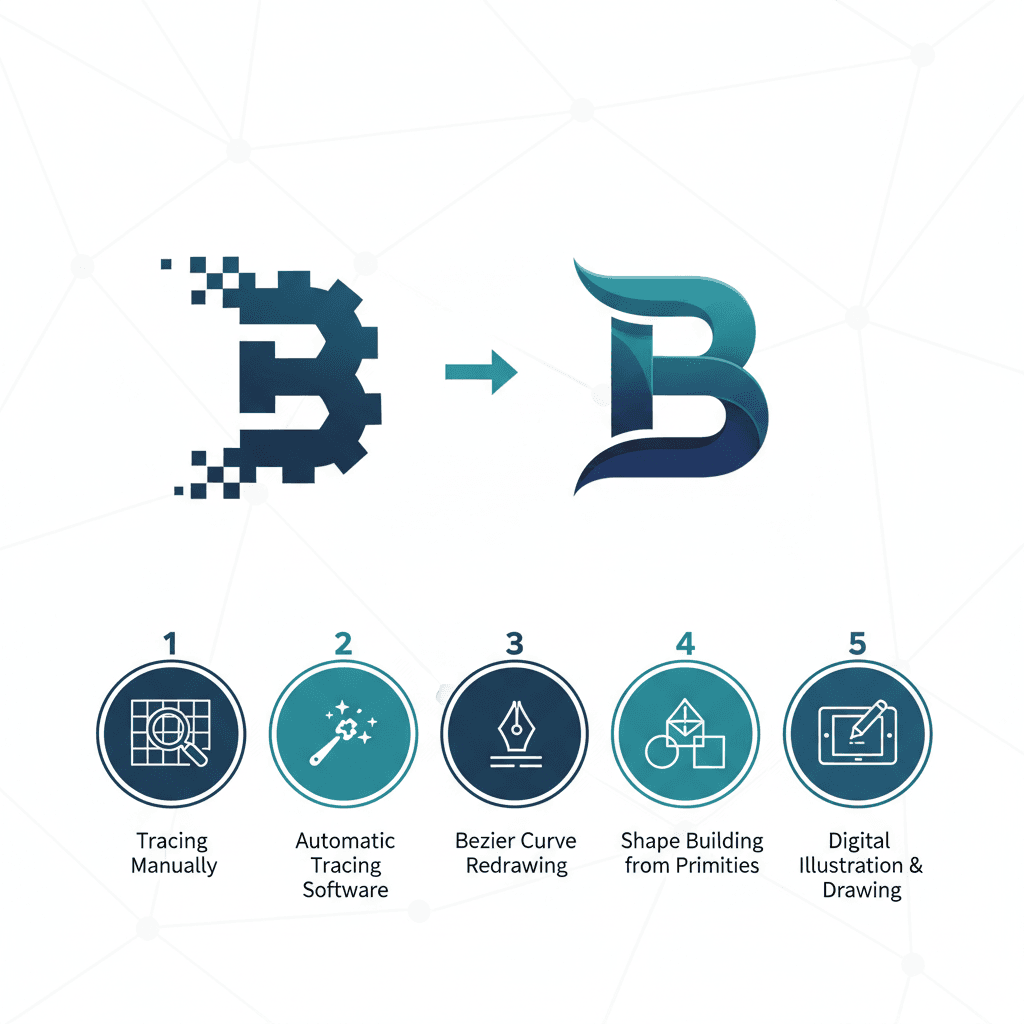
Graphics & Design Experts
Our team of experienced designers and developers specializes in vector graphics, image conversion, and digital design optimization. With over 10 years of combined experience in graphic design and web development.
Key Takeaways
- AI tools like VectoSolve deliver 90%+ accuracy in under 10 seconds — no design skills required
- Always start from the highest resolution source you can find; garbage in, garbage out
- 5 methods ranked by speed-to-quality: AI conversion > Illustrator Image Trace > Manual pen tool > Inkscape > Hiring a designer
- Post-conversion QA is non-negotiable: check colors, proportions, and path cleanliness
- SVG is king for web; keep EPS and PDF ready for print partners
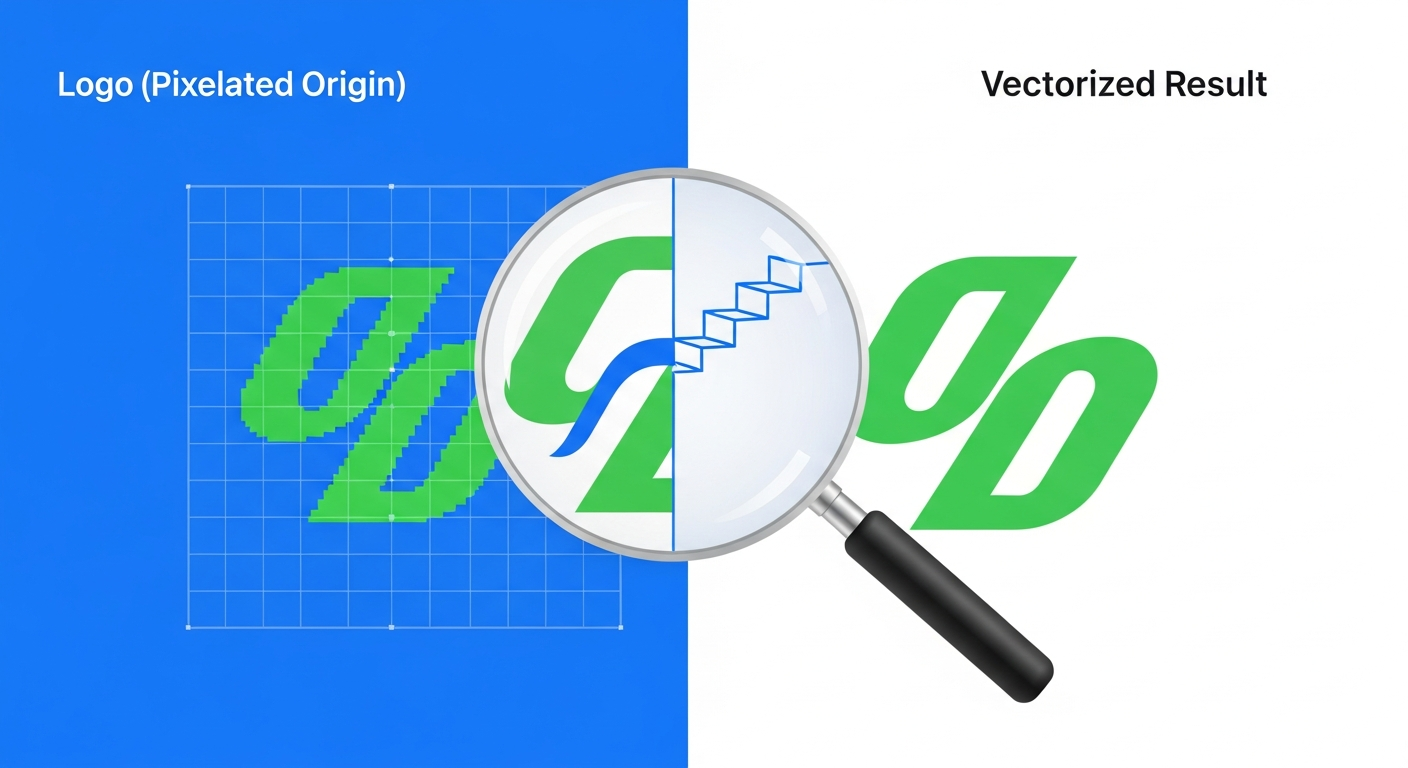
Why Your Logo Must Be Vector — No Exceptions
I've worked with logos for 15 years. Fortune 500 brand systems and bakery owners' nephew's Paint creations alike. The one constant? The moment someone scales a raster logo to billboard size, it falls apart.
"A logo is not just a mark. It is the single most compressed expression of a brand's identity — and it must survive at every size, on every surface.
If your logo only exists as a PNG or JPEG, you're operating with a ticking time bomb. One day you'll need it on a trade show banner, an embroidered shirt, or a favicon — and your 500px file won't cut it.
Vector logos solve this permanently. Built on mathematical curves instead of pixels, they scale from 16x16 favicons to building wraps with zero quality loss.
---
The 5 Methods Ranked
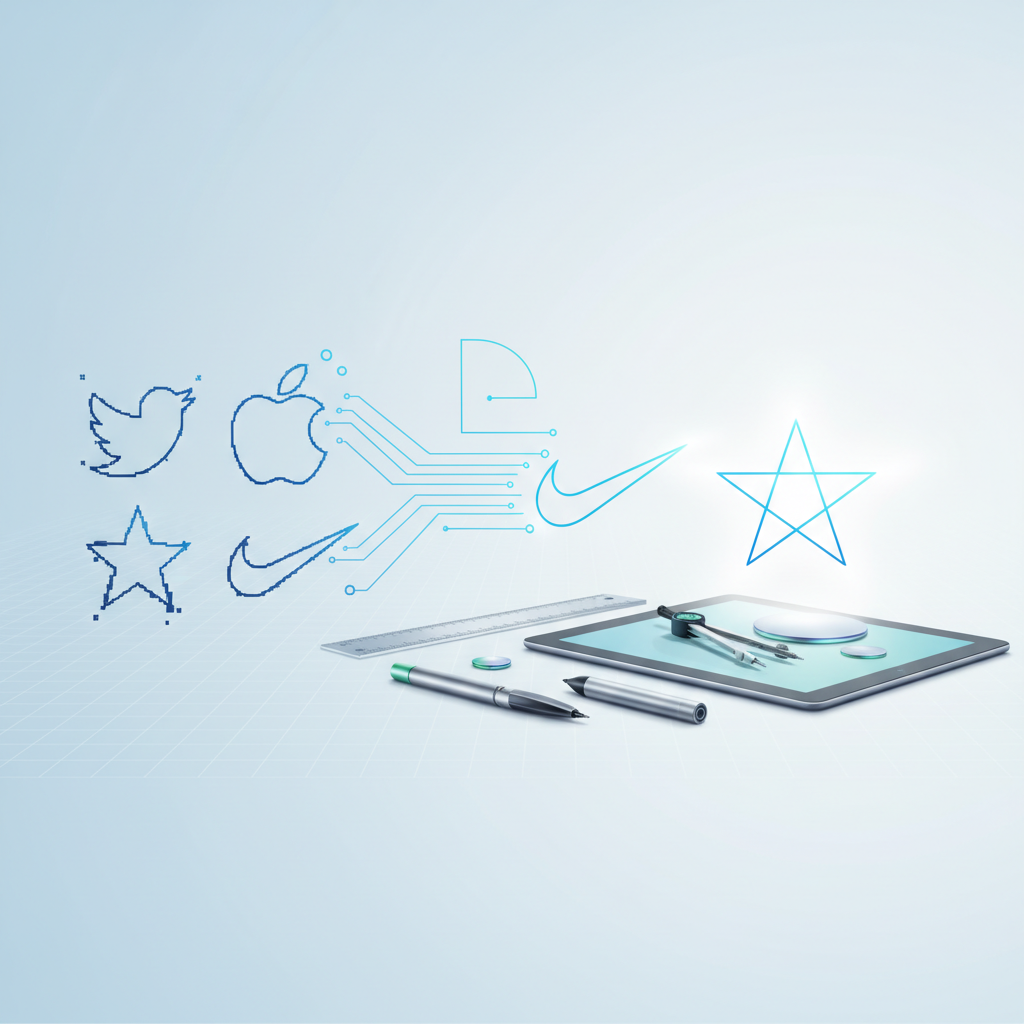
Method 1: AI-Powered Conversion with VectoSolve (Fastest)
Best for: Business owners, marketers, developers — anyone who needs results now
VectoSolve uses AI models trained specifically on logo imagery. It understands solid shapes, clean edges, and deliberate color choices — not a generic image tracer.
#### Step-by-Step: Convert Your Logo with VectoSolve
The AI understands negative space, symmetry, color boundaries, and letterforms — things generic Potrace-based tools miss entirely.
Quality Rating: 8.5/10 | Time: 5-10 seconds | Cost: $4-19/mo
---
Method 2: Adobe Illustrator Image Trace
Best for: Designers who already pay for Creative Cloud
Image Trace has improved over the years, but the default presets are mediocre. The magic is in manual adjustments: tuning Paths, Corners, and Noise sliders, then cleaning up with the Direct Selection tool after expanding.
The catch: $22.99/month and 10-30 minutes of hands-on work per logo.
Quality Rating: 9/10 (expert hands) / 6/10 (beginners)
---
Method 3: Manual Pen Tool Tracing
Best for: Pixel-perfect control or rebuilding a logo from scratch
The gold standard for precision. Place the raster as a background reference and draw every curve by hand. Painstaking, slow, and flawless when done well. Worth it for simple geometric logos or when you need to improve the original. Expect 1-4 hours per logo.
Quality Rating: 10/10 (with skill)
---
Method 4: Inkscape Auto-Trace
Best for: Budget-conscious users comfortable with open-source software
Inkscape is free and uses Potrace for bitmap tracing. Results are noticeably rougher — jagged curves, excessive anchor points, imprecise colors.
Quality Rating: 6/10
---
Method 5: Hiring a Professional Designer
Best for: Brand-critical applications where quality trumps everything
| Service Level | Price | Turnaround | What You Get | |---|---|---|---| | Budget (Fiverr) | $15-75 | 2-5 days | Basic SVG, 1-2 revisions | | Mid-Range Freelancer | $100-350 | 3-7 days | Multiple formats, color variants | | Studio / Agency | $500-2,000 | 1-3 weeks | Full brand package, guidelines |
Quality varies wildly. Always request a portfolio sample before committing.
Quality Rating: 5-10/10 (depends entirely on who you hire)
---
Complete Comparison Table
| Criteria | VectoSolve AI | Illustrator | Manual Pen | Inkscape | Designer | |---|---|---|---|---|---| | Cost | $4-19/mo | $23/mo | $0-69 | Free | $15-2,000 | | Time | 5-10 sec | 10-30 min | 1-4 hours | 5-15 min | 2-14 days | | Skill needed | None | High | Expert | Medium | None | | Simple logo | 9/10 | 9/10 | 10/10 | 7/10 | 9/10 | | Complex logo | 7.5/10 | 8/10 | 10/10 | 4/10 | 9.5/10 | | Batch support | Yes | Limited | No | No | No | | Path cleanliness | Clean | Needs work | Perfect | Messy | Clean |
---
Preparing Your Image for Best Results
This is where most people go wrong. They upload a 150px favicon and wonder why the output looks terrible.
Preparation Checklist
---
Post-Conversion Quality Checklist
Never skip this. I've seen people deliver unchecked vectors to printers and regret it.
Colors
Proportions & Paths
Final Verification
---
File Format Delivery Guide
| Format | Use Case | Notes | |---|---|---| | SVG | Web, apps, email | Lightweight, scalable, CSS-styleable. Optimize with VectoSolve | | EPS | Print vendors | Universal print handoff format | | PDF | Documents, presentations | Viewable everywhere without special software | | AI | Adobe workflow | Only if your designer works in Illustrator | | PNG (2000px+) | Social media, sharing | Export from your vector for raster needs |
logo-full-color.svg, logo-white.svg, logo-black.svg. Every vendor you work with will thank you.
---
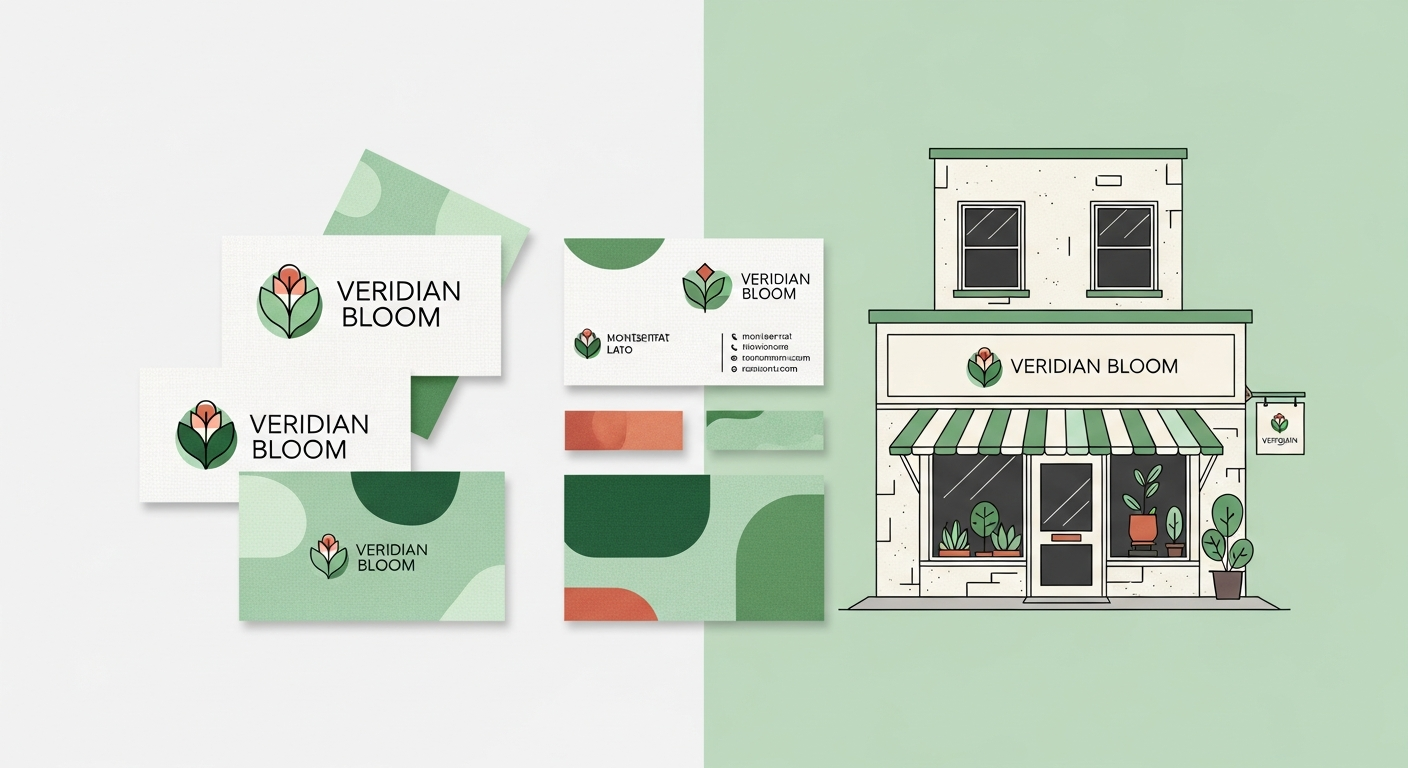
The Bottom Line
For 90% of businesses, AI-powered conversion through VectoSolve is the right call. Fast, affordable, and genuinely excellent quality for clean logos. No Illustrator license. No freelancer wait times. Upload, convert, download.
For the other 10% — photorealistic logos, intricate hand-drawn details, or brand launches where perfection is mandatory — invest in a skilled designer.
But always start with VectoSolve. If the AI output is good enough (it usually is), you saved hours or hundreds of dollars. If it needs refinement, you've got a solid starting point a designer can clean up in minutes instead of hours.
Your logo is the hardest-working asset in your brand. Build it to last — in vector.
---
Ready to convert? Try VectoSolve free and get a production-ready vector in under 10 seconds. Need a new logo? Generate one with AI.
---
| Conversion Method | Avg. Time | Quality (1-10) | Cost |
|---|---|---|---|
| AI Auto-Trace (VectoSolve) | 5-10 sec | 9 | Free / $9.99 mo |
| Adobe Illustrator Image Trace | 1-5 min | 8 | $22.99/mo |
| Inkscape Auto-Trace | 2-10 min | 6 | Free |
| Manual Pen Tool Tracing | 30-120 min | 10 | $50-200 (freelancer) |
| Online Free Converters | 10-30 sec | 4 | Free |