
SVG 최적화: 품질 손실 없이 파일 크기를 60% 줄이는 방법
시각적 품질을 유지하면서 파일 크기를 최대 60%까지 줄이는 실용적인 SVG 최적화 기법을 배워보세요. 자동화 도구와 수동 팁이 포함되어 있습니다.
Founder of VectoSolve
Self-taught developer, founder and sole developer of VectoSolve since 2024. He builds the conversion engine and the cutting, embroidery and 3D printing exports.
How this article was made: drafted with AI assistance, then edited and fact-checked before publication. About the author
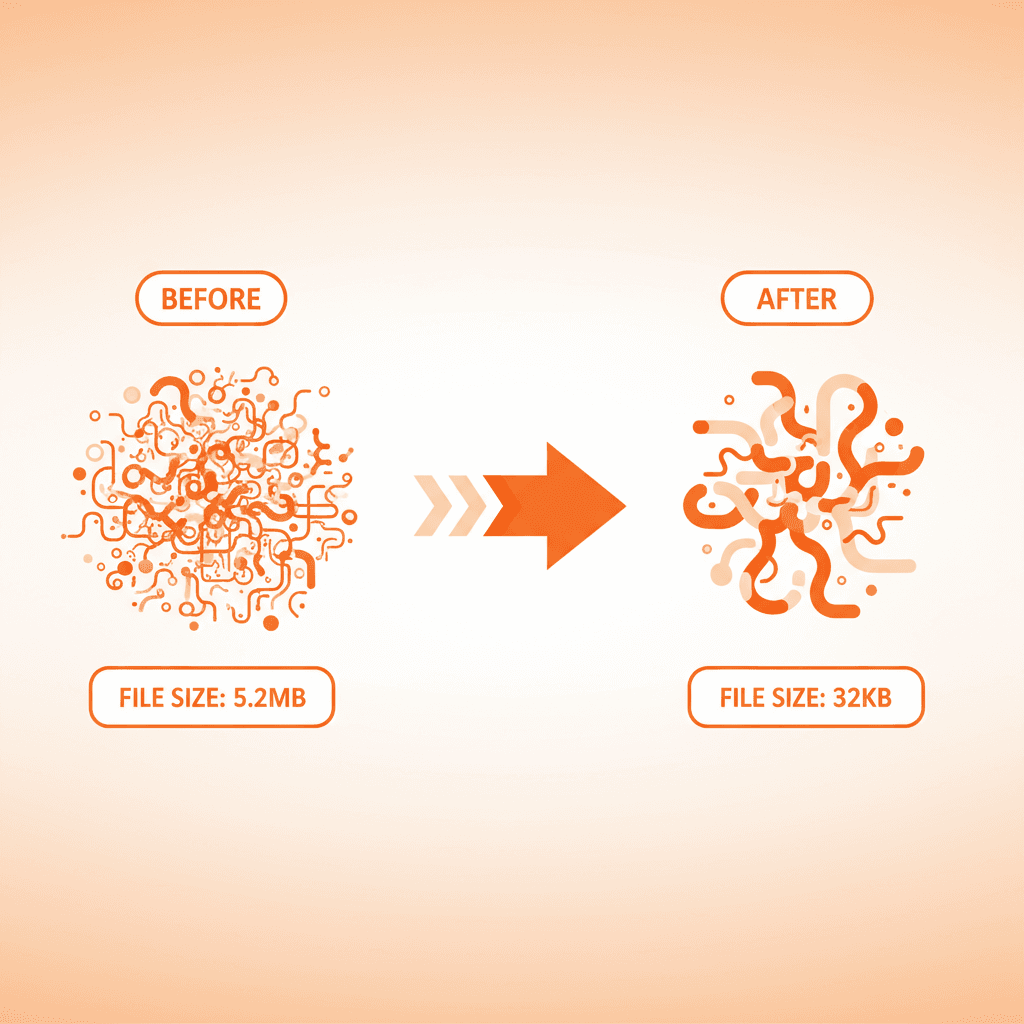
A well-optimized SVG can be 10x smaller than the original without any visible quality loss. But most SVGs contain redundant metadata, unnecessary precision, and unused elements.
Why SVG Size Matters
- Page load speed: Every kilobyte counts for Core Web Vitals and Google ranking.
- Bandwidth: Mobile users on slow connections feel the difference.
- Rendering: Complex SVGs with thousands of nodes can cause scroll jank.
Tool 1: SVGO (The Industry Standard)
SVGO is a Node.js tool that optimizes SVGs. It is the most widely used optimizer.
npm install -g svgo
svgo input.svg -o output.svg
Default SVGO removes: editor metadata, comments, empty groups, redundant attributes, excessive decimal precision. Typical reduction: 30-60%.
Use SVGOMG for a web preview. Both tools are in our awesome-vector-tools collection.
Tool 2: VectoSolve Built-In Optimization
When you convert an image with VectoSolve, the output is already optimized:
- SVGO pass with custom presets for AI-generated SVGs
- Color merging: similar colors merged to reduce path count
- Speckle removal: tiny isolated noise shapes removed
- Path simplification: curves simplified while preserving fidelity
The SDK and API apply optimization automatically.
Manual Optimization Techniques
1. Reduce Decimal Precision
M 12.345678 67.891011 can be shortened to M 12.35 67.89. SVGO does this automatically.
2. Use viewBox Instead of width/height
Makes SVGs responsive by default and removes two attributes.
3. Merge Similar Paths
AI-generated SVGs often create separate paths for same-color shapes. Merge in Inkscape or the VectoSolve SVG Studio.
4. Remove Hidden Elements
Check for display:none, visibility:hidden, or zero opacity.
5. Simplify Gradients and Filters
For laser cutting or Cricut, remove gradients entirely — cutting machines only understand paths.
Optimization Checklist
- Run SVGO with default settings
- Check visually — some aggressive optimizations alter appearance
- Remove remaining editor metadata
- Add
viewBoxif missing - Inline small SVGs (<2KB) directly into HTML
- Use SVG sprite sheets for icon sets
Comparing Tools
| Tool | Type | Avg. Reduction | Best For |
|---|---|---|---|
| SVGO | CLI | 30-60% | Build pipelines |
| SVGOMG | Web UI | 30-60% | One-off with preview |
| VectoSolve SVG Studio | Web editor | Built-in | Edit + optimize |
| Nano SVG | Web UI | 20-40% | Quick compression |
| Inkscape | Desktop | Manual | Path editing |
Full list: awesome-vector-tools.