
Inkscape vs Figma vs Boxy SVG: Best SVG Editors Compared (2026)
Complete comparison of the best free SVG editors available in 2026: Inkscape, Figma, Boxy SVG and Vectr on features, ease of use and SVG output.
Founder of VectoSolve
Self-taught developer, founder and sole developer of VectoSolve since 2024. He builds the conversion engine and the cutting, embroidery and 3D printing exports.
How this article was made: drafted with AI assistance, then edited and fact-checked before publication. About the author
Try it on your own file
Free preview, no signup. Drop an image and see the vector before deciding anything.
Choosing the right SVG editor can make or break your vector graphics workflow. While premium tools like Adobe Illustrator dominate the professional space, several free alternatives have matured into genuinely capable tools. In 2026, the free SVG editor landscape is more competitive than ever.
Every editor below works on an existing SVG. If what you have is a PNG or JPG, convert it to vector paths first with VectoSolve (free watermarked preview), then open the SVG in whichever editor you pick here. For quick fixes in the browser, VectoSolve also has a free online SVG editor.
Key Takeaways
- Inkscape remains the most powerful free SVG editor for professional-grade vector work in 2026
- Figma leads in real-time collaboration but produces bloated SVG output
- Boxy SVG generates the cleanest, most optimized SVG markup of the editors compared here (paid app with a free trial)
- None of these editors handle raster-to-vector conversion well — use a dedicated AI tool like VectoSolve
- Many pros combine multiple tools: VectoSolve for conversion, their preferred editor for refinement
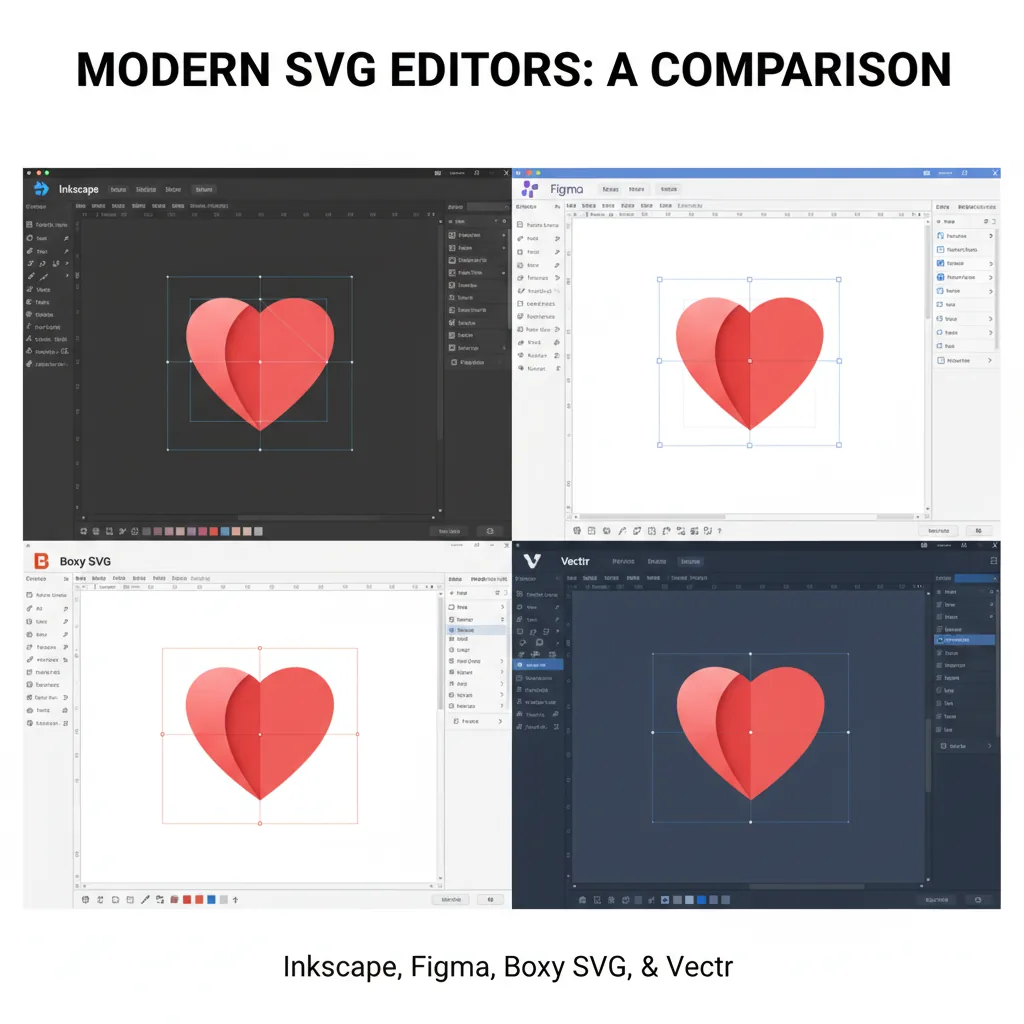
This guide compares four of the most popular SVG editors (three free, one paid with a free trial) on common real-world tasks to help you pick the right one for your needs.
The Contenders
| Editor | Platform | Best For | SVG Support |
|---|---|---|---|
| Inkscape | Windows, Mac, Linux | Professional SVG editing | Excellent |
| Figma | Web, Desktop | UI/UX design, collaboration | Good |
| Boxy SVG | Web, Desktop (Windows, Mac, Linux, ChromeOS) | Quick SVG editing | Excellent |
| Vectr | Web | Beginners | Basic |
Inkscape: The Open-Source Powerhouse
Strengths
Most complete SVG support - Handles nearly every SVG feature including filters, clipping masks, patterns, and gradients
Advanced path editing - Node editing rivals Adobe Illustrator for precision
Extensions ecosystem - Hundreds of plugins for specialized tasks, from laser toolpaths to embroidery digitizing
Batch processing - Command-line interface for automation
100% free and open source - No account required, no feature limitations
Weaknesses
Steeper learning curve than web-based alternatives
UI feels dated compared to modern design tools
Can be slow with very complex documents
No real-time collaboration
Best For
Professional SVG work, detailed illustrations, print production, and anyone who needs full SVG specification support.
Pro Tip: If you're new to Inkscape, start with the built-in tutorials under Help > Tutorials. They cover everything from basic shapes to advanced path operations in about an hour.
Figma: The Collaboration King
Strengths
Real-time collaboration - Multiple designers can work simultaneously
Modern, intuitive UI - Clean interface with quick learning curve
Design systems - Components, variants, and auto-layout for scalable design
Browser-based - Works anywhere without installation
Dev handoff - Inspect mode for developers
Weaknesses
SVG export can be bloated with unnecessary attributes
Limited SVG filter support
Free tier has project limitations
Not designed specifically for SVG editing
Best For
UI/UX designers, team collaboration, creating icons and simple vector graphics for web use. Image auto-tracing is only available through third-party Community plugins, not as a built-in feature.
A Full Year of Conversions for $49
Starter Annual: 25 conversions every month, $49 for the whole year. That is about $4.08 a month · Cancel anytime
Get the Annual DealBoxy SVG: The SVG Specialist
Strengths
Built specifically for SVG - Every feature is SVG-focused
Clean SVG output - Generates minimal, optimized SVG code
Code view - Edit SVG markup directly alongside the visual editor
Lightweight - Loads instantly, no bloat
Desktop apps - Native apps for Windows, macOS, Linux, and ChromeOS alongside the web app
Weaknesses
Smaller feature set than Inkscape
Limited plugin ecosystem
Not actually free - free trial, then a paid license is required
Best For
Web developers who need to create and edit SVGs for websites, quick SVG modifications, and anyone who values clean SVG output.
Vectr: The Beginner's Choice
Strengths
Simplest interface - Minimal learning curve
Browser-based - Works in any modern browser, nothing to install
Real-time sharing - Share editing links
Free with no account required for basic use
Weaknesses
Limited SVG feature support
Basic path editing tools
No extensions or plugins
Fewer export options
Best For
Complete beginners, simple graphics like social media posts, and quick vector edits.
SVG Output Quality Comparison
How the SVG output of each editor typically compares:
| Metric | Inkscape | Figma | Boxy SVG | Vectr |
|---|---|---|---|---|
| Clean Markup | Good | Fair | Excellent | Good |
| Accessibility | Manual | Manual | Built-in | None |
| Animation Ready | Yes | Limited | Yes | No |
File size matters for web performance. Figma's export tends to carry extra attributes that Boxy SVG leaves out, and that difference compounds quickly across a full icon set.
Free SVG Tools for Crafters
Design Checker · Color Separator · Mat Preview · Offset Generator · Text to SVG
Check Your SVG FreeWhich Editor Should You Choose?
Choose Inkscape if you need professional-grade SVG editing with maximum control
Choose Figma if you're designing UI components and need team collaboration
Choose Boxy SVG if you're a web developer who wants clean, optimized SVG output
Choose Vectr if you're new to vector graphics and want the simplest possible tool
The Missing Piece: Raster to Vector Conversion
None of these editors excel at converting existing raster images (PNG, JPG) to SVG. For that, you need a dedicated conversion tool like VectoSolve, which uses AI to intelligently trace and convert images to clean, editable SVG files — or straight to DXF for laser cutters and CNC machines if that's where your design is headed. You can then import the resulting SVGs into any of these editors for further refinement.
"The best workflow isn't about finding one perfect tool — it's about combining specialized tools that each do one thing exceptionally well.
Conclusion
The SVG editor ecosystem in 2026 offers genuinely capable free and low-cost tools for every skill level. Inkscape remains the most powerful option for serious vector work, Figma leads in collaboration, Boxy SVG produces the cleanest output, and Vectr makes vector graphics accessible to beginners. Many professionals use a combination: VectoSolve for conversion, their preferred editor for refinement.
| SVG Editor | Platform | Best For | Learning Curve |
|---|---|---|---|
| Inkscape | Windows/Mac/Linux | Full-featured desktop editing | Steep |
| Figma | Browser / Desktop | UI/UX design, collaboration | Moderate |
| Boxy SVG | Browser / Desktop | Pure SVG editing, clean output | Low |
| Vectr | Browser | Simple vector graphics | Low |
| SVGEdit | Browser | Quick SVG code editing | Moderate |