
How to Make SVG Files: 5 Easy Methods, 4 of Them Free (2026)
Create SVG files without expensive software. Learn 5 free methods to make vector graphics for web, print, and crafting.
Founder and developer of VectoSolve
Self-taught developer who founded VectoSolve in 2024. He builds the conversion engine and the cutting, embroidery and 3D printing exports, working with the VectoSolve team of graphic designers.
How this article was made: drafted with AI assistance, then edited and fact-checked before publication. About the author
Try it on your own file
Free preview, no signup. Drop an image and see the vector before deciding anything.
Key Takeaways
- You do not need Adobe Illustrator or paid software to create SVG files
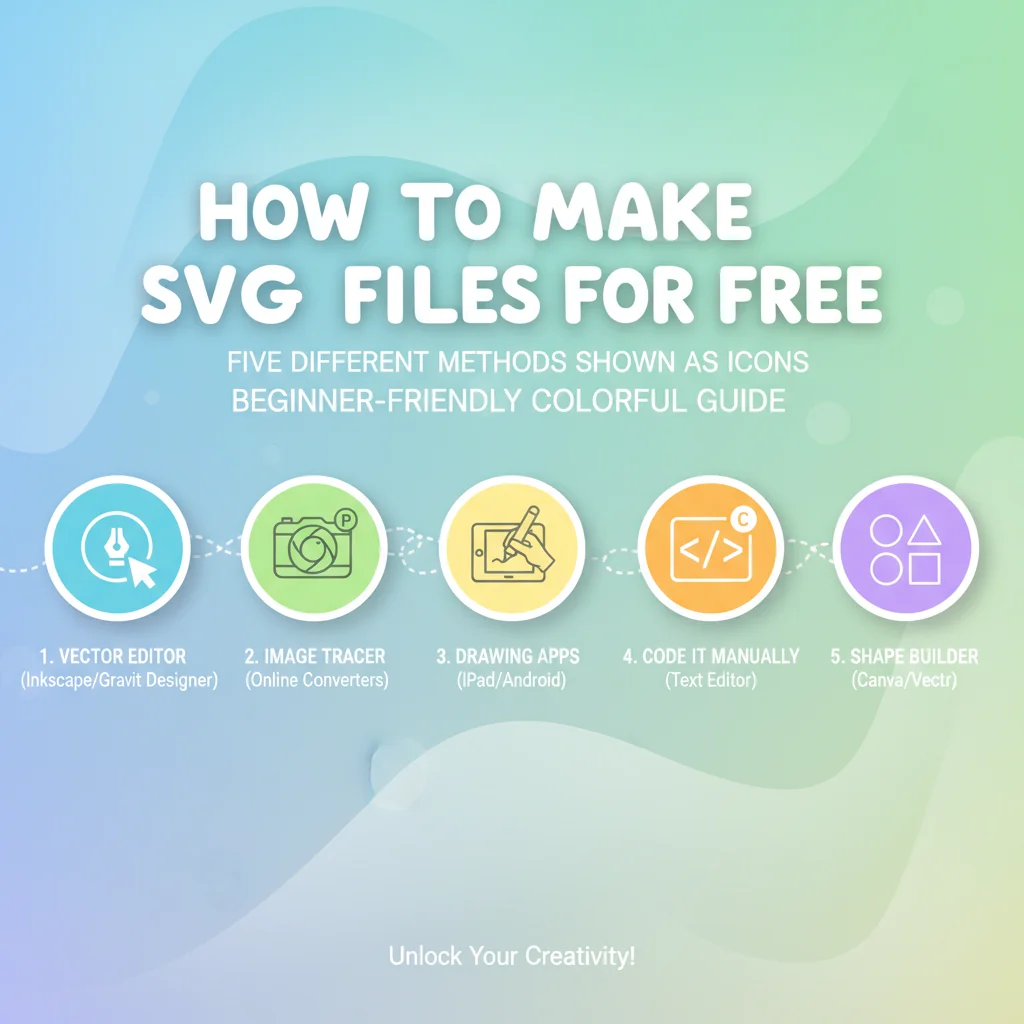
- Five methods: VectoSolve (AI conversion, free watermarked preview), plus four free ones: Inkscape (drawing), Figma (design), code editors (hand-coding), online generators
- Converting existing images to SVG is the fastest path — draw from scratch only when necessary
- SVG files work everywhere: websites, Cricut machines, print shops, apps
Every Cricut project, every website icon, every scalable logo starts as an SVG file. And every beginner hits the same wall: "How do I make one without paying for expensive software?"
Good news — you have at least four free options, and converting an existing image takes about 30 seconds.
Method 1: Convert an Existing Image (Fastest)
If you already have a PNG, JPG, or any raster image, the fastest way to get an SVG is to convert it.
Using VectoSolve (AI-Powered)
- Go to vectosolve.com
- Upload your image
- Click "Vectorize"
- Download the SVG
That is it. The AI traces every edge, curve, and shape in your image and produces a clean SVG file. Processing takes 5-15 seconds.
Best for: Logos, icons, illustrations, hand-drawn designs, clipart, text
Cost: Free preview, then plans from $7.99 a month (25 conversions)
Time: 10-30 seconds
Pro Tip: This is the method 90% of people actually need. If you have an image that you want as an SVG, converting it is 100x faster than redrawing it from scratch. Save the "draw from scratch" methods for when you are creating something entirely new.
Method 2: Draw in Inkscape (Free Desktop Software)
Inkscape is the free, open-source equivalent of Adobe Illustrator. It creates, edits, and exports SVG files natively.
Getting Started
- Download from inkscape.org (Windows, Mac, Linux)
- Open Inkscape — a blank SVG canvas appears
- Use the drawing tools to create shapes
Essential Tools for Beginners
- Rectangle tool (R): Click and drag for rectangles and squares
- Ellipse tool (E): Circles and ovals
- Star tool (*): Stars and polygons
- Pen tool (P): Click to create straight-line paths, click-and-drag for curves
- Text tool (T): Add text (convert to paths via Path > Object to Path for cutting machines)
Simple Logo Tutorial
Create a basic circle logo in 5 steps:
- Draw a circle with the Ellipse tool (hold Ctrl for perfect circle)
- Set fill color in the bottom-left palette
- Add text with the Text tool, center it
- Select the text, Path > Object to Path (converts to vector curves)
- File > Save As > SVG
Best for: Custom designs, editing existing SVGs, complex vector artwork
Cost: Completely free
Time: 10 minutes to hours (depends on complexity)
Method 3: Design in Figma (Free Browser Tool)
Figma is a browser-based design tool with a generous free tier. It is more intuitive than Inkscape for people who think visually.
Creating SVGs in Figma
- Go to figma.com and create a free account
- Create a new design file
- Use shape tools, pen tool, and text to build your design
- Select your artwork
- Right panel > Export > change format to SVG > Export
Why Designers Prefer Figma
- Runs in the browser — no install needed
- Modern, clean interface
- Real-time collaboration
- Huge community with free templates and plugins
- Better for UI and digital design than Inkscape
Best for: Icons, UI elements, modern graphic design, team collaboration
Cost: Free tier (limited to 3 projects at the time of writing, February 2026)
Time: 5 minutes to hours
A Full Year of Conversions for $49
Starter Annual: 25 conversions every month, $49 for the whole year. That is about $4.08 a month · Cancel anytime
Get the Annual DealMethod 4: Hand-Code SVG (Developer Approach)
SVG is just XML text. You can write it in any text editor — VS Code, Notepad, Sublime Text.
A Simple SVG Circle
<svg xmlns="http://www.w3.org/2000/svg" viewBox="0 0 100 100">
  <circle cx="50" cy="50" r="40" fill="#1cb721" />
</svg>
Save as circle.svg and open in any browser. You have a green circle.
A Rectangle with Rounded Corners
<svg xmlns="http://www.w3.org/2000/svg" viewBox="0 0 200 80">
  <rect x="10" y="10" width="180" height="60" rx="10" fill="#0090ff" />
  <text x="100" y="48" text-anchor="middle" fill="white"
        font-family="Arial" font-size="20">Hello SVG</text>
</svg>
When to Hand-Code
- Simple geometric shapes (circles, rectangles, lines)
- Icons where you want absolute control over the code
- Animated SVGs with CSS (the animation code lives inside the SVG)
- Learning how SVG works under the hood
Hand-coding is impractical for complex illustrations but invaluable for understanding SVG structure. Even if you use visual tools, knowing the SVG syntax helps you debug issues and optimize file size.
Best for: Simple shapes, developers, learning SVG, animated icons
Cost: Free (any text editor)
Time: 1-30 minutes for simple shapes
Method 5: Online SVG Generators
Several free tools generate specific types of SVGs:
Shape Generators
- SVG Backgrounds (svgbackgrounds.com) — Geometric patterns and backgrounds
- Blobmaker (blobmaker.app) — Organic blob shapes
- Get Waves (getwaves.io) — Wave dividers for websites
Icon Libraries
- Heroicons (heroicons.com) — 300+ free SVG icons by Tailwind CSS
- Lucide (lucide.dev) — 1000+ open-source SVG icons
- Feather Icons (feathericons.com) — 280+ minimal SVG icons
Text to SVG
- Use Figma or Inkscape to type text and convert to outlined paths
- The text becomes pure vector shapes — no font dependency
Best for: Backgrounds, dividers, basic shapes, standard icons
Cost: Free
Time: 1-5 minutes
Which Method Should You Use?
| Situation | Best Method | Why |
|---|---|---|
| Have an image, need it as SVG | VectoSolve | 30 seconds, AI handles the tracing |
| Creating a logo from scratch | Figma or Inkscape | Full design tools, visual workflow |
| Need website icons | Icon libraries | Free, professional, optimized |
| Building animated graphics | Hand-code + AI Animate | Control the animation CSS |
| Quick geometric shape | Hand-code | Faster than opening a design tool |
| Complex illustration | Inkscape | Most powerful free vector editor |
| Team design project | Figma | Real-time collaboration |
Free SVG Tools for Crafters
Design Checker · Color Separator · Mat Preview · Offset Generator · Text to SVG
Check Your SVG FreeSVG File Checklist
Before using your SVG, verify:
- Has a viewBox attribute — ensures proper scaling
- Text converted to paths — prevents font rendering issues
- No unnecessary metadata — reduces file size
- Clean path data — no redundant points or empty groups
- Proper dimensions — matches your intended use
Pro Tip: VectoSolve outputs optimized SVGs by default — viewBox set, paths clean, metadata stripped. If you create SVGs in other tools, run them through an SVG optimizer (SVGO or the built-in optimizer in Inkscape) before using them on the web.
Start making SVG files today. Convert an existing image in seconds, or open Figma or Inkscape to create from scratch for free.
| SVG Method | Skill Level | Best For | Output Quality |
|---|---|---|---|
| VectoSolve (AI conversion) | Beginner | Converting existing images | High |
| Inkscape | Intermediate | Drawing from scratch | High |
| Figma (free tier) | Intermediate | UI/web design assets | High |
| Hand-coding SVG | Advanced | Simple icons and shapes | Perfect |
| Online generators | Beginner | Basic shapes and patterns | Medium |