
SVG Files for Sublimation Printing: The Complete Beginner's Guide
Everything you need to know about using SVG files for sublimation printing. Materials, software, file preparation, and product ideas.
Founder and developer of VectoSolve
Self-taught developer who founded VectoSolve in 2024. He builds the conversion engine and the cutting, embroidery and 3D printing exports, working with the VectoSolve team of graphic designers.
How this article was made: drafted with AI assistance, then edited and fact-checked before publication. About the author
Try it on your own file, in Sublimation mode
Free preview, no signup. Drop an image and see the vector before deciding anything.
Key Takeaways
- SVG is the gold standard for sublimation designs — infinite scalability means one file works from keychains to tote bags
- Sublimation only works on polyester fabric or polymer-coated surfaces (white or light-colored)
- Always mirror your design before printing and use RGB color mode (not CMYK) for sublimation
- Pre-press blanks for 5 seconds to remove moisture — this single step prevents most fading and ghosting issues
- A complete sublimation starter setup (printer, ink, heat press, blanks) costs just $300-$500
Sublimation printing has exploded in popularity among crafters, small business owners, and print-on-demand entrepreneurs. It produces vibrant, full-color, permanent designs on products like mugs, tumblers, t-shirts, and phone cases. But getting the best results starts with the right file format — and SVG is the gold standard.
This guide covers everything a beginner needs to know about using SVG files for sublimation printing, from understanding the process to selling finished products.
What Is Sublimation Printing?
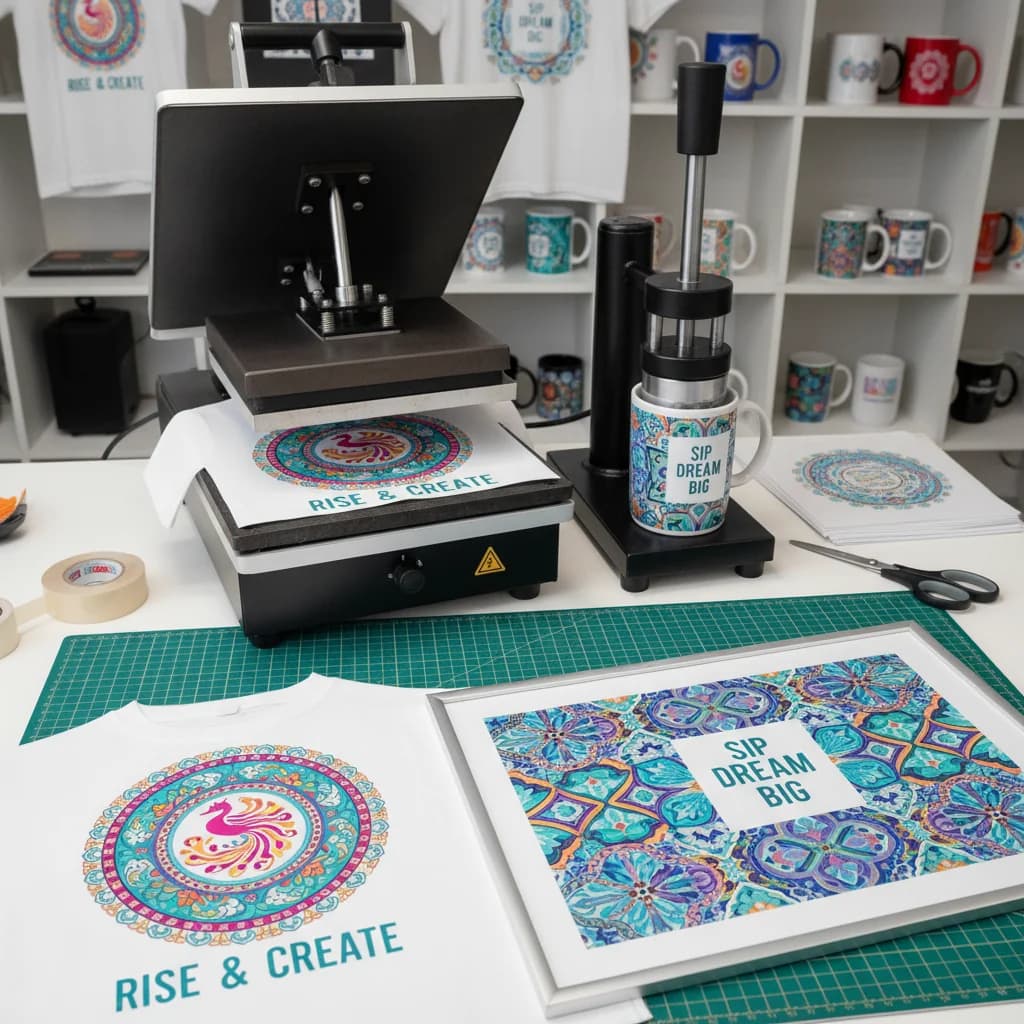
Sublimation is a heat-transfer printing process where special ink transitions from a solid to a gas (skipping the liquid phase) under heat and pressure. The gaseous ink bonds permanently with polyester-coated surfaces, producing prints that:
- Won't crack, peel, or fade like vinyl or screen printing
- Feel smooth — there's no raised layer on the surface
- Reproduce full color including gradients and photographs
- Are dishwasher-safe on mugs and tumblers
The catch: sublimation only works on polyester fabric or polymer-coated hard surfaces (white or light-colored). You can't sublimate on 100% cotton or uncoated surfaces.
Why SVG Is Better Than PNG for Sublimation
Many sublimation beginners use PNG files, but SVG offers critical advantages:
Infinite Scalability
SVGs are vector files — they scale to any size without losing quality. A single SVG design works on a small keychain and a large tote bag. With PNG, you need different resolutions for different product sizes, and upscaling always degrades quality.
Smaller File Sizes
SVG files are typically 10-100x smaller than high-resolution PNGs. This matters when managing a library of hundreds of designs.
Easy Color Editing
Need to change your design from blue to pink? In an SVG, you edit a single color value. With PNG, you're fighting with selection tools and color overlays.
Precise Cutting
If your sublimation workflow includes cutting (for shaped transfers), SVG provides exact cut lines. PNG requires manual tracing or auto-trace, which is never as clean.
Pro Tip: When converting photos for sublimation, use VectoSolve's background remover first, then convert to SVG. This gives you a clean vector with transparent background — perfect for placing on any product without white box artifacts.
Materials and Products You Can Sublimate
Drinkware
- Ceramic mugs (polymer-coated)
- Stainless steel tumblers (20oz and 30oz are bestsellers)
- Water bottles
- Shot glasses
Apparel
- 100% polyester t-shirts
- Polyester-blend performance wear
- Socks (polyester)
- Baseball caps (polyester front panel)
Home & Office
- Mouse pads
- Coasters (hardboard or ceramic)
- Ornaments (aluminum or ceramic)
- Puzzles
- Cutting boards (glass)
Accessories
- Phone cases (polymer-coated)
- Keychains
- Tote bags (polyester)
- Lanyards
A Full Year of Conversions for $49
Starter Annual: 25 conversions every month, $49 for the whole year. That is about $4.08 a month · Cancel anytime
Get the Annual DealStep-by-Step Sublimation Workflow
Step 1: Design or Source Your SVG
Create your design as an SVG file. Options include:
- Design from scratch in Illustrator, Inkscape, or Figma
- Convert existing images to SVG using VectoSolve's converter
- Generate AI designs with VectoSolve's tools
- Purchase SVG bundles from marketplaces
If you have a raster image (PNG/JPEG) you want to sublimate, convert it to SVG first for the cleanest results.
Step 2: Prepare the File
Open your SVG in design software (Illustrator, Inkscape, or Canva) and:
- Size it to match your product dimensions
- Mirror the image — sublimation transfers are always mirrored
- Set color mode to RGB (sublimation uses RGB, not CMYK)
- Add bleed — extend the design 2-3mm beyond the product edge
Step 3: Print on Sublimation Paper
Load sublimation paper into your sublimation printer (Epson EcoTank or Sawgrass are the most popular). Print using:
- Sublimation ink (not regular ink)
- High quality print settings
- Mirror/flip enabled in printer settings
Step 4: Heat Press
Place the printed transfer face-down on your product and press:
| Product | Temperature | Time | Pressure |
|---|---|---|---|
| Mugs | 400degF (204degC) | 60 seconds | Medium |
| Tumblers | 385degF (196degC) | 55 seconds | Medium |
| T-shirts | 385degF (196degC) | 45 seconds | Medium |
| Mouse pads | 385degF (196degC) | 50 seconds | Light |
| Coasters | 400degF (204degC) | 60 seconds | Medium |
Note: These are starting points. Always test with your specific blanks and equipment.
Step 5: Peel and Finish
Remove the paper while the product is still hot (hot peel). Allow the product to cool completely before handling.
Common Sublimation Mistakes
- Using the wrong blanks — The substrate MUST be polyester or polymer-coated. Regular ceramic mugs won't work.
- Forgetting to mirror — Your design will print backwards. Always flip.
- Wrong temperature or time — Too low = faded colors. Too high = yellowing. Use a temperature gun to verify.
- Moisture in paper or blank — Pre-press blanks for 5 seconds to remove moisture before applying the transfer.
- Low-resolution source files — This is why SVG matters. Vector files eliminate resolution problems entirely.
- Ghosting — The paper shifted during pressing. Use heat-resistant tape to secure the transfer.
If your sublimation colors look washed out, check two things: (1) make sure you're using sublimation ink, not regular inkjet ink, and (2) verify your color mode is RGB, not CMYK. Sublimation printers reproduce RGB colors — CMYK conversion causes dull, inaccurate output.
Removing Backgrounds for Sublimation
Many sublimation designs need transparent backgrounds, especially for shaped products. VectoSolve's background remover cleanly isolates your subject before conversion. This is particularly useful for:
- Photo-based sublimation designs
- Logo placement on products
- Layered design compositions
Free SVG Tools for Crafters
Design Checker · Color Separator · Mat Preview · Offset Generator · Text to SVG
Check Your SVG FreeWhere to Sell Sublimation Products
- Etsy — The #1 marketplace for custom sublimation products
- Local craft fairs — Mugs and tumblers are top sellers
- Facebook Marketplace — Great for local personalized orders
- Your own Shopify store — Higher margins, full brand control
- Amazon Handmade — Growing marketplace for custom items
Personalized products (name mugs, custom tumblers) consistently outsell generic designs.
Patterns for Sublimation
Seamless patterns work exceptionally well for sublimation, especially on tumblers and full-wrap products. Use VectoSolve's Pattern Generator to create unique all-over designs that tile perfectly around cylindrical products.
Getting Started
The barrier to entry for sublimation is lower than ever. A starter setup (printer, ink, heat press, blanks) runs $300-$500. Pair that with SVG designs from VectoSolve and you have a complete production workflow.
Start with mugs — they're forgiving, affordable, and the #1 selling sublimation product. Once you've mastered the basics, expand to tumblers, apparel, and specialty items.
| Sublimation Setting | Mugs | Tumblers | T-Shirts |
|---|---|---|---|
| Temperature | 400°F (204°C) | 385°F (196°C) | 385°F (196°C) |
| Time | 60–90 seconds | 45–60 seconds | 45–60 seconds |
| Pressure | Medium (mug press) | Shrink wrap tight | Medium-firm |
| Paper type | A-sub or TexPrint | A-sub or TexPrint | A-sub or TexPrint |