
SVG Optimization: How to Reduce File Size by 60% Without Losing Quality
Bloated SVGs slow down your site. This guide covers SVGO, manual cleanup, VectoSolve post-processing, and the tools that actually make a difference.
Founder and developer of VectoSolve
Self-taught developer who founded VectoSolve in 2024. He builds the conversion engine and the cutting, embroidery and 3D printing exports, working with the VectoSolve team of graphic designers.
How this article was made: drafted with AI assistance, then edited and fact-checked before publication. About the author
Try it on your own file
Free preview, no signup. Drop an image and see the vector before deciding anything.
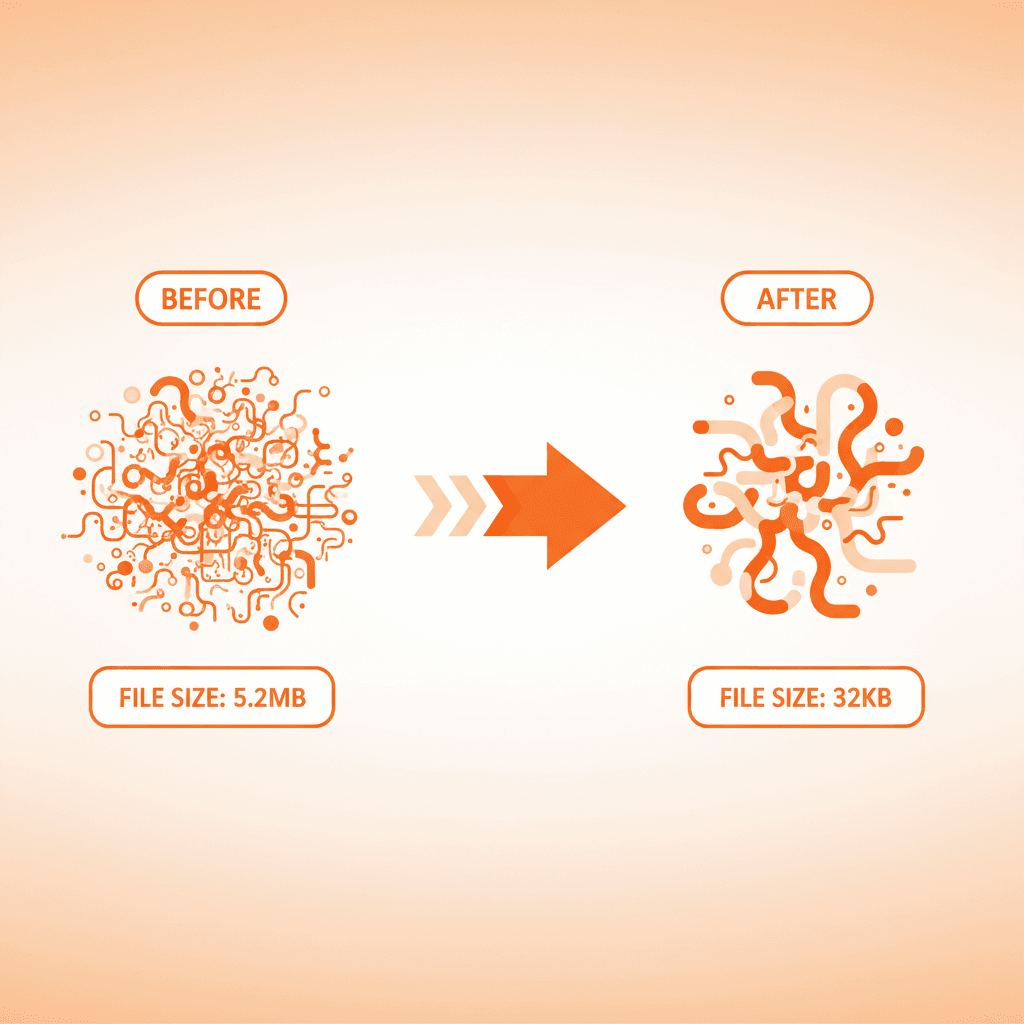
A well-optimized SVG can be 10x smaller than the original without any visible quality loss. But most SVGs contain redundant metadata, unnecessary precision, and unused elements.
Why SVG Size Matters
- Page load speed: Every kilobyte counts for Core Web Vitals and Google ranking.
- Bandwidth: Mobile users on slow connections feel the difference.
- Rendering: Complex SVGs with thousands of nodes can cause scroll jank.
Tool 1: SVGO (The Industry Standard)
SVGO is a Node.js tool that optimizes SVGs. It is the most widely used optimizer.
npm install -g svgo
svgo input.svg -o output.svg
Default SVGO removes: editor metadata, comments, empty groups, redundant attributes, excessive decimal precision. Typical reduction: 30-60%.
Use SVGOMG for a web preview. Both tools are in our awesome-vector-tools collection.
Tool 2: VectoSolve Built-In Optimization
When you convert an image with VectoSolve, the output is already optimized:
- SVGO pass with custom presets for AI-generated SVGs
- Color merging: similar colors merged to reduce path count
- Speckle removal: tiny isolated noise shapes removed
- Path simplification: curves simplified while preserving fidelity
The SDK and API apply optimization automatically.
Manual Optimization Techniques
1. Reduce Decimal Precision
M 12.345678 67.891011 can be shortened to M 12.35 67.89. SVGO does this automatically.
2. Use viewBox Instead of width/height
Makes SVGs responsive by default and removes two attributes.
3. Merge Similar Paths
AI-generated SVGs often create separate paths for same-color shapes. Merge in Inkscape or the VectoSolve SVG Studio.
4. Remove Hidden Elements
Check for display:none, visibility:hidden, or zero opacity.
5. Simplify Gradients and Filters
For laser cutting or Cricut, remove gradients entirely — cutting machines only understand paths.
Optimization Checklist
- Run SVGO with default settings
- Check visually — some aggressive optimizations alter appearance
- Remove remaining editor metadata
- Add
viewBoxif missing - Inline small SVGs (<2KB) directly into HTML
- Use SVG sprite sheets for icon sets
Comparing Tools
| Tool | Type | Avg. Reduction | Best For |
|---|---|---|---|
| SVGO | CLI | 30-60% | Build pipelines |
| SVGOMG | Web UI | 30-60% | One-off with preview |
| VectoSolve SVG Studio | Web editor | Built-in | Edit + optimize |
| Nano SVG | Web UI | 20-40% | Quick compression |
| Inkscape | Desktop | Manual | Path editing |
Full list: awesome-vector-tools.