
What Is Image Vectorization? A Visual Guide for Beginners
What is image vectorization and why does it matter? Visual guide explaining the process, best uses, and how AI makes it instant. Perfect for beginners.
Graphics & Design Experts
Our team of experienced designers and developers specializes in vector graphics, image conversion, and digital design optimization. With over 10 years of combined experience in graphic design and web development.
What is Image Vectorization?
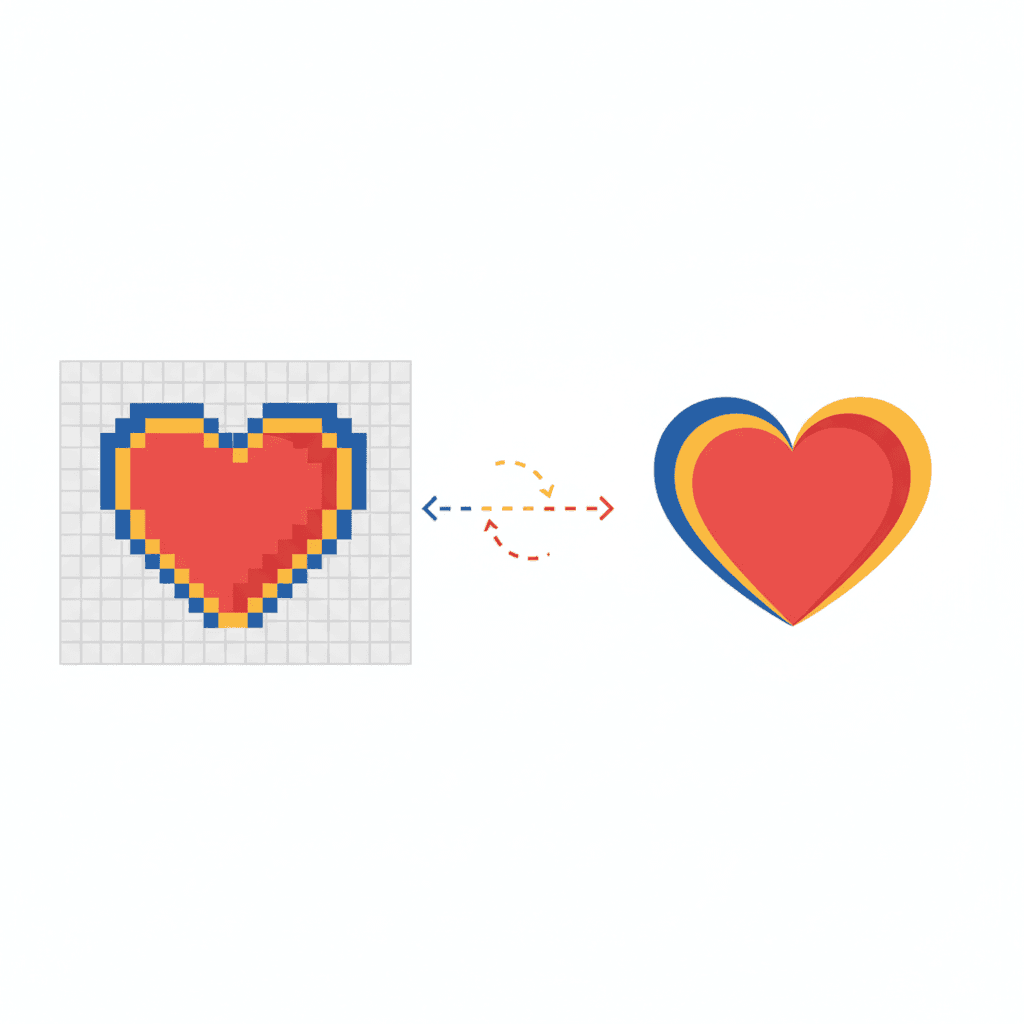
Image vectorization is the process of converting a raster image (made of pixels) into a vector graphic (made of mathematical paths). This transformation allows graphics to scale infinitely without losing quality.
Simple Analogy
Think of it like this:
When you zoom into a raster image, you see blurry squares. When you zoom into a vector, the computer recalculates the shapes perfectly at any size.
How Does Vectorization Work?
Step 1: Edge Detection
The software analyzes the image to find boundaries between colors. This is like tracing the outline of shapes in your image.Step 2: Path Creation
Edges are converted into mathematical curves called Bézier curves. These curves are defined by anchor points and control handles.Step 3: Color Analysis
The software identifies distinct color regions and assigns fill colors to each vector shape.Step 4: Optimization
Unnecessary points are removed, and paths are simplified while maintaining the image appearance.The Math Behind It
Vector paths use this formula for curves:
B(t) = (1-t)³P₀ + 3(1-t)²tP₁ + 3(1-t)t²P₂ + t³P₃
Types of Vectorization
1. Automatic Vectorization (Tracing)
Software like VectoSolve, Illustrator's Image Trace, or Inkscape's Trace Bitmap automatically converts images.Best for:
Quality: 70-95% depending on source image
2. Manual Vectorization (Redrawing)
A designer traces over the image by hand using the Pen tool.Best for:
Quality: 100% (but time-intensive)
3. AI-Powered Vectorization
Modern tools use machine learning to understand image content, producing smarter traces.Best for:
Quality: 85-98%
What Images Vectorize Well?
Excellent Results (90%+ quality)
✅ Logos with solid colors ✅ Icons and symbols ✅ Line art and illustrations ✅ Text and typography ✅ Geometric shapes ✅ Flat design graphicsGood Results (70-90% quality)
⚠️ Logos with gradients ⚠️ Detailed illustrations ⚠️ Cartoon characters ⚠️ Simple patternsPoor Results (< 70% quality)
❌ Photographs ❌ Realistic artwork ❌ Complex textures ❌ Photorealistic rendersWhy Vectorize Your Images?
1. Infinite Scalability
Print your logo on a business card or a building. Same file, perfect quality.2. Smaller File Sizes
A typical logo:That's 90%+ savings!
3. Easy Editing
Need to change the logo color? Edit one value in the SVG:
4. Better Web Performance
5. Professional Quality
Vector graphics are the standard for professional branding and design.How to Vectorize Your Images
Method 1: Use VectoSolve (Easiest)
Method 2: Adobe Illustrator
Method 3: Inkscape (Free)
Vectorization Quality Tips
For Best Results:
Common Issues and Fixes:
| Problem | Cause | Solution | |---------|-------|----------| | Jagged edges | Low source resolution | Use higher quality original | | Too many colors | Gradients/shadows | Simplify or accept more paths | | Missing details | Over-simplification | Lower threshold/simplification | | Large file size | Too many paths | Increase simplification |
Conclusion
Image vectorization transforms pixel-based graphics into scalable, editable, and efficient vector formats. While not suitable for photographs, it's essential for logos, icons, and illustrations.
Key takeaways:
Ready to vectorize? Try VectoSolve free and convert your first image in seconds.