
SVG Path Optimization: Reduce File Size Without Losing Quality
Master advanced techniques for optimizing SVG paths. Learn how to reduce file sizes by 50-80% while maintaining visual quality for web performance.
Founder of VectoSolve
Self-taught developer, founder and sole developer of VectoSolve since 2024. He builds the conversion engine and the cutting, embroidery and 3D printing exports.
How this article was made: drafted with AI assistance, then edited and fact-checked before publication. About the author
Try it on your own file
Free preview, no signup. Drop an image and see the vector before deciding anything.
Key Takeaways
- SVG bloat comes from excessive decimal precision, redundant commands, editor metadata, and unnecessary nesting
- Switching from absolute to relative path commands and using H/V shorthands can cut path data by 30-50%
- Reducing decimal precision from 8 to 2 places is usually visually indistinguishable and saves significant bytes
- SVGO is the industry-standard optimizer; integrate it into your build pipeline for automatic optimization
- A clean vectorization + SVGO + gzip pipeline routinely achieves 80-90% file size reduction
Why SVG Path Optimization Matters
SVG files can become bloated with unnecessary data, slowing down websites and increasing bandwidth costs. Proper path optimization reduces file sizes dramatically while preserving visual quality.
Understanding SVG Path Complexity
What Makes Paths Heavy?
SVG paths carry excess weight from:
Common Bloat Sources:
- Excessive decimal precision
- Redundant path commands
- Unnecessary anchor points
- Editor metadata
- Empty groups and defs
- Inline styles vs. classes
Measuring Path Complexity
Evaluate your SVGs:
- Total path length (bytes)
- Number of nodes/points
- Decimal precision used
- Command efficiency
Path Command Optimization
Command Types
SVG path commands:
Absolute vs. Relative:
M (moveto) vs. m
L (lineto) vs. l
C (curveto) vs. c
H (horizontal) vs. h
V (vertical) vs. v
Relative Commands Save Bytes
Example comparison:
<!-- Absolute (more bytes) -->
<path d="M100,100 L150,100 L150,150 L100,150 Z"/>

<!-- Relative (fewer bytes) -->
<path d="M100,100l50,0l0,50l-50,0z"/>
Shorthand Commands
Use H and V for straight lines:
<!-- Before -->
<path d="M10,10 L50,10 L50,50"/>

<!-- After (using H and V) -->
<path d="M10,10H50V50"/>
Pro Tip: When hand-editing SVG paths, replace consecutive L (lineto) commands that only change one axis with H (horizontal) or V (vertical) commands. This alone can reduce path data by 20% in geometric shapes.
A Full Year of Conversions for $49
Starter Annual: 25 conversions every month, $49 for the whole year. That is about $4.08 a month · Cancel anytime
Get the Annual DealDecimal Precision Reduction
Finding the Right Balance
Precision vs. file size:
Precision Levels:
8 decimals: Maximum precision (unnecessary)
4 decimals: Very precise
2 decimals: Usually sufficient
1 decimal: Minimal for small icons
0 decimals: Integer only (icons)
Impact Example
<!-- High precision (45 bytes) -->
<path d="M10.123456,10.789012 L50.246802,10.135790"/>

<!-- Reduced precision (21 bytes) -->
<path d="M10.12,10.79 L50.25,10.14"/>

<!-- Integer only (17 bytes) -->
<path d="M10,11 L50,10"/>
Vectosolve Optimization
Vectosolve automatically optimizes output:
- Appropriate precision for use case
- Efficient path commands
- Clean, production-ready SVGs
Reducing Anchor Points
Point Reduction Strategies
Fewer points = smaller files:
- Simplify curves within tolerance
- Remove points on straight lines
- Convert curves to arcs when possible
- Use symmetry detection
Bezier Curve Optimization
<!-- Complex curve (many points) -->
<path d="M0,0 C10,5 20,10 30,10 C40,10 50,5 60,0"/>

<!-- Simplified (similar visual) -->
<path d="M0,0 Q30,15 60,0"/>
Removing Unnecessary Data
Editor Metadata
Remove automatically added data:
<!-- Remove these attributes -->
xmlns:inkscape="..."
xmlns:sodipodi="..."
inkscape:version="..."
data-name="..."
Empty Elements
Clean up unused elements:
<!-- Remove empty groups -->
<g></g>
<g id="unused"/>

<!-- Remove empty defs -->
<defs></defs>
Default Values
Don't specify defaults:
<!-- Unnecessary -->
<path fill="black" fill-opacity="1" stroke="none"/>

<!-- Cleaner -->
<path/>
Free SVG Tools for Crafters
Design Checker · Color Separator · Mat Preview · Offset Generator · Text to SVG
Check Your SVG FreeGrouping and Structure
Minimize Nesting
Flatten unnecessary groups:
<!-- Before -->
<g><g><g><path d="..."/></g></g></g>

<!-- After -->
<path d="..."/>
Efficient Use of Defs
Reuse repeated elements:
<defs>
  <circle id="dot" r="5"/>
</defs>
<use href="#dot" x="10" y="10"/>
<use href="#dot" x="30" y="10"/>
<use href="#dot" x="50" y="10"/>
Style Optimization
CSS Classes vs. Inline
For multiple elements:
<!-- Inline (more bytes) -->
<path fill="#ff0000" stroke="#000" stroke-width="2"/>
<path fill="#ff0000" stroke="#000" stroke-width="2"/>

<!-- CSS class (fewer bytes) -->
<style>.s{fill:#f00;stroke:#000;stroke-width:2}</style>
<path class="s"/><path class="s"/>
Color Shorthand
Use short hex colors:
#ff0000 -> #f00
#ffffff -> #fff
#000000 -> #000
Optimization Tools
SVGO (SVG Optimizer)
Industry-standard optimizer:
# Install
npm install -g svgo

# Optimize file
svgo input.svg -o output.svg

# Common options
svgo --precision=2 input.svg
SVGOMG (Online)
Browser-based SVGO interface:
- Visual preview
- Toggle options
- Real-time size comparison
Vectosolve Built-In Optimization
When converting with Vectosolve:
- Automatic path optimization
- Clean, efficient output
- Production-ready files
SVGO's --precision flag controls decimal places globally. For icons displayed at small sizes, --precision=1 is often perfectly adequate. For illustrations that scale to large viewports, stick with --precision=2 or --precision=3.
A Full Year of Conversions for $49
Starter Annual: 25 conversions every month, $49 for the whole year. That is about $4.08 a month · Cancel anytime
Get the Annual DealWorkflow Integration
Development Workflow
Optimization Pipeline:
1. Create/convert artwork
2. Vectorize with Vectosolve
3. Run through SVGO
4. Verify visual quality
5. Deploy optimized file
Build Process Integration
Automate with bundlers:
// Webpack config example
module.exports = {
  module: {
    rules: [
      {
        test: /\.svg$/,
        use: ['svgo-loader']
      }
    ]
  }
};
Measuring Results
Before/After Comparison
Track optimization gains:
Typical Results:
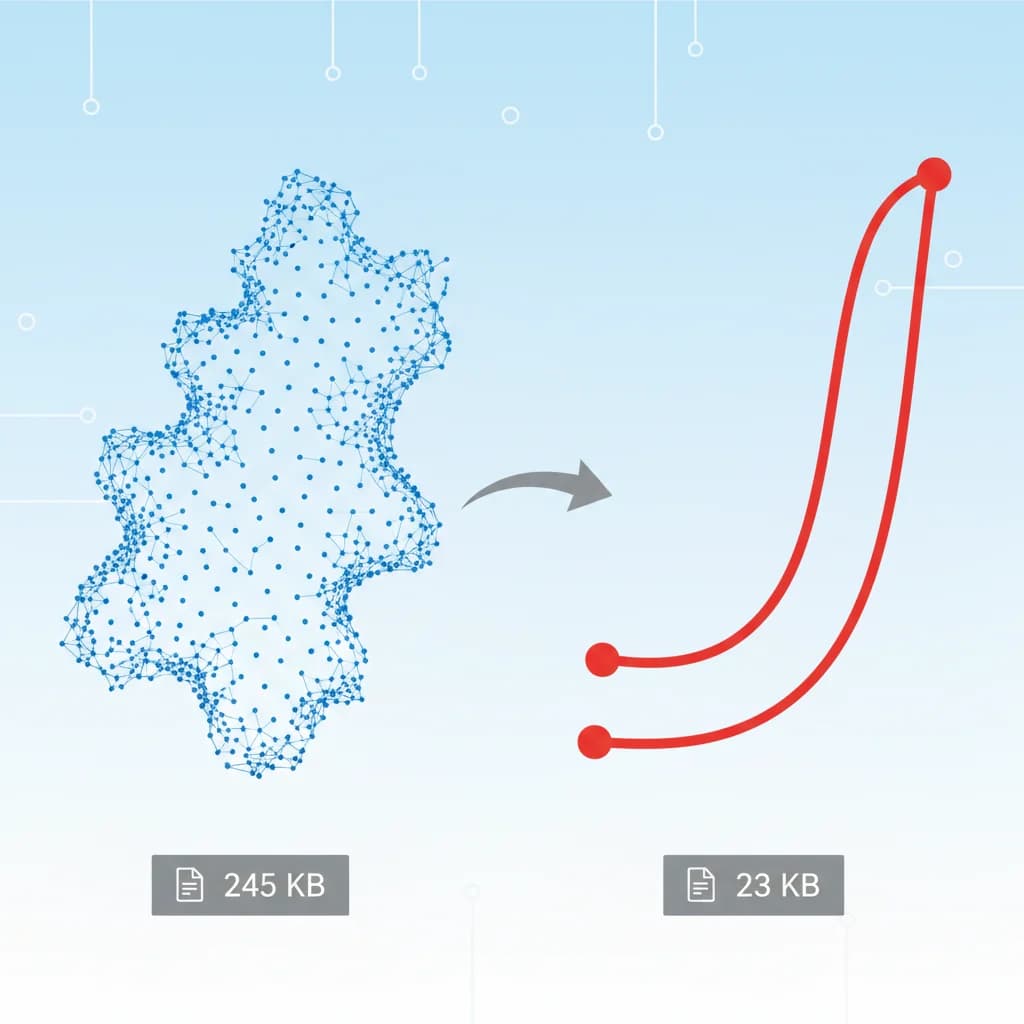
Original: 50KB
After SVGO: 15KB (70% reduction)
Gzipped: 4KB (92% reduction)
Performance Impact
Measure real improvements:
- Page load time
- Time to first paint
- Bandwidth savings
- Core Web Vitals
Best Practices Summary
Quick Optimization Checklist
- Reduce decimal precision (2-4 places)
- Use relative path commands
- Remove editor metadata
- Eliminate empty groups
- Use CSS classes for repeated styles
- Use short hex colors
- Remove default attributes
- Consider viewBox vs. dimensions
When NOT to Optimize
Preserve complexity when:
- Precision is critical (CAD/technical)
- Animation requires specific paths
- Accessibility needs specific IDs
- Source file management required
Free SVG Tools for Crafters
Design Checker · Color Separator · Mat Preview · Offset Generator · Text to SVG
Check Your SVG FreeConclusion
SVG path optimization dramatically improves web performance while maintaining visual quality. Start with clean vectors from Vectosolve, then apply optimization techniques appropriate for your use case. The combination of proper vectorization and optimization can reduce file sizes by 80% or more.
Get Optimized SVGs with Vectosolve
| Path Optimization | Before | After | Savings |
|---|---|---|---|
| Decimal precision 8 → 2 | M 12.34567890 45.67891234 | M 12.35 45.68 | ~35% |
| Absolute → relative commands | M 100 200 L 150 250 | m 100 200 l 50 50 | ~20% |
| H/V shorthand usage | l 50 0 / l 0 80 | h 50 / v 80 | ~15% |
| Remove redundant nodes | 12 points on straight line | 2 endpoints | ~40–60% |
| Merge adjacent paths | 5 separate <path> elements | 1 combined <path> | ~25% |