
Cricut SVG File Requirements 2026 — Sizes, Formats, Common Errors
Complete guide to Cricut SVG file requirements. Learn the exact format, size, color, and layer specs Cricut Design Space needs for clean cuts every time.
Founder and developer of VectoSolve
Self-taught developer who founded VectoSolve in 2024. He builds the conversion engine and the cutting, embroidery and 3D printing exports, working with the VectoSolve team of graphic designers.
How this article was made: drafted with AI assistance, then edited and fact-checked before publication. About the author
Try it on your own file, in Cricut mode
Free preview, no signup. Drop an image and see the vector before deciding anything.
Key Takeaways
- All visual elements must be real vector paths -- embedded raster images inside SVGs cannot be cut by Cricut
- Convert all text to outlines/paths before saving your SVG to avoid font-related errors in Design Space
- Use flat, solid colors only -- gradients, transparency, and filters are not supported and will cause unexpected results
- Keep SVGs under 5MB and 10,000 nodes for optimal Design Space performance and clean cuts
- Always test in Design Space before cutting -- check layers, zoom to 400%% for path smoothness, and verify sizing
Cricut SVG File Requirements: What You Need to Know in 2026
Nothing is more frustrating than spending time creating or buying an SVG file, only to have Cricut Design Space reject it, display it incorrectly, or produce a terrible cut. The root cause is almost always the same: the SVG doesn't meet Cricut's requirements.
This guide covers everything you need to know about what makes an SVG file Cricut-compatible -- and how to fix files that aren't working.
What Is an SVG File?
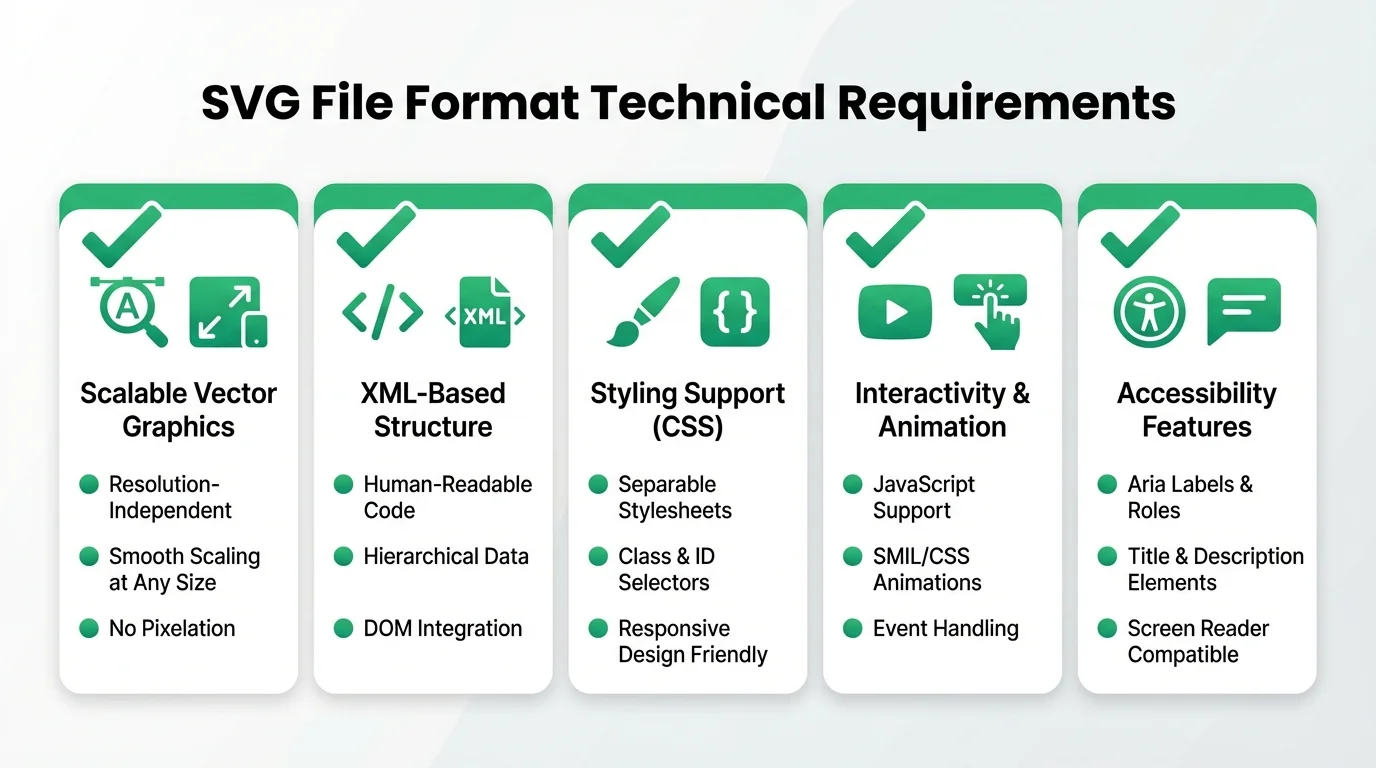
SVG stands for Scalable Vector Graphics. Unlike raster images (PNG, JPEG), SVGs are made up of mathematical paths -- lines, curves, and shapes defined by coordinates. This is why they scale to any size without losing quality, and why your Cricut blade can follow them precisely.
An SVG file is actually a text file written in XML. Inside, you'll find elements like:
<path>-- the most common element, defining a shape using a series of coordinates<rect>,<circle>,<polygon>-- basic shapes<g>-- groups of elements<text>-- text elements (these can cause problems -- more on that below)<image>-- embedded raster images (these cause major problems)
Cricut Design Space SVG Requirements
File Format
- SVG 1.1 is the supported standard
- File extension must be .svg
- Design Space also accepts .svgz (compressed SVG), but .svg is more reliable
- Maximum file size: Design Space doesn't publish a hard limit, but files over 10MB often cause slowdowns or crashes. Keep files under 5MB for best performance
Path Requirements
This is where most problems occur:
- All visual elements must be paths -- not embedded raster images
- Paths should use standard SVG path commands (M, L, C, Q, Z, etc.)
- Self-intersecting paths can cause unexpected fill behavior -- the blade may cut in places you don't expect
- Open paths will be treated as cut lines (the blade follows the path). Closed paths will be treated as shapes (the blade cuts the outline and you can fill/weed the shape)
- Compound paths (paths with holes, like the letter "O") are supported and commonly used
Dimensions and Units
- Design Space reads the
viewBoxandwidth/heightattributes to determine size - If the SVG doesn't include explicit dimensions, Design Space will guess -- and often guesses wrong
- Best practice: Include both
viewBoxandwidth/heightattributes in your SVG - Supported units: px (pixels), in (inches), mm (millimeters), cm (centimeters), pt (points)
- If no unit is specified, Design Space assumes pixels at 72 DPI
Colors and Layers
This is critical for multi-color designs:
- Each unique color in your SVG becomes a separate layer in Design Space
- Layers are what allow you to cut different colors of vinyl separately
- Use solid, flat colors -- no gradients. Gradients will be flattened or ignored, causing unexpected results
- Name your colors logically if editing the SVG manually
- Black (#000000) elements become their own layer
- White (#FFFFFF) elements become their own layer -- be careful, white objects on a white canvas are invisible but still there
- Limit the number of colors to what you actually need. Dozens of slightly different shades create dozens of unnecessary layers
Pro Tip: When designing multi-color SVGs, create a color palette of 3--6 exact hex values before you start. Assign each hex code to a vinyl color you actually own. This prevents accidental layer duplication from slightly-off color values like #000000 vs #010101.
What Design Space Does NOT Support
Understanding these limitations saves hours of troubleshooting:
| Feature | Supported? | What Happens |
|---|---|---|
| Basic shapes & paths | Yes | Displayed and cut correctly |
| Solid fill colors | Yes | Converted to layers |
| Stroke (outlines) | Partial | Strokes are sometimes ignored or rendered inconsistently |
| Gradients | No | Flattened to a single color or ignored |
| Transparency/Opacity | Partial | May not display correctly |
| Drop shadows | No | Ignored |
| Filters (blur, etc.) | No | Ignored |
| Embedded raster images | No | Displayed as flat image -- cannot be cut |
| CSS styling | Partial | Inline styles work best; external stylesheets may be ignored |
| JavaScript | No | Completely ignored |
| SVG animations | No | Ignored |
| Text elements | Problematic | See section below |
| Clip paths | Partial | Often cause display issues |
| Masks | No | Usually ignored |
A Full Year of Conversions for $49
Starter Annual: 25 conversions every month, $49 for the whole year. That is about $4.08 a month · Cancel anytime
Get the Annual DealThe 7 Most Common SVG Errors in Cricut Design Space
Error 1: "Image is too large" or Design Space crashes on upload
Cause: Your SVG file is too large (over 10MB) or has too many nodes/paths.
Fix:
- Optimize the SVG to reduce node count. Tools like SVGO can help
- Simplify complex paths
- Remove unnecessary hidden elements
- VectoSolve automatically optimizes node count during conversion, producing lightweight files that Design Space handles easily
Error 2: SVG uploads as a flat image (can't select individual layers)
Cause: The SVG contains an embedded raster image (<image> tag) instead of actual vector paths.
Fix:
- This happens when you use a format converter (like Convertio) instead of a true vector tracer
- You need to re-convert the original raster image using a proper tracing tool
- VectoSolve always outputs real vector paths, never embedded rasters
Error 3: Text appears wrong or is missing
Cause: The SVG uses <text> elements with fonts that aren't available in Design Space.
Fix:
- Convert all text to paths/outlines before saving the SVG. In most vector editors, this is called "Convert to Outlines," "Create Outlines," or "Object to Path"
- Once text is converted to paths, it no longer depends on fonts -- it's just shapes
- This is standard practice for any SVG you plan to share or use across devices
Error 4: Design has unexpected gaps or holes
Cause: Paths aren't properly closed, or the SVG uses the evenodd fill rule in unexpected ways.
Fix:
- Make sure all shapes that should be solid have closed paths (the path data ends with
Z) - Check the
fill-ruleattribute -- Cricut works best withnonzerofill rule - In Inkscape: Path > Break Apart, then Path > Union to rebuild problem shapes
Error 5: Colors/layers are wrong -- too many layers or wrong grouping
Cause: Slightly different color values (e.g., #000000 vs #010101) create separate layers when they should be one.
Fix:
- Standardize your colors -- use exact hex values
- In your vector editor, select all elements of the same intended color and set them to the exact same hex code
- Limit your design to the actual number of vinyl colors you plan to cut
Error 6: Design appears tiny or enormous
Cause: Missing or incorrect viewBox, width, or height attributes in the SVG.
Fix:
- Open the SVG in a text editor and check the root
<svg>tag - Ensure it has a
viewBoxattribute (e.g.,viewBox="0 0 500 500") - Add explicit
widthandheightattributes with units (e.g.,width="10in" height="10in") - In Design Space, you can always resize after import, but getting it right in the file saves a step
Error 7: Stroke-only designs don't cut correctly
Cause: The design uses strokes (outlines) instead of filled paths. Design Space handles strokes inconsistently.
Fix:
- Convert all strokes to filled paths. In Inkscape: Path > Stroke to Path
- In Illustrator: Object > Expand
- This turns the outline into a filled shape with its own outline, which Cricut handles reliably
- VectoSolve outputs filled paths by default, so this issue doesn't arise with VectoSolve-generated SVGs
SVG Best Practices for Cricut
Follow these guidelines and you'll avoid 99%% of Cricut SVG problems:
1. Always Use Real Vector Paths
Never embed raster images inside SVGs. Every visual element should be a <path>, <rect>, <circle>, or other SVG shape element.
2. Convert Text to Outlines
Always. No exceptions. If your SVG has text, convert it to paths before saving.
3. Use Flat, Solid Colors
No gradients, no patterns, no opacity tricks. Solid hex colors only. One color = one cut layer.
4. Keep Files Lean
- Aim for under 5MB file size
- Under 10,000 nodes for complex designs
- Under 5,000 nodes for simple designs
- Remove hidden layers, metadata, and unused definitions
5. Set Proper Dimensions
Include viewBox, width, and height in the root <svg> element. Specify units explicitly.
6. Convert Strokes to Fills
Strokes are unreliable in Design Space. Convert them to filled paths.
7. Close All Paths
Every shape that should be solid needs a closed path (ending with Z command).
8. Use Inline Styles
If your SVG uses CSS, make sure it's inline (in style attributes on each element), not in an external stylesheet or <style> block.
Quick file health check: Open your SVG in any text editor and search for <image. If you find this tag, your SVG has an embedded raster image that Cricut cannot cut. You'll need to re-trace the image with a proper vector tracing tool like VectoSolve or Inkscape.
How VectoSolve Outputs Cricut-Ready SVGs
One of the reasons we built VectoSolve is to eliminate the headaches of SVG compatibility. Here's what VectoSolve does automatically:
- Generates real vector paths -- never embeds raster images
- Removes backgrounds with AI -- no manual cleanup needed
- Optimizes node count -- clean, efficient paths that won't slow down Design Space
- Uses flat colors with proper layer separation
- Sets correct dimensions with viewBox and size attributes
- Outputs standard SVG 1.1 that Design Space reads perfectly
- Converts all elements to filled paths -- no stroke issues
The result? You upload to Design Space and it just works. No troubleshooting, no manual fixes, no wasted time.
Free SVG Tools for Crafters
Design Checker · Color Separator · Mat Preview · Offset Generator · Text to SVG
Check Your SVG FreeHow to Check If Your SVG Is Cricut-Compatible
Before you spend time setting up a cut in Design Space, here's a quick checklist:
Quick File Check
- File size -- Is it under 5MB? (Right-click > Properties on Windows, Get Info on Mac)
- Open in browser -- Drag the SVG into Chrome or Firefox. Does it look correct?
- Open in a text editor -- Search for
<imagetags. If you find any, the file has embedded rasters and won't cut properly
Design Space Upload Test
- Upload the SVG to Design Space
- Click on the uploaded design -- can you select individual elements/layers?
- Check the Layers panel -- are colors separated correctly?
- Zoom in to 400%% -- are paths smooth or jagged?
- Try Contour -- can you toggle individual cut lines on and off?
- Check size -- is it reasonable, or is it microscopic/gigantic?
If all six checks pass, your SVG is Cricut-ready.
Cricut Machine-Specific Notes
Cricut Maker / Maker 3
- Handles complex SVGs best due to adaptive tool system
- Supports all blade types including knife blade for thicker materials
- Can handle higher node counts than other models
Cricut Explore Air 2 / Explore 3
- Great for standard cutting tasks
- May struggle with very complex SVGs (10,000+ nodes)
- Stick to simpler designs for best results
Cricut Joy / Joy Xtra
- Designed for quick, simple projects
- Keep SVGs simple -- fewer paths, fewer colors
- Maximum cutting width is smaller, so size your designs accordingly
- Joy Xtra supports Smart Materials for longer cuts
Design Space Versions
- Desktop app (Windows/Mac) -- most reliable for SVG imports
- iOS/Android app -- works but sometimes displays complex SVGs differently
- Web version -- convenient but occasionally has rendering differences
- Tip: If an SVG looks wrong in one version, try another before assuming the file is broken
Frequently Asked Questions
Can I use SVGs from free download sites with my Cricut?
Yes, but quality varies wildly. Many free SVG sites offer files with embedded rasters, unclosed paths, or excessive nodes. Always test in Design Space before starting a project. For converting your own images, VectoSolve ensures Cricut compatibility every time.
What's the maximum number of layers Cricut supports?
There's no published limit, but practically, designs with more than 20-30 layers become unwieldy to work with. Each layer is a separate color and usually a separate piece of vinyl.
Can Cricut cut SVGs with gradients?
No. Design Space will flatten gradients to solid colors, which rarely looks right. Convert gradients to flat colors before importing.
Do I need to ungroup my SVG after importing?
It depends. If your SVG has grouped elements that you want to manipulate individually, yes -- use the Ungroup button. If the grouping matches your desired layers, leave it grouped.
Why does my SVG look different in Design Space vs. my browser?
Design Space doesn't support all SVG features (filters, gradients, transparency, certain CSS). The browser shows the "ideal" rendering; Design Space shows what it can actually cut. Stick to the supported features listed in this guide.
A Full Year of Conversions for $49
Starter Annual: 25 conversions every month, $49 for the whole year. That is about $4.08 a month · Cancel anytime
Get the Annual DealSummary
Getting your SVGs right for Cricut comes down to a few core principles:
- Real vector paths -- no embedded images
- Flat colors -- no gradients or transparency
- Outlined text -- convert all fonts to paths
- Clean, optimized paths -- minimal nodes, closed shapes
- Proper dimensions -- include viewBox and size attributes
- Filled paths -- convert strokes to fills
Follow these guidelines and your SVGs will work flawlessly in Design Space, every time.
If you're converting images to SVG, using a tool that handles all of this automatically saves enormous amounts of time. VectoSolve outputs Cricut-ready SVGs by default -- no manual fixes needed. Try it with your next project and see the difference.
Need a Cricut-ready SVG right now? Upload any image to VectoSolve and download a clean, compatible SVG in seconds.
| SVG Requirement | Cricut Compatible | Common Mistake |
|---|---|---|
| All paths must be vector (no embedded rasters) | Required | Using SVG files that contain <image> tags with embedded PNGs |
| Text converted to outlines/paths | Required | Leaving live text that renders as missing font in Design Space |
| Flat solid colors only | Required | Using gradients, transparency, or drop shadows |
| Closed paths for cutting | Required | Open strokes that the blade cannot follow as a closed cut |
| Canvas size under 11.5" x 23.5" | Recommended | Oversized artboard that forces rescaling and distortion |