
How to Digitize Hand-Drawn Sketches to Vector (Complete 2026 Guide)
Complete guide to digitizing hand-drawn sketches into clean vector files. Learn scanning techniques, AI-powered vectorization, and pro tips for preserving your art style.
Founder of VectoSolve
Self-taught developer, founder and sole developer of VectoSolve since 2024. He builds the conversion engine and the cutting, embroidery and 3D printing exports.
How this article was made: drafted with AI assistance, then edited and fact-checked before publication. About the author
Try it on your own file
Free preview, no signup. Drop an image and see the vector before deciding anything.
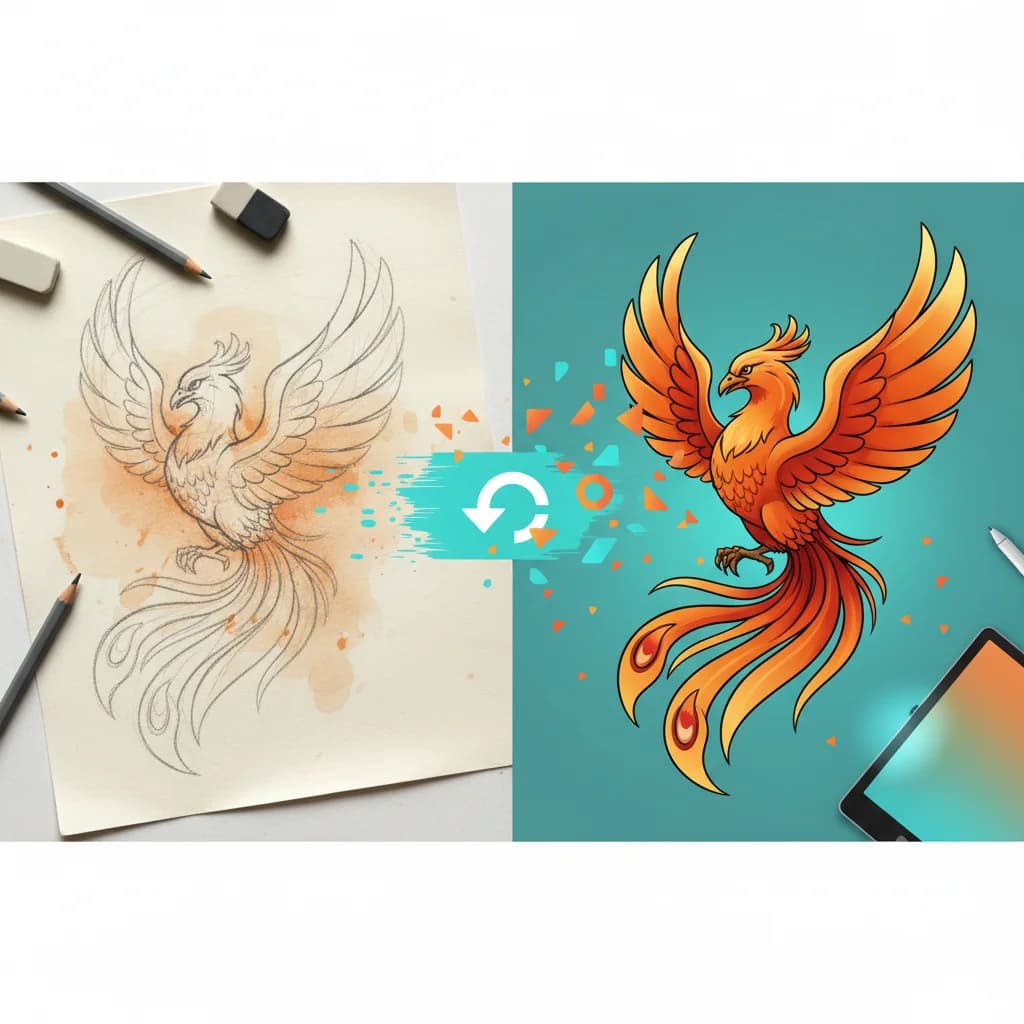
In 2026, hand-drawn design is experiencing a renaissance. While AI-generated imagery floods the internet, brands are turning to authentic, imperfect hand-drawn elements to stand out. From Spotify's playlist covers to indie packaging design, naive art and handmade aesthetics are dominating visual culture.
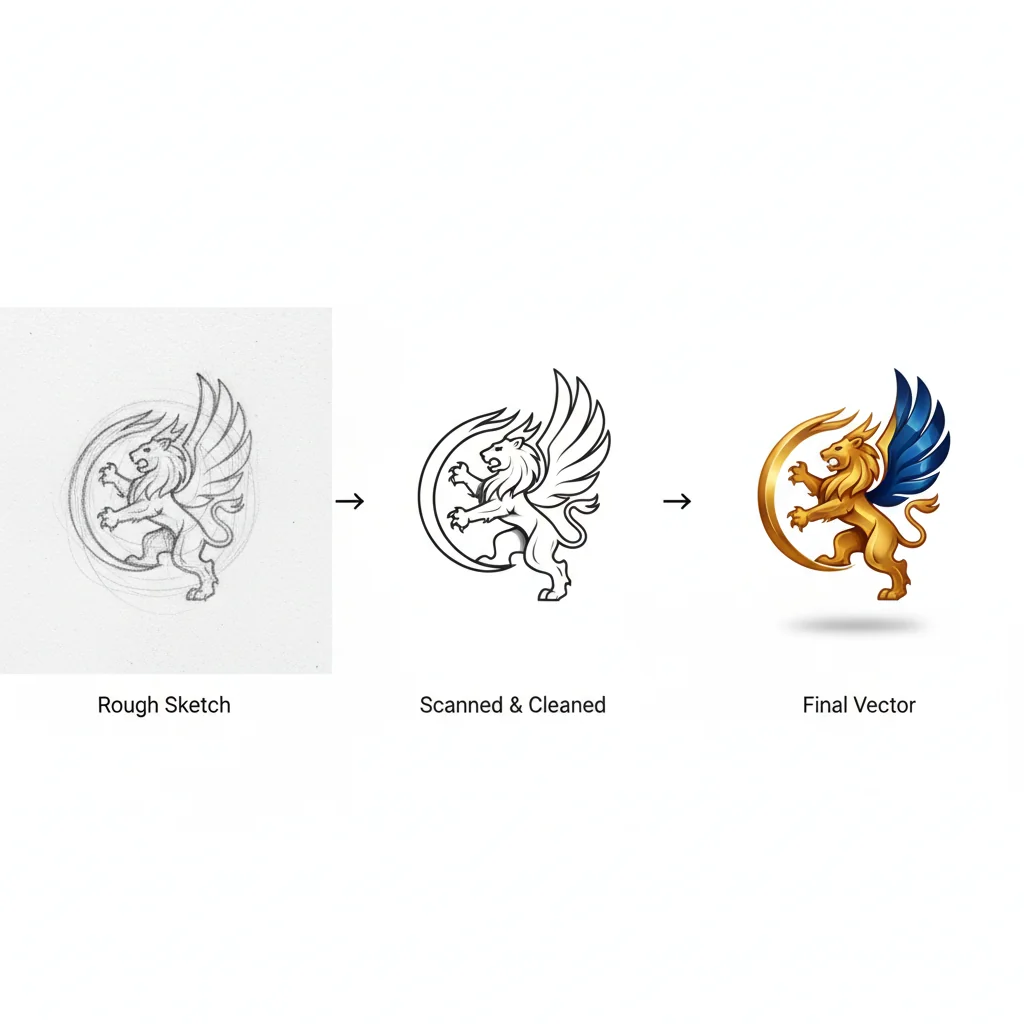
This guide will walk you through every step of digitizing hand-drawn sketches into clean, editable vector files — from choosing the right paper to AI-powered conversion and final refinement.
Why Vector Format Matters for Hand-Drawn Art
Vector files (SVG, AI, EPS) are resolution-independent. Unlike raster images that pixelate when scaled, vectors maintain crisp edges at any size — essential for:
- Print applications: Business cards, posters, apparel
- Web graphics: Icons, illustrations, logos that look sharp on 4K+ displays
- Animation: Easier to rig and animate in After Effects or web platforms
- Editing flexibility: Change colors, rearrange elements, adjust line weights non-destructively
Equipment Checklist
Drawing Materials
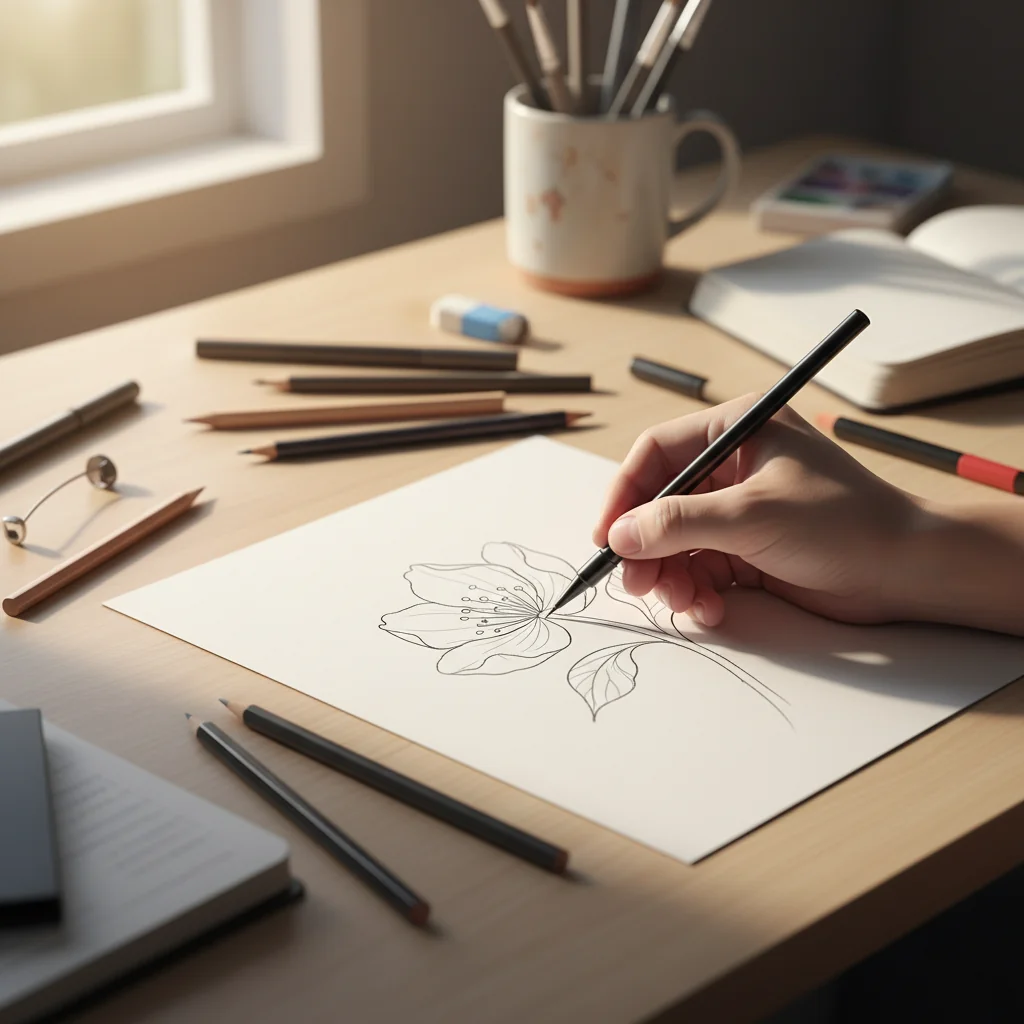
For line art: Black fine-liner pens (0.3mm-0.8mm) like Micron or Staedtler on smooth white paper (bristol board or marker paper)
For pencil/charcoal: 2B-6B pencils for darker, scannable lines with fixative spray
For watercolor/ink wash: High-contrast pigment on heavyweight paper (300gsm)
Scanning Equipment
| Equipment Type | Best For | Price Range | Quality |
|---|---|---|---|
| Flatbed Scanner | Line art, small-medium originals | $80-$500 | Excellent |
| Smartphone Camera | Quick digitization, large artwork | $0 (built-in) | Good |
| Overhead Scanner | Books, thick materials, fragile art | $300-$2000 | Excellent |
| DSLR/Mirrorless | Professional reproduction, large scale | $600+ | Excellent |
Pro Tip: A modern smartphone (iPhone 14+, Galaxy S23+) with proper lighting can produce 90% of the quality of a flatbed scanner. The key is lighting, not megapixels.
Scanning Settings Guide
| Use Case | DPI | Color Mode | File Format | File Size (est.) |
|---|---|---|---|---|
| Web icons/UI | 300 | Grayscale or RGB | PNG | 1-3 MB |
| Print (business cards) | 600 | Grayscale or RGB | PNG or TIFF | 5-15 MB |
| Large format print | 600-1200 | RGB | TIFF | 20-100 MB |
| Archival/professional | 1200+ | RGB | TIFF (uncompressed) | 100+ MB |
| Quick vectorization test | 300 | Grayscale | JPG (high quality) | 1-2 MB |
DPI sweet spot: 600 DPI captures fine details while keeping file sizes manageable. Anything above 1200 DPI rarely improves vectorization quality.
A Full Year of Conversions for $49
Starter Annual: 25 conversions every month, $49 for the whole year. That is about $4.08 a month · Cancel anytime
Get the Annual DealStep-by-Step Tutorial: Sketch to Vector
Step 1: Drawing Techniques for Clean Vectorization
- Use confident, continuous strokes instead of sketchy, overlapping lines
- Maintain consistent line weight within each element
- Maximum contrast between drawing and paper ensures clean edge detection
- Avoid textured paper — smooth surfaces produce cleaner scans
Warning: Common mistake: Drawing too lightly. If your lines look faint in person, they'll be nearly invisible after scanning. Trace over light pencil with ink for best results.
Step 2: Scanning or Photographing Your Artwork
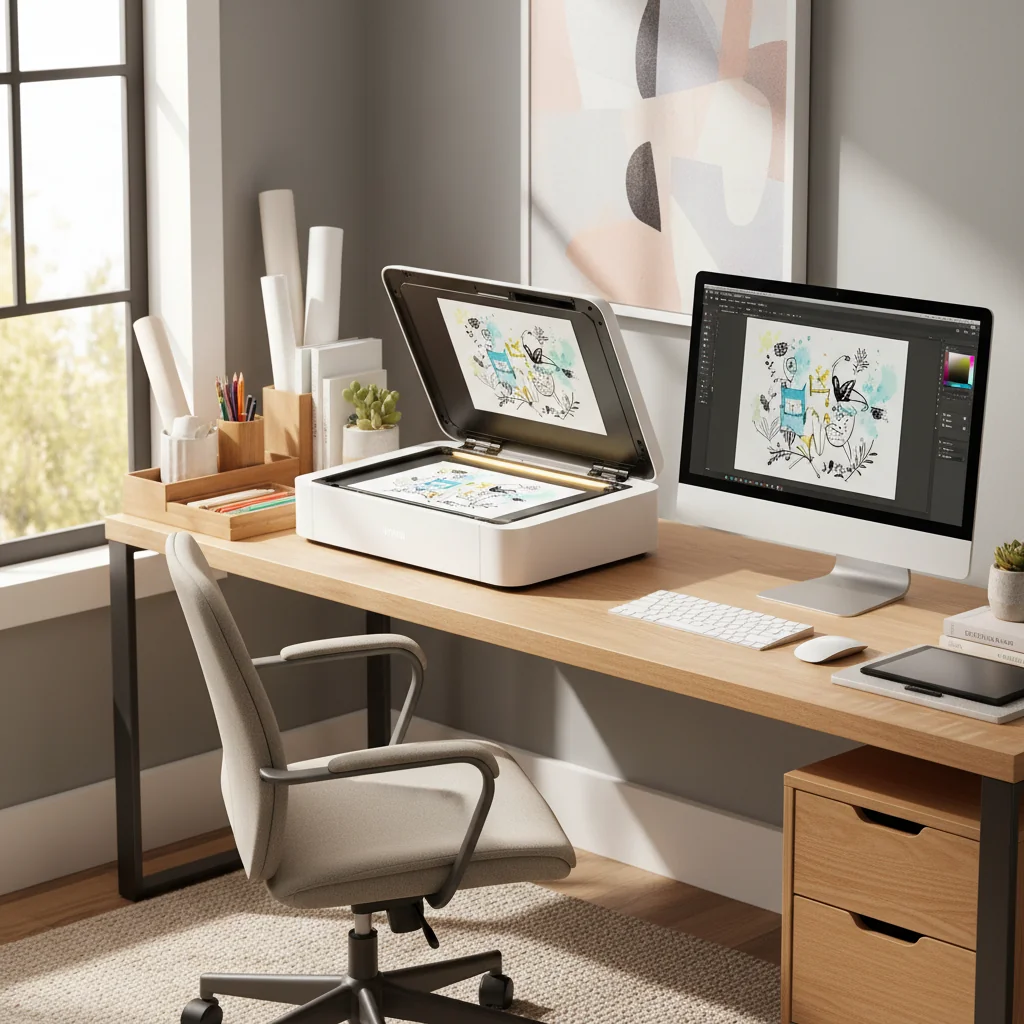
Flatbed Scanner Method
- Clean the glass with microfiber cloth
- Position artwork face-down, aligned with corner guides
- Settings: Grayscale, 600 DPI, PNG format
- Preview and adjust crop area
- Scan and save with descriptive filename
Smartphone Camera Method
- Lighting: Use natural indirect light or two desk lamps at 45-degree angles
- Position: Mount phone directly above artwork, parallel to paper
- Settings: ISO 100-200, tap to focus on artwork, HDR off
- Capture: Take multiple shots at different exposures
Pro Tip: App recommendations: Adobe Scan (free, auto-perspective correction), Microsoft Lens (free, removes shadows), or Scanbot (premium features).
Step 3: Image Cleanup (Pre-Vectorization)
Before vectorizing, clean up your scan:
- Crop to remove scanner edges
- Straighten if artwork is tilted
- Adjust levels/contrast: Pure white background, dark black lines
- Remove dust/smudges: Use Healing Brush
- Optional: Use VectoSolve's background remover for automatic removal
Vectorization tools treat gray/off-white paper as "data" to trace. Pure white transparency = cleaner vector output with fewer stray paths.
Step 4: AI Vectorization with VectoSolve
- Go to VectoSolve.com
- Upload your cleaned PNG file
- Choose settings:
- Detail level: High (intricate line work) or Medium (bold, simple designs)
- Color detection: Black & White (line art) or Full Color
- Smoothing: Light (preserves imperfections) to Heavy (polishes curves)
Pro Tip: Preserve authenticity: Use Light smoothing to keep subtle wobbles and line weight variations that make artwork feel human. Over-smoothing creates sterile results.
- Preview the vectorization — zoom in to check line continuity and detail
- Download as SVG (web/editing) or PDF (print workflows)
Step 5: Refining the Vector Output
In Adobe Illustrator or Inkscape (free):
- Simplify excess nodes: Object > Path > Simplify (reduces file size 40-70%)
- Close open paths: Select and Join (Cmd/Ctrl+J)
- Group related elements for easier editing
- Adjust line weights if needed
- Color adjustment: Replace pure black (#000000) with warmer black (#1a1a1a) for print
Key Takeaways
- Start with high-contrast artwork (dark lines, white paper)
- Scan at 600 DPI for print, 300 DPI for web-only
- Remove background before vectorizing for cleanest results
- Use light smoothing to preserve hand-drawn character
- Simplify paths post-vectorization to reduce file size
Phone Camera vs Scanner Comparison
| Feature | Smartphone | Flatbed Scanner | Overhead Scanner |
|---|---|---|---|
| Setup time | 30 seconds | 2 minutes | 1 minute |
| Detail capture | Good (12+ MP) | Excellent | Excellent |
| Color accuracy | Fair (lighting-dependent) | Excellent | Excellent |
| Max size | Unlimited | 8.5"x11" or 11"x17" | A3-A2 |
| Portability | Excellent | Poor | Poor |
| Cost | $0 (have phone) | $80-$500 | $300-$2000 |
| Best for | Large artwork, quick tests | Standard sizes, line art | Books, fragile art |
Tips for Different Art Styles
Line Art (Ink, Fine-Liner)
- Scan at 600 DPI, Grayscale
- High detail, light smoothing
- Increase contrast aggressively for cleanest paths
Watercolor/Ink Wash
- Scan at 600-1200 DPI, RGB Color
- Full color mode, medium detail
- Vectorize line art separately from color fills for more control
Pencil/Charcoal
- Scan at 1200 DPI, Grayscale
- Use Levels adjustment aggressively — pencil grays need boosting
- Trace over pencil with ink for cleaner results
Colored Pencil/Marker
- Scan at 600 DPI, RGB Color
- Best for bold, flat color areas
- For realistic shading, keep as high-res PNG and only vectorize outlines
Free SVG Tools for Crafters
Design Checker · Color Separator · Mat Preview · Offset Generator · Text to SVG
Check Your SVG FreeCommon Mistakes and How to Avoid Them
Mistake 1: Drawing Too Lightly
Use 4B+ pencils with firm pressure, or trace with ink. Test scan early.
Mistake 2: Textured Paper
Use smooth paper (bristol, marker paper) or increase DPI to 1200.
Mistake 3: Poor Lighting (Phone Photos)
Use two light sources at 45-degree angles or scan near a large window.
Mistake 4: Skipping Background Removal
Adjust Levels to pure white or use background removal tools.
Mistake 5: Over-Smoothing
Start with light smoothing. You can simplify later, but can't add back lost character.
Mistake 6: Wrong File Format
- Web/digital: SVG
- Print: PDF or EPS
- Editing: AI (Illustrator native)
Mistake 7: Not Testing Early
Draw one test element, scan, vectorize, refine. Validate your workflow before completing the full artwork.
What's the best DPI for scanning hand-drawn artwork?
600 DPI is the sweet spot for most use cases. Use 300 DPI for quick tests or web-only graphics. Go up to 1200 DPI only for extremely detailed technical illustration or archival reproduction. Higher DPI captures paper texture rather than useful detail.
Can I vectorize a photo of my sketch instead of scanning?
Yes, with modern smartphone cameras (12MP+) and good lighting. Use scanning apps like Adobe Scan or Microsoft Lens for auto-perspective correction. For professional work, flatbed scanners produce more consistent results.
A Full Year of Conversions for $49
Starter Annual: 25 conversions every month, $49 for the whole year. That is about $4.08 a month · Cancel anytime
Get the Annual DealHow do I preserve the "imperfect" hand-drawn feel?
Use light smoothing during vectorization. Don't simplify paths too aggressively. Keep slight line weight variations and embrace small gaps or overlaps — they add character.
What if my vectorized sketch has too many anchor points?
In Illustrator: Object > Path > Simplify. In Inkscape: Path > Simplify (Ctrl+L). Target: 10-50 points per path for simple art, 100-300 for intricate illustrations.
Can I vectorize colored pencil or marker drawings?
Yes, but best for flat, bold color areas. Subtle gradients get posterized into color bands. Best practice: vectorize line work separately, then add flat vector color fills.
Free SVG Tools for Crafters
Design Checker · Color Separator · Mat Preview · Offset Generator · Text to SVG
Check Your SVG FreeWhat's the difference between auto-tracing and AI vectorization?
Traditional auto-tracing (Illustrator Image Trace, Inkscape Trace Bitmap) is algorithm-based. AI vectorization (VectoSolve) uses machine learning trained on millions of images — better at understanding subject vs noise, smarter edge detection, and cleaner output.
Can I sell products with vectorized sketches?
Yes — you own the copyright to your original artwork and all derivatives. VectoSolve doesn't claim any rights to your uploads or vectorized output.
Beyond Sketches: What Else Can You Vectorize?
- Handwritten text: Birthday cards, invitations, custom typography
- Signatures: Legal documents, certificates, branding
- Vintage ephemera: Old postcards, stamps, botanical illustrations
- Children's art: Preserve kids' drawings as scalable keepsakes
- Embroidery patterns: Convert designs for digitizing services
- Tattoo designs: Provide artists with clean, scalable stencils
Explore more: Hand Drawing to SVG | PNG to SVG | Image Upscaler
A Full Year of Conversions for $49
Starter Annual: 25 conversions every month, $49 for the whole year. That is about $4.08 a month · Cancel anytime
Get the Annual DealStart Digitizing Today
The barrier between analog and digital art has never been lower. With a smartphone, free editing tools, and AI-powered vectorization, you can transform hand-drawn sketches into professional-grade vector files in under 30 minutes.
Your next steps:
- Draw something with high-contrast materials
- Scan or photograph with good lighting
- Clean up the image (boost contrast, remove background)
- Vectorize at VectoSolve.com/png-to-svg
- Refine in Illustrator or Inkscape
Your hand-drawn work has value precisely because it's imperfect, human, and authentic in an AI-saturated world.
Sources:
- Kittl: Design Trends 2026 — Hand-drawn design resurgence
- Adobe: Vectorization Best Practices
- It's Nice That: The Return of Naive Art