
Tutorial

How to Vectorize Images Online: Complete Tutorial 2026

Master online image vectorization with this comprehensive tutorial. Learn to convert your raster images to vectors using modern web-based tools.
VectoSolve TeamNovember 23, 2025Updated: February 19, 202615 min read
How to Vectorize Images Online: Complete Tutorial 2026
V
VectoSolve Team

Graphics & Design Experts

Our team of experienced designers and developers specializes in vector graphics, image conversion, and digital design optimization. With over 10 years of combined experience in graphic design and web development.

Vector GraphicsSVG OptimizationImage ProcessingWeb Performance

Key Takeaways

  • Online vectorization eliminates the need for expensive desktop software -- convert raster images to scalable vectors directly in your browser
  • AI-powered tools like VectoSolve produce professional-quality SVGs in 5-30 seconds vs. hours of manual tracing in Illustrator
  • Start with the highest quality PNG source, ensure good contrast, and remove backgrounds before vectorizing for the best results
  • Different image types need different settings: high detail for logos, medium for illustrations, low for simple icons
  • SVG output is ideal for web (fast loading, retina-sharp), print (infinite scaling), and cutting machines (Cricut/Silhouette compatibility)

Introduction to Online Image Vectorization

Online image vectorization has revolutionized how designers and businesses handle their graphics. No longer do you need expensive desktop software or expert skills to convert raster images to vectors.
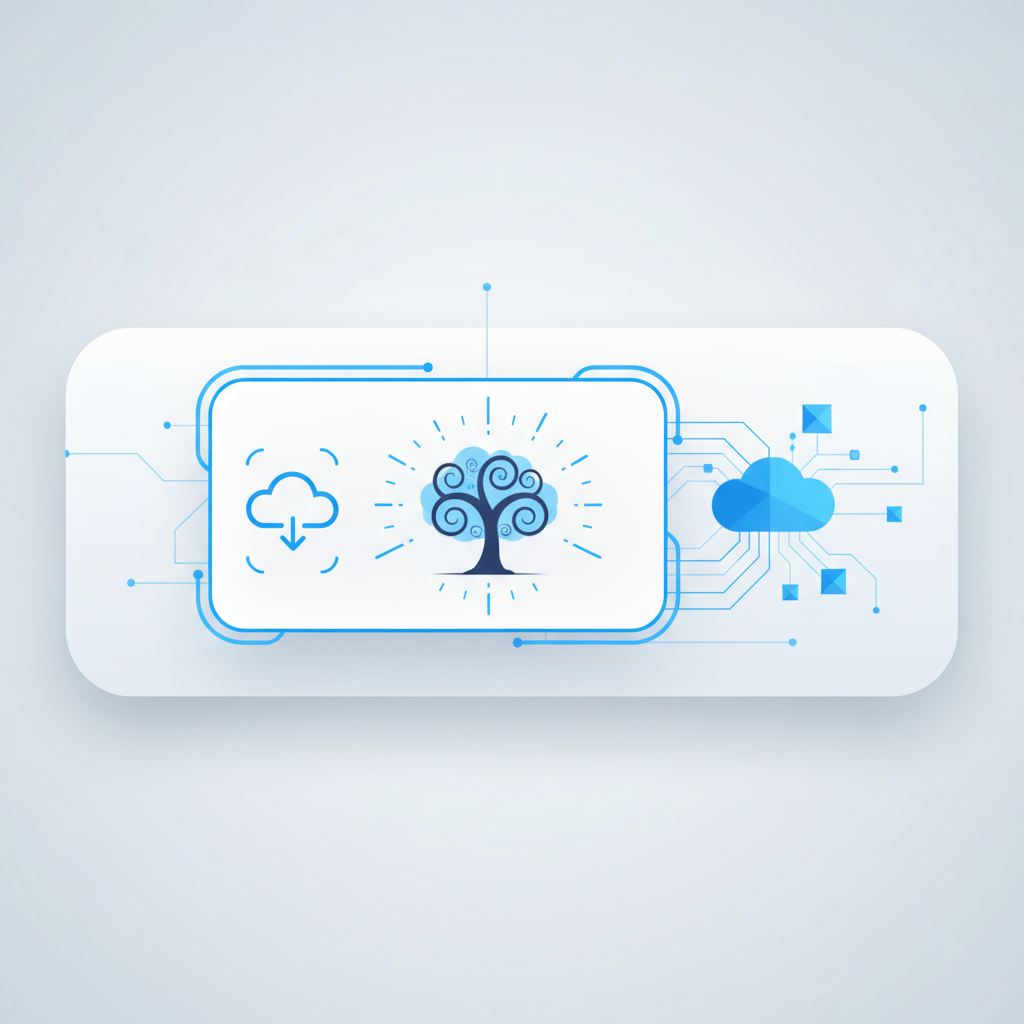
Complete guide to vectorizing images online showing the upload-to-SVG workflow
How to vectorize images online: the complete workflow from raster upload to scalable SVG download

---

What is Image Vectorization?

Vectorization is the process of converting pixel-based (raster) images into mathematical paths and shapes. The result is a scalable graphic that maintains perfect quality at any size.

Raster vs Vector

Raster Images:

  • Made of pixels
  • Fixed resolution
  • Quality degrades when scaled
  • Larger file sizes
  • Examples: PNG, JPEG, GIF
  • Vector Images:

  • Made of mathematical paths
  • Infinite scalability
  • Always sharp and clear
  • Smaller file sizes (for simple graphics)
  • Examples: SVG, AI, EPS
  • ---

    Why Vectorize Images Online?

    Advantages of Online Vectorization

  • No Software Installation: Work directly in your browser
  • Cross-Platform: Access from any device
  • Always Updated: Latest features automatically available
  • Collaboration: Easy file sharing and teamwork
  • Cost-Effective: Often cheaper than desktop software
  • "

    Switching from manual Illustrator tracing to VectoSolve's online vectorization cut our logo recreation time from 2 hours to 2 minutes. The AI handles 90% of the work, and the results are production-ready.

    — Design Agency Creative Director

    When to Use Online Tools

    Perfect for:

  • Quick conversions
  • Remote work
  • Small to medium projects
  • Testing and experimentation
  • Teams without design software
  • ---

    Choosing the Best Online Vectorization Tool

    Key Features to Look For

  • AI-Powered Processing: Advanced algorithms for better results
  • Quality Output: High-fidelity vector conversion
  • Ease of Use: Intuitive interface
  • Speed: Fast processing times
  • Customization: Adjustable settings and parameters
  • File Support: Multiple input/output formats
  • Batch Processing: Handle multiple files at once
  • Vectosolve: Professional Online Vectorization

    Vectosolve offers:

  • AI-powered conversion technology
  • Instant preview and editing
  • Batch processing capabilities
  • Color customization tools
  • Download in multiple formats
  • Affordable pricing with free trials
  • ---

    Step-by-Step Vectorization Tutorial

    Step 1: Prepare Your Image

    Image Requirements:

  • Format: PNG preferred (JPEG acceptable)
  • Resolution: Minimum 500x500 pixels (higher is better)
  • Background: Transparent or solid color
  • Quality: Sharp edges, good contrast
  • Preparation Tips:

    Good: Remove unnecessary backgrounds
    Good: Clean up noise and artifacts
    Good: Ensure adequate contrast
    Good: Crop to essential content
    Bad: Avoid heavily compressed JPEGs
    Bad: Skip low-resolution images
    

    Pro Tip: The single most impactful thing you can do before vectorizing is ensure your source image has strong contrast. Use any photo editor to push blacks darker and whites brighter -- this gives the AI vectorizer clear boundaries to trace, resulting in dramatically cleaner SVG paths.

    Step 2: Upload Your Image

  • Visit Vectosolve.com
  • Click "Upload Image" or drag-and-drop
  • Wait for upload confirmation
  • Preview your original image
  • Step 3: Configure Settings

    Detail Level:

  • Low: Simple shapes, minimal paths (faster, smaller files)
  • Medium: Balanced quality (recommended for most uses)
  • High: Maximum detail preservation (complex images)
  • Color Options:

  • Auto-detect colors
  • Limit color palette
  • Custom color selection
  • Grayscale conversion
  • Advanced Settings:

  • Path simplification
  • Corner detection sensitivity
  • Noise reduction
  • Background removal
  • Step 4: Process and Preview

  • Click "Vectorize" to start conversion
  • Wait for AI processing (usually 5-30 seconds)
  • Preview the result in the viewer
  • Zoom in to check quality
  • Compare with original
  • Step 5: Edit and Refine

    Use built-in tools to:

  • Adjust colors
  • Simplify paths
  • Remove unwanted elements
  • Fine-tune details
  • Step 6: Download Your Vector

    Choose your format:
  • SVG: Web use, maximum compatibility
  • PDF: Printing, documents
  • EPS: Professional design software
  • AI: Adobe Illustrator
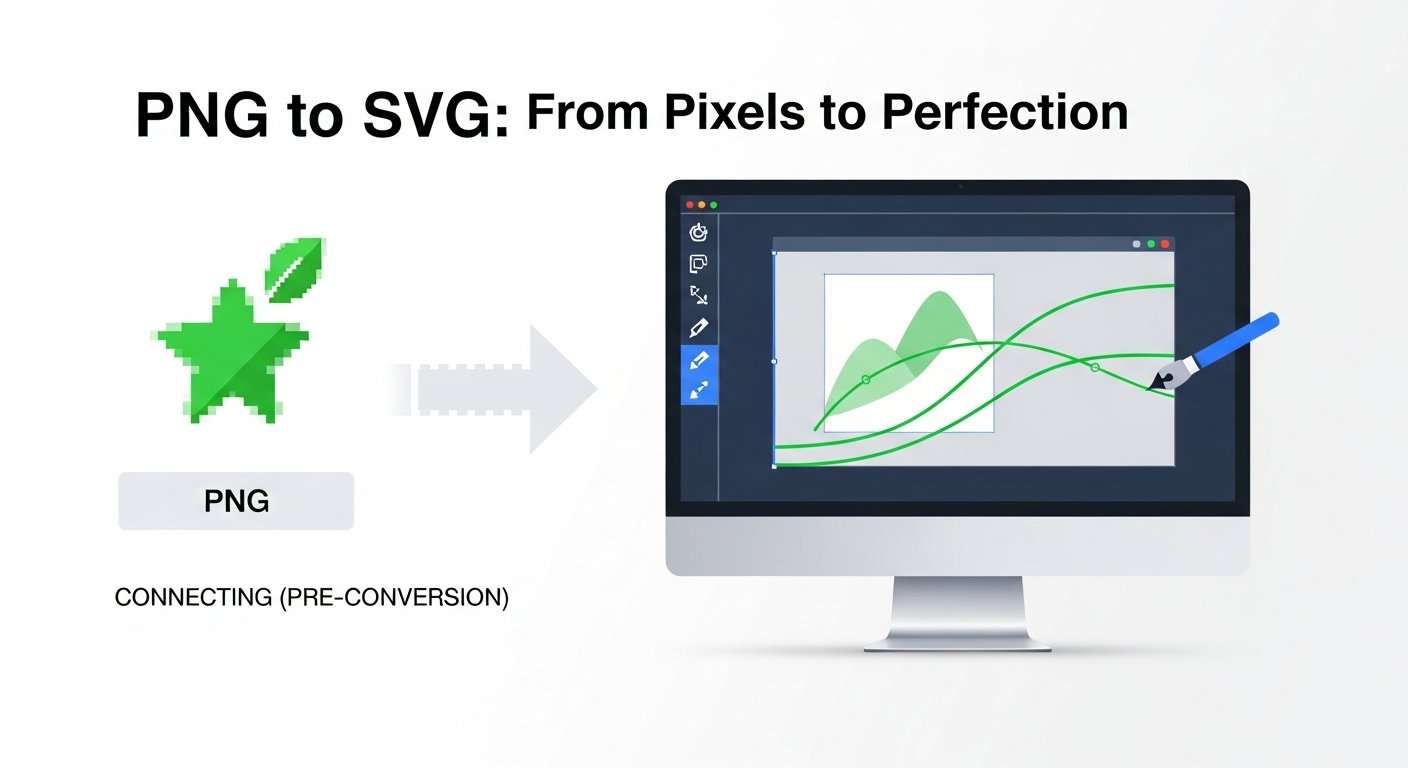
  • PNG to SVG converter tool showing side-by-side comparison of raster input and vector output
    VectoSolve's PNG to SVG converter: instant AI-powered vectorization with live preview

    ---

    Different Image Types and Techniques

    Vectorizing Logos

    Best Practices:

  • Use original, high-quality source
  • Choose high detail level
  • Preserve brand colors exactly
  • Check at multiple sizes
  • Example Workflow:

  • Scan or find highest quality version
  • Remove background if needed
  • Use high detail setting
  • Verify brand color accuracy
  • Test at favicon size (16x16) and large size
  • Vectorizing Icons

    Optimization Tips:

  • Use medium to low detail
  • Limit color palette
  • Ensure consistent stroke widths
  • Test at small sizes (32x32, 64x64)
  • Vectorizing Illustrations

    Technique:

  • Break complex images into sections
  • Vectorize parts separately if needed
  • Use high detail for intricate areas
  • Simplify where possible
  • Vectorizing Text

    Special Considerations:

  • Use high resolution source
  • Ensure clear, readable fonts
  • Consider using font files instead
  • Verify character spacing
  • ---

    Optimizing Your Vectors

    File Size Optimization

    Reduce SVG file size by:

  • Simplifying paths
  • Removing unnecessary nodes
  • Combining similar colors
  • Removing metadata
  • Using optimization tools (SVGO)
  • Before Optimization:

    xml


    After Optimization:

    xml


    Quality Optimization

    Improve quality by:

  • Using higher resolution sources
  • Adjusting detail levels appropriately
  • Manual touch-ups in vector software
  • Testing at intended use sizes
  • ---

    Advanced Online Vectorization Techniques

    Batch Processing

    For multiple files:

  • Organize files by type
  • Upload all at once
  • Apply consistent settings
  • Download as archive
  • API Integration

    Automate vectorization:

    javascript
    // Example API call
    fetch('https://api.vectosolve.com/vectorize', {
      method: 'POST',
      body: formData,
      headers: {
        'Authorization': 'Bearer YOUR_API_KEY'
      }
    })
    .then(response => response.json())
    .then(data => console.log(data.svgUrl));
    

    Workflow Integration

    Integrate with:

  • Design systems
  • Content management systems
  • E-commerce platforms
  • Marketing automation tools
  • VectoSolve's API enables fully automated vectorization pipelines. E-commerce platforms can automatically vectorize uploaded product images, and design systems can convert raster assets to SVG on the fly -- no manual intervention required.

    ---

    Common Problems and Solutions

    Issue: Poor Quality Output

    Causes:

  • Low resolution source image
  • Inappropriate settings
  • Overly complex image
  • Solutions:

  • Use higher quality source
  • Adjust detail level
  • Simplify image before vectorization
  • Issue: Too Large File Size

    Solutions:

  • Reduce detail level
  • Limit color palette
  • Use optimization tools
  • Simplify paths manually
  • Issue: Lost Colors

    Solutions:

  • Increase color limit
  • Use custom color picker
  • Manually adjust after conversion
  • Issue: Jagged Edges

    Solutions:

  • Increase source image resolution
  • Use higher detail setting
  • Enable smoothing options
  • ---

    Best Online Vectorization Practices

    Do's

  • Start with highest quality source
  • Test different settings
  • Preview at multiple sizes
  • Optimize final output
  • Save original files
  • Use appropriate file formats
  • Don'ts

  • Use heavily compressed images
  • Skip quality checks
  • Ignore file size
  • Forget to test scalability
  • Delete source files
  • ---

    Real-World Applications

    E-Commerce

  • Product icons
  • Category graphics
  • Logo variations
  • Badge designs
  • Marketing

  • Social media graphics
  • Email templates
  • Banner ads
  • Infographics
  • Web Development

  • UI icons
  • Navigation elements
  • Decorative graphics
  • Interactive visualizations
  • Branding

  • Logo creation
  • Brand guidelines
  • Stationery design
  • Signage preparation
  • ---

    Comparing Online vs Desktop Vectorization

    Online Tools (Vectosolve)

    Pros:

  • No installation required
  • Always up-to-date
  • Accessible anywhere
  • Easy collaboration
  • Lower cost
  • Cons:

  • Requires internet
  • Upload time for large files
  • Desktop Software (Illustrator)

    Pros:

  • Works offline
  • Advanced editing features
  • Professional workflows
  • Cons:

  • Expensive licenses
  • Steep learning curve
  • Platform-dependent
  • Manual process
  • ---

    Future of Online Vectorization

    Emerging trends:

  • Real-time AI improvements
  • Better mobile support
  • 3D vectorization
  • Augmented reality integration
  • Enhanced automation
  • ---

    Conclusion

    Online image vectorization has made professional-quality vector graphics accessible to everyone. With tools like Vectosolve, you can convert raster images to scalable vectors in minutes, not hours.

    Whether you're a professional designer, developer, or business owner, mastering online vectorization will save you time and money while improving the quality of your digital assets.

    Start vectorizing your images online today at Vectosolve.com and join thousands of satisfied users creating perfect vectors.

    ---

    Online Vectorization ToolProcessing SpeedMax Free ResolutionOutput Formats
    VectoSolve5–10 sec4096x4096pxSVG, PNG, EPS
    Adobe Express10–20 sec2000x2000pxSVG, PNG
    Vectorizer.io5–15 sec1 MP (free)SVG, EPS, PDF
    Autotracer.org3–10 sec5000x5000pxSVG, PDF, AI

    Sources & Further Reading

  • MDN Web Docs — SVG — Authoritative reference for SVG elements, attributes, and rendering behavior in browsers
  • web.dev Performance — Google's performance guide covering image optimization and modern format best practices
  • W3C SVG 2 Specification — The official W3C specification defining SVG capabilities and standards
  • Google AI Blog — Insights into AI-powered image processing and machine learning advances behind modern vectorization
  • Smashing Magazine — In-depth web development articles including SVG optimization techniques
  • Tags:
    Vectorization
    Online Tools
    Tutorial
    Image Conversion
    SVG
    Share:

    Try Vectosolve Now

    Convert your images to high-quality SVG vectors with AI

    AI-Powered Vectorization

    Ready to vectorize your images?

    Convert your PNG, JPG, and other images to high-quality, scalable SVG vectors in seconds.