
VectoSolve MCP Server: AI Image Tools Inside Claude Code, Cursor & Windsurf
The @vectosolve/mcp server brings AI vectorization, background removal, upscaling, and logo generation directly into your IDE. One npx command, zero setup — convert images to SVG without leaving your editor.
Founder of VectoSolve
Self-taught developer, founder and sole developer of VectoSolve since 2024. He builds the conversion engine and the cutting, embroidery and 3D printing exports.
How this article was made: drafted with AI assistance, then edited and fact-checked before publication. About the author
Try it on your own file
Free preview, no signup. Drop an image and see the vector before deciding anything.
The Model Context Protocol (MCP) is an open standard that lets AI coding assistants call external tools natively. Instead of copy-pasting file paths or switching to a browser, you describe what you want and the AI handles the rest.
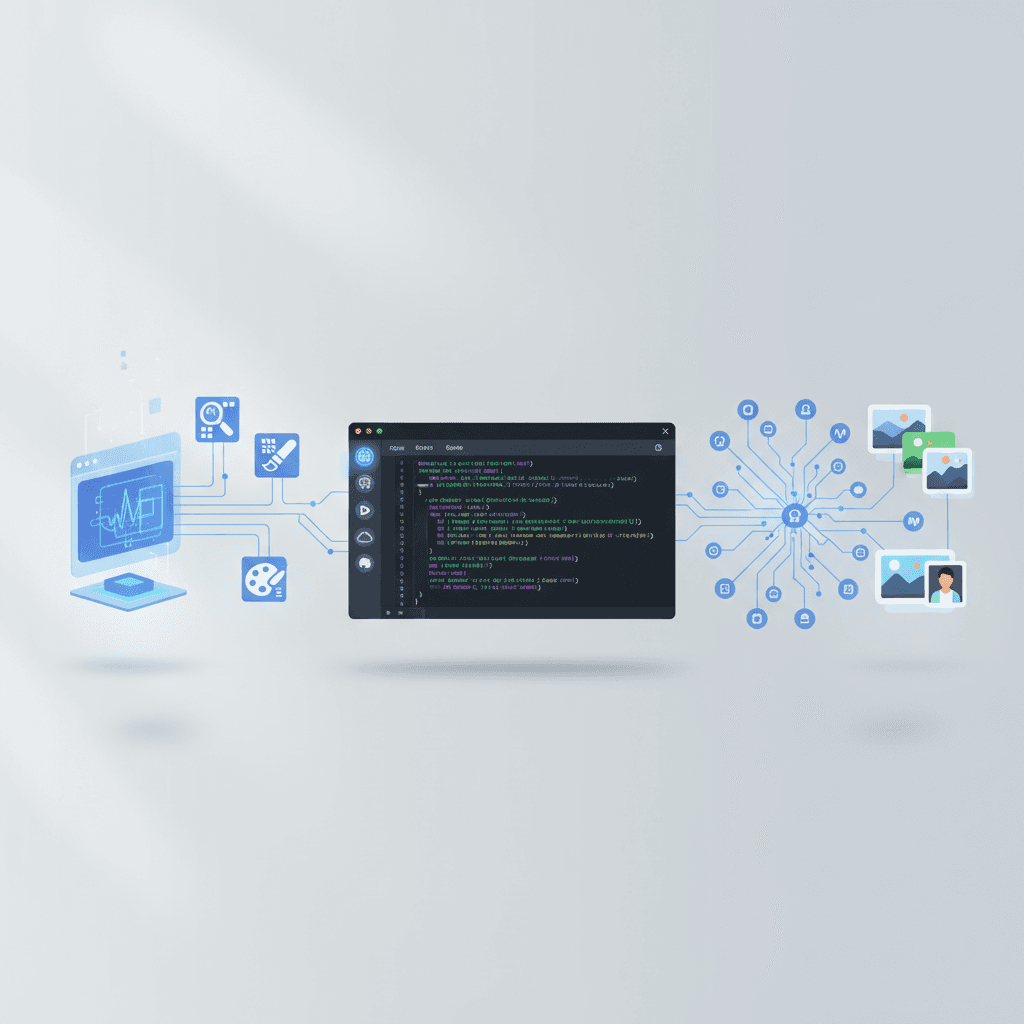
The @vectosolve/mcp server connects VectoSolve's image processing API to any MCP-compatible client — Claude Code, Cursor, Windsurf, and more. Vectorize images, remove backgrounds, upscale, and generate logos without leaving your editor.
Why Use an MCP Server?
Traditional workflows for image processing look like this:
- Open a browser tab
- Upload your image
- Wait for processing
- Download the result
- Move the file to your project
With MCP, you say "vectorize this image" and the AI does all five steps. The result lands in your project directory, ready to use.
Quick Setup
The setup takes 30 seconds. Add VectoSolve to your MCP client config:
Claude Code
Add to your .mcp.json (project root or ~/.claude/.mcp.json for global):
{
  "mcpServers": {
    "vectosolve": {
      "command": "npx",
      "args": ["@vectosolve/mcp"],
      "env": {
        "VECTOSOLVE_API_KEY": "vs_xxx"
      }
    }
  }
}
Cursor
Open Settings → MCP Servers → Add Server:
- Name: vectosolve
- Command:
npx @vectosolve/mcp - Environment:
VECTOSOLVE_API_KEY=vs_xxx
Windsurf
Add to ~/.windsurf/mcp_config.json:
{
  "mcpServers": {
    "vectosolve": {
      "command": "npx",
      "args": ["@vectosolve/mcp"],
      "env": {
        "VECTOSOLVE_API_KEY": "vs_xxx"
      }
    }
  }
}
Get your API key at vectosolve.com/developers.
Available Tools
The MCP server exposes four tools that your AI assistant can call:
vectorize
Convert any raster image (PNG, JPG, WebP) to clean SVG vector format.
"Vectorize the logo at ./assets/logo.png"
"Convert this screenshot to SVG"
The AI reads your local file, sends it to VectoSolve's API, and returns the SVG content directly in the conversation. Cost: $0.20 per image.
remove_background
Remove the background from any image. Returns a transparent PNG URL.
"Remove the background from product-photo.jpg"
"Make this image transparent"
Cost: $0.07 per image.
upscale
Upscale low-resolution images using AI. Great for icons, thumbnails, or old assets.
"Upscale this favicon to 512x512"
"Make small-icon.png higher resolution"
Cost: $0.15 per image.
generate_logo
Generate SVG logos from a text description. Supports multiple styles and brand colors.
"Generate a modern tech logo for my startup called Nextera"
"Create 4 icon-style logo variants in blue and green"
Parameters:
prompt— describe the logo you wantstyle—vector_illustration,icon,line_art,engraving,line_circuit,linocutmodel—recraftv3(best quality) orrecraftv2colors— brand colors as hex array, e.g.["#0090ff", "#1cb721"]num_variants— 1, 2, or 4
Cost: $0.40 (recraftv3) or $0.25 (recraftv2) per logo.
A Full Year of Conversions for $49
Starter Annual: 25 conversions every month, $49 for the whole year. That is about $4.08 a month · Cancel anytime
Get the Annual DealReal Workflow Examples
Here are actual prompts you can use once the MCP server is configured:
Design workflow:
"Vectorize all PNG icons in ./public/icons/ and save as SVG"
E-commerce:
"Remove the background from every product photo in ./images/products/"
Branding:
"Generate 4 logo variants for a coffee shop called 'Bean There' using warm brown and cream colors"
Asset cleanup:
"Upscale this old 64x64 favicon to a usable resolution"
The AI handles file I/O, API calls, and error handling. You describe the outcome, it does the work.
Input Methods
All tools accept two input types:
file_path— any local file path (e.g../assets/logo.png)image_url— any public URL (e.g.https://example.com/image.png)
The AI assistant automatically detects which to use based on your prompt.
Credit System
Every tool call uses credits from your VectoSolve account. The response always includes credit usage and remaining balance, so you can track spending in real time.
Buy API credits at vectosolve.com/developers or subscribe at vectosolve.com/pricing.
Free SVG Tools for Crafters
Design Checker · Color Separator · Mat Preview · Offset Generator · Text to SVG
Check Your SVG FreePart of the Developer Ecosystem
The MCP server is one of three developer tools for VectoSolve:
| Tool | Install | Use Case |
|---|---|---|
| TypeScript SDK | npm i @vectosolve/sdk | App integration |
| CLI | npm i -g vectosolve | Terminal & CI/CD |
| MCP Server | npx @vectosolve/mcp | AI IDE integration |
All three connect to the same VectoSolve API and share your credit balance. Pick the one that fits your workflow — or use all three.
Get Started
- Create a free account and grab your API key
- Add the MCP config to your editor (see setup above)
- Ask your AI assistant to vectorize an image
The server runs via npx — no global install needed, always up to date.
→ View on npm · API Docs · Pricing