
How to Upscale Old Photos with AI: Preserve Your Memories in HD
Discover how AI image upscaling can breathe new life into old, low-resolution family photos, restoring details and making them print-worthy.
Founder of VectoSolve
Self-taught developer, founder and sole developer of VectoSolve since 2024. He builds the conversion engine and the cutting, embroidery and 3D printing exports.
How this article was made: drafted with AI assistance, then edited and fact-checked before publication. About the author
Try it on your own file
Free preview, no signup. Drop an image and see the vector before deciding anything.
Key Takeaways
- Old photos fade, but memories don't have to -- AI upscaling can breathe new life into damaged, faded, and low-resolution family photographs
- Scan at 600 DPI minimum in TIFF format to preserve every remaining detail before AI enhancement
- AI restoration handles scratches, color fade, and blur automatically, but a careful step-by-step workflow yields the best results
- Print restored photos at the right size -- a 300 DPI output is ideal for sharp prints up to 8x10 inches
- Archive digitally AND physically -- store restored files in at least two cloud locations plus one local backup
- Restored photos make deeply personal gifts that reconnect families with their shared history
There's a shoebox in almost every family. Maybe it's tucked on a closet shelf, stashed in the attic, or buried somewhere in your parents' garage. Inside are photographs -- dozens, sometimes hundreds -- that hold the only surviving images of people you loved, places that no longer exist, and moments that shaped who you are.
And they're fading.
Slowly, quietly, the faces in those photographs are disappearing. Colors shift toward yellow. Edges curl. Scratches multiply. Water damage creeps across entire frames. Every year that passes steals a little more detail, a little more clarity, a little more of the person staring back at you.
"A photograph is a secret about a secret. The more it tells you, the less you know.
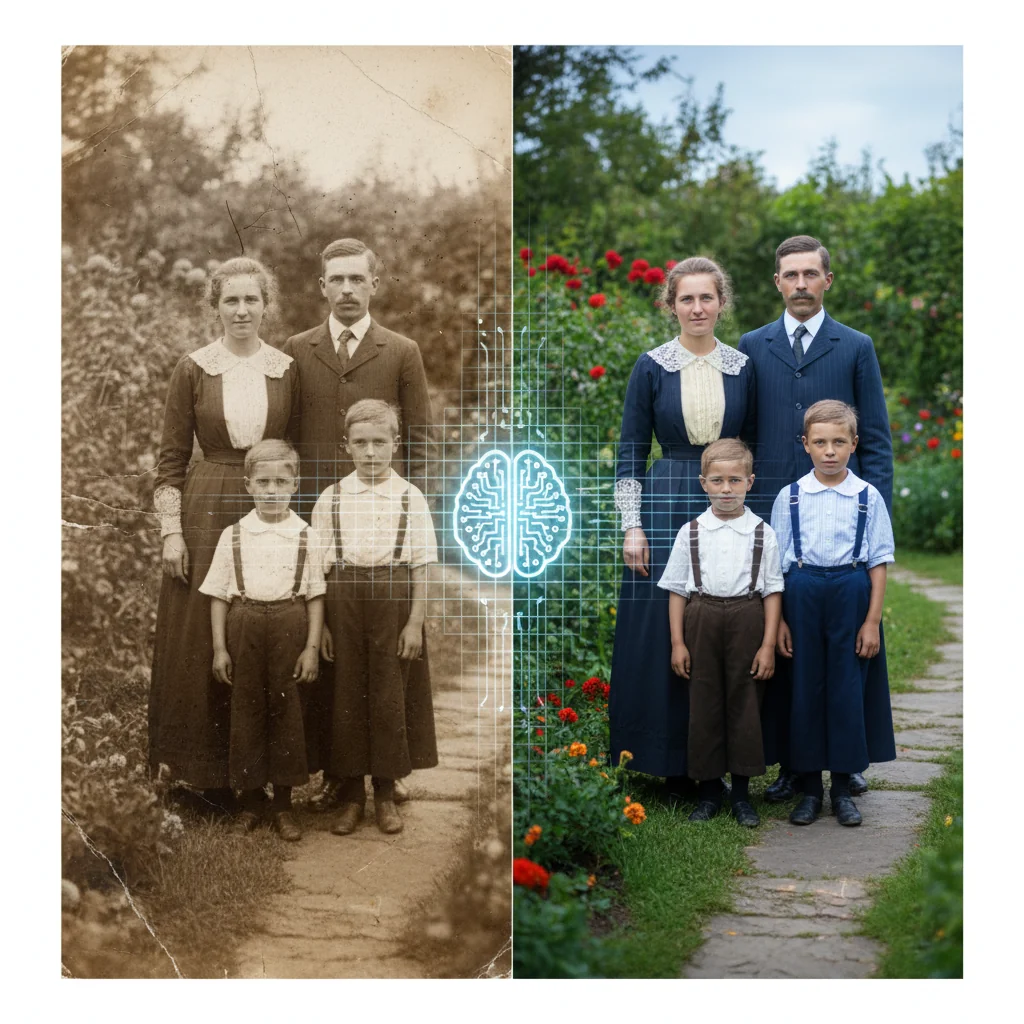
But here's the remarkable thing: you can stop that loss. Better yet, you can reverse it. Thanks to AI-powered photo upscaling and restoration, those fading memories can be brought back to life in stunning high definition -- sharper and more vibrant than they've been in decades.
This guide will walk you through every step: from carefully scanning your originals, to restoring damage and enhancing resolution with AI, to printing and archiving your restored photographs so they survive for generations to come.
Why Old Photos Degrade (And Why It Matters Now)
Before we dive into restoration, it helps to understand why your old photos look the way they do. This isn't just academic -- knowing the type of degradation helps you choose the right restoration approach.
The Science of Fading
Photographic prints degrade through several mechanisms:
| Degradation Type | Cause | Visual Effect | Reversible with AI? |
|---|---|---|---|
| Color shift | UV light breaks down dye layers | Yellow/magenta cast across entire image | Yes -- color correction is AI's strongest suit |
| Fading | Light exposure over decades | Washed-out, low-contrast appearance | Yes -- AI can reconstruct tonal range |
| Scratches & tears | Physical handling and storage | White lines, missing sections | Yes -- AI inpainting fills gaps intelligently |
| Water damage | Humidity, flooding, spills | Warped areas, staining, stuck-together prints | Partially -- depends on severity |
| Foxing spots | Fungal growth on paper | Small brown/reddish dots | Yes -- AI treats these like scratches |
| Low resolution | Small prints, early digital cameras | Pixelated when enlarged | Yes -- this is exactly what upscaling solves |
Warning: Time is your enemy. Photographic degradation accelerates over time. A photo that looks "okay" today may be significantly worse in just five years. If you've been meaning to digitize your family photos, start now -- even if you don't restore them immediately, having a high-quality scan preserves what remains.
The emotional stakes are real. These aren't just images -- they're the only visual record of your grandmother's smile, your parents' wedding day, your childhood home before the renovation. Once that detail is gone from the physical print, it's gone forever.
Unless you've already scanned it.
Step 1: Scanning Your Old Photos the Right Way
The foundation of every great restoration is a great scan. Think of it this way: AI can enhance what's there, but it can't invent detail that was never captured. A poor scan throws away information before AI even gets a chance to work with it.
Choosing Your Scanner
You have three main options:
- Flatbed scanner (recommended): The best balance of quality, control, and affordability. Models like the Epson Perfection V600 are excellent for photos
- Dedicated photo scanner: Faster for bulk scanning but sometimes lower maximum DPI
- Smartphone scanning apps: Convenient but inferior quality. Use only as a last resort for photos you can't remove from albums or frames
The Golden Rules of Scanning
DPI Settings Matter More Than You Think
DPI (dots per inch) determines how much detail your scanner captures. Here's what to use:
| Photo Size | Minimum DPI | Recommended DPI | Why |
|---|---|---|---|
| 4x6 or smaller | 600 DPI | 1200 DPI | Small originals need extra resolution to enlarge well |
| 5x7 | 600 DPI | 600-900 DPI | Good balance of quality and file size |
| 8x10 or larger | 300 DPI | 600 DPI | Large originals already have more detail per inch |
| 35mm negatives/slides | 2400 DPI | 4000 DPI | Tiny originals need maximum capture |
Pro Tip: Always scan at the highest DPI you can tolerate. Storage is cheap. You can always downsample later, but you can never add detail that wasn't scanned. A 1200 DPI scan of a 4x6 photo creates roughly a 30MB TIFF file -- a small price for preserving irreplaceable memories.
File Format: TIFF, Not JPEG
This is critical: save your scans as TIFF files, not JPEG.
JPEG compression throws away image data every time you save. For archival scanning, you want lossless quality. TIFF preserves every pixel exactly as scanned.
- For archival master: TIFF, uncompressed, 48-bit color
- For AI processing: TIFF or PNG (lossless)
- For sharing online: JPEG or WebP (convert after all editing is complete)
Handling Fragile Originals
- Wash and dry your hands before handling old prints
- Never force apart photos that are stuck together -- humidity chambers can gently separate them
- Use a soft, lint-free cloth to clean the scanner glass between each scan
- If a photo is curled, place it face-down on the scanner and gently lay a heavy book on top (not so heavy it damages the print)
- For photos in albums with adhesive pages, consider scanning the entire page rather than risking tearing the print
Step 2: Assessing the Damage
Before running AI tools, take a careful look at your scanned image at 100% zoom. Understanding what needs fixing helps you choose the right workflow.
Ask yourself these questions:
- Is the image too dark or too light? (Exposure/contrast issue)
- Is there a color cast? Hold a white area up to a pure white reference -- if it's yellow, magenta, or cyan, you have color shift
- Are there scratches, tears, or missing pieces? Note their size and location
- Is the image blurry or soft? This could be from camera motion, focus issues, or scanning at too low a DPI
- Is the image too small for your intended use? If you want an 8x10 print from a wallet-sized photo, you'll need significant upscaling
Pro assessment technique: Open your scanned image in any photo viewer and zoom to 200-300%. Pan slowly across the entire image, paying special attention to faces, text, and fine details like fabric texture or hair. This reveals damage that's invisible at normal zoom and helps you prioritize what to fix first.
A Full Year of Conversions for $49
Starter Annual: 25 conversions every month, $49 for the whole year. That is about $4.08 a month · Cancel anytime
Get the Annual DealStep 3: AI-Powered Restoration Workflow
Here's where the magic happens. Modern AI tools can accomplish in seconds what used to take professional retouchers hours. The key is using them in the right order.
The Optimal Restoration Order
Order matters. Each step builds on the previous one, so following this sequence produces the best results:
1. Crop and Straighten
Before any AI processing, clean up the basics:
- Remove scanner borders and any areas outside the actual photo
- Straighten the image if it was placed slightly crooked on the scanner
- This prevents AI tools from wasting processing power on irrelevant areas
2. Scratch and Damage Repair
AI inpainting tools analyze the surrounding area and intelligently fill in damaged regions:
- Small scratches and dust spots: Most AI tools handle these automatically and flawlessly
- Large tears or missing sections: May require manual guidance -- use a tool that lets you mask the damaged area
- Stains and foxing: AI typically treats these as damage to be removed, which is exactly what you want
Pro Tip: For severe damage, run the AI repair tool multiple times. First pass: address major tears and missing areas. Second pass: clean up remaining artifacts and smaller scratches. Each pass refines the result.
3. Color Correction and Restoration
This step transforms faded, yellowed images back to their original color palette:
- AI color restoration analyzes the image content and applies era-appropriate color correction
- Skin tones are prioritized -- the algorithms understand what human skin should look like across different ethnicities
- Background elements like sky, grass, and fabric are corrected based on contextual understanding
For black-and-white photos, you have an exciting option: AI colorization. Modern colorization AI can add remarkably realistic color to B&W images, bringing vintage photographs to life in ways that feel almost impossible.
4. AI Upscaling (The Star of the Show)
This is where resolution enhancement transforms your image:
- 2x upscaling doubles both dimensions (a 1000x1500 image becomes 2000x3000)
- 4x upscaling quadruples dimensions -- ideal for making large prints from small originals
- AI upscaling doesn't just add pixels -- it uses trained neural networks to intelligently predict and generate real detail
The difference between basic interpolation (stretching) and AI upscaling is dramatic:
| Method | What It Does | Result Quality |
|---|---|---|
| Nearest Neighbor | Duplicates existing pixels | Blocky, pixelated -- useless for photos |
| Bilinear/Bicubic | Averages surrounding pixels | Smooth but blurry -- loses all fine detail |
| AI Upscaling | Predicts and generates new detail using neural networks | Sharp, detailed, natural-looking -- often stunning |
5. Final Sharpening and Noise Reduction
The finishing touches:
- Apply gentle sharpening to enhance edges and fine details
- Use AI noise reduction if the original had film grain or scanner noise
- Be careful not to over-sharpen -- it creates unnatural halos around edges
"The best thing about a picture is that it never changes, even when the people in it do.
Step 4: Using Vectosolve's AI Image Upscaler
Our AI Image Upscaler tool is specifically designed for this kind of work. Here's how to get the best results with your old photos:
- Upload your scanned image -- TIFF, PNG, or high-quality JPEG all work
- Select your upscaling factor -- 2x for modest enlargement, 4x for dramatic enhancement
- Check the preview -- zoom in on faces and fine details before you download
- Process and download -- your enhanced image is ready in seconds
What makes AI upscaling different from simple enlargement? Traditional enlargement just stretches pixels, creating blur. AI upscaling uses deep learning models trained on millions of images to predict what fine details should look like. It can reconstruct texture in fabric, individual strands of hair, and subtle facial expressions that were lost in the low resolution of the original.
Step 5: Printing Your Restored Photos
A beautifully restored digital file deserves a beautiful print. But printing restored photos requires some thought about size and resolution.
Print Size Guide
The golden rule: you need 300 DPI at your final print size for sharp results. Here's what that means in practice:
| Your Restored Image Size (pixels) | Maximum Sharp Print Size | Good For |
|---|---|---|
| 1200 x 1800 | 4 x 6 inches | Wallet photos, small frames |
| 1500 x 2100 | 5 x 7 inches | Standard frames, desk display |
| 2400 x 3000 | 8 x 10 inches | Wall frames, gifts |
| 3600 x 5400 | 12 x 18 inches | Large wall art |
| 4800 x 7200 | 16 x 24 inches | Statement pieces, canvas wraps |
Pro Tip: The viewing distance trick: Prints viewed from further away don't need 300 DPI. A large canvas print hung on a wall is typically viewed from 3-6 feet away, where 150-200 DPI looks perfectly sharp. This means you can print larger than the table above suggests for wall-hanging pieces.
Choosing Paper and Finish
- Matte paper: Reduces glare, ideal for vintage-look restorations and framed prints behind glass
- Glossy paper: Vivid colors and deep blacks, best for colorful restorations without glass framing
- Lustre/Pearl: A hybrid that works beautifully for most restored photos
- Fine art paper: Cotton rag or baryta papers for museum-quality archival prints
- Canvas: Wonderful for large restorations -- the texture adds warmth and hides minor imperfections
Professional vs. Home Printing
For your most precious restored photos, professional printing is worth the investment. Services like WHCC, Mpix, or your local professional photo lab use calibrated printers and archival inks that will last 100+ years.
Home inkjet printers can produce excellent results if you use quality photo paper and genuine ink cartridges, but longevity is typically 20-50 years.
Free SVG Tools for Crafters
Design Checker · Color Separator · Mat Preview · Offset Generator · Text to SVG
Check Your SVG FreeStep 6: Digital Archiving Best Practices
You've done the work of scanning and restoring these precious images. Now protect them properly.
The 3-2-1 Backup Rule
- 3 copies of every important file
- 2 different storage types (e.g., cloud + external hard drive)
- 1 offsite backup (cloud storage counts)
Recommended Archive Structure
Organize your files in a clear folder hierarchy:
Family Photos/
  Originals (Unedited Scans)/
    1960s/
    1970s/
    1980s/
  Restored/
    1960s/
    1970s/
    1980s/
  Print-Ready/
    For Gifts/
    For Framing/
Cloud Storage Options
| Service | Free Tier | Best For |
|---|---|---|
| Google Photos | 15 GB shared with Gmail/Drive | Quick sharing, automatic organization |
| iCloud | 5 GB | Apple ecosystem integration |
| Amazon Photos | Unlimited (Prime members) | Bulk storage of full-resolution images |
| Backblaze B2 | 10 GB | Affordable long-term archival storage |
Warning: Never rely on a single cloud service. Companies change policies, discontinue products, and sometimes lose data. Keep your master TIFF scans on at least two independent services plus a local backup drive. These are irreplaceable memories -- treat the backups accordingly.
Metadata and Documentation
Take a few minutes to add information to your files while you still remember it:
- Who is in the photo? Full names, relationships
- When was it taken? Even approximate decades help
- Where was it taken? City, address, event name
- Who contributed the original? Which family member had the physical photo
This metadata becomes invaluable as generations pass. Your grandchildren will thank you for labeling "Grandma Rose and Grandpa Henry, wedding reception, St. Mary's Church, Cleveland, 1962" instead of leaving them with a folder of unnamed faces.
Restored Photo Gift Ideas
Restored family photos make extraordinarily meaningful gifts. There's something about handing someone a crystal-clear version of a photo they thought was lost to time that creates an emotional reaction no store-bought gift can match.
Gift Ideas by Occasion
For Parents and Grandparents:
- Restore their wedding photo and print it on canvas
- Create a "then and now" framed pair -- the restored vintage photo alongside a recent photo taken at the same location
- Build a restored photo album spanning decades
For Milestone Birthdays:
- Restore childhood photos and arrange them in a custom photo book
- Create a framed timeline of restored photos from every decade of their life
- Metal prints of restored photos look stunning and modern
For Memorials and Remembrance:
- Restore and enlarge a beloved photo of someone who has passed
- Create restored photo ornaments for the holidays
- Commission a restored photo to be turned into a custom portrait
For Weddings and Anniversaries:
- Restore the couple's parents' and grandparents' wedding photos
- Display restored family wedding photos at the reception as a generational tribute
- Create a "Family Love Story" photo book with restored images from multiple generations
The gift within the gift: When you give a restored photo, include the story behind your restoration process. Describe finding the original, how damaged it was, and the work that went into bringing it back. This personal narrative transforms a print into a meaningful experience that the recipient will treasure.
Common Challenges and Solutions
Even with powerful AI tools, some photos present unique challenges. Here's how to handle the tricky ones:
Severely Damaged Photos
Problem: Large sections missing, heavy water damage, or photos that were torn and taped back together.
Solution: Work in stages. Use AI inpainting on the most damaged areas first, then run a second pass for overall enhancement. For photos with major missing sections, be honest about limitations -- AI can fill in plausible detail, but it's generating its best guess, not recovering the original content.
Group Photos with Mixed Exposure
Problem: Some faces are in shadow while others are overexposed.
Solution: Use selective editing before AI upscaling. Brighten shadow areas and recover highlights manually, then run the AI enhancement on the balanced image.
Tiny Original Prints
Problem: Wallet-size or passport photos that need to be enlarged significantly.
Solution: Scan at the highest possible DPI (1200+), then apply AI upscaling in stages. A 2x upscale followed by another 2x upscale often produces better results than a single 4x jump for very small originals.
Photos Behind Glass or in Sealed Frames
Problem: You can't remove the photo without risking damage.
Solution: Scan through the glass if possible (place the frame face-down on the scanner). Alternatively, photograph it in indirect, even lighting using a smartphone or camera on a tripod. AI tools can handle the slight quality loss from shooting through glass.
A Full Year of Conversions for $49
Starter Annual: 25 conversions every month, $49 for the whole year. That is about $4.08 a month · Cancel anytime
Get the Annual DealThe Bigger Picture: Why This Work Matters
We live in an age where we take thousands of digital photos a year, automatically backed up to the cloud, searchable by face, organized by date. It's easy to take visual memory for granted.
But for every generation before ours, photographs were rare and precious. Each one represents a deliberate moment -- someone decided this instant mattered enough to capture. The camera came out, everyone gathered, and a single frame was exposed.
When you restore an old family photo, you're not just fixing pixels. You're honoring that original decision to preserve a moment. You're telling the people in that photograph -- whether they're still with you or not -- that they mattered, that their moment mattered, and that you're going to make sure it endures.
"Photography takes an instant out of time, altering life by holding it still.
That shoebox in the closet doesn't have to be a graveyard for fading memories. With a scanner, the right AI tools, and the workflow in this guide, it can become a treasure chest.
Start with one photo. The one you've been thinking about since you began reading this article. Scan it tonight. Restore it this weekend. And when you see that face looking back at you in sharp, vivid detail for the first time in years, you'll understand why this matters.
Pro Tip: Ready to restore your first photo? Try our AI Image Upscaler -- upload your scanned photo and watch AI transform it in seconds. The watermarked preview is free and needs no account; the clean download needs a plan or the $6.99 single-file unlock.
| Photo Condition | Scan DPI Recommendation | AI Upscale Factor | Expected Result |
|---|---|---|---|
| Good condition, minor fading | 600 DPI | 2x | Excellent — near-original quality |
| Moderate damage, creases | 600 DPI | 2x–4x | Very good — AI fills damaged areas |
| Heavy damage, torn edges | 1200 DPI | 2x | Good — may need manual inpainting |
| Small format (wallet size) | 1200 DPI | 4x | Good — detail generation helps |
| Polaroid / instant film | 600 DPI | 2x–4x | Very good — handles grain well |