
How to Convert PNG to True Vector EPS (Online & Offline Methods)
Need an EPS file from a PNG? Learn multiple free methods to convert PNG to EPS format for print and professional use.
Try it on your own file: free preview, no signup.
See plansHere for the file rather than the guide? The PNG to EPS converter traces your PNG and downloads a vector EPS, paths rather than pixels wrapped in PostScript.
Founder and developer of VectoSolve
Self-taught developer who founded VectoSolve in 2024. He builds the conversion engine and the cutting, embroidery and 3D printing exports, working with the VectoSolve team of graphic designers.
How this article was made: drafted with AI assistance, then edited and fact-checked before publication. About the author
Key Takeaways
- EPS (Encapsulated PostScript) is the standard vector format for professional printing
- Free online converters exist but most produce raster EPS (embedded bitmap), not true vectors
- For real vector EPS, convert PNG to SVG first, then export SVG as EPS
- VectoSolve vectorizes PNG to clean SVG, which any vector editor can save as EPS
Your print shop just rejected your logo file. "We need EPS format," they said. You have a PNG. Google shows dozens of "free PNG to EPS converters." You try one. The print shop rejects it again: "This is just a PNG wrapped in an EPS container. We need vector paths."
This is the most common trap in format conversion. Here is how to actually get a real vector EPS file from a PNG.
The PNG-to-EPS Trap: What Most Converters Actually Do
Most free online "PNG to EPS converters" do something sneaky: they take your pixel image and embed it inside an EPS container. The file extension says .eps, but the content is still a raster bitmap. Zoom in and you see the same pixels. Print it large and it blurs the same way.
This is not conversion. It is repackaging.
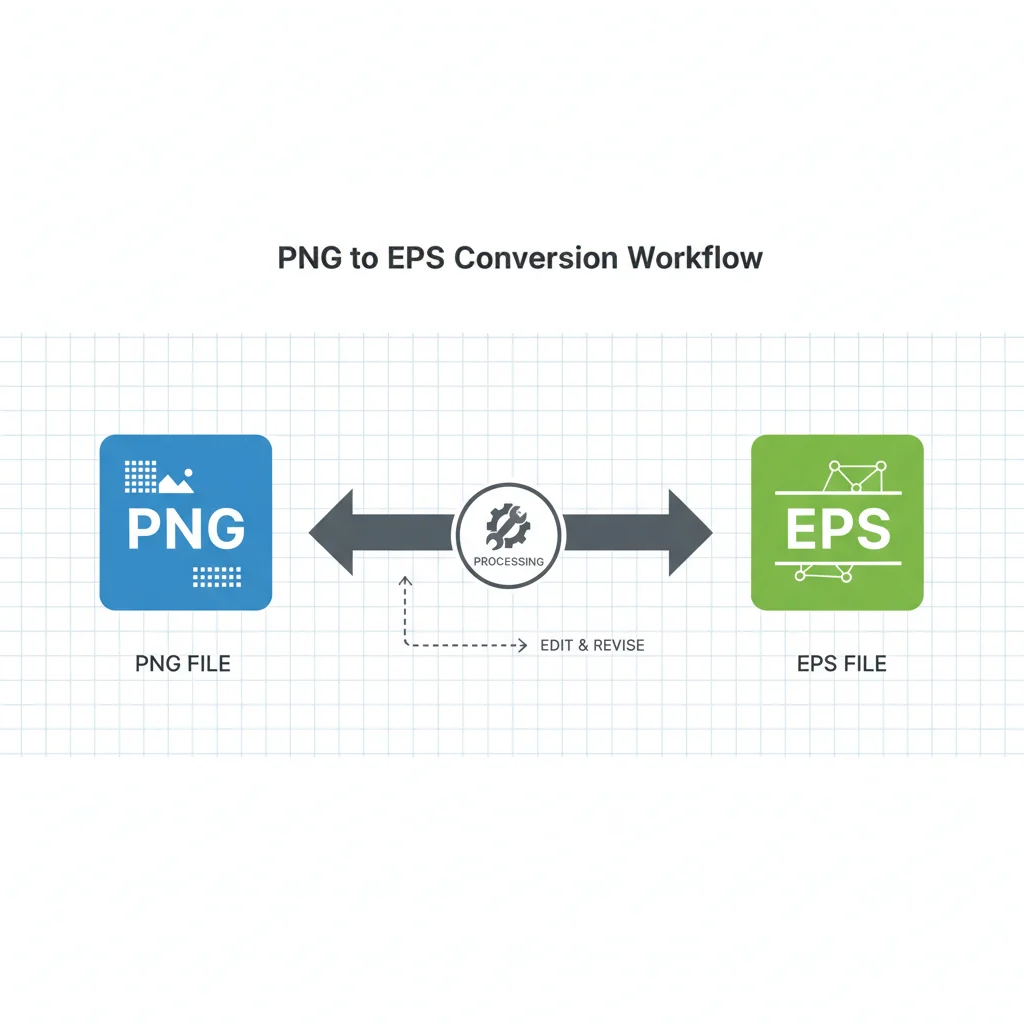
A genuine PNG-to-EPS conversion requires two steps:
- Vectorize the PNG (convert pixels to mathematical paths)
- Export the vectors as EPS format
Warning: If a converter produces an EPS file in under 2 seconds from a complex image, it is almost certainly just embedding the raster. Real vectorization takes processing time because the AI is tracing every edge and curve.
Method 1: VectoSolve + Vector Editor
This is the professional approach that produces genuine vector EPS files.
Step 1: Vectorize with VectoSolve
Upload your PNG to VectoSolve. The AI converts it to a clean SVG with proper vector paths. The watermarked preview is free; downloading the clean SVG takes the $6.99 single file or a plan from $7.99/month.
Step 2: Open in a Vector Editor
Open the SVG in any of these free tools:
- Inkscape (free, open source) — File > Save As > EPS
- Figma (free tier) — export plugin for EPS
- Gravit Designer (free tier) — Export > EPS
Step 3: Save as EPS
In Inkscape: File > Save As > select "Encapsulated PostScript (.eps)" from the format dropdown. Done.
Pro Tip: Inkscape is the best free option for SVG-to-EPS conversion. It preserves all path data, handles complex gradients, and produces EPS files that every print shop accepts. Download it at inkscape.org.
Method 2: Adobe Illustrator (If You Have It)
If you have an Adobe Creative Cloud subscription:
- Open Illustrator
- File > Place > select your PNG
- Select the image, then click Image Trace in the top bar
- Adjust trace settings (High Fidelity Photo or Black and White Logo)
- Click Expand to convert traces to paths
- File > Save As > EPS format
Or the faster approach:
- Upload PNG to VectoSolve, download SVG
- Open SVG in Illustrator (paths are already clean)
- File > Save As > EPS
A Full Year of Conversions for $49
Starter Annual: 25 conversions every month, $49 for the whole year. That is about $4.08 a month · Cancel anytime
Get the Annual DealMethod 3: Online Converters (Quick but Limited)
If you truly need a fast solution and the image is simple:
Converters That Do Real Vectorization
- VectoSolve — AI vectorization, outputs SVG (open in Inkscape for EPS)
- Vector Magic — Decent auto-trace, exports EPS directly (listed at $9.95/month in February 2026)
Converters That Just Repackage (Avoid for Print)
- Convertio, CloudConvert, Zamzar — these wrap the raster in an EPS container
- Fine for software that reads EPS raster, but NOT for professional printing
Understanding EPS vs SVG vs AI
| Format | Type | Best For | Open With |
|---|---|---|---|
| EPS | Vector (PostScript) | Professional printing, legacy workflows | Illustrator, Inkscape, CorelDRAW |
| SVG | Vector (XML) | Web, modern design tools, animation | Browsers, Figma, Inkscape, any editor |
| AI | Vector (Illustrator native) | Adobe ecosystem workflows | Illustrator only |
| Vector or raster | Universal sharing, print, documents | Everything |
SVG is replacing EPS in most modern workflows. Unless your print shop specifically requires EPS, SVG is more versatile, more widely supported, and produces smaller files. Ask your printer: "Do you accept SVG?" — many do in 2026.
When You Actually Need EPS
EPS is a legacy format that persists in specific industries:
- Commercial printing — Many print shops still run RIP software that expects EPS
- Merchandise production — Screen printing, embroidery, and promotional product companies often require EPS
- Stock agencies — Some stock vector sites still require EPS submissions
- Older design workflows — Companies using CorelDRAW or older Illustrator versions
If your use case is web, digital marketing, or modern design tools — skip EPS entirely and use SVG.
Free SVG Tools for Crafters
Design Checker · Color Separator · Mat Preview · Offset Generator · Text to SVG
Check Your SVG FreeEPS Quality Checklist
Before sending your EPS to the printer, verify:
- Open in Inkscape/Illustrator — zoom to 1000%. Are edges smooth curves or pixel steps?
- Check file size — A vector EPS of a logo should be 50-500 KB. If it is 2+ MB, it probably contains embedded raster data
- Select paths — Can you click and select individual shapes? If the entire image is one block, it is an embedded bitmap
- Scale test — Enlarge to 400%. Still sharp? Vector. Blurry? Raster embedded in EPS clothing
- Color mode — For print, ensure CMYK. VectoSolve outputs RGB SVG; convert to CMYK in your vector editor before saving as EPS
The Workflow That Always Works
- Upload PNG to VectoSolve → download clean SVG
- Open SVG in Inkscape (free) → File > Save As > EPS
- Send to printer
Three steps. Five minutes. Genuine vector EPS that every print shop accepts.
| EPS Conversion Method | True Vector Output | Cost | Quality |
|---|---|---|---|
| PNG → SVG (VectoSolve) → EPS export | Yes | Free preview; plans from $7.99/mo | High (AI-traced paths) |
| Inkscape: PNG trace → Save as EPS | Yes | Free (open source) | Good (manual tuning) |
| Online converters (CloudConvert, etc.) | No (embedded raster) | Free | Low (fake vector) |
| Adobe Illustrator Image Trace | Yes | Subscription | High (adjustable fidelity) |