
How to Vectorize Any Image with One Click Using the Chrome Extension
A complete step-by-step tutorial on using the VectoSolve Chrome Extension to convert images to SVG. Learn all the features and tips to get the best results.
Founder and developer of VectoSolve
Self-taught developer who founded VectoSolve in 2024. He builds the conversion engine and the cutting, embroidery and 3D printing exports, working with the VectoSolve team of graphic designers.
How this article was made: drafted with AI assistance, then edited and fact-checked before publication. About the author
Try it on your own file
Free preview, no signup. Drop an image and see the vector before deciding anything.
Key Takeaways
- The VectoSolve Chrome Extension lets you vectorize any web image to SVG in under 5 seconds — right from your browser
- Right-click any image online and select "Vectorize with VectoSolve" — no uploading, no tabs, no friction
- Background removal and vectorization can be combined in a single click (0.27 credits)
- Designers, developers, and marketers all benefit from instant SVG conversion without leaving their workflow
- The extension beats every alternative on speed: upload-free, account-synced, and keyboard-shortcut friendly
Let's be honest. If you work with images on the web — whether you're a designer, a developer, or a marketer — you've felt the pain of converting raster images to vectors. Download the PNG. Open a converter. Upload it. Wait. Download the SVG. Move it to the right folder. Repeat fifty times.
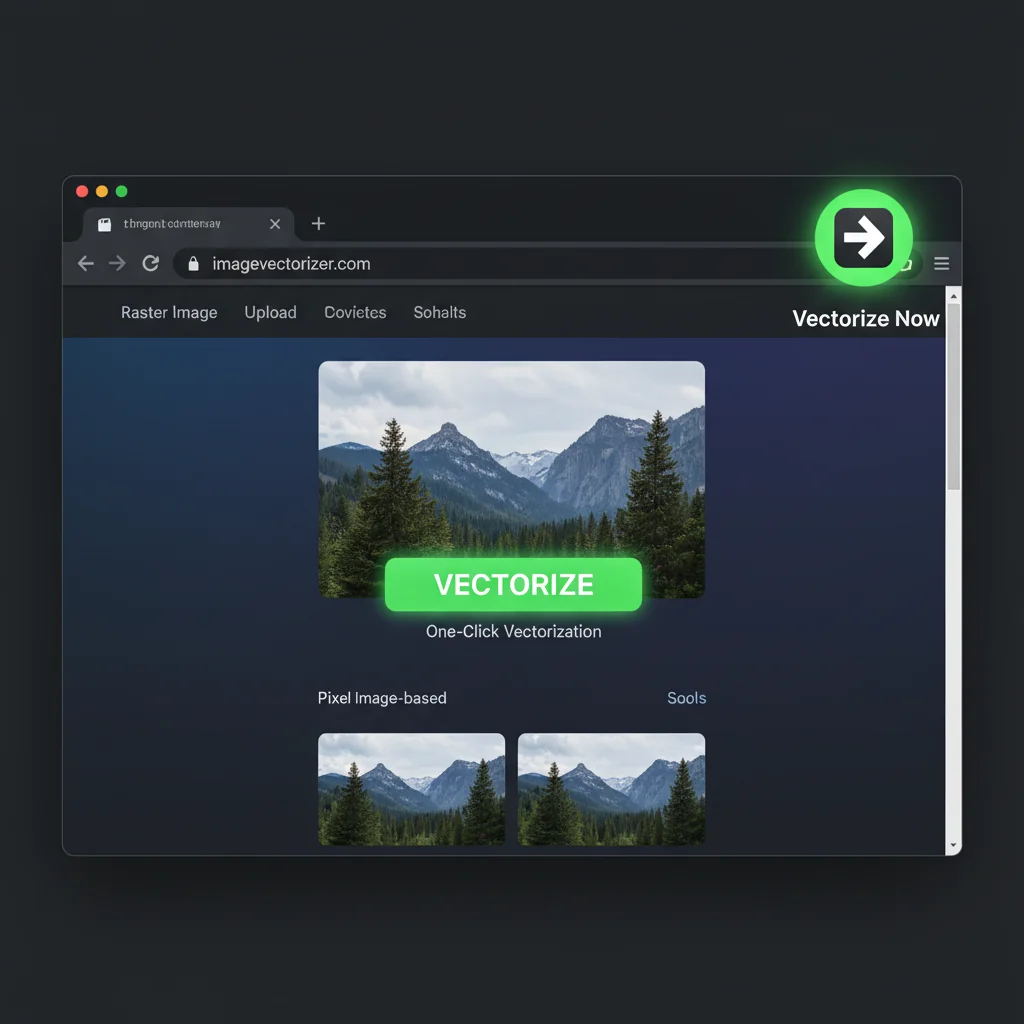
The VectoSolve Chrome Extension kills that entire workflow. One right-click, and your SVG is downloading. That's it.
This guide covers everything: installation, usage methods, real-world use cases, and how the extension stacks up against alternatives.
Installation: Two Minutes, Tops
Getting started is dead simple.
Step 1: Add to Chrome
Head to the Chrome Web Store and search for "VectoSolve," or go directly to the extension page. Click Add to Chrome, confirm the permissions, and you're done.
Step 2: Pin the Extension
Click the puzzle-piece icon in your toolbar and pin VectoSolve. You'll want quick access to the popup for drag-and-drop conversions and checking your credit balance.
Step 3: Sign In
Click the VectoSolve icon and sign in with your existing VectoSolve account. No account yet? The free watermarked preview works without one; the clean file comes with a plan from $7.99/month.
Step 4: Pick a Plan
A vectorization uses 0.20 credits, background removal 0.07, and both together 0.27. Credits come with a plan — Starter is $7.99 a month for 25 conversions, or $49 a year — and unused credits roll over. See the pricing page.
How to Use It: Two Powerful Methods
Method 1: Right-Click to Vectorize (The Star Feature)
This is the feature that makes the extension worth installing. Found a logo, icon, or illustration while browsing? Here's the workflow:
- Right-click on any image on any webpage
- Select "Vectorize with VectoSolve" from the context menu
- Wait 2–5 seconds while the AI processes the image
- Your clean SVG downloads automatically
That's the whole process. No new tabs. No file uploads. No dragging files between windows.
You'll see three options in the context menu:
- Vectorize with VectoSolve (0.20 credits) — Pure raster-to-vector conversion
- Remove Background (0.07 credits) — Strips the background, keeps the PNG
- Remove BG + Vectorize (0.27 credits) — The full pipeline in one click
Method 2: Drag & Drop in the Popup
Got images saved locally? Click the VectoSolve icon in your toolbar to open the popup, then:
- Drag any PNG, JPG, WebP, or GIF onto the drop zone
- Optionally check "Remove background"
- Hit "Vectorize"
- SVG downloads to your default folder
This method is perfect for batch work when you've already collected assets.
Who Is This For? Real Use Cases
Designers Grabbing Web Assets
You're browsing a competitor's site for a moodboard. You spot a clean icon set or an illustration style you want to reference. Right-click, vectorize, and it's in your Downloads folder as an editable SVG — ready for Figma, Illustrator, or Sketch. No screenshotting. No tracing.
Developers Converting Icons for Code
Building a UI and need that perfect icon you found on a resource site, but it's only available as PNG? Vectorize it instantly and drop the SVG straight into your component library. Scalable, lightweight, and crisp on every screen size.
Marketers Building Decks and Assets
You need a client's logo in vector format for a presentation, but all you can find online is a low-res JPEG. Right-click, remove background, vectorize. Done. No emailing the client and waiting three days for "the right file."
A Full Year of Conversions for $49
Starter Annual: 25 conversions every month, $49 for the whole year. That is about $4.08 a month · Cancel anytime
Get the Annual DealExtension vs. Alternatives: The Honest Comparison
How does the Chrome extension stack up against other approaches?
| Feature | VectoSolve Extension | Upload to VectoSolve.com | Adobe Illustrator Trace | Free Online Converters |
|---|---|---|---|---|
| Speed | ~5 seconds | ~15 seconds | ~2 minutes | ~30 seconds |
| Steps required | 1 right-click | Upload + download | Open file + trace + export | Upload + wait + download |
| Works on web images | Yes, directly | Must save first | Must save first | Must save first |
| Background removal | Built-in | Built-in | Manual | Rarely available |
| Output quality | AI-powered, high | AI-powered, high | High (manual tuning) | Low to medium |
| Cost | From $7.99/month | From $7.99/month | Subscription | Free but limited |
| Offline support | No | No | Yes | No |
The extension wins on speed and convenience every time. If you're already browsing and spot an image, nothing beats a single right-click. The full VectoSolve web app offers extra features like batch processing and the AI SVG animator, but for quick grabs, the extension is unbeatable.
Pro Tips for Maximum Productivity
Pro Tip: Workflow optimization shortcuts: After installing, pin the extension to your toolbar for one-click popup access. Use the right-click method for web images and the popup drag-and-drop for local files. Combine "Remove BG + Vectorize" as your default choice for logos — it handles 90% of use cases in a single action. Also, organize your Downloads folder with an "SVG" subfolder so converted files are easy to find.
Best Practices for Clean Results
- Logos and icons produce the sharpest vectors. Clean lines and solid colors convert beautifully.
- Simple illustrations with defined shapes vectorize well.
- Complex photographs are trickier — vectorization works best on graphic-style images, not detailed photos.
- Always use background removal on logos with colored or noisy backgrounds. The 0.07 credits are worth it.
Supported input formats: PNG, JPG, WebP, and GIF. Maximum file size is 5MB. Your credit balance is always visible in the extension popup.
Troubleshooting Quick Fixes
Image won't vectorize? Check the file format (PNG, JPG, WebP, GIF only) and ensure it's under 5MB. Also confirm you have credits remaining.
Context menu not appearing? Some websites block right-click menus. Try the drag-and-drop method instead, or save the image first and use the popup.
Extension disappeared from toolbar? Click the puzzle-piece icon and re-pin VectoSolve. If that doesn't work, try removing and reinstalling from the Chrome Web Store.
Warning: Some websites serve images in formats the extension can't process (like AVIF or SVG-already). If a right-click conversion fails, save the image locally first and use the popup method — it handles format conversion automatically.
Free SVG Tools for Crafters
Design Checker · Color Separator · Mat Preview · Offset Generator · Text to SVG
Check Your SVG FreeThe Bottom Line
The VectoSolve Chrome Extension does one thing and does it exceptionally well: it turns any image on the web into a clean SVG with a single right-click. No tab-switching, no uploading, no waiting around.
For designers, developers, and marketers who work with images daily, it's a genuine time-saver. At $7.99 a month for 25 conversions, the ROI is obvious the first time you skip a 10-minute Illustrator trace session.
Install the VectoSolve Chrome Extension and start vectorizing images in seconds. Your future self will thank you.
| Browser Extension Feature | Time Saved vs Manual | Use Case |
|---|---|---|
| Right-click vectorize | ~90% faster | Convert any web image instantly |
| Background removal | ~80% faster | Isolate subjects before conversion |
| Batch processing | ~95% faster | Convert multiple images in one session |
| Direct SVG download | ~70% faster | Skip re-uploading from browser to tool |