
SVG vs DXF: Which Format for Your Cutting Machine?
Confused about SVG and DXF formats? This comparison explains which format to use for Cricut, Silhouette, laser cutters, and CNC machines.
Founder and developer of VectoSolve
Self-taught developer who founded VectoSolve in 2024. He builds the conversion engine and the cutting, embroidery and 3D printing exports, working with the VectoSolve team of graphic designers.
How this article was made: drafted with AI assistance, then edited and fact-checked before publication. About the author
Try it on your own file, in Cricut mode
Free preview, no signup. Drop an image and see the vector before deciding anything.
Key Takeaways
- SVG is the go-to format for craft cutters (Cricut, Silhouette) and laser engravers with built-in software
- DXF is the professional standard for CNC routers, industrial lasers, and CAD-driven workflows
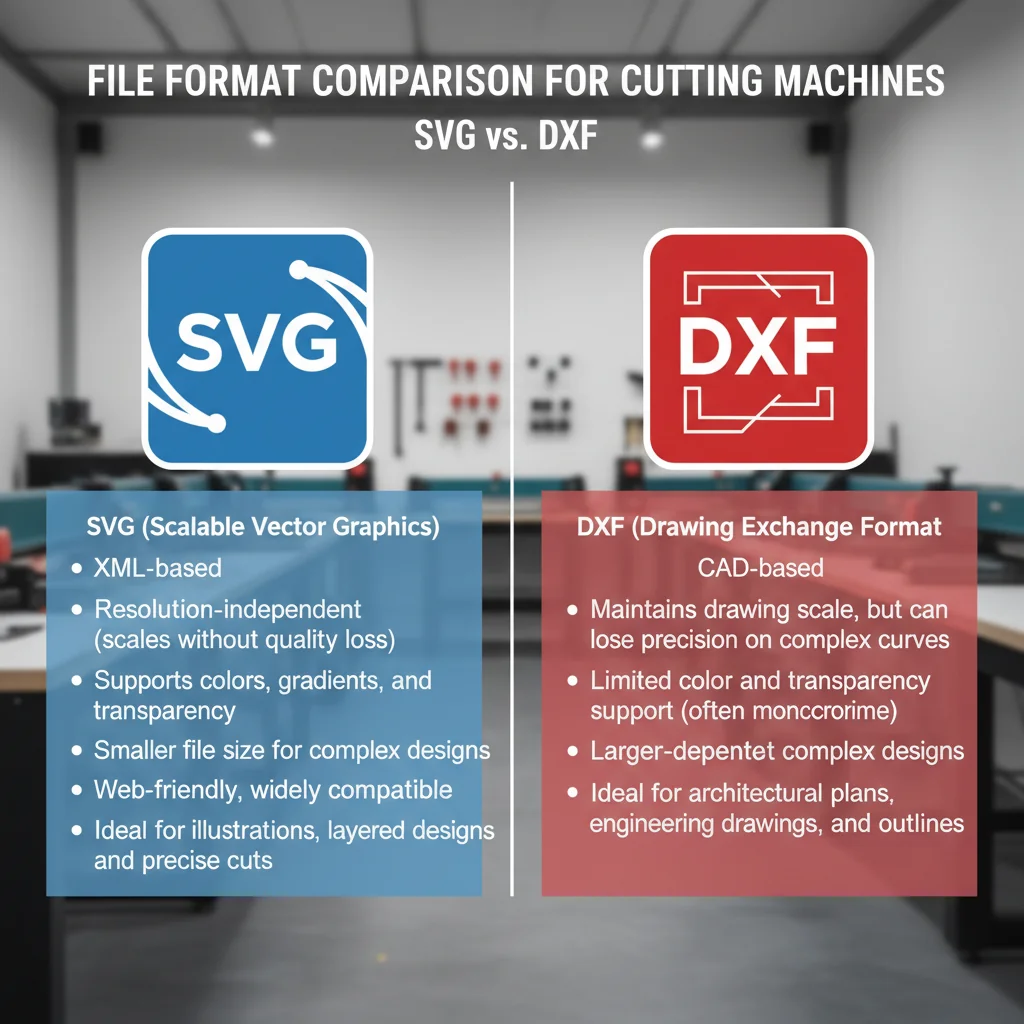
- Both formats store vector data, but they speak different "languages" — SVG is web-native XML, DXF is AutoCAD's interchange format
- Converting between them is straightforward, but you'll lose some data either way — plan your workflow around your primary format
- When in doubt, save both versions from your design tool to avoid conversion headaches at the machine
Whether you cut on a hobby Cricut or a CNC router, one question comes up more than any other, from hobbyists and professionals alike: should I use SVG or DXF?
The honest answer? It depends on your machine. But that's not very helpful on its own, so let me break down exactly what each format does, where it excels, and which one you should be reaching for based on your specific setup.
What Is SVG, Really?
SVG stands for Scalable Vector Graphics. It was developed by the W3C — the same people who standardize HTML and CSS — as a way to display vector graphics on the web. The file itself is just XML text, which means you can open it in a text editor and actually read the coordinates and shapes.
What Makes SVG Tick
- XML-based and human-readable — you can hand-edit paths if you know the syntax
- Supports fills, strokes, gradients, and transparency — it's a visual format at heart
- Embeds metadata like layer names, IDs, and even CSS styling
- Scales infinitely without quality loss (it's vectors, after all)
- Natively understood by web browsers — Chrome, Firefox, Safari all render SVG directly
SVG files can contain both vector paths and embedded raster images. If someone hands you an SVG that looks pixelated when you zoom in, chances are it contains an embedded PNG or JPEG rather than true vector paths. Always check before cutting.
The key thing to understand about SVG is that it was designed for visual presentation. It cares about how things look — colors, line styles, opacity. That visual richness is both its strength and its limitation when you bring it to a cutting machine.
What Is DXF, Really?
DXF stands for Drawing Exchange Format. Autodesk created it back in 1982 as a way to share CAD drawings between different software. It's been the lingua franca of the engineering and manufacturing world for over four decades.
What Makes DXF Tick
- Geometry-focused — it stores precise coordinates, dimensions, and spatial relationships
- Supports layers, blocks, and dimension annotations — real CAD concepts
- Handles 3D data — not just flat 2D paths, but full three-dimensional wireframes
- Stores real-world units — your file knows whether those measurements are millimeters or inches
- Industry standard for CNC, laser, plasma, and waterjet machines
DXF files come in multiple versions (R12, R14, 2000, 2004, 2007, etc.). If your machine software struggles with a DXF, try saving it as the R12 or R14 version — these older formats are universally supported and strip out features that confuse simpler parsers.
DXF was designed for precision manufacturing. It cares about where things are — exact coordinates, real-world measurements, geometric relationships. It doesn't care much about aesthetics.
Technical Differences That Actually Matter
Let me cut through the theoretical differences and focus on what actually impacts your workflow at the machine.
Path Representation
SVG uses a compact path syntax: M 0,0 L 100,0 L 100,100 Z (move to origin, line to point, line to point, close path). Curves are Bézier curves — cubic and quadratic. Every curve in SVG is ultimately a Bézier.
DXF uses discrete entities: LINE, ARC, CIRCLE, ELLIPSE, POLYLINE, SPLINE. A circle in DXF is stored as a center point and radius. In SVG, that same circle gets approximated with four cubic Bézier curves — close, but not mathematically identical.
Units and Scale
SVG works in abstract "user units" — there's a viewBox that defines the coordinate space, but the actual physical size depends on context. When Cricut Design Space imports an SVG, it has to guess the intended size based on the viewBox and any width/height attributes.
DXF stores units explicitly. When you create a DXF in Fusion 360 set to millimeters, every coordinate is in millimeters. Your CAM software reads those units and knows exactly how big the part should be.
Warning: The #1 cause of wrong-size cuts is SVG unit confusion. If your design is cutting at the wrong size, check whether your SVG has explicit width/height attributes with real units (like width="150mm") or just unitless viewBox values. Most craft cutters interpret unitless SVGs differently.
Color and Visual Data
SVG carries full color information — fill colors, stroke colors, opacity, gradients, even filters. Machines like the Cricut use these colors to separate cut lines from score lines from draw lines.
DXF uses layer colors and line types for organization, but they're functional, not decorative. In laser cutting, different layer colors in DXF typically map to different speed/power settings.
A Full Year of Conversions for $49
Starter Annual: 25 conversions every month, $49 for the whole year. That is about $4.08 a month · Cancel anytime
Get the Annual DealMachine Compatibility Table
Here's how each platform handles the two formats:
| Machine / Platform | SVG Support | DXF Support | Recommended Format | Notes |
|---|---|---|---|---|
| Cricut (all models) | Excellent — native | Not supported | SVG | Design Space only accepts SVG, PNG, JPG, BMP, GIF |
| Silhouette Cameo/Portrait | Good — via import | Good — via import | SVG | Silhouette Studio supports both; SVG preserves colors for cut/draw separation |
| Glowforge | Excellent — native | Not supported | SVG | Uses stroke color to differentiate cut, score, and engrave operations |
| Epilog Laser | Limited — via CorelDRAW | Good — via CorelDRAW | DXF | Professional workflow typically uses DXF through CorelDRAW or AutoCAD |
| xTool (D1, M1, S1) | Good — via XCS | Good — via XCS | SVG | xTool Creative Space handles both well; SVG easier for hobbyists |
| CNC Routers (Shapeoko, X-Carve) | Limited — depends on CAM | Excellent — native | DXF | Carbide Create, Easel, and most CAM software prefer DXF |
| Industrial CNC (HAAS, Tormach) | Not used | Excellent — native | DXF | CAM toolchains (Fusion 360, Mastercam) work with DXF natively |
| Plasma/Waterjet Cutters | Rarely supported | Excellent — native | DXF | SheetCAM, FlashCut, and similar all expect DXF input |
When SVG Is the Better Choice
Reach for SVG when:
1. You're Using a Craft Cutter
Cricut and Glowforge don't even accept DXF. End of discussion — you need SVG. But even on machines that accept both (like Silhouette), SVG is usually the smoother experience because the software was designed around it.
2. Color-Coded Operations Matter
SVG's rich color support makes it ideal when you need to visually separate different operations in the same file. A single SVG can have red paths for cutting, blue paths for scoring, and black fills for engraving — and your machine software reads those colors directly.
3. You're Designing in Illustrator, Inkscape, or Figma
These tools are SVG-native. When you save as SVG, you get a perfect 1:1 export. Saving as DXF from these tools often involves lossy conversion — Bézier curves get approximated, visual styling gets stripped, and you might lose layer organization.
4. Your Design Includes Text or Complex Curves
SVG handles outlined text beautifully. Bézier curves mean smooth, flowing letterforms. DXF can handle text too, but the conversion from font outlines to DXF entities often introduces unnecessary complexity.
Pro Tip: Pro tip for SVG users: Always convert text to outlines/paths before sending to a cutter. If you leave live text in your SVG, the machine software will try to render it with whatever fonts it has installed — and your beautiful hand-lettered script will turn into Arial.
When DXF Is the Better Choice
Reach for DXF when:
1. Dimensional Accuracy Is Critical
If you're machining parts that need to fit together — brackets, enclosures, mechanical assemblies — DXF preserves exact dimensions with real-world units. You set it to millimeters in your CAD tool, and it arrives in millimeters at your CAM software. No guessing, no scaling surprises.
2. You're Working in a CAD Environment
If your design lives in Fusion 360, SolidWorks, AutoCAD, or FreeCAD, stay in DXF. These tools think in DXF natively. Converting to SVG just to convert back introduces unnecessary error.
3. Your Machine Runs G-code Through CAM Software
CNC routers, industrial lasers, plasma cutters — anything that generates G-code from a toolpath — works best with DXF. The CAM software (Fusion 360 CAM, VCarve, Mastercam) imports DXF geometry and generates precise toolpaths with proper lead-ins, tabs, and cutting strategies.
4. You Need True Arcs and Circles
DXF stores a circle as a center point and radius. The machine controller can cut a true circular arc. SVG approximates that circle with Bézier curves, which some CNC controllers will follow as a series of tiny line segments — technically accurate but potentially leaving a slightly faceted edge on precision parts.
Free SVG Tools for Crafters
Design Checker · Color Separator · Mat Preview · Offset Generator · Text to SVG
Check Your SVG FreeConverting Between Formats
Sometimes you don't get to choose — you have an SVG but need a DXF, or vice versa. Here's how to handle it. (And if your starting point is a raster image rather than a vector file, skip the two-step dance and use an image to DXF converter to go straight from bitmap to cut-ready geometry.)
SVG to DXF
Best tools: Inkscape (free), Illustrator, Fusion 360
- Open your SVG in Inkscape
- Select all objects and go to Path > Object to Path (converts everything to raw paths)
- Extensions > Generate from Path > Flatten Beziers if your target machine struggles with curves
- Save as DXF (choose R14 for maximum compatibility)
Warning: What you'll lose in SVG-to-DXF conversion:
- Fill colors and gradients (DXF doesn't do fills the same way)
- Transparency and visual effects
- Embedded raster images
- CSS-based styling
- Some complex path operations (clips, masks)
What's preserved: path geometry, stroke colors (mapped to layer colors), basic layer structure.
DXF to SVG
Best tools: Inkscape (free), Illustrator, online converters (CloudConvert, Zamzar)
- Open the DXF in Inkscape (it'll ask about scale — choose the units your DXF was created in)
- Check that dimensions are correct (measure a known feature)
- Assign stroke colors for your machine's operation mapping
- Save as Plain SVG (not Inkscape SVG, which adds proprietary extensions)
Pro Tip: Batch conversion tip: If you have dozens of files to convert, use Inkscape's command-line mode. Run inkscape input.dxf --export-filename=output.svg in a script to convert entire folders automatically.
Common Issues and How to Fix Them
SVG Problems
Problem: Design cuts at the wrong size
Cause: Missing or conflicting width/height attributes vs. viewBox.
Fix: Open in Inkscape, go to Document Properties, set the page size to your intended dimensions, and re-save.
Problem: Double-cut lines where shapes share edges
Cause: Two adjacent shapes each have their own edge — the machine cuts each one separately.
Fix: Use boolean union to merge adjacent shapes, or delete duplicate overlapping paths.
Problem: Machine ignores some paths
Cause: Paths have no stroke (they're fill-only), and the machine only reads strokes.
Fix: Select all, set a visible stroke color, optionally remove fills.
Problem: Imported SVG has hundreds of tiny nodes
Cause: Auto-traced or poorly exported SVG with excessive anchor points.
Fix: In Inkscape, select the path and use Path > Simplify (Ctrl+L) to reduce nodes while maintaining shape.
DXF Problems
Problem: File won't open or shows blank
Cause: DXF version incompatibility — your software can't parse newer DXF features.
Fix: Re-save as DXF R12 from the originating software. R12 is universally supported.
Problem: Dimensions are wildly off (e.g., part shows as 25,400mm instead of 25.4mm)
Cause: Unit mismatch — file was created in inches but opened as millimeters (or vice versa).
Fix: Scale by 25.4 (inches to mm) or divide by 25.4 (mm to inches). Set correct units in your CAM software.
Problem: Curves look faceted/jagged
Cause: Polylines with too few segments approximating curves.
Fix: Increase the arc resolution in your CAD software before exporting, or use true ARC entities instead of polyline approximations.
Problem: Extra construction lines, dimensions, or text cluttering the file
Cause: DXF was exported with annotation layers turned on.
Fix: Delete or hide non-geometry layers before exporting, or clean them up in your CAM software.
My Recommendations by Machine Type
Here's a no-nonsense recommendation for each machine type:
Craft Cutters (Cricut, Silhouette, Brother ScanNCut)
Use SVG. Period. These machines and their software were built for SVG. Don't fight it.
Desktop Laser Cutters/Engravers (Glowforge, xTool, Ortur, Atomstack)
Start with SVG. The built-in software handles SVG beautifully, and the color-to-operation mapping is intuitive. If your design is still a photo or PNG, run it through an image-to-SVG converter built for laser cutting to get clean cut paths first. Only switch to DXF if you're doing precision mechanical work and feeding it through LightBurn.
Professional Laser Cutters (Epilog, Trotec, Universal Laser)
DXF through your driver software (usually CorelDRAW or AutoCAD). These machines expect professional CAD workflows. SVG is possible but adds an unnecessary conversion step.
CNC Routers (Shapeoko, X-Carve, Onefinity, Avid)
DXF, always. Your CAM software (Carbide Create, VCarve, Fusion 360) wants DXF. It'll handle the geometry cleanly and generate proper toolpaths with correct feeds and speeds. If the artwork you've been handed only exists as a raster file, convert the PNG to DXF before it ever touches your CAM software.
Industrial CNC and Plasma
DXF, no question. This is DXF's home turf. The entire toolchain — from CAD to CAM to controller — speaks DXF fluently.
Pro Tip: The "Both" Strategy
If you sell digital cut files or share designs with others, always provide both SVG and DXF versions. It takes 30 seconds to export a second format, and it eliminates compatibility headaches for your customers. Most professional design marketplaces now require both formats as a minimum.
The SVG vs. DXF debate doesn't have a single winner. Each format excels in its domain — SVG in the visual, web-connected, craft-cutter world, and DXF in the precision, CAD-driven, industrial manufacturing world. Know your machine, know your workflow, and pick the format that keeps your process smooth from design to finished cut.
| Feature | SVG | DXF |
|---|---|---|
| Best for | Cricut, Silhouette, laser engravers | CNC routers, industrial lasers, CAD |
| Color support | Full RGB/hex color | Layer-based colors only |
| Text handling | Native text + web fonts | Converted to outlines |
| File size (typical logo) | 5–50 KB | 20–200 KB |
| Web compatibility | Yes — renders in all browsers | No — requires CAD software |