
Image to G-code for Laser Cutting: The Complete 2026 Guide
Convert any photo or image to laser-ready G-code in minutes. Step-by-step workflow with machine-specific settings for Glowforge, xTool, K40, and OMTech.
Founder of VectoSolve
Self-taught developer, founder and sole developer of VectoSolve since 2024. He builds the conversion engine and the cutting, embroidery and 3D printing exports.
How this article was made: drafted with AI assistance, then edited and fact-checked before publication. About the author
Try it on your own file, in Laser mode
Free preview, no signup. Drop an image and see the vector before deciding anything.
If you have a photo, logo, or any raster image and need to send it to a laser cutter, you need G-code. The problem: G-code isn't something you can export from Photoshop or download from a stock site. You have to convert your image through two specific steps — vectorize first, then generate the G-code with the right cutting parameters for your machine.
This guide walks through exactly how to do that, what tools work for each step, and the most common mistakes that ruin laser cuts.
Comparing tools first? We ranked the 10 best image to G-code converters of 2026 with live prices for every machine type.
What is G-code and why do laser cutters need it?
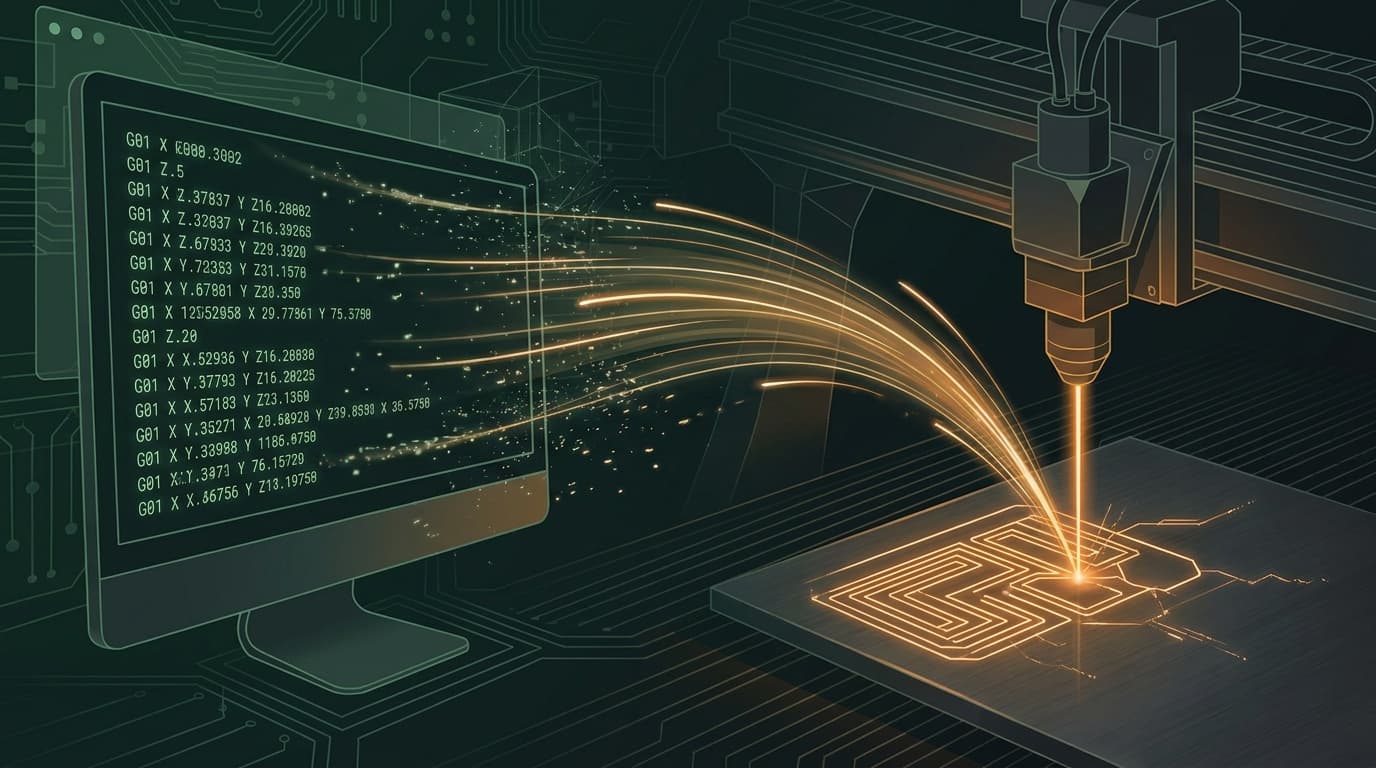
G-code is the instruction language your laser cutter understands. It's a text file made of commands like G1 X10 Y20 F1500 — move to coordinates X10/Y20 at speed 1500. Every line of your design becomes a sequence of these commands telling the laser when to fire, when to move, and at what power.
Most desktop laser software (LightBurn, LaserGRBL, T2Laser, the Glowforge web app) can generate G-code automatically from an SVG or DXF file. But they can't do it from a PNG or JPG. That's why the conversion path is always:
PNG/JPG → SVG (or DXF) → laser software → G-code → laser cutsSkip the first arrow and your laser will either refuse the file or produce a pixelated mess.
Step 1: convert your image to SVG or DXF
This is where most people get stuck. The vectorization step has to be clean — every stray pixel becomes a path the laser will try to cut. A noisy vectorization produces 200 micro-paths instead of one smooth outline, and your laser will spend twice as long cutting (or burn through the material).
There are three approaches:
Manual tracing in Illustrator or Inkscape. Highest quality if you're skilled, but takes 15-60 minutes per image. Not realistic if you have a batch.
Free auto-trace tools (Inkscape's built-in trace, Vectornator, etc.). Fast but the output usually has hundreds of unnecessary nodes that need cleanup. You'll spend more time fixing the trace than if you'd traced manually.
AI-powered vectorization (VectoSolve, Vectorizer.AI, Recraft). Best quality-to-speed ratio in 2026. AI tools handle photos, logos, and sketches in 5-10 seconds with paths that are already clean enough to send straight to a laser cutter.
For laser specifically, you want:
- Clean outlines (single-stroke paths, not double-edge)
- No overlapping paths (laser will cut the same line twice = burn marks)
- Reasonable node count (under 500 nodes per design = fast cutting)
Try VectoSolve's image-to-vector converter — the laser preset specifically optimizes paths for cut readiness.
Step 2: open in your laser software and assign cutting parameters
Once you have a clean SVG or DXF, open it in your laser's software:
| Laser | Software | What to do |
|---|---|---|
| Glowforge | Glowforge web app | Drag the SVG, set material, click "Print" |
| xTool | xTool Creative Space (XCS) | Import SVG, choose "Cut" or "Score" per layer |
| OMTech / K40 (Lightburn) | LightBurn | Import SVG, assign each color to a layer with power/speed |
| Generic GRBL | LaserGRBL | Load SVG, set max power, generate G-code |
| Snapmaker | Luban | Import, set process to "Vector" |
The critical thing here is layer separation by color or stroke. If you want some lines to cut all the way through and others to score the surface, they need to be on different colored paths in your SVG. Most AI vectorization tools won't do this automatically — you'll need to manually color paths in Inkscape before importing to the laser software.
A Full Year of Conversions for $49
Starter Annual: 25 conversions every month, $49 for the whole year. That is about $4.08 a month · Cancel anytime
Get the Annual DealStep 3: generate G-code with the right power and speed for your material
Your laser software will let you set power (% of max wattage) and speed (mm/min or mm/sec) per layer. These two settings determine whether the laser:
- Just marks the surface (low power, high speed)
- Engraves a visible line (medium power, medium speed)
- Cuts through the material (high power, low speed)
Here are baseline settings for common materials on a 40W diode laser (xTool D1, OMTech Polar, similar):
| Material | Cut power / speed | Engrave power / speed |
|---|---|---|
| Basswood 3mm | 100% / 250 mm/min | 30% / 3000 mm/min |
| Acrylic 3mm | 100% / 200 mm/min (multiple passes) | Not recommended on diode |
| Cardboard 2mm | 80% / 600 mm/min | 20% / 4000 mm/min |
| Leather 2mm | 90% / 400 mm/min | 25% / 3500 mm/min |
For CO2 lasers (Glowforge, OMTech 60W+), divide power and multiply speed by ~2-3x for the same material.
Always test on a scrap piece first. Wood density varies, acrylic mirrors vary, and cardboard hydration changes the cut quality.
The 5 most common mistakes that ruin laser cuts
After helping hundreds of users push their first laser file from VectoSolve, these are the recurring issues:
1. Pixel-traced paths instead of vector paths. If your SVG was converted by a low-quality tool (or by exporting an image as SVG without tracing), the laser sees thousands of micro-strokes and spends 20× longer than necessary. Always check the SVG node count — under 1,000 for a logo, under 5,000 for a complex illustration.
2. Overlapping paths from sloppy vectorization. Two paths drawn over each other = the laser cuts twice = burn marks and material destruction. AI vectorization tools handle this much better than auto-trace; if you're seeing it, switch tools.
3. Wrong stroke width. Laser software ignores stroke width and just uses the path centerline. A 5mm-thick stroke in your SVG cuts the same single line as a 0.1mm stroke. Set strokes to hairline (or 0.001mm) before importing.
4. Forgetting kerf compensation. Your laser cuts a slot, not a hairline — typically 0.1-0.3mm wide depending on focus and material. If you're cutting interlocking pieces, you need to expand the inner shapes by half the kerf in your design software, otherwise pieces won't fit.
5. No layer separation for cut vs engrave. Black lines for cut, red for engrave is the standard convention. Set this up in your SVG before importing — it's much faster than reassigning layers in the laser software for every file.
When to use VectoSolve vs other tools
VectoSolve's laser preset specifically targets the quality-to-speed problem. The conversion takes 5 seconds, the output is laser-clean (single-stroke, no overlaps, reasonable node count), and you get the SVG + DXF + PNG + PDF in one download.
It's the fastest path if:
- You have a logo or illustration as PNG/JPG and need a laser-ready file
- You don't want to spend 30 minutes in Inkscape doing trace cleanup
- You want a consistent quality across batch conversions
It's not the right tool if:
- You need pixel-perfect manual control over every node (use Illustrator)
- You want to start from scratch with a hand-drawn vector (use Inkscape)
- You need parametric CAD (use Fusion 360)
Free SVG Tools for Crafters
Design Checker · Color Separator · Mat Preview · Offset Generator · Text to SVG
Check Your SVG FreeTL;DR workflow
- Get your image as PNG or JPG (good quality, removed background helps)
- Convert to SVG/DXF with VectoSolve's laser preset — 5 seconds
- Open in your laser software (LightBurn, XCS, Glowforge app)
- Assign layers (cut vs engrave by color)
- Set power/speed per material
- Generate G-code and run on a scrap test piece first
- Cut your real material when settings are dialed in
The whole flow takes about 5 minutes once you know it. The conversion step is the make-or-break — clean vector in, clean cut out.
Try it now — drop a PNG or JPG into VectoSolve's image-to-G-code converter and get a laser-ready file in 5 seconds. The preview is free with no signup; the G-code download is included from the $7.99 Starter plan.
Related guides: