
xTool DXF Workflow: Optimal Settings for Engraving + Cutting
Convert images to DXF for xTool D1, D1 Pro, M1, P2, and S1. Power/speed reference settings and the file format gotchas no one mentions.
Founder of VectoSolve
Self-taught developer, founder and sole developer of VectoSolve since 2024. He builds the conversion engine and the cutting, embroidery and 3D printing exports.
How this article was made: drafted with AI assistance, then edited and fact-checked before publication. About the author
Try it on your own file, in Laser mode
Free preview, no signup. Drop an image and see the vector before deciding anything.
xTool's product line (D1, D1 Pro, M1, P2, S1) covers everything from $400 hobbyist diodes to $5,000 enterprise CO2 lasers. They all use the same software — xTool Creative Space (XCS) — but the file format requirements and best settings vary significantly by machine.
This guide covers the universal DXF workflow that works across all xTool models, plus the machine-specific settings that get you to clean cuts and crisp engravings without 10 wasted scrap pieces.
What XCS expects
xTool Creative Space accepts:
- SVG (preferred for vector work)
- DXF (works, sometimes better for engraving alignment)
- PNG/JPG (raster engraving only)
- AI (Adobe Illustrator)
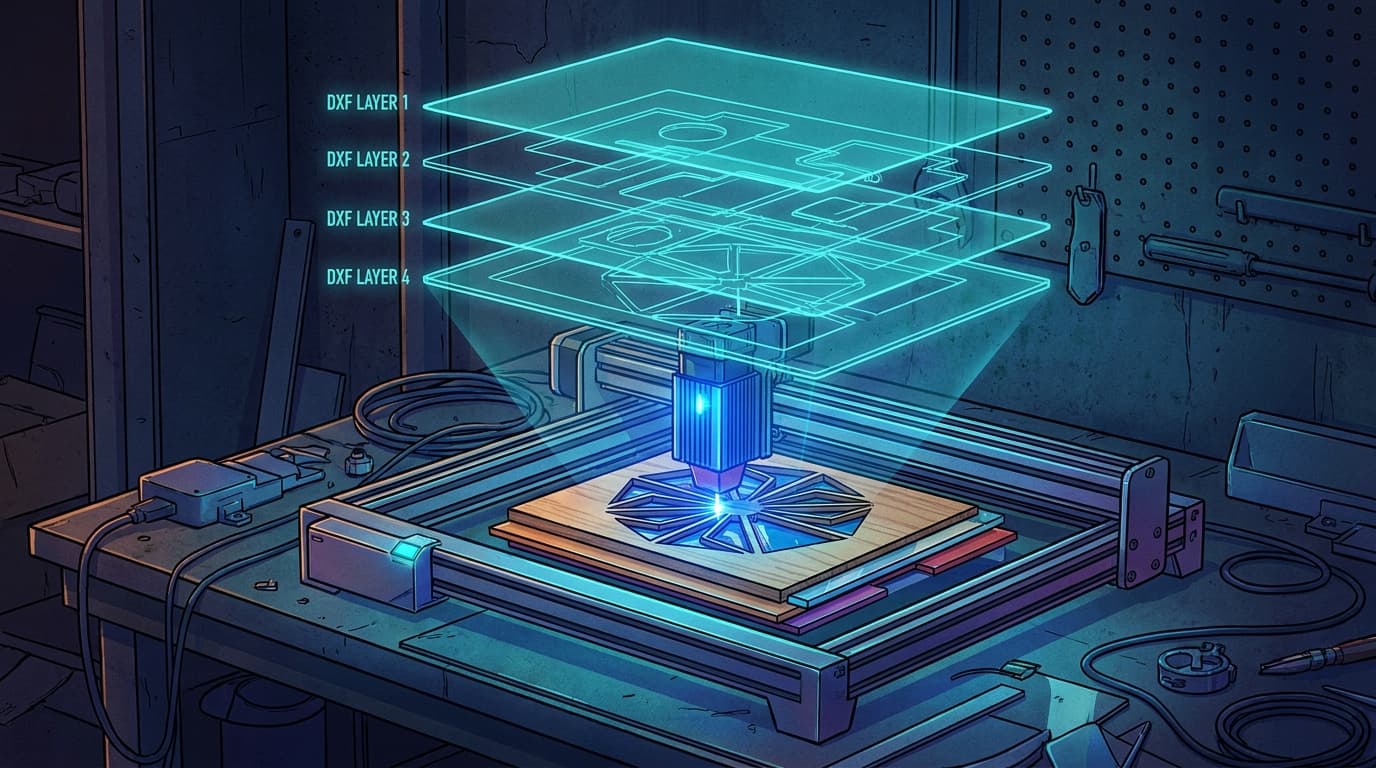
The thing nobody tells you: XCS treats SVG and DXF slightly differently for processing assignment. With SVG, every imported path is set to "Cut" by default and you have to manually change individual paths to "Score" or "Engrave." With DXF, layers are preserved if your DXF has them — saves time on multi-operation files.
For most workflows starting from a photo or image, the conversion path is:
PNG/JPG → vectorize → SVG (for simple) or DXF (for multi-layer) → import to XCSStep 1: vectorize your image
The XCS bitmap-to-vector tool exists, but it's frankly bad — produces hundreds of unnecessary nodes and frequently misses thin lines. For anything beyond a basic logo, use a dedicated vectorizer.
VectoSolve's xTool DXF converter auto-applies the laser preset which is specifically tuned for diode lasers like the D1 series:
- Single-stroke paths (no double cuts)
- No overlapping geometry
- Closed shapes where possible
- Output: SVG + DXF + PNG + PDF in one ZIP
5-10 second conversion. The DXF works in XCS without any cleanup.
If you prefer manual control: Inkscape Trace Bitmap → Path → Simplify (3-5 times) → File → Save As → DXF R12.
Step 2: import and set up operations in XCS
After importing the DXF, you'll see all paths in the canvas. The right panel shows "Process" options:
- Cut: through the material
- Score: visible line, no through-cut (medium power)
- Engrave: filled raster engraving (high resolution scan)
For multi-operation files (some lines cut, some engrave), select each path/group and assign the operation. XCS doesn't enforce layer color conventions like Glowforge does — you assign per-element manually.
Pro tip: Use the "Outline" tool on filled shapes if you want a vector engrave (a single outline at low power) instead of raster engrave (a fully scanned area). Vector engrave is 5-10× faster.
A Full Year of Conversions for $49
Starter Annual: 25 conversions every month, $49 for the whole year. That is about $4.08 a month · Cancel anytime
Get the Annual DealStep 3: dial in power and speed per machine
These are the critical settings. xTool publishes tables that are conservative — most users find they can push speeds 20-30% higher than the official numbers without quality loss.
xTool D1 / D1 Pro (5W diode default, 10W or 20W upgrade)
| Material | Cut speed/power/passes (10W) | Engrave speed/power |
|---|---|---|
| 3mm basswood plywood | 100 mm/min / 100% / 2 | 4000 mm/min / 30% |
| 3mm acrylic (cast) | Not recommended (use CO2) | Not recommended |
| 3mm cardboard | 600 mm/min / 80% / 1 | 4000 mm/min / 20% |
| 1.5mm leather | 400 mm/min / 90% / 1 | 3500 mm/min / 25% |
| Anodized aluminum (engrave only) | N/A | 1000 mm/min / 100% |
| Slate (engrave) | N/A | 1500 mm/min / 100% |
For 5W: halve the speed and double the passes for cuts.
For 20W: double the speed and reduce passes to 1.
xTool M1 (10W diode + blade)
Same diode settings as D1 above. Plus the M1 has the blade module — for vinyl, paper, and thin materials, the blade is faster and cleaner than laser. Use SVG with closed paths for blade cuts.
xTool P2 (55W CO2)
| Material | Cut speed/power/passes | Engrave speed/power |
|---|---|---|
| 3mm wood | 25 mm/sec / 80% / 1 | 400 mm/sec / 30% |
| 3mm cast acrylic | 12 mm/sec / 100% / 1 | (raster only, low power) |
| 5mm acrylic | 8 mm/sec / 100% / 1 | N/A |
| 3mm leather | 30 mm/sec / 70% / 1 | 350 mm/sec / 25% |
| 3mm cardboard | 80 mm/sec / 60% / 1 | 500 mm/sec / 20% |
P2 settings use mm/sec (not mm/min like the D1 series — XCS handles the conversion automatically based on the connected machine).
xTool S1 (40W diode)
Closer to D1 settings × 4 (4× the laser power means ~4× faster cutting at same power).
| Material | Cut speed/power/passes |
|---|---|
| 3mm basswood | 400 mm/min / 100% / 1 |
| 3mm acrylic (dark) | 200 mm/min / 100% / 1 |
| 5mm wood | 150 mm/min / 100% / 2 |
XCS-specific gotchas
1. SVG units sometimes get reinterpreted. A 100mm-wide design in your SVG might import as 100 inches in XCS. Always check the size dimension box after import and resize if needed.
2. Engraving direction is locked to horizontal. If you want to engrave WITH the wood grain, rotate the design before sending. XCS doesn't have an engraving direction setting.
3. Auto-focus on D1 series can lift the laser head into your material. If you're using a tall jig or thick material, manually focus instead — Edit → Focus.
4. Multiple copies in one job slow down dramatically. XCS regenerates G-code per copy. For large batches, render one piece and use the laser's "repeat" function from the machine itself.
5. The .xcs file format is proprietary. Save your designs as SVG/DXF for portability. XCS files only work in XCS.
Photo-engraving on xTool (not vector)
If your goal is to engrave a photo (a face, a landscape, anything with continuous tones), DON'T vectorize first. Photos vectorize poorly because they don't have hard edges.
For photo engraving on xTool:
- Use the original PNG/JPG (no conversion)
- Drag into XCS
- Set Process to "Engrave"
- In the engraving settings, choose dithering mode: "Stucki" or "Atkinson" works best for photos
- Set DPI to 250-300 for wood, 500 for slate or anodized aluminum
- Power around 30-40%, speed 4000+ mm/min
- Always test on scrap
This is a separate workflow from the vector cutting workflow this guide focuses on, but worth knowing.
Free SVG Tools for Crafters
Design Checker · Color Separator · Mat Preview · Offset Generator · Text to SVG
Check Your SVG FreeWhen VectoSolve fits
The VectoSolve xTool converter is the fastest path to a clean, XCS-ready DXF when:
- You have a logo, icon, or stylized illustration as PNG/JPG
- You want the file ready to cut without 30 minutes of Inkscape cleanup
- You're cutting on D1, D1 Pro, M1, P2, or S1 (settings vary, but the file format works the same)
It's not the right choice for:
- Photos (use raster engraving directly, no vectorization)
- Parametric designs requiring kerf compensation (use CAD)
- Pixel-art or sprite-style designs that need to stay pixelated
TL;DR workflow
- Vectorize your image with VectoSolve's xTool tool — auto laser preset, 5 sec
- Import the DXF (or SVG) into XCS
- Assign Cut/Score/Engrave per path/group
- Set power/speed per material (use the table above as starting point)
- Test on a scrap corner before final cut
- Cut your real piece
Total time from "I have an image" to "I'm cutting": 10-15 minutes including settings dial-in. The conversion is the fast part — material testing eats the rest.
Related: