
Clean Vectors for Affinity When Image Trace Is Not Enough
Affinity's Image Trace works from Edge Threshold and Curve-fitting tolerance, and Affinity itself warns it can struggle with sharp corners, fine details and noisy JPGs. Affinity Designer 2 has no trace at all. Upload the image here and open a clean, colored SVG in Affinity, ready to edit.
- Smooth curves from small or compressed images
- Every color kept as its own shapes
- An SVG that opens in Affinity and in Designer 2
Works with the current Affinity app, with Affinity Designer 2, and with any editor that opens SVG.
From a raster image to clean curves in Affinity
- 1
Upload the image
Drop the JPG, PNG or WebP: a client logo, a scan or a photo. The free preview shows every traced shape before you pay.
- 2
Pick a preset
Flat Logo for logos and lettering, Balanced for illustrations, Max Detail for photos and painted art.
- 3
Download the SVG
You get one SVG with every color of the image, ready to open in Affinity or any other vector editor.
- 4
Open it in Affinity
Open the SVG with File, Open, or place it in a document. The shapes arrive as vector curves you can reshape with the Node Tool and recolor.
Real pictures, and the files made from them
Each pair is one real conversion made on vectosolve.com on October 1 or 2, 2026, with the settings named under it. The right image is drawn from the SVG the converter returned, without the preview watermark and with nothing retouched. What the file does not do is written under each pair.
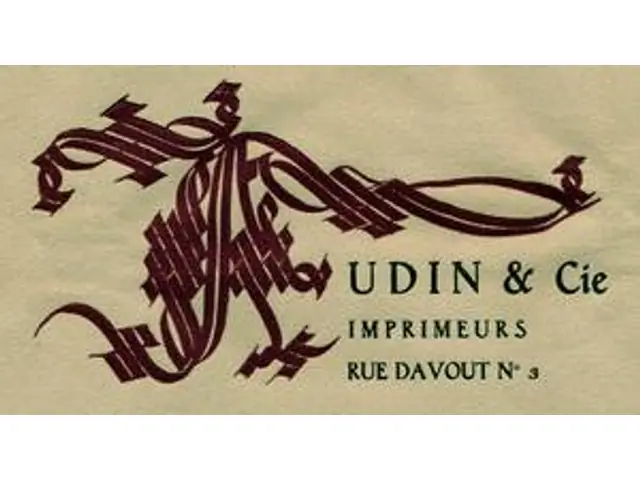
Uploaded 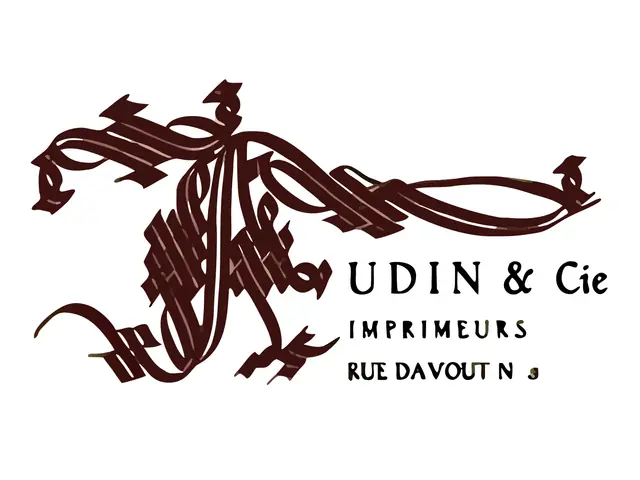
SVG returned A 300 px logo cut from a 1920s letterhead
The paper is gone: the monogram and the lettering come back as clean shapes, 124 in all.
Limit: At 300 px wide the smallest text cannot be rebuilt: the 3 of the address came back as a blob. Start from your largest copy.
Settings: free preview, Balanced preset. Converted on October 2, 2026. Scan: Musée de l'imprimerie, Lyon, Wikimedia Commons, public domain.
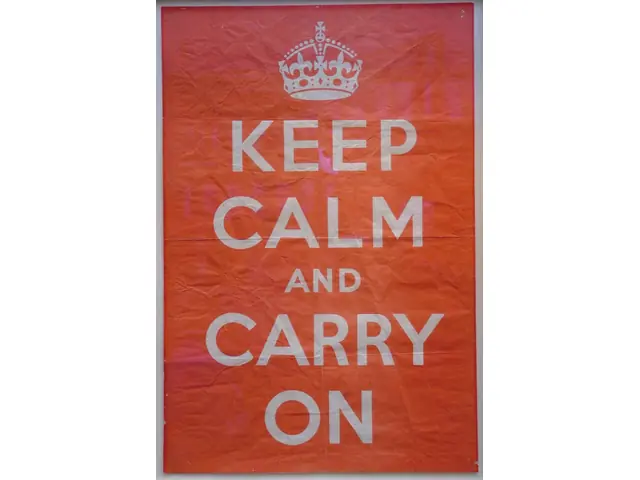
Uploaded 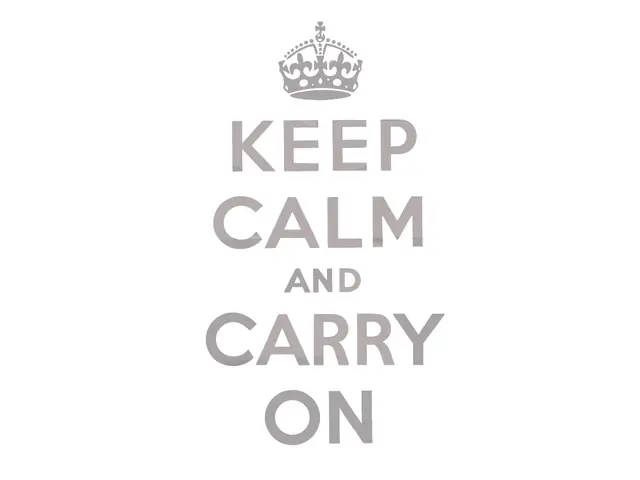
SVG returned A 1939 poster photographed under glass
The frame is gone: the text and the crown come back as clean vector shapes, 81 in all.
Limit: The red of the poster was removed with the background: the letters came back grey with a few reddish specks, so recolour them in your editor.
Settings: free preview, Flat Logo preset. Converted on October 1, 2026. Photo: Tagishsimon, poster by the UK Government, Wikimedia Commons, public domain.
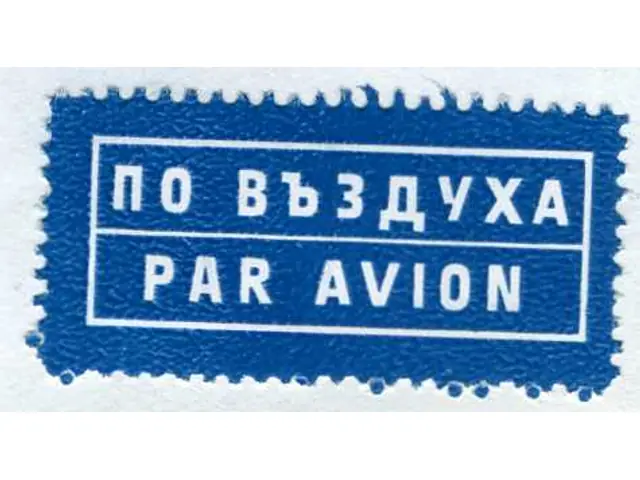
Uploaded 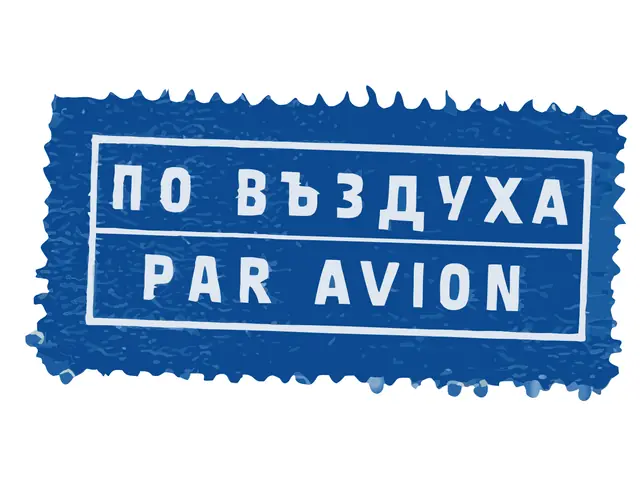
SVG returned A small scanned airmail label
The envelope is gone: the label, its perforated edge and both lines of lettering are vector shapes.
Limit: The printed texture of the blue paper came back as hundreds of small lighter specks, 602 shapes in all.
Settings: free preview, Flat Logo preset. Converted on October 2, 2026. Scan: Bulgarian Posts, Wikimedia Commons, public domain.
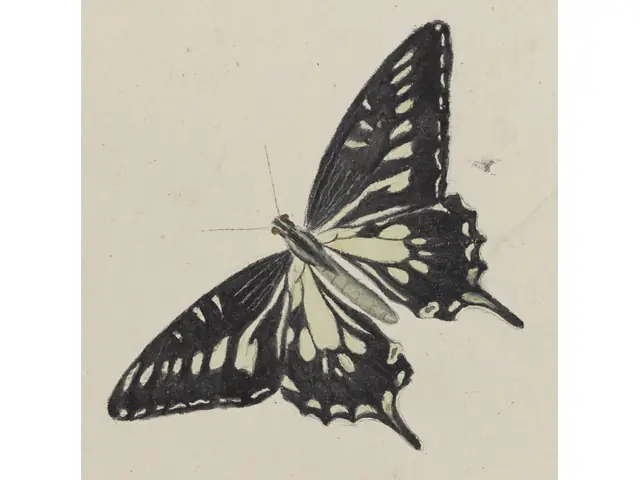
Uploaded 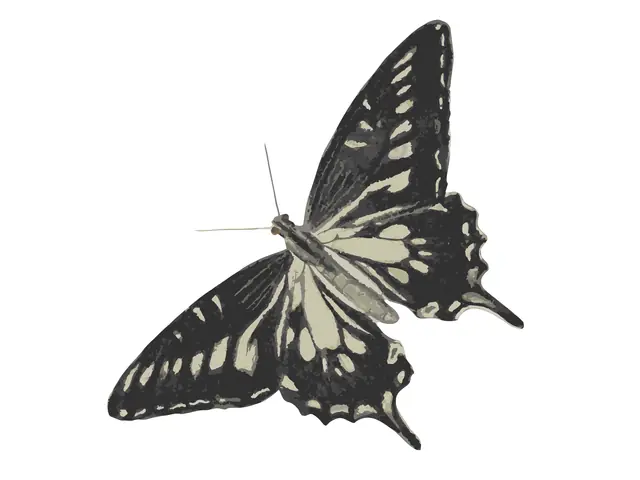
SVG returned An 18th-century watercolour of a swallowtail
The paper, a smudge and a fold are gone: the butterfly is kept whole, wings, tails and eyes included.
Limit: The watercolour shading makes 1,511 shapes: right for a print, heavy for a cut file.
Settings: free preview, Balanced preset. Converted on October 2, 2026. Scan: Ann Lee, Royal Albert Memorial Museum, Exeter, Wikimedia Commons, public domain.
Affinity Image Trace settings, and their limits
Where Image Trace lives
In the current Affinity app, select the image in the Vector Studio and choose Vector, Image Trace. If the command is greyed out, the selection is not a pixel layer or an image layer.
Edge Threshold
Edge Threshold sets how sensitive the trace is to edges, and so what becomes a vector. Lowering it can find missed boundaries, but it may fail on noisy images with compression artifacts.
Curve-fitting tolerance
Curve-fitting tolerance makes the outlines smoother or sharper. The split view of the dialog compares pixels and vectors before you apply.
Refining a problem area
Clicking inside a problem area makes Affinity redraw it. A stroke one or two pixels wide, or colors too close on either side, gives it too little to work with.
Affinity Designer 2
Designer 2 has no image tracing command. It opens SVG files, so a trace made elsewhere comes in as editable curves.
Affinity Image Trace problems, and the fix
Jagged outlines on a small logo
Affinity notes that a low-resolution image enlarged before tracing gives jagged outlines that follow the pixel grid. The converter here redraws smooth curves from the same small file.
Rounded corners and lost detail
Affinity says auto-tracing can struggle with sharp corners, fine details and complex shapes. Check your own file in the free preview here, which shows every shape before you pay.
Specks from a compressed JPG
Compression artifacts can defeat Edge Threshold and leave noise in the trace. The converter merges close colors and drops specks before it hands you the SVG.
No Image Trace in Designer 2
Designer 2 never had one. Trace the image here and open the SVG in Designer 2, or use the current Affinity app, which includes Image Trace.
For designers and print shops working in Affinity
Client logos that open in Affinity as clean curves
Clients send a blurry JPG of their logo and expect print-ready vector art. Trace it here and finish it in Affinity with your own type and colors, or send the whole batch of logos for a quote.
Free preview of the traced curves, no signup. Client logos are quoted per file.
What Affinity does with each file
- SVG opens as vector curves you can node edit and recolor
- PNG a transparent image to place in layouts and mockups
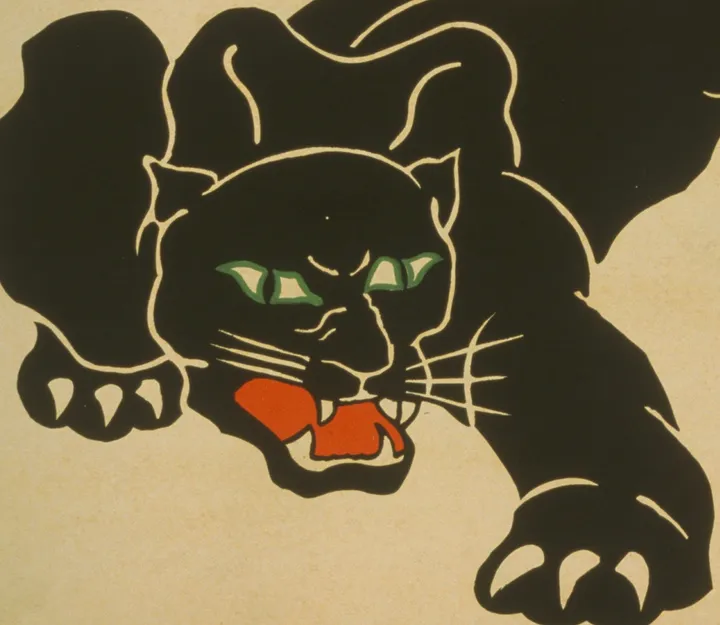
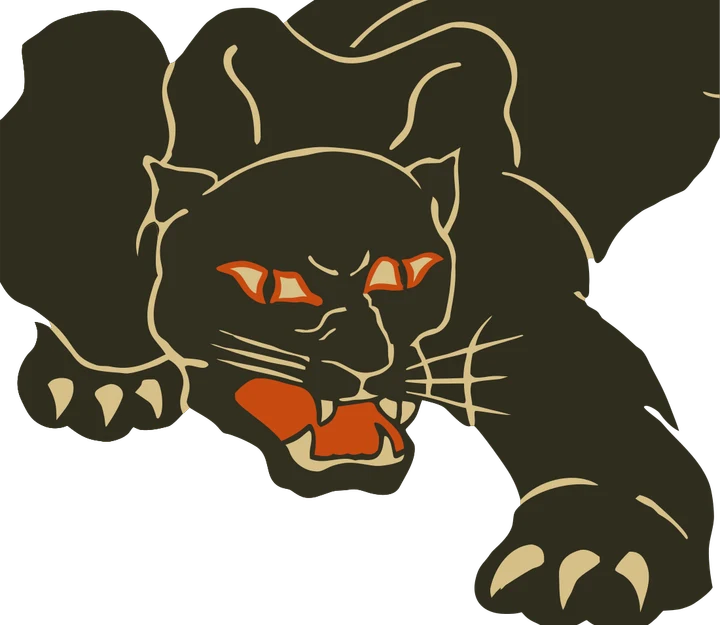
Product photos are mockups: each design is the real VectoSolve file, not retouched. Source photos are public domain or CC0. Scan: WPA poster, 1937, Library of Congress, public domain.
Custom · On quote
Top-of-market quality for complex jobs: large-format murals, detailed illustrations, photo to vector, multi-layer print files. Finished by hand by our team and checked before delivery.
No machine at the end of the job? The online vectorizer turns any picture into an SVG, and the PNG to SVG converter keeps the paths ready to cut.
Affinity Image Trace FAQ
How do you vectorize an image in Affinity?
In the current Affinity app, select the image, choose Vector, Image Trace, and adjust Edge Threshold and Curve-fitting tolerance. Affinity Designer 2 has no trace: convert the image here and open the SVG instead.
Why is Image Trace greyed out in Affinity?
Affinity only traces a pixel layer or an image layer, so select the image itself. In Affinity Designer 2 the command does not exist: Image Trace came with the current Affinity app.
Does Affinity Designer 2 have image trace?
No. The Serif team confirmed on the Affinity forum that Designer 2 has no image tracing. Designer 2 opens SVG files, so a trace made here comes in ready to edit.
Why does Affinity Image Trace give jagged or rounded edges?
It works from the pixels it gets. Affinity warns that an enlarged low-resolution image traces with jagged outlines, and that sharp corners and fine details can come out rounded. Start from the largest file you have, or try it here.
Will the SVG keep the colors of my logo in Affinity?
Yes. Each color comes in as its own shapes, so you can recolor one, delete it or move it to another layer before you export for print.
More machine guides: all VectoSolve tools