
How to Vectorize an Image in Photoshop
One free preview a day, no signup, with a watermark. Plans are on the pricing page.
Photoshop edits pixels and has no Image Trace command: in Adobe apps, automatic tracing lives in Illustrator. What Photoshop can do is turn a selection into a work path, fill that path as a shape, and keep the shape as a vector in an EPS or in a path file for Illustrator. That suits one simple shape. For a logo with several colors, drop the picture in the box: the AI traces its shapes and colors into an SVG.
- Traces the shapes and colors of the whole picture, with no selection to make
- Starts on its own as soon as the picture is in, with nothing to set
- Takes a PNG, JPG or WebP export, or a PSD saved with Maximize Compatibility
- One free preview a day with no signup, shown with a watermark
The SVG opens in Adobe Illustrator, Inkscape, Affinity Designer and CorelDRAW, and each of them can save it as EPS or PDF for a printer.
Vectorize an image in Photoshop, step by step
- 1
Select one color
Open the image and choose Select, Color Range, then click the color to keep. For a simple shape on a plain background, the Magic Wand or Select Subject also works.
- 2
Make a work path
In the Paths panel, click Make Work Path at the bottom. Alt-click it, or Option-click on a Mac, to set the Tolerance first: a higher value gives fewer anchor points and a smoother path.
- 3
Fill the path as a shape
Choose Select, Deselect. With the work path still selected in the Paths panel, choose Layer, New Fill Layer, Solid Color and pick the logo color: Photoshop confines the fill with a vector mask. A fill layer with a vector mask is what Photoshop calls a shape layer.
- 4
Repeat for each color
Each work path comes from one selection, so it carries one color, and it stays temporary until you save it or fill it. A logo with three colors needs three selections, three paths and three fill layers, stacked in the right order.
- 5
Save it as a vector
Choose File, Export, Paths to Illustrator to send the outlines to Illustrator, or save a Photoshop EPS (File, Save a Copy or Save As) with Include Vector Data checked to keep the shapes as vectors for other programs.
What Photoshop can and cannot do with vectors
No Image Trace in Photoshop
Automatic tracing in Adobe apps is Image Trace, a command of Illustrator. Photoshop builds vectors from paths: the Pen tool, the shape tools, type, and Make Work Path from a selection.
Tolerance trades detail for smoothness
Make Work Path takes a Tolerance from 0.5 to 10 pixels. A higher value gives fewer anchor points and a smoother path. Adobe notes that the command drops any feathering and can change the shape of the selection.
A Photoshop EPS keeps its pixels
Saved as Photoshop EPS, a pixel layer is still pixels inside the file. Include Vector Data keeps shape and type layers as vectors for other programs, and Photoshop turns them back into pixels when it reopens the file.
Paths to Illustrator exports outlines only
File, Export, Paths to Illustrator writes the work path, or a named path, to a file that Illustrator opens, without the pixels of the image. You fill and color the outlines in Illustrator.
Photoshop vectorizing problems, and the fix
Stepped or wobbly outlines
The path follows the selection, and the selection follows the pixels, so a small or blurry logo gives a stepped edge. Raising the Tolerance smooths it but can change the shape. The converter here redraws smooth curves from the same file.
Close shades end up in one shape
Color Range takes every pixel near the color you click, as far as its Fuzziness allows, so two close shades and the blended pixels along an edge can land in the same selection. Each color needs its own pass.
The printer says the EPS is still an image
A logo saved as Photoshop EPS stays a picture inside the file unless it was rebuilt as shapes. Trace it first, then save the SVG as EPS or PDF in a vector editor, or make the EPS with the logo to EPS converter.
Soft edges come out hard
Make Work Path drops any feathering, so a glow, a drop shadow or a soft brush edge cannot become part of the path. A vector shape has a crisp edge: keep soft effects as a separate image layer.
A small logo and a framed poster, traced into vectors
Both are real conversions made on vectosolve.com in October 2026, each with the background removed before the trace. The right image is drawn from the SVG that came back, without the preview watermark and with nothing retouched, and what the file does not do is written under it.
The AI traces everything in the picture, background included. For a busy background, remove it first with the background remover, then convert the result here.
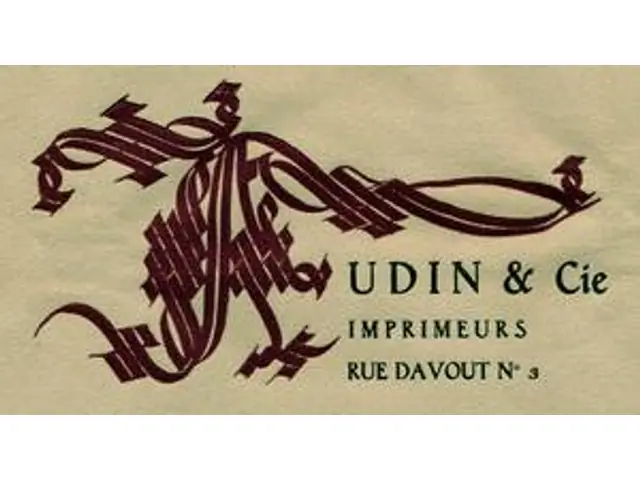
Uploaded 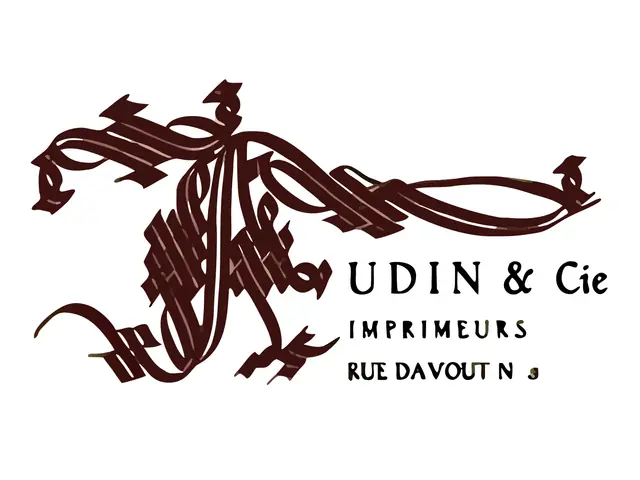
SVG returned A 300 px logo cut from a 1920s letterhead
The paper is gone: the monogram and the lettering come back as clean shapes, 124 in all.
Limit: At 300 px wide the smallest text cannot be rebuilt: the 3 of the address came back as a blob. Start from your largest copy.
Converted on vectosolve.com on October 2, 2026, background removed. Scan: Musée de l'imprimerie, Lyon, Wikimedia Commons, public domain.
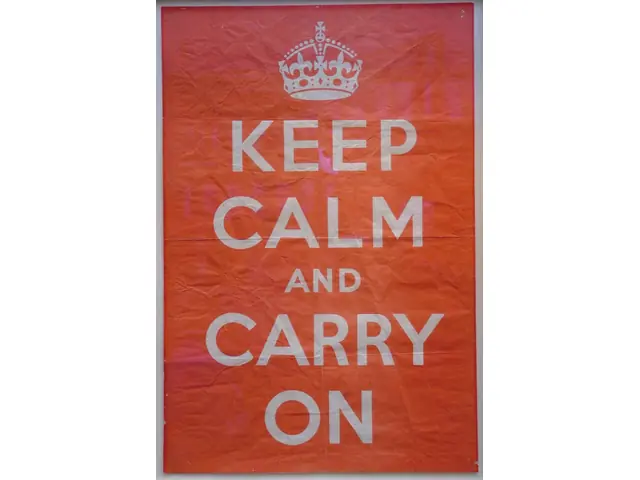
Uploaded 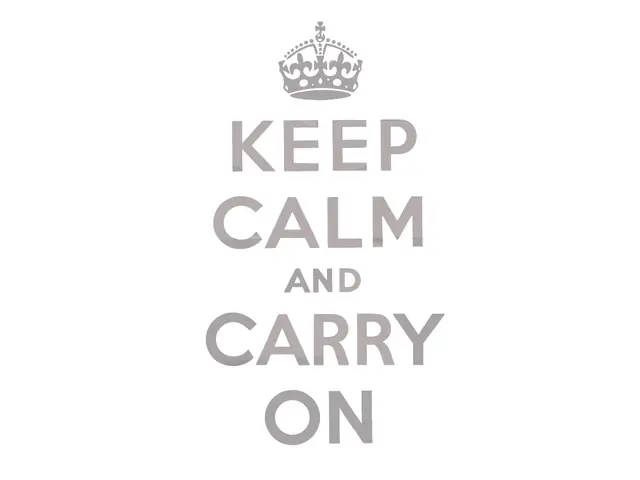
SVG returned A 1939 poster photographed under glass
The frame is gone: the text and the crown come back as clean vector shapes, 81 in all.
Limit: The red of the poster was removed with the background: the letters came back grey with a few reddish specks, so recolour them in your editor.
Converted on vectosolve.com on October 1, 2026, background removed. Photo: Tagishsimon, poster by the UK Government, Wikimedia Commons, public domain.
Or let the AI trace the whole logo
- 1
Upload your picture
Drop a PNG, JPG or WebP into the box at the top of this page, or tap Choose File on your phone.
- 2
Let the AI trace it
The conversion starts as soon as the picture is in: the AI finds its shapes and colors and redraws them as outlines.
- 3
Check your SVG and download it
The free preview shows your SVG with a watermark. Download SVG opens the payment options for the clean file.
Vectorize in Photoshop FAQ
Can Photoshop vectorize an image?
Partly. Photoshop has no automatic trace: it turns a selection into a work path, which you can fill as a shape layer and save as a vector. That works for a simple shape in one color. A logo with several colors needs one selection and one path per color, so a tracer such as Illustrator Image Trace or the converter on this page saves that work.
Does Photoshop have Image Trace?
No. Image Trace is a command of Adobe Illustrator, under Window, Image Trace. In Photoshop, vectors come from paths: the Pen tool, the shape tools, type, or Make Work Path from a selection.
Is a Photoshop EPS a vector file?
Only for its shape and type layers, and only if Include Vector Data was checked when you saved it. Pixel layers stay pixels inside the EPS, so a logo placed as an image is still an image. Adobe also notes that Photoshop rasterizes that vector data if you reopen the EPS in Photoshop.
How do I vectorize a logo in Photoshop for my printer?
Select each color with Select, Color Range, make a work path from each selection, fill each path as a shape layer, then save as Photoshop EPS with Include Vector Data. Or drop the logo in the converter at the top of this page: it traces all the colors in one conversion into an SVG, which Illustrator, Inkscape, Affinity Designer or CorelDRAW can save as EPS or PDF.
What Tolerance should I use for Make Work Path?
Adobe gives a range of 0.5 to 10 pixels. A higher value gives fewer anchor points and a smoother path, a lower one follows the selection more closely. Start with the default, raise it if the outline looks stepped, and check that corners and small letters keep their shape.
Can I upload a PSD file here?
Yes, if it was saved with Maximize Compatibility: the converter reads the flattened image the file stores. If it was not, use File, Export in Photoshop to save a PNG, and drop that.
Can I try it before paying?
Yes. You get one free preview a day with no signup: your whole SVG shows on screen with a watermark. Download SVG opens the payment options for the clean file, and the plans are on the pricing page.
The VectoSolve design team checked the Photoshop commands on this page in Adobe's help on November 29, 2026: paths and selections, fill layers, paths to Illustrator, EPS format and Illustrator Image Trace. Menu names can move between Photoshop versions.
More: logo to vector converter, PNG to AI for print shops, what to send a printer and what a vector file is.