
Clean Cut Lines When Silhouette Studio Trace Falls Short
Silhouette Studio traces by brightness, so a blurry PNG gives rough edges, a photo brings its background into the yellow area, and a drawn line comes back as two cut lines. Upload the image here instead, then open clean cut lines in Studio: a DXF for Basic Edition, an SVG for Designer and up.
- Smooth cut lines, even from a small or blurry PNG
- Photo backgrounds removed before the trace
- A DXF for Basic Edition, an SVG for Designer and up
Works with Silhouette Studio Basic, Designer, Designer Plus and Business Edition, on the Cameo, Portrait and Curio.
From a picture to cut lines in Silhouette Studio
- 1
Upload the picture
Drop the PNG, JPG or WebP you were about to trace. The free preview shows every traced shape, background removed, before you pay.
- 2
Pick a preset
Clean Cut for one-color vinyl and lettering, Balanced for most designs, High Detail for layered vinyl and detailed paper cuts.
- 3
Download your files
A plan gives the ZIP: a DXF for Basic Edition, an SVG with its colors for Designer Edition and up, and a PNG to check the design. The SVG can also be bought on its own.
- 4
Open it in Silhouette Studio
Use File, Open and pick the DXF or the SVG. The cut lines are already drawn, so skip the Trace panel, check the size and send the job to your machine.
Real pictures, and the files made from them
Each pair is one real conversion made on vectosolve.com on October 1 or 2, 2026, with the settings named under it. The right image is drawn from the SVG the converter returned, without the preview watermark and with nothing retouched. What the file does not do is written under each pair.
The DXF or G-code is not shown here: the right image is the SVG it is written from.
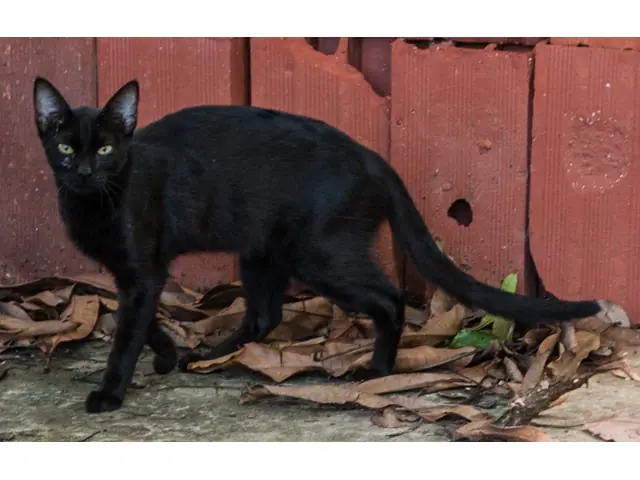
Uploaded 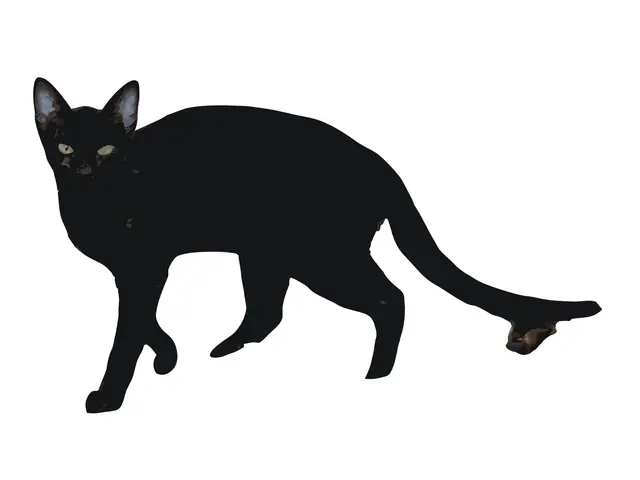
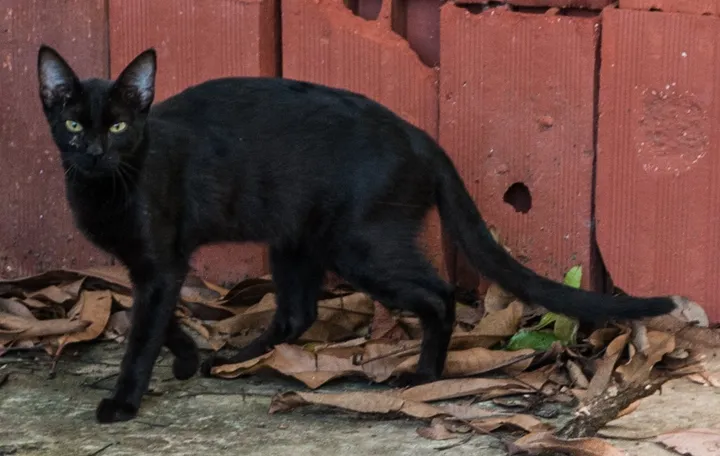
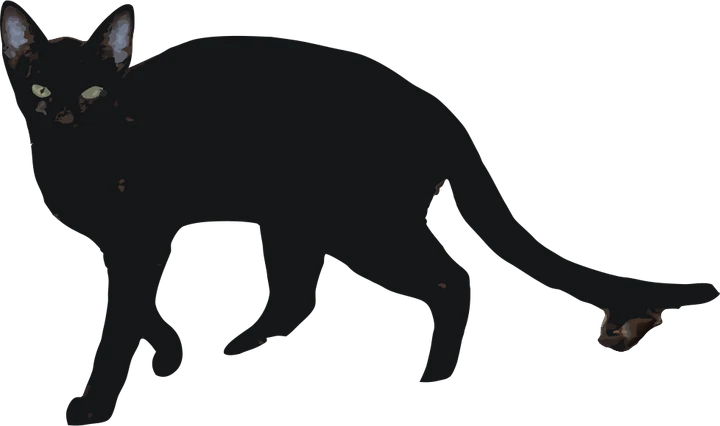
SVG returned A black cat walking past a red wall
The wall, the leaves and the ground are gone: the cat is one solid silhouette, with the eyes and ears as shapes on top.
Limit: A piece of dry leaf stayed under the tip of the tail: delete it, or weld everything into one shape.
Settings: free preview, Balanced preset. Converted on October 1, 2026. Photo: Wilfredor, Wikimedia Commons, CC0.
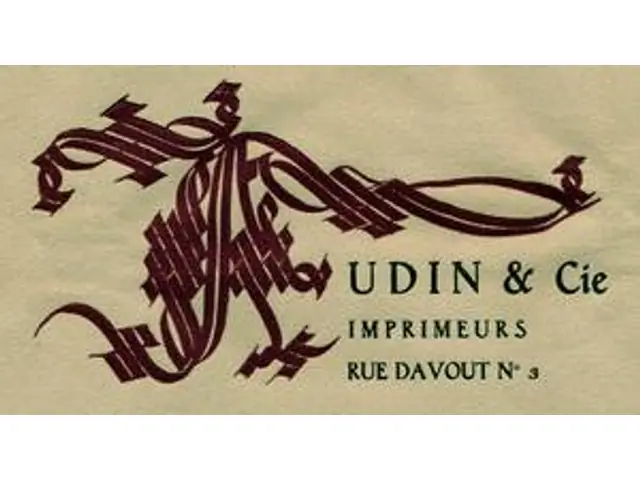
Uploaded 
SVG returned A 300 px logo cut from a 1920s letterhead
The paper is gone: the monogram and the lettering come back as clean shapes, 124 in all.
Limit: At 300 px wide the smallest text cannot be rebuilt: the 3 of the address came back as a blob. Start from your largest copy.
Settings: free preview, Balanced preset. Converted on October 2, 2026. Scan: Musée de l'imprimerie, Lyon, Wikimedia Commons, public domain.
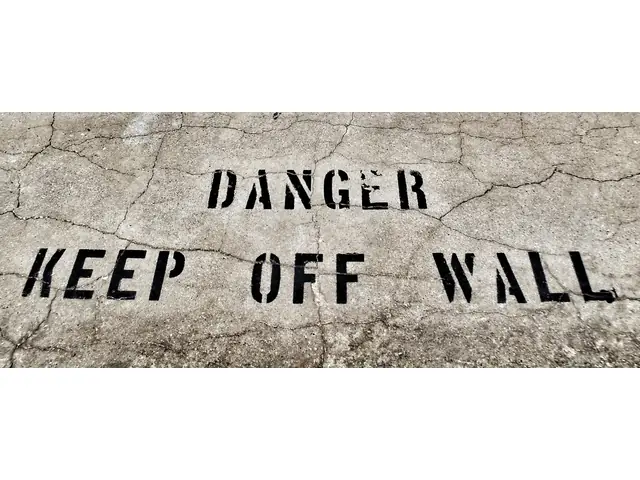
Uploaded 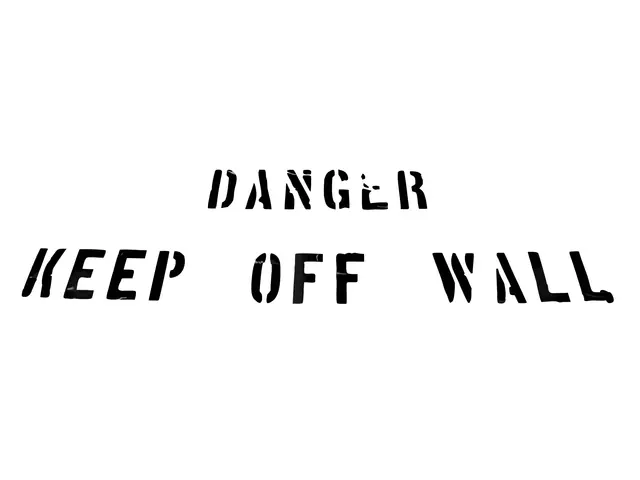
SVG returned Stencilled lettering on a cracked concrete wall
The concrete is gone: only the black stencil letters are left, and the stencil bridges stay real gaps.
Limit: Grey streaks where cracks cross the paint stay inside some letters: recolour them black or delete them.
Settings: free preview, Balanced preset. Converted on October 2, 2026. Photo: David Whelan, Wikimedia Commons, CC0.
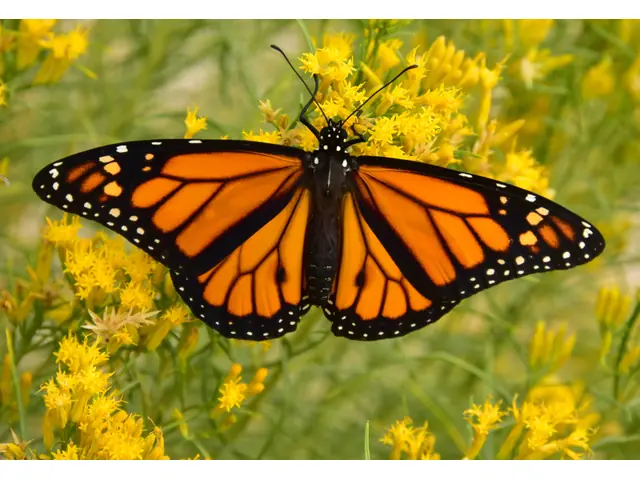
Uploaded 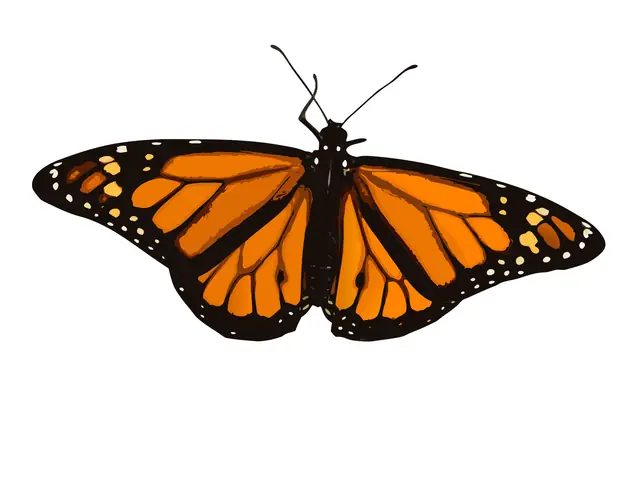
SVG returned A monarch butterfly on yellow flowers
The flowers and the grass are gone: the wings, the veins, the white dots, the body and both antennae are traced.
Limit: About 50 of the roughly 74 white dots were kept: the smallest ones on the wing edges were dropped.
Settings: free preview, Balanced preset. Converted on October 2, 2026. Photo: Tom Koerner, USFWS, Wikimedia Commons, public domain.
The Trace panel, setting by setting
Select Trace Area
Open the Trace panel from the right-hand toolbar or the Panels menu, click Select Trace Area and draw a box around the image. Everything shown in yellow will become a cut line.
Threshold and High Pass Filter
Threshold starts with the darkest colors and takes in lighter ones as you raise it. The High Pass Filter builds the lines from the outside of the image and moves them inward as its value goes up.
Scale
Scale controls how smooth the traced edges are. It is meant for blurry or pixelated images.
Trace, Trace Outer Edge, Trace and Detach
Trace cuts every outer and inner line. Trace Outer Edge cuts only around the outside, the usual pick for Print and Cut. Trace and Detach lifts the traced part off its background.
Trace by Color and file types
Trace by Color comes with Designer Edition and up. Basic Edition opens DXF, PNG and JPG files; SVG and PDF need Designer Edition or higher.
Silhouette Studio trace problems, and the fix
Double cut lines around every line
Trace cuts both edges of a drawn line. That is right to cut a shape out. For one line drawn with a sketch pen, use a centerline trace, which follows the middle of the stroke.
The background gets traced too
Threshold takes every area dark enough, shadows and walls included. The converter here removes the photo background first, so the cut lines follow the subject.
Rough, stepped edges from a small PNG
Trace follows the pixels it gets, so a small image keeps its steps. The converter redraws smooth curves, so the cut stays clean when you size it up.
A multi-color design turns into one cut
Basic Edition has no Trace by Color. The SVG from this page keeps each color as its own shapes for layered vinyl; on Basic Edition, the DXF gives you the cut lines.
For shops that sell Silhouette cut files
Cut files your Silhouette customers never have to trace
Selling designs to Cameo owners? Ship each one with clean cut lines in DXF and SVG, so Basic and Designer Edition customers both open it ready to cut. Convert one here, or send a folder of designs for a quote.
Free preview of the traced shapes, no signup. A folder of designs is quoted per file.
Which file each Silhouette owner opens
- DXF every edition, Basic included, cut lines only
- SVG Designer Edition and up, colors kept
- PNG Print and Cut, and listing previews
Product photos are mockups: each design is the real VectoSolve file, not retouched. Source photos are public domain or CC0. Photo: Wilfredor, Wikimedia Commons, CC0.
Custom · On quote
Top-of-market quality for complex jobs: large-format murals, detailed illustrations, photo to vector, multi-layer print files. Finished by hand by our team and checked before delivery.
Artwork for a screen, a print or a vinyl cutter starts the same way: the image to SVG converter for any picture, the PNG to SVG cut file converter when the shapes will be cut.
Silhouette Studio Trace FAQ
Why does Silhouette Studio trace give double lines?
Trace cuts every outer and inner line, so a drawn line gets an edge on each side. To cut a shape out, that is what you want. To draw one line with a sketch pen, you need a centerline trace, which follows the middle of the stroke.
Why is Silhouette Studio trace not working?
Trace needs an image in the document and a trace area. Open the PNG or JPG with File, Open, click Select Trace Area, draw a box over it, and raise Threshold until the parts you want turn yellow before you pick a trace method.
Can Basic Edition trace by color?
No. Trace by Color comes with Designer Edition and up. On Basic Edition, open the DXF from this page instead: the cut lines are already drawn, so there is nothing to trace.
Should I open the DXF or the SVG in Silhouette Studio?
Basic Edition opens the DXF, which carries the cut lines only. Designer Edition and up also open the SVG, which keeps the colors for layered vinyl and Print and Cut.
Can I see the cut lines before I pay?
Yes. The free preview shows the traced shapes of your image, background removed, so you can judge the cut before you pay. The DXF comes in the ZIP of a paid plan; the SVG for Designer Edition can also be bought by itself.
More machine guides: all VectoSolve tools