
SVG Files for Siser Juliet and Romeo
Leonardo Design Studio opens SVG, PNG, JPG and TIF. A clean SVG goes straight to Cut Only, with no tracing step and no jagged edges on your heat transfer vinyl.
- Opens in Leonardo Basic, no Pro needed to import
- Clean cut paths that weed easily
- Colors split into separate shapes for layered vinyl
Works with the Siser Juliet and Romeo, in Leonardo Design Studio Basic and Pro.
How to cut an image on a Siser Juliet or Romeo
- 1
Upload the image
Drop the logo, drawing or photo. The free preview shows the cut paths before you pay.
- 2
Pick the preset
Clean Cut for one color of HTV, High Detail for layered designs with several colors.
- 3
Download the SVG
The SVG keeps each color as its own shape, ready to cut one vinyl color at a time.
- 4
Import into Leonardo
Use File, Open, Import File, or drag the SVG in. Choose Cut Only, or Editable Artwork to change sizes and colors, mirror it for heat transfer vinyl, and send it to the cutter.
Leonardo Design Studio, what to know
Import formats
Leonardo Basic and Pro both import JPG, PNG, SVG and TIF. Images go to the Contour Cutting module; SVG files let you pick Print and Cut, Cut Only or Editable Artwork.
Export needs Pro
Saving out JPG, PDF, PNG, SVG or TIF is a Leonardo Pro feature. Importing and cutting an SVG works in Basic.
Mirror for HTV
Heat transfer vinyl is cut with the carrier side down, so the design must be mirrored before cutting. Adhesive vinyl is cut as is.
Small pieces
Tiny islands in HTV lift off during weeding. Pick Clean Cut, or scale up designs with very fine detail.
Common Siser cutting problems
The PNG traces with rough edges
A PNG goes through the Contour Cutting module, which traces the pixels. Import the SVG instead: the cut lines are already drawn.
The design came out backwards on the shirt
It was not mirrored. Heat transfer vinyl needs the mirror turned on before cutting.
There is no DXF option
Siser's import list is JPG, PNG, SVG and TIF, so use the SVG in Leonardo.
Weeding takes forever
The design has too many small fragments. The Clean Cut preset keeps fewer, larger shapes.
For apparel and HTV businesses
Team shirt logos ready to cut on Siser
Team shirts, small business logos and event orders: convert each logo into a clean SVG here, or send the whole order for a quote.
Free preview of the cut paths, no signup. One quote covers the whole order.
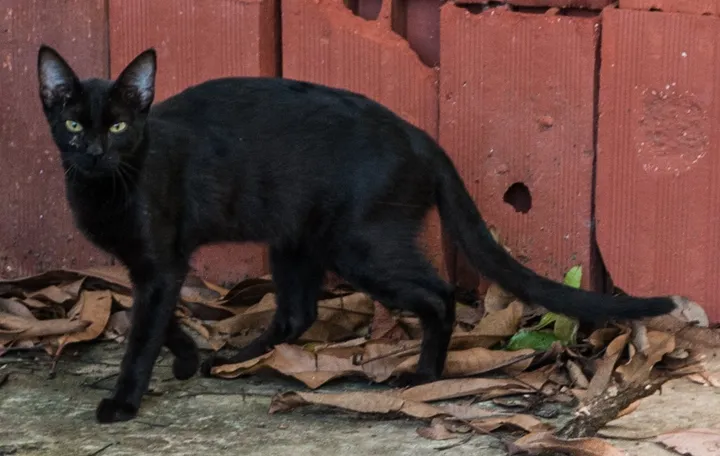
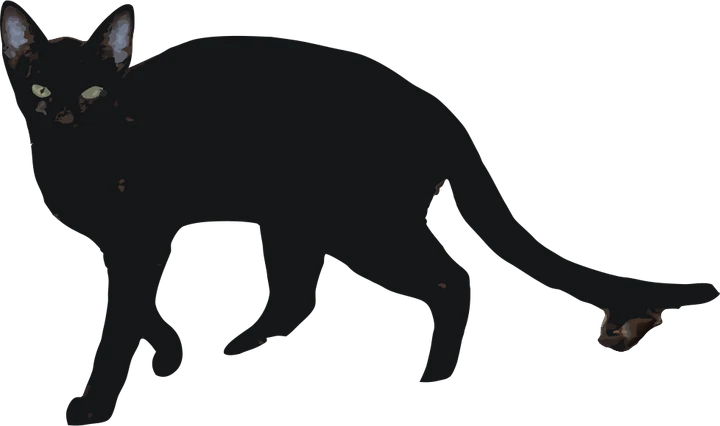
What Leonardo does with each file
- SVG Leonardo Design Studio: Cut Only or Editable Artwork
- PNG Leonardo Contour Cutting, for Print and Cut
Product photos are mockups: each design is the real VectoSolve file, not retouched. Source photos are public domain or CC0. Photo: Wilfredor, Wikimedia Commons, CC0.
Custom · On quote
Top-of-market quality for complex jobs: large-format murals, detailed illustrations, photo to vector, multi-layer print files. Finished by hand by our team and checked before delivery.
Working from a logo or a photo with no machine in mind? Use the VectoSolve vectorizer; for a vinyl or paper cut, the PNG to SVG tool.
SVG for Siser Juliet FAQ
What file types does Leonardo Design Studio accept?
JPG, PNG, SVG and TIF, in both the Basic and the Pro version. SVG is the one that keeps clean cut lines without tracing.
Do I need Leonardo Pro to cut an SVG?
No. Basic imports and cuts SVG files. Pro adds export and more design tools.
Does the same SVG work on the Juliet and the Romeo?
Yes. Both cutters run from Leonardo Design Studio, so the same SVG cuts on either one.
Can I print and cut with a Siser Juliet?
Yes. Leonardo offers Print and Cut for SVG imports, and PNG or JPG images go through its Contour Cutting module.
Can I use a DXF in Leonardo Design Studio?
Siser lists JPG, PNG, SVG and TIF for import. Use the SVG; the DXF in the download is there for other cutting software.
More machine guides: all VectoSolve tools