
SVG and DXF Files for Carveco
Carveco's Bitmap to Vector is quick on clean, flat artwork. For a phone photo, a scanned sketch or a blurry customer logo, trace it here first and import closed vectors that your toolpaths can use straight away.
- Closed vectors for profile, pocket and V-bit toolpaths
- SVG and DXF in the same download
- True size in millimeters or inches
Works with Carveco Maker, Maker Plus and Pro, and the CNC machines their post processors support.
How to bring a clean vector into Carveco
- 1
Upload the image
Drop a PNG or JPG: a logo, a pencil sketch or a photo of a carved sign. The free preview shows each vector before you pay.
- 2
Choose the preset for the toolpath
Profile Cut for shapes you will cut out, V-Carve for lettering and fine ornaments, Balanced for most signs.
- 3
Download SVG or DXF
Carveco imports both. Set millimeters or inches and the final width in the DXF panel, so the artwork lands at its real size.
- 4
Import and add toolpaths
Import the file into your Carveco model, check its size, then pick a toolpath: profile with bridges, area clearance for pockets, or V-bit.
Carveco settings to check on import
Auto-resize vector artwork
When this option is on, Carveco resizes vector artwork as it imports it. Turn it off in the Carveco options to keep the size set in the file.
Closed vectors for pockets
Area clearance and V-bit toolpaths need closed vectors to know what lies inside. An open vector can only be followed as a line.
SVG needs a recent version
Carveco added SVG import with its 1.17 update. On an older install, import the DXF from the same download instead.
Bridges on profile cuts
Add bridges, also called tabs, to profile toolpaths so small parts stay in the board until the job ends.
Common Carveco import problems
The file does not show in the import window
The file type list filters the folder. Switch it to SVG, DXF or All Files, then pick the file again.
The artwork imports at the wrong size
Auto-resize vector artwork is on. Turn it off and import again, or type the real width in the DXF panel before you download.
Bitmap to Vector gives ragged edges
On a small or noisy image, any tracer follows the pixel steps. The converter here redraws smooth curves first, so the vectors come in clean.
A pocket fills the wrong area
Some vectors are open or cross each other. Use the closed trace from this page, where shapes nest without crossing.
For sign makers carving in Carveco
Carved signs from the files customers actually send
House signs, plaques and brand logos start as photos and screenshots. Convert them here in seconds, or send a batch for a quote and get closed vectors at the size of the board.
Free preview of the vectors, no signup. Send the batch when a job needs more cleanup.
Where each file goes in Carveco
- SVG vector import with the shapes and colors
- DXF vector import at the size you set, R12 or AutoCAD 2000
- PNG a proof to send the customer before you carve
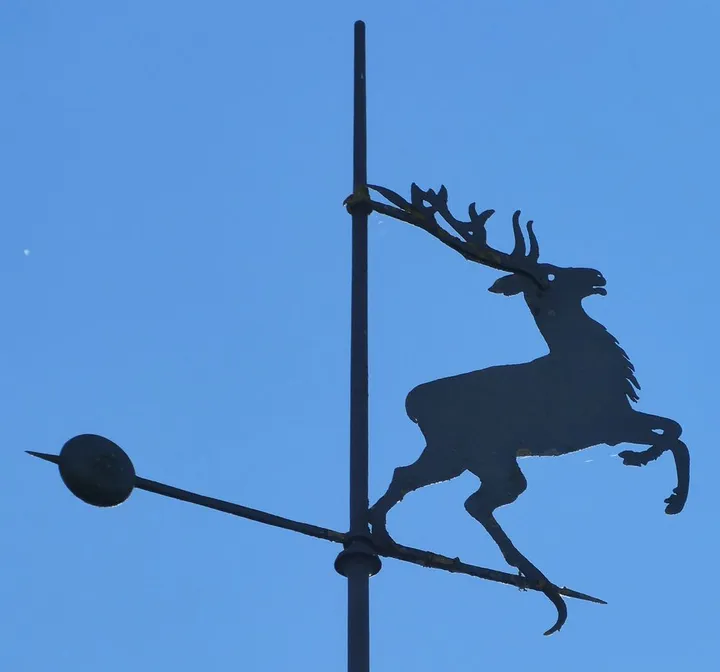
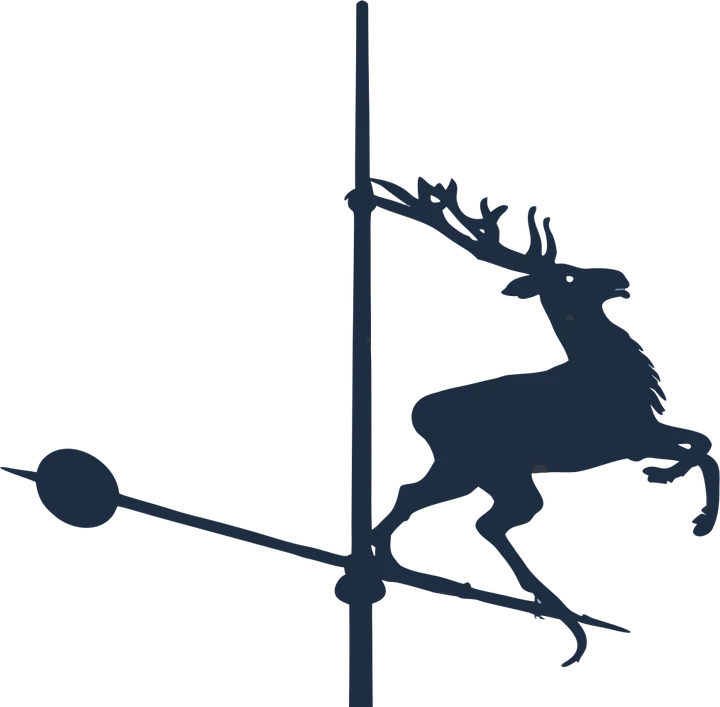
Product photos are mockups: each design is the real VectoSolve file, not retouched. Source photos are public domain or CC0. Photo: Renardo la vulpo, Wikimedia Commons, CC0.
Custom · On quote
Top-of-market quality for complex jobs: large-format murals, detailed illustrations, photo to vector, multi-layer print files. Finished by hand by our team and checked before delivery.
No machine at the end of the job? The VectoSolve vectorizer turns any picture into an SVG, and the PNG to SVG converter keeps the paths ready to cut.
Done for you, from $9 per file
Carving signs every week?
Send the customer artwork and we prepare closed vectors for your toolpaths, checked before delivery.
- Simple One colour, bold shapes: a silhouette, a monogram, a simple logo$9 per file
- Standard A logo or lettering up to 3 colours, a sign layout$15 per file
- Complex Fine detail, small text, many colours, a photo or a sketch$25 per file
- Production CNC or plasma profiles with G-code, multi-layer and multi-part jobs$45 per file
Rush: next business day, +$5 per file. Quote within one business day; the delivery date is on the quote.
Shop plans, for files every week
- Shop 1010 files a month$99 a month
- Shop 2525 files a month$199 a month
- Shop 5050 files a month$349 a month
Any file up to Complex counts as one, a Production file counts as two. Unused files do not roll over.
- You pay after you have seen the watermarked preview
- Files checked before delivery, in the format your machine reads
More on our raster to vector service.
SVG for Carveco FAQ
Can Carveco import SVG files?
Yes. Carveco imports SVG, DXF, DWG, EPS, AI and PDF vectors, and BMP, GIF, JPG, TIF and PNG images. SVG import arrived with the 1.17 update.
Is this better than Carveco Bitmap to Vector?
On clean, flat artwork the built-in tool is quick. On photos, scans and low resolution logos, the converter here draws smooth closed shapes first, so less node editing is left.
Which preset suits a V-carved sign?
V-Carve keeps the most detail for lettering and ornaments. For letters cut out of the board, Profile Cut keeps fewer, smoother nodes.
Does Carveco send the G-code to my machine?
No. Carveco writes the toolpaths through its post processors; a separate controller program sends them to the machine.
What does the Carveco preview include?
The free preview shows the traced vectors. Downloading the SVG, DXF and PNG is part of a paid plan.
More machine guides: all VectoSolve tools