
DXF and SVG Files for Fiber Lasers
A galvo fiber laser marks what the file gives it: closed vector shapes that EZCAD can hatch, at the size of the part. Turn the customer logo into that file in seconds.
- Closed shapes that hatch without gaps
- DXF for EZCAD2, SVG for EZCAD3 and LightBurn
- One layer per color in the DXF, ready for your pens
Works with EZCAD2, EZCAD3 and LightBurn Galvo.
How to prepare a fiber laser file
- 1
Upload the logo or artwork
Drop a PNG, JPG or a screenshot of the logo. The free preview shows every closed shape before you pay.
- 2
Pick the preset
High Detail for small marks and fine lines, Balanced for most logos, Clean Cut for bold shapes.
- 3
Download DXF or SVG
DXF is the safe choice for EZCAD2. SVG suits EZCAD3, LightBurn Galvo and recent EZCAD2 builds.
- 4
Import, hatch and mark
In EZCAD, import the vector file, select it and run Hatch, set the pen parameters, check the position with the red light preview, then mark.
EZCAD settings that change the mark
Hatch needs clean shapes
EZCAD fills closed objects with the Hatch command. Shapes can sit inside each other, but shapes that cross each other confuse the fill.
Hatch line distance
The line distance sets how dense the fill is. Tighter spacing marks darker and takes longer.
Units on import
The DXF from this page is written in millimeters. Check the width and height in EZCAD before marking: a file read in the wrong unit comes in 25.4 times too big or too small.
Pens per color
Each color in the DXF sits on its own layer, so each color can get its own pen: speed, power and frequency.
Common fiber laser file problems
Hatch leaves gaps or fills the wrong area
The file has crossing or broken outlines. A clean trace gives closed shapes that nest without crossing.
The SVG will not import in EZCAD2
Older EZCAD2 builds list PLT, DXF and AI but not SVG. Use the DXF from the same download.
Small text marks with rough edges
The source logo was too small. The High Detail preset keeps thin strokes; for a very poor original, send it for a quote.
For fiber and galvo shops
Customer logos that hatch clean the first time
Fiber work is often small, repeat and on metal, and a bad trace costs a part. Convert the logo here, or send the batch for a quote: closed DXF or SVG files, checked before delivery.
Free preview of the closed shapes, no signup. You pay only once the file looks right.
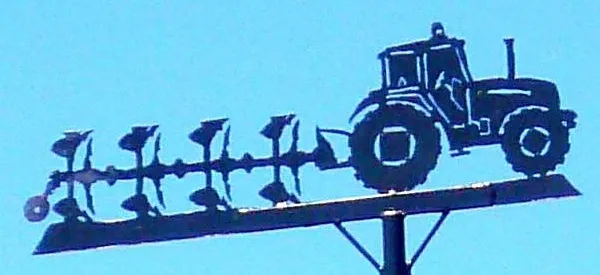
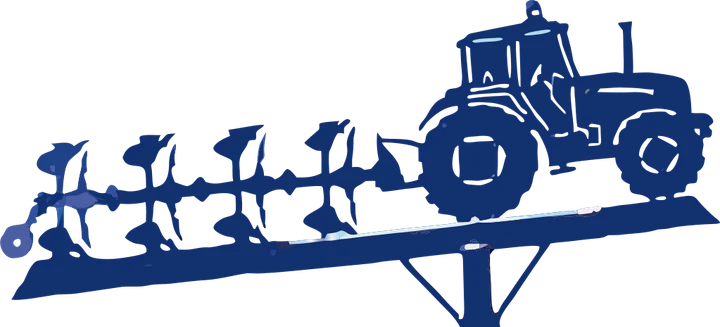
What each file is for
- DXF EZCAD2 and EZCAD3, one layer per color
- SVG LightBurn Galvo and recent EZCAD builds
- PNG bitmap marking for photos
Product photos are mockups: each design is the real VectoSolve file, not retouched. Source photos are public domain or CC0. Photo: Zarateman, Wikimedia Commons, CC0.
Custom · On quote
Top-of-market quality for complex jobs: large-format murals, detailed illustrations, photo to vector, multi-layer print files. Finished by hand by our team and checked before delivery.
Working from a logo or a photo with no machine in mind? Use the image to SVG converter; for a vinyl or paper cut, the PNG to SVG converter for Cricut and Silhouette.
Fiber laser files FAQ
What file types does EZCAD accept?
EZCAD2 imports vector files such as PLT, DXF, AI and DST, with SVG in recent builds, and bitmaps such as BMP, JPG, PNG and TIF. DXF is the format every version reads.
DXF or SVG for a fiber laser?
DXF for EZCAD2, since every build reads it. SVG for EZCAD3 and LightBurn Galvo. Both come in the same download.
Can a fiber laser mark a photo?
Yes, as a bitmap with a dithering or grayscale mode in EZCAD or LightBurn. Use the PNG for that, and the vector files for logos and text.
Does the file work for tumblers and rotary jobs?
Yes. The file stays flat; the wrap around the cup, or the split marking, is set in your rotary settings.
Can I use the same fiber laser file in LightBurn?
Yes. LightBurn runs galvo fiber lasers with its galvo version and imports the same SVG and DXF.
More machine guides: all VectoSolve tools