
SVG and DXF Files for LightBurn
Trace Image gives double lines, jagged curves or open shapes that will not fill? Upload the picture here instead and import a clean SVG or DXF into LightBurn, with closed shapes ready to fill, score or cut.
- Filled, closed shapes that LightBurn can fill
- DXF in millimeters, one layer per color
- Smooth curves instead of pixel steps
Works with LightBurn and LightBurn Galvo, on diode, CO2 and fiber lasers.
How to get a clean file into LightBurn
- 1
Upload the picture
Drop the PNG, JPG or WebP: a logo, a drawing or a photo. The free preview shows every traced shape before you pay.
- 2
Pick a preset
Clean Cut for shapes you will cut out, Balanced for most logos, High Detail for engraving art with fine lines.
- 3
Download SVG or DXF
Take the SVG to keep the colors and edit in LightBurn, or the DXF when the size must be exact. The DXF is written in millimeters.
- 4
Import and set the layers
In LightBurn, use File, Import or drag the file onto the workspace. Set cut lines to Line and engraved areas to Fill, then check the width and height before you frame the job.
LightBurn settings that decide the result
SVG import DPI
LightBurn reads SVG at 96 DPI by default, the Inkscape value. A file that lands at 75 or 133 percent of the size you expect was written at 72 DPI: change the SVG import DPI in the file settings, or import the DXF.
Line, Fill or Offset Fill
Line follows the path for cuts and scores. Fill engraves the inside of closed shapes only, so an open shape stays empty. Offset Fill follows the outline inward, which suits lettering and simple logos.
Open shapes
LightBurn can select the open shapes in a design and close small gaps with a tolerance. A file made of filled, closed shapes skips that cleanup.
Node count
Thousands of tiny segments make the head stutter and the job run long. The Clean Cut preset keeps fewer nodes on simple shapes.
Trace Image problems, and the fix
Double lines around every stroke
Trace Image outlines both edges of a line. For a single engraved line, use the Centerline Trace tool; for solid shapes, use the filled trace from this page.
The shape will not fill
A Fill layer needs closed shapes. The SVG from this page is made of filled shapes, so LightBurn can fill it on import.
Jagged curves on a small logo
Trace Image follows the pixels it is given. The converter redraws smooth curves, so a small logo still gets clean edges.
The design imports at the wrong size
Check the SVG import DPI, or use the DXF. Then type the final width in the numeric edit boxes, with the ratio locked so the proportions stay.
For laser shops running LightBurn
Customer artwork that opens clean in LightBurn
Most laser jobs arrive as a phone photo or a blurry logo. Convert them here in seconds, or send a batch for a quote: closed-path SVG and DXF files, checked before delivery.
Free preview of the traced shapes, no signup. Quotes are answered within one business day.
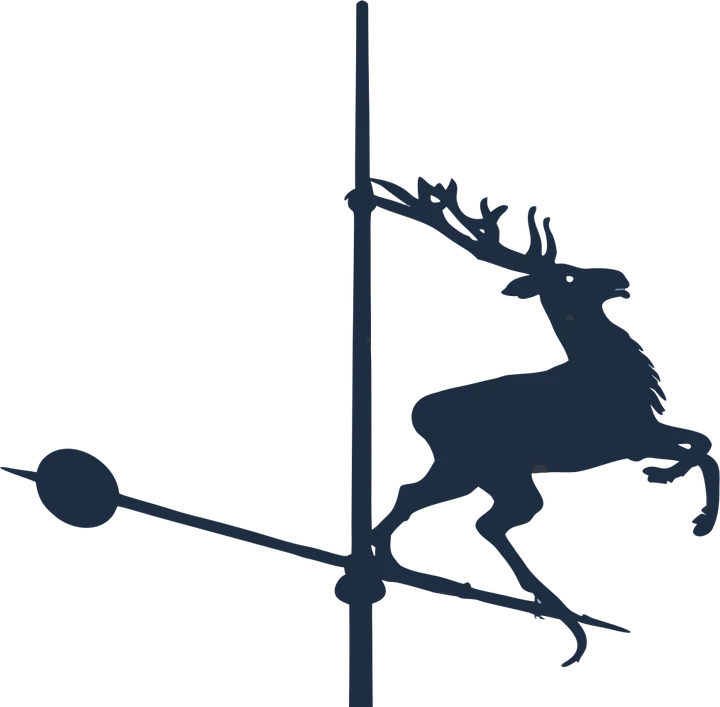
What LightBurn does with each file
- SVG imports with its colors, editable in LightBurn
- DXF exact size in millimeters, one layer per color
- PNG Image mode engraving, dithered or grayscale
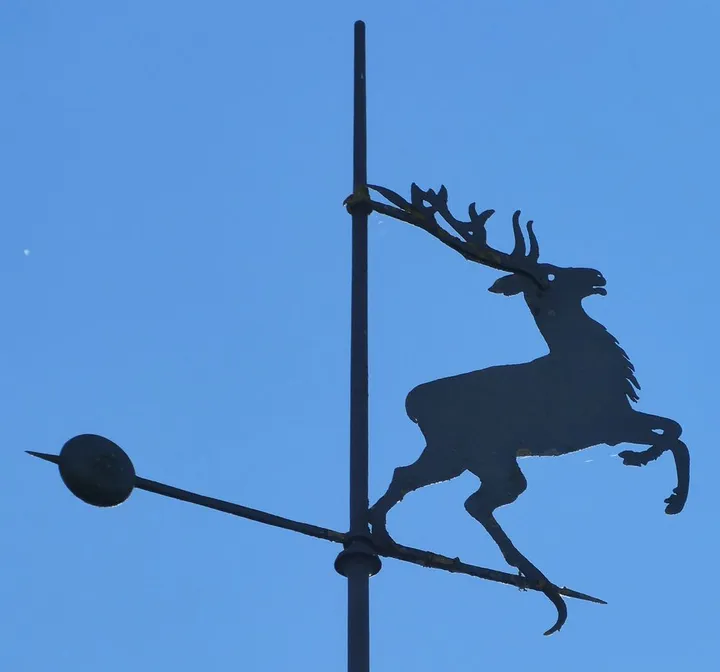
Product photos are mockups: each design is the real VectoSolve file, not retouched. Source photos are public domain or CC0. Photo: Renardo la vulpo, Wikimedia Commons, CC0.
Custom · On quote
Top-of-market quality for complex jobs: large-format murals, detailed illustrations, photo to vector, multi-layer print files. Finished by hand by our team and checked before delivery.
No machine at the end of the job? The image to SVG converter turns any picture into an SVG, and the PNG to SVG converter for Cricut and Silhouette keeps the paths ready to cut.
SVG for LightBurn FAQ
Can LightBurn import SVG and DXF files?
Yes. LightBurn imports SVG, DXF, AI and PDF vectors, plus PNG, JPG and BMP images. SVG keeps its colors, which LightBurn turns into layers; DXF keeps exact dimensions.
Is this better than LightBurn Trace Image?
Trace Image works well on crisp black and white art. On photos, scans and low resolution logos it follows every pixel step. This converter draws smooth curves first, so the file is ready to fill or cut without cleanup.
Should I import the SVG or the DXF into LightBurn?
Use the SVG when you want colors and easy editing. Use the DXF when the size has to be exact, for inlays, boxes or parts that must fit: it is written in millimeters.
Does the file work with LightBurn on a galvo fiber laser?
Yes. The SVG and DXF are the same for diode, CO2 and galvo lasers; only the layer settings in LightBurn change.
Why does my SVG look tiny or huge in LightBurn?
The SVG was written at a different DPI than LightBurn expects. Switch the SVG import DPI between 96 and 72, or import the DXF, which LightBurn reads at its true size.
More machine guides: all VectoSolve tools